Copy Programs from One Disk to Another in Windows 10
Installed programs are more complex than ordinary files. They may use registry entries, services, drivers, license files, and data folders outside the installation path.
Understand the problem
Some Microsoft Store apps can be moved in Settings. Traditional desktop programs are usually safer to reinstall to the new drive, while personal data and configuration files should be backed up first.
- Confirm the exact disk, partition, drive letter, file system, and capacity before changing anything.
- Back up or recover important files before formatting, deleting, converting, resizing, or recreating partitions.
- For boot-related changes, check BIOS or UEFI mode, boot order, and system partition status before editing disk layout.
Use Windows built-in tools
Use Windows built-in app settings for supported apps and manual backup for program data.
- Open Settings > Apps > Apps & features and select the app you want to move.
- If the Move button is available, choose the new drive and wait for Windows to relocate the app.
- For desktop software without a Move button, back up user data and license information.
- Uninstall the program only after backup, then reinstall it to the new disk.
- Open the program and confirm that settings, projects, and plugins still work.
Use Qiling tools for guided steps
 Qiling Disk Master
Back up program data and user folders before moving or reinstalling programs to another disk.
Function. Back up files before changing locations or programs
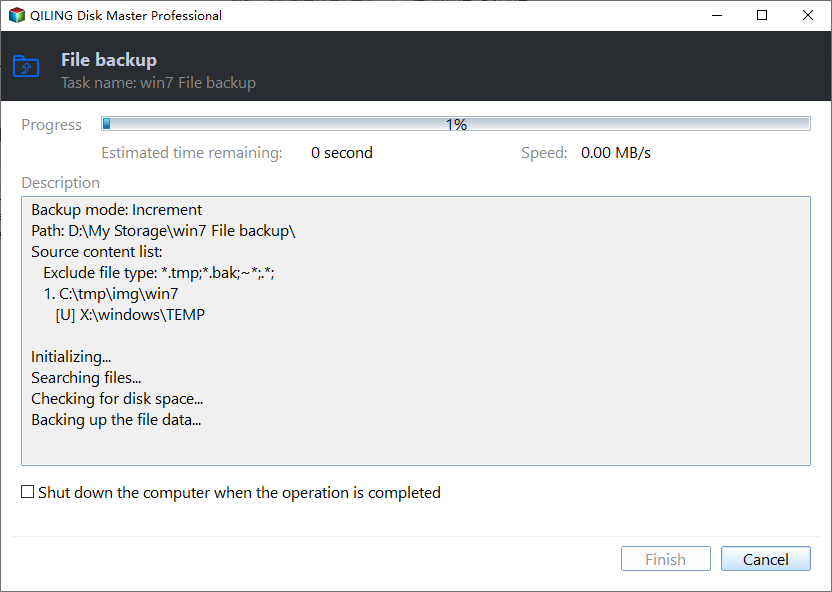
Step 1. Open Qiling Disk Master and choose Backup and Recovery > File backup.

Step 2. Select program data folders, user project folders, and configuration files and any related configuration folders that you may need later.

Step 3. Choose a destination on another disk, external drive, or network location. Avoid saving the backup to the disk you are about to modify.

Step 4. Review the source and destination, then click Proceed. Keep the backup until the new location or new program path is verified.
Check the result
Run the moved or reinstalled program, open a real project or document, and confirm shortcuts, file associations, and updates still work.
Related Articles
-
Change Program Files Location
Understand what can and cannot be moved from Program Files. -
Move Program Files (x86)
Move program-related folders with fewer broken shortcuts or missing files.
Products
Articles & Tutorials
- Data Recovery
- Data Backup
- File Recovery
- File Backup
- File synchronize
- System Backup and Restore
- Disk and Partition Clone
- Technical articles
- Disk Master Help
- Windows Deleted File and Disk Recovery Tutorials
- Windows File and Data Recovery Tutorials
- More Windows Tutorials for Install, Security, Files, and PC Tips
- Windows Boot, Repair, and Recovery Environment Tutorials
- Windows Backup Tutorials
- Windows Restore Tutorials
- Windows Clone and Migration Tutorials
- Windows Server Backup, Recovery, and Management Tutorials
- Windows Disk, Partition, and Storage Management Tutorials