Guide | How to Migrate Hard Drive to SSD in Windows 10/11
Case: migrate hard drive to SSD
You can clone your 1TB HDD to the new 1TB SSD using software like Qiling Disk Master. This will create an exact copy of your original system drive, including the operating system, installed programs, and settings. After cloning, you can boot from the SSD and still have the original HDD as a backup in case the SSD fails. To ensure a smooth transition, make sure to: 1) disconnect any unnecessary external devices, 2) disable any unnecessary startup programs, 3) update your SSD's firmware before cloning, and 4) test your system thoroughly after cloning to ensure everything is working properly.
With the growing popularity of SSDs, many users are now considering upgrading their HDDs to SSDs. If you're looking to make the switch and keep all your old files, apps, and operating system intact, you can easily migrate your hard drive to an SSD using a disk cloning tool. This allows you to transfer everything from your original HDD to the new SSD, ensuring a seamless transition with minimal disruption to your computer's functionality.
If you're planning to migrate your hard drive, you're likely wondering which tool to use, how to do it securely, and what considerations to take before and during the process. This article aims to provide a comprehensive reference for those with the same confusions, covering the necessary steps and precautions to ensure a smooth and secure hard drive migration.
- The benefits to migrate HDD to SSD
- Best clone software to help you migrate hard drive to SSD
- How to clone hard drive to SSD with secure boot (step-by-step)
- Frequently asked questions about hard drive migration

The benefits to migrate HDD to SSD
People may choose to migrate their hard drive to a new SSD for various reasons, including upgrading to a faster storage device, reducing power consumption, or increasing storage capacity.
◆Better performance: Compared to traditional HDDs, SSDs generally offer better performance in writing and reading speed, system security, and compatibility, making them a popular choice for upgrading old HDDs, especially among gamers.
◆SSD for OS and HDD for storage: If you're getting low disk space warnings and your computer is slowing down, consider moving Windows to a new SSD as the boot drive and keeping your old HDD for storage purposes only.
◆SSDs are affordable now: The widespread adoption of affordable SSDs like Samsung 970 EVO and Samsung M.2 has made it a natural need for many people to migrate from traditional hard drives (HDD) to solid-state drives (SSD) after purchasing a new HDD.
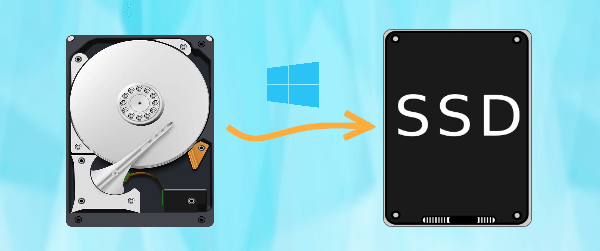
Best clone software to help you migrate hard drive to SSD
Cloning is a more direct way to duplicate a hard drive and make the target SSD bootable compared to system image backup and restore, but Windows OS does not have this feature, so you will need to use a disk cloning software.
When selecting a new SSD, be aware that it's often smaller than a HDD of the same cost, which may cause issues during the migration process. To avoid problems, ensure the cloning tool you use supports cloning between disks of different sizes, specifically cloning a larger HDD to a smaller SSD.
Among all similar products on the market, Qiling Disk Master Standard stands out as an excellent option for HDDs or SSDs with Windows 11/10/8.1/8/7/XP/Vista installed, offering significant advantages.
◇ You can use it for free, but if you need advanced features and support, you'll have to pay for it.
◇ With the free Disk Clone, you can clone a hard drive to an SSD without having to reinstall your operating system and apps.
◇ You can migrate a larger hard drive to a smaller SSD using the intelligent clone technology, which allows for a seamless transfer of data.
◇ Hard drive data transfering operation is straightforward and easily understandable through an user-friendly interface.
◇ If you have a small disk and only want to clone Windows to an SSD, you can use the System Clone feature to clone only the OS to the new SSD. This feature is available in the Professional edition.
The free Standard edition of the software supports cloning all data disks and MBR system disks, but if the system disk is partitioned with GPT, an upgrade to a higher edition is required.
How to clone hard drive to SSD with secure boot (step-by-step)
Before getting started, there are some preparations you should do:
◆ Connect your SSD to your computer and ensure it can be detected. If your laptop has only one drive slot, use a USB-to-SATA adapter or enclosure to connect the SSD as an external hard drive.
◆ Before cloning, make sure to back up any important data from the target SSD, as everything on it will be overwritten during the cloning process.
◆ Download Qiling Disk Master Standard, install and launch it.
*If your HDD had a major malfunction and Windows cannot boot up, you can also use a bootable USB drive to install a new copy of Windows, or use a Linux distribution to access your files and transfer them to a new HDD. Alternatively, you can use a data recovery software to recover your files from the malfunctioning HDD. If the HDD is beyond repair, you can use a professional data recovery service to recover your files.clone hard drive to SSD via USB.
To migrate a larger hard drive to a smaller SSD in Windows 10, you can use the built-in Windows 10 feature called "Clone" or third-party software like Qiling Disk Master. The process typically involves creating a backup of your current hard drive, then cloning that backup onto the smaller SSD.
Steps to migrate HDD to smaller SSD in Windows 10:
1. Click on the "Clone" button on the left side of the interface, then select "Disk Clone" from the dropdown menu.
System Clone: It's available in advanced editions and allows you to migrate only the operating system to an SSD.

2. To select the source disk, click on the HDD you want to clone, then click Next.

3. Select the connected SSD as the destination, noting its smaller size compared to the source HDD, and click Next to proceed.

4. To migrate a hard drive (HDD) to a solid-state drive (SSD), enable SSD Alignment to optimize SSD performance and extend its lifespan. Proceed with the cloning process, and once it's complete, the HDD will have been successfully migrated to the SSD.
Sector By Sector Clone: The default intelligent mode clones only used sectors, allowing for larger to smaller disk cloning. However, if you want to clone all sectors, regardless of usage, you can select this option.
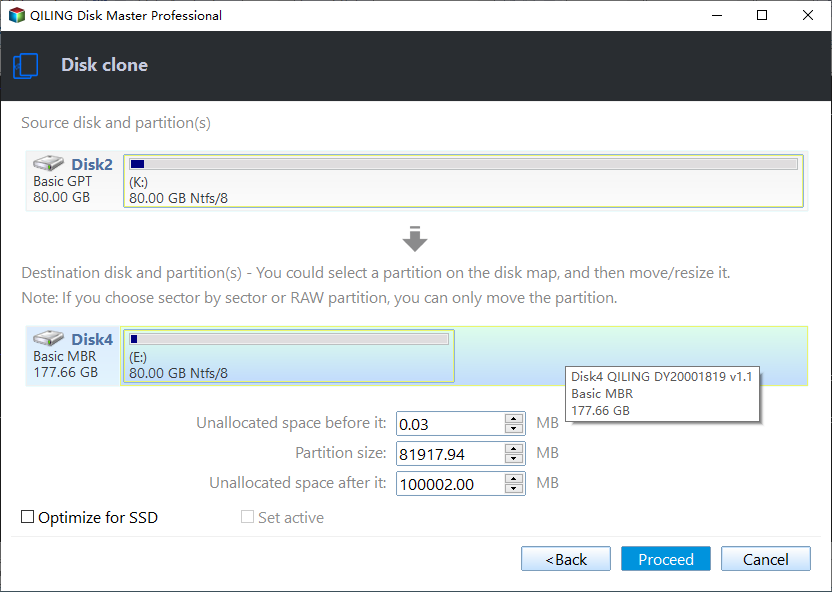
👉Tips: Edit partition size to make full use of a larger SSD:
To avoid having a cloned SSD that doesn't show full capacity after migration, you can try using the Edit Partitions feature, which is supported by the Professional and above editions. This feature allows you to adjust the partition layout on your target SSD to match the capacity of the source HDD. This can help ensure that your cloned SSD shows its full capacity after migration.
- Add unused space to all partitions: To optimize disk space usage, unused space from one partition can be reallocated to another, ensuring each partition has sufficient space proportional to the disk size. This helps maintain a balanced and efficient use of disk space, preventing any single partition from consuming too much space and leaving others underutilized.
- Manually adjust partition size: To extend unallocated space to any partition on the destination disk, you need to manually adjust the size of the partition. This involves allocating the unallocated space to the desired partition, effectively increasing its size. This process can be a bit more involved than a standard clone or copy operation, as it requires manual intervention to resize the partition.
How to boot Windows from the cloned SSD
✤To replace your old hard drive with a cloned SSD, first shut down your computer, then replace the old hard drive with the cloned SSD. Next, start your computer and enter the BIOS settings by pressing the required key (usually F2, F8, or Del). Ensure the cloned SSD is selected as the first boot drive and save the settings by pressing F10. This will allow your computer to boot from the new SSD.
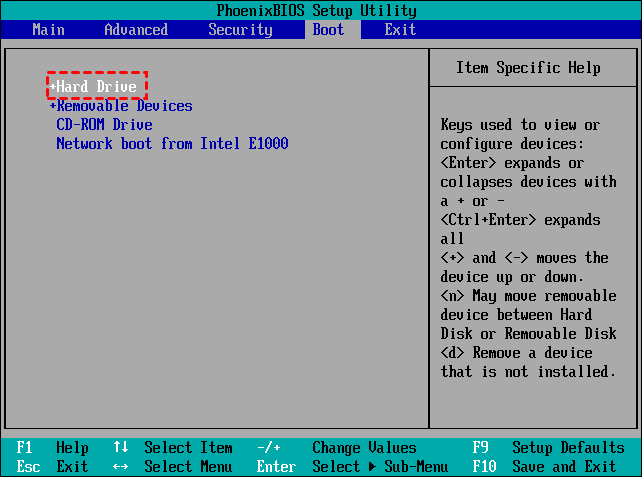
✤If your computer can log into Windows normally after the HDD to SSD migration, then the process was successful and you can enjoy the improved performance.
✤If your computer has an extra slot, you can also attach an old hard drive for storage. The Qiling Disk Master contains a "Disk Wipe" tool that allows you to completely clean the hard drive and free up more capacity.
Frequently asked questions about hard drive migration
I've illustrated the secure steps to migrate hard drive to SSD above. But in practice, you may have more issues to consider and more problems to solve. So here are the answers to some common questions for hard drive migration.
Q: Can I migrate HDD to SSD without cloning?
A: You can also take the backup and restore way, but it's laborious and error-prone. I would recommend using the System Backup and Restore feature of Qiling Disk Master, which provides a more efficient and reliable solution. For detailed steps, you can refer to the guide on how to image Windows 10 to SSD.

✎When migrating a system to a different computer with different hardware, choosing backup and restore over disk cloning is the better option. This is because the Universal Restore feature of Qiling Disk Master can resolve compatibility issues between computers, ensuring the target SSD boots securely.
Q: What is partition style (MBR/GPT) and how will it affect my migration?
A: The GUID Partition Table (GPT) and Master Boot Record (MBR) are two different methods for storing partitioning information, with GPT being the newer standard. As a result, the latest operating systems, such as Windows 11, and devices like NVMe SSDs, typically utilize GPT.
When migrating a hard drive to an SSD, it's essential to consider the partition style issue. If you're unsure whether your source hard drive is using MBR (Master Boot Record) or GPT (GUID Partition Table), you can try the following steps to determine the correct partition style for your SSD.
Press Win + R to open the Run window, type "diskmgmt.msc" and hit OK to open disk management, right-click the disk you want to check and click Properties, then select the Volume tab to check the Partition style.

You can also check the partition style of the target SSD in the same way, but if it hasn't been partitioned, you may make your own choice accordingly.
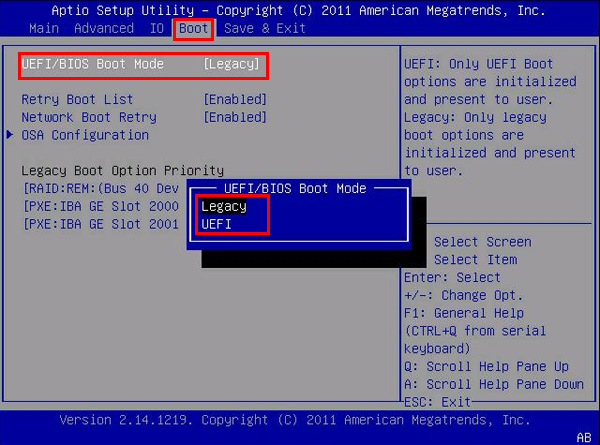
✎Qiling Disk Master Standard allows cloning a system disk from MBR to MBR, but if the source or target drive uses GPT partitioning, an upgrade to the Pro edition is required to continue cloning. Additionally, if the cloned SSD has a different partition style than the source drive, you'll need to enter the BIOS and adjust the boot mode to be compatible (MBR/Legacy BIOS for the source and GPT/UEFI for the target).
Q: Is sector-by-sector clone a better option for hard drive migration?
A: The default intelligent clone will help exclude unused sectors and logically bad sectors, which is a good way to save space and fix existing errors. So if your target SSD is smaller than the source drive, or the source drive is already problematic, you should keep using the default cloning mode.
When cloning your hard drive to a new SSD, only choose sector-by-sector cloning if the target SSD is the same size or larger than the original hard drive. This is especially important if you have a system reserved recovery partition that you want to keep intact, as sector-by-sector cloning ensures its integrity.
Conclusion
Whether you want to upgrade your hard drive to a faster SSD for improved performance or increase storage capacity, Qiling Disk Master can assist you in completing the process with ease, ensuring a secure boot process during the cloning of your disk to the SSD.
After migration, you can continue to use Qiling Backupper for daily data protection, such as automatically backing up system images or important files, providing a safeguard against accidental system failures and data loss.
Related Articles
- Clone a Hard Drive or SSD with Free Disk Cloning Software
Disk clone is the easiest way to migrate hard drive to another HDD or SSD. You can try Qiling Disk Master to clone disk in Windows 11, 10, 8, 7 with securely boot. - How to Migrate OS to Smaller SSD in Windows 10/8/7? (Bootable)
You will get the best software to migrate OS to SSD or HDD without reinstalling, even for smaller ones. The steps will be introduced in the following. - Best Free SSD Cloning Software for Windows 10/8/7
This guide explains Best Free SSD Cloning Software for Windows 10/8/7 with clear steps, key checks, and practical tips. - How to Clone C Drive to SSD/HDD in Windows 10/8/7 Easily?
Learn how to Clone C Drive to SSD/HDD in Windows 10/8/7 Easily with clear steps, key checks, and practical tips. - Cloning 1TB HDD to 500GB SSD Samsung and Making It Bootable
This article illustrates one more powerful SSD cloning software and the steps of cloning 1TB HDD to 500GB SSD Samsung without boot issues. Get them now! - Tutorials: Free to Copy NTFS Partition in Windows7/8/10
When you want to copy NTFS partition to transfer data between two different drives, you can try the free Qiling Disk Master Standard. It can clone NTFS partition effectively in Windows 11,10, 8, 7.
Products
Articles & Tutorials
- Data Recovery
- Data Backup
- File Recovery
- File Backup
- File synchronize
- System Backup and Restore
- Disk and Partition Clone
- Technical articles
- Disk Master Help
- Windows Deleted File and Disk Recovery Tutorials
- Windows File and Data Recovery Tutorials
- More Windows Tutorials for Install, Security, Files, and PC Tips
- Windows Boot, Repair, and Recovery Environment Tutorials
- Windows Backup Tutorials
- Windows Restore Tutorials
- Windows Clone and Migration Tutorials
- Windows Server Backup, Recovery, and Management Tutorials
- Windows Disk, Partition, and Storage Management Tutorials