Create a Bootable Clone of Windows 10 or 11 with Secure Boot
Quick Navigation:
- Can I create a bootable clone of Windows 10?
- Benefits of Windows 10 bootable clone
- Best bootable clone software for Windows 10
- How to clone boot drive in Windows 10
- Video Tutorial: How to bootable clone Windows 10
- How to make cloned drive bootable in Windows 10
- Potential causes and solutions to cloned hard drive not bootable
- FAQs on bootable clone Windows 10
- Wrapping things up
Can I create a bootable clone of Windows 10?
The above response is a rewritten version of the original text in a single paragraph, while still maintaining the original's tone and style.
You can find various hard drive cloning software, such as Qiling Disk Master Professional, that can create a bootable clone of Windows 10 or 11, including the operating system, system files, drivers, installed programs, and personal data.
To create a bootable clone of Windows 10 or 11, follow these steps. First, prepare a blank USB drive or external hard drive that's at least as large as your current Windows installation.
Benefits of Windows 10 bootable clone
Compared to reinstalling Windows 10 or Windows 11, a bootable clone offers several advantages.
✿ Enjoy more capacity: Receiveing the low disk space warning is one of the most common scenarios to create a bootable clone of Windows 10 or 11. This allows you to install more applications, store more files, and boot your computer faster.
✿ Get peak performance: Cloning your Windows 10 boot drive to an SSD can significantly improve your computer's reading and writing speed, with SSDs offering speeds of up to 550 MB/s, compared to traditional 7200 RPM drives which only reach 80-160 MB/s.
✿ Replace damaged or bad disk: Cloning your original disk allows you to directly replace it, preventing heavy data loss in case of reinstallation, system failure, hard drive failure, or virus infection.
Best bootable clone software for Windows 10
Unfortunately, Windows versions do not have built-in cloning software, so users must rely on third-party options. For a seamless cloning experience, I recommend using Qiling Disk Master Professional, which can perform a bootable clone in both Windows 10 and Windows 11.
 Qiling Disk Master
- Has a user-friendly interface and easy to operate.
- The three clone methods are Disk Clone, System Clone, and Partition Clone. To clone Windows 10 or 11 boot drives, the Disk Clone and System Clone options are recommended.
- Intelligent Clone: Qiling Disk Master clones only used sectors of a drive by default, allowing you to clone a large drive to a smaller drive or SSD and still boot successfully.
- Edit Partitions: The software allows manual, automatic, or conversion of partition size on the destination disk, including the ability to clone MBR disks to GPT and vice versa, resulting in a cloned drive that shows its full capacity.
- SSD Alignment: The device supports 4K alignment technology, which enhances the reading and writing speed of an SSD disk.
Qiling Disk Master Professional is fully compatible with Windows 7, 8, 10, 11, etc. For server users, Qiling Disk Master Server or TechPlus edition can be tried.
How to clone boot drive in Windows 10
To clone a hard drive in Windows 10 (or Windows 11) using Qiling Disk Master Professional, you'll need to prepare a few things first. You'll need to have the software installed, a blank hard drive or SSD to clone the data to, and ensure that the destination drive is at least as large as the source drive. With these preparations made, you can use the software's "Disk Clone" feature to clone the entire hard drive, including the operating system and all data, making sure the cloned drive is bootable.
1️⃣A new hard drive or SSD. It will be ok if the capacity is a little smaller.
2️⃣Prepare a connector. The device can be a USB to SATA adapter, M.2 enclosure, etc., depending on the disk interface.
3️⃣Install your new disk. Insert the drive into a free PCIe slot on your computer, and screw it in tightly. If only one slot is available, use an adapter or enclosure to connect it.
4️⃣Initialize the new disk in Disk Management. To prepare the new disk for use, right-click it and select "Initialize Disk". Next, choose the same partition style as your old disk, either MBR or GPT, and click OK.
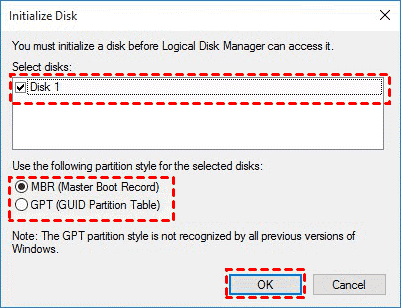
Here are some simple steps to check disk partition style:
- To open disk management, press Win + R to open the Run window, type "diskmgmt.msc" and hit OK.
- Then, right-Click the disk you want to clone and select Properties in the pop-up window.
- The Properties window should be used to select and confirm the partition style, which can be either MBR (Master Boot Record) or GPT (GUID Partition Table), under the Volume tab.

To clone a boot drive in Windows 10, follow these steps:
Step 1. Start this bootable clone software like Qiling Disk Master in Windows 10. Then, click Disk Clone under the Clone tab.

Note: The System Clone feature allows you to clone the system partition on your boot drive in Windows 10, effectively duplicating the entire system, including the operating system, programs, and data, onto another drive. This feature is available in the Disk Management utility and can be used to create a bootable clone of your system drive on another drive, making it a useful tool for creating backups or upgrading to a new drive. However, it's worth noting that this feature will only clone the system partition on the boot drive and not any other partitions or drives.
Step 3. Select Windows 10 boot drive as the source disk and click Next.

Step 4. Select a new hard drive or SSD as the destination disk and click Next.

Step 5. This software will clone only used sectors of the boot drive by default, but you can also choose to enable SSD alignment for faster reading and writing speeds on an SSD disk. After making your selection, click "Proceed" to start the cloning process.

If your target disk is a large drive, click on the "More Options" tab and select "Transfer to another disk" to move the operating system and applications to another disk, or select "Transfer to another disk and remove from this disk" to move the operating system and applications to another disk and remove them from the original disk. This will help to free up space on the original disk.Edit Partitions and select Add unused space to all partitions or Manually adjust partition size. Otherwise, the cloned drive will not show full capacity. This software allows you to convert a disk from MBR to GPT or vice versa, making it a versatile tool for disk management.
👉Copy without resizing partitions: It will not resize the partition size.
👉Add unused space to all partitions: The tool will redistribute the free space on the target disk to each partition, proportional to the disk size.
👉Manually adjust partition size: It allows you to extend unallocated space to any partition on the destination disk you want.
Notes ✎...
• When cloning a large HDD to a smaller SSD, don't clone sector by sector. This can cause the cloned SSD to fail to boot due to missing boot files.
• To get the best performance from a cloned disk, it's recommended to transfer Windows 10 to an NVMe drive, which offers the fastest transfer speed.
• To clone Windows 10 to a bootable USB, you simply need to connect a USB drive and select it as the destination disk during the cloning process. This will allow you to create a bootable copy of your Windows 10 installation on the USB drive.
Video Tutorial: How to bootable clone Windows 10
This video tutorial explains how to create a bootable clone of a Windows 10 system disk, which also applies to Windows 11. If you're experiencing issues with cloning a boot drive, you may want to refer to it for troubleshooting assistance.
How to make cloned drive bootable in Windows 10
You already have a bootable clone of Windows 10, which can also be applied to Windows 11. To confirm its bootability, replace it with a Windows 10 system disk and attempt to boot from it. This will ensure that the clone is functioning correctly.
1. Shut down your computer completely, then switch the old hard disk with the cloned drive, boot up your computer, and check if everything is working properly. If there are any issues, simply switch the drives back, boot up again, and try again. If everything is working properly, you can leave the cloned drive in place and use it as your new hard drive.
2. To access the BIOS settings on your computer, you need to restart it and press the F2 or ESC key when it boots up. This will take you to the BIOS menu where you can make changes to your computer's settings.
3. Go to the Boot tab, set the new hard drive as the default boot option, save changes and exit.
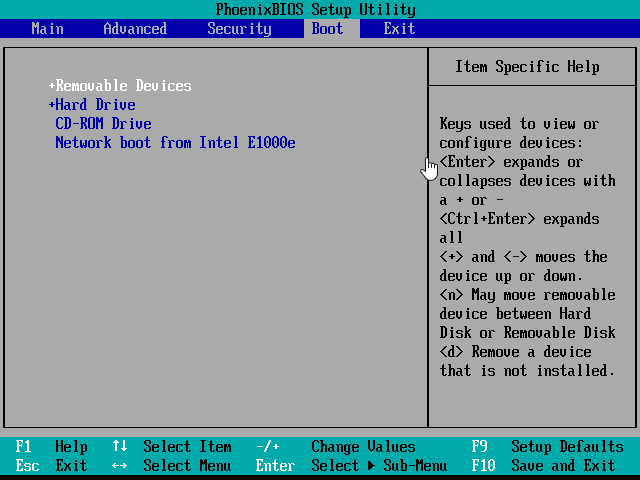
4. After cloning your hard drive, your computer will automatically boot from the cloned drive. If it doesn't, there may be an issue with the cloned drive or the original drive.
Potential causes and solutions to cloned hard drive not bootable
If you do an in-If you're having trouble making a bootable clone of Windows 10 online, you may encounter examples of cloned disks that won't boot. To resolve this issue, check the following items:
1️⃣ Wrong boot disk or mode. If your computer doesn't automatically boot from the cloned drive, you'll need to set it as the first boot option. Also, ensure the cloned disk uses the correct partition style - MBR for Legacy BIOS or GPT for UEFI mode.
2️⃣ Insufficient disk space. When cloning a large drive to a smaller drive, ensure the smaller drive is at least as large as the used space on the large drive to avoid issues.
3️⃣ Missing boot partition or files. If the cloned drive doesn't contain the system reserved partition or EFI system partition, it may not boot properly.
4️⃣ Extra storage devices. A computer connects a third storage device, but the cloning software mistakenly identifies it as the target drive.
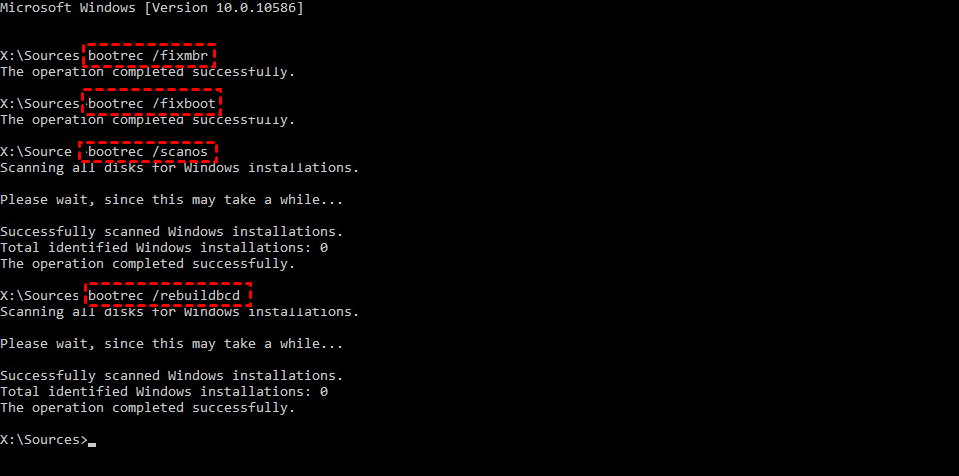
5️⃣ Damaged MBR. If your computer is still not bootable, it's likely to be damaged MBR or BCD. Try to boot from an installation or recovery disk, press "Shift + F10" to open the command prompt and repair the MBR.
- bootrec.exe
- bootrec.exe /fixmbr
- bootrec.exe /fixboot
- bootrec.exe /scanos
- bootrec.exe /rebuildbcd
FAQs on bootable clone Windows 10
Q1: Does Windows 10 have a cloning tool?
Windows versions do not provide a clone feature, instead, they offer backup software like File History, Backup, and Restore.
Q2: Will a cloned disk be bootable?
A cloning software will clone the entire operating system, including the system reserved partition, EFI partition, and other boot files needed to start a computer. This means that the cloned computer will have the same operating system, settings, and applications as the original computer. The cloning process will also copy any existing user accounts, files, and settings, making it a comprehensive and efficient way to replicate a computer's setup.
Q3: What is a bootable clone?
A bootable clone is a complete copy of a computer's boot drive, including all partitions and files necessary to start the computer. This can be done in Windows 10, 11, or other previous systems to clone the boot drive.
Wrapping things up
You can easily create a bootable clone of Windows 10 or 11 using Qiling Disk Master Professional, regardless of whether the target disk is a large HDD or smaller SSD. This software allows you to clone the disk, making the cloned drive bootable, and even supports cloning between different disk types, such as MBR to GPT and GPT to MBR.
Qiling Disk Master is a reliable and efficient tool for cloning a hard drive. It offers useful features to make the process smooth, such as automatically adding unused space to all partitions or specific partitions, ensuring the cloned drive shows full capacity. Additionally, it allows you to clone the OS only with the System Clone feature, making it a worthwhile try.
Related Articles
- Best Free Bootable Hard Disk Clone Software for Windows 10/8/7
This article is written for users like you who want to clone boot drive with bootable disk clone software in Windows when system fails to boot. - Clone Windows 10 64 Bit Hard Drive with Clone Software
You may want to clone Windows 10 64 bit hard drive for data protection or hard drive upgrade. No matter which is your case, Qiling Disk Master enables you to clone hard drive easily while ensuring secure boot. - Clone Hard Drive in Windows 10 to New HDD or SSD
Learn how to Clone Hard Drive in Windows 10 to New HDD or SSD with clear steps, key checks, and practical tips. - How to Clone Windows 10 to NVMe SSD (Step by Step Guide)
NVMe SSDs can be the perfect upgrade for your Windows 10/11 system and it is now easier than ever to clone Windows 10/11 OS to NVMe drive with a few simple steps. - How to Clone Only OS Partition to SSD in Windows 10/8/7
This page shows how to easily clone only OS partition to SSD (even smaller) in Windows 11/10/8/7 with secure boot. And you don't need to reinstall Windows. Please read on to learn more details. - (Easiest Way) How to Clone 2.5 SSD to M.2 with Best SSD Cloning Software
This guide explains (Easiest Way) How to Clone 2.5 SSD to M.2 with Best SSD Cloning Software with clear steps, key checks, and practical tips.
Products
Articles & Tutorials
- Data Recovery
- Data Backup
- File Recovery
- File Backup
- File synchronize
- System Backup and Restore
- Disk and Partition Clone
- Technical articles
- Disk Master Help
- Windows Deleted File and Disk Recovery Tutorials
- Windows File and Data Recovery Tutorials
- More Windows Tutorials for Install, Security, Files, and PC Tips
- Windows Boot, Repair, and Recovery Environment Tutorials
- Windows Backup Tutorials
- Windows Restore Tutorials
- Windows Clone and Migration Tutorials
- Windows Server Backup, Recovery, and Management Tutorials
- Windows Disk, Partition, and Storage Management Tutorials