Windows Server 2022 Recovery Disk Creator - Fastest and Safest
💡 Quick Navigation:
- What's new in Windows Server 2022?
- Why need to create a Windows Server 2022 recovery disk?
- The easiest way to create a Window Server recovery disk
- Conclusion
What's new in Windows Server 2022?
Windows Server 2022 Windows Server 2022 is built on the strong foundation of Windows Server 2019, bringing many innovations on three key themes: security, Azure hybrid integration and management, and application platform.
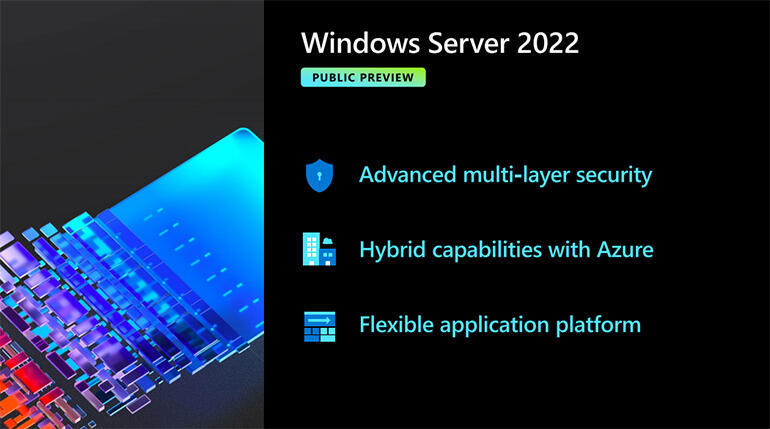
▶ Security
Windows Server 2022 prioritizes security, combining with other features across multiple areas to provide defense-in-depth protection against advanced threats. The new version offers two key security features: Secure connectivity and Secured-core server, providing a robust defense against sophisticated threats.
▶ Azure hybrid capabilities
Windows Server 2022 offers increased efficiency and agility through its built-in hybrid capabilities, making it easier to extend your data center to Azure. This allows a hybrid machine to be served as a resource in Azure, streamlining management. Additionally, Windows Admin Center has been improved to make managing Windows Server 2022 more efficient and easier. The new Hotpatch feature, part of Azure Automanage, enables updates to be installed on new Windows Server Azure Edition virtual machines without requiring a reboot after installation.
▶ Application platform
Windows Server 2022 has improved Windows Containers with reduced image sizes of up to 40%, resulting in 30% faster boot times and improved performance.
Why need to create a Windows Server 2022 recovery disk?
A recovery disk is essential for troubleshooting and recovering your Windows Server 2022 system when it fails to boot. It contains the necessary tools to repair startup issues, restore system images, and perform system recovery tasks. With a recovery disk, you can access the Windows Recovery Environment (WinRE) even when the installed operating system cannot start.
When buying a brand-name computer, it usually comes with an installation disk and a recovery disk. However, over time, these disks can get lost due to various reasons, or the computer might not even have them. As a result, users may find themselves in a situation where they need to reinstall the operating system or restore their computer to its original settings, but lack the necessary disks. In such cases, alternative methods, such as using a USB drive to create a bootable installation media, may be necessary to resolve the issue.
If your computer experiences issues like system crashes, hard disk failures, or virus attacks, it may prevent your Windows Server 2022 from starting. However, having a Windows Server recovery disk created in advance can resolve these problems.
The easiest way to create a Window Server recovery disk
Qiling Disk Master Server, For Windows Server users, the most reliable backup and restore software can help create a recovery disk with just a few clicks, providing a quick and easy way to recover their system in case of a disaster.
❀ Create bootable media: You can create a recovery disk on various Windows OS versions, including Windows Server and Windows 11/10/8/7, to boot the computer when it fails to start and restore a backup created earlier from WinPE.
❀ Smart backup strategy: It offers comprehensive backup options and schemes, efficiently automates server system and data backup, deletes old backups, and effectively manages backup space.
❀ Universal restore: With this feature, you can restore a Windows Server Backup image to a computer with different hardware using a bootable disk or USB device.
To create a Windows Server 2022 bootable USB with Qiling Disk Master Server, you can follow these steps: First, download the Windows Server 2022 ISO file from Microsoft's official website. Then, open Qiling Disk Master Server and select the USB drive you want to use.
Create Windows Server 2022 Recovery Disk
Step 1. Download and install Qiling Disk Master Server on your Windows Server 2022 computer. Launch the software to begin creating the recovery disk.
Step 2. To create bootable media in the dark blue interface, click on Tools in the left panel and select Create Bootable Media.

Step 3. Select bootable media among CD/DVD, USB Boot Device, Export ISO File. Choose USB Boot Device and click Next to start the operation.
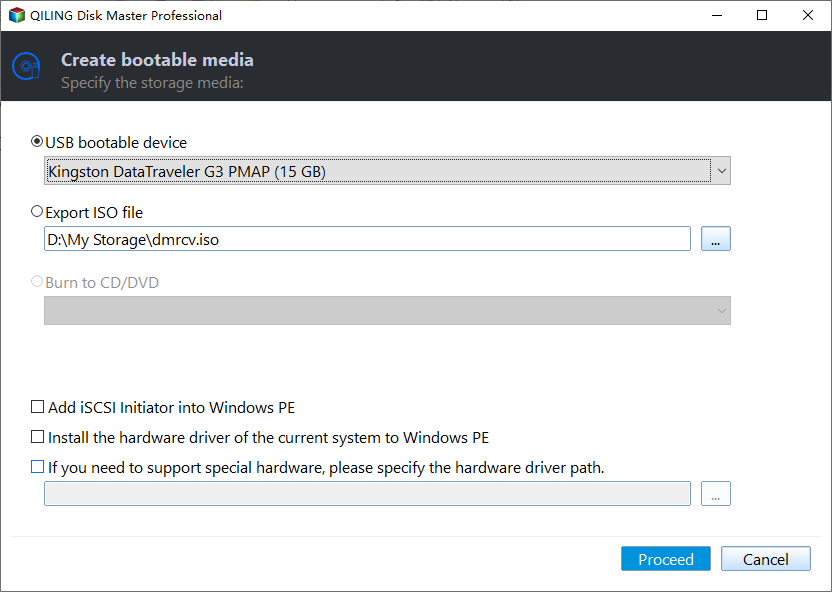
Tip✍: To create a recovery environment, go to Tools -> Recovery Environment. This allows you to create a recovery environment without needing a separate USB as a boot media, and you can easily perform system backup and restore or other backup operations when the system crashes.
Create Windows Server 2022 system image backup
Windows Server users need a system image to restore or repair Windows Server 2022, so they should use Qiling Disk Master Server to create one.
Step 1. Click Backup and then System Backup.

Step 2. The program automatically selects the system drive and its related partitions, requiring only the destination path for the backup to be chosen. It is recommended to back up to an external hard drive, making it easier to restore the system image backup to other computers.

Step 3. Click Proceed to create Windows Server 2022 system image backup.

✮ Other useful options (optional):
▶ Schedule Backup: To set a backup mode, you can select from various options, including Daily, Weekly, Monthly, or trigger a backup based on specific events. Additionally, you can also set a backup mode by simply plugging in a USB drive.

▶ Backup Scheme: Three backup methods are available: Full Backup, Incremental, and Differential Backup. Additionally, automatic backup cleanup can be enabled to delete old backup images and free up space.
Restore Windows Server 2022 from boot
After creating a Windows Server 2022 bootable USB and system image backup, you can restore Windows Server 2022 from this backup with ease.
- To boot your computer, insert the Windows Server 2022 recovery disk and load the Qiling Disk Master Server, which will display a deep-blue interface.
- To restore your device, click Restore and then Select Image File to find your backup image.
- Select to restore the entire backup image and click Proceed.

Conclusion
Qiling Disk Master Server allows you to create a Windows Server 2022 recovery disk with ease. It can also help you create a bare metal backup in Windows Server 2019, making it a useful tool for server management. If you want to protect unlimited PCs and servers within your company, you may consider Qiling Disk Master Technician Plus, which provides advanced backup and recovery capabilities for multiple machines.
Related Articles
- How to Perform Windows Server Backup Restore (Stepwise Guide)
Learn how to Perform Windows Server Backup Restore (Stepwise Guide) with clear steps, key checks, and practical tips. - Windows Server Backup Bare Metal Recovery to Different Hardware
This guide explains Windows Server Backup Bare Metal Recovery to Different Hardware with clear steps, key checks, and practical tips. - Backup and Restore with Windows Server 2016 Wbadmin
This article will introduce you to 3 very classis examples of Windows Server 2016 wbadmin, which help you safely protect the system and data on it. For novices, try the easier way! - How to Backup Windows Server 2019/2016/2012 in the Best Way?
You will learn the best way and how to backup a server to prevent data from losing. Get details below right now! - How to Delete Everything on a USB Flash Drive [Completely]?
This post shows how to delete everything on a USB flash drive (completely), even when you can't delete files from USB due to write protection or something else. - How to Delete Files from External Hard Drive in Windows 10/8/7?
In this post, we will show you how to delete files from external hard drives in Windows 11, 10, 8 and Windows 7. You will learn 4 methods to remove files on external drive successfully.
Products
Articles & Tutorials
- Data Recovery
- Data Backup
- File Recovery
- File Backup
- File synchronize
- System Backup and Restore
- Disk and Partition Clone
- Technical articles
- Disk Master Help
- Windows Deleted File and Disk Recovery Tutorials
- Windows File and Data Recovery Tutorials
- More Windows Tutorials for Install, Security, Files, and PC Tips
- Windows Boot, Repair, and Recovery Environment Tutorials
- Windows Backup Tutorials
- Windows Restore Tutorials
- Windows Clone and Migration Tutorials
- Windows Server Backup, Recovery, and Management Tutorials
- Windows Disk, Partition, and Storage Management Tutorials