Backup Windows 11 to External USB Drive (Best Freeware)
The Necessity of Backup Windows 11 to USB
A backup is a copy of a file kept separately from the original to prevent data loss in case something happens to the original. It can be stored on an external device like a USB drive.
In Windows 11, a full backup to external USB storage creates a secure copy of your entire system, allowing you to quickly restore the system in case of emergencies like hardware failure, system crash, or virus attack, and avoid data loss and time-consuming system repair.
To back up Windows 11 to a USB drive, insert the drive into the computer, open File Explorer, and select the drive as the destination. Then, open the Settings app, go to Update & Security, and select Backup. Choose the drive as the backup location and select the items to back up, such as files, folders, and system settings.
Can't Create System Image on USB Drive with Built-in Tool
Windows 11 includes the "Backup and Restore" tool, which is the best built-in option for creating a complete hard drive copy, despite being a deprecated feature.
You can use the feature to create temporary backups to upgrade your system drive and protect your previous installations before updating to a new version of Windows, but it's frustrating that you can't create a system image backup of Windows 11 on a USB drive, which you may encounter when trying to do this task.
You're told that creating a system image to a USB drive requires formatting it to NTFS file system, which means you can't back up your system using that drive.
The computer may display the message "This drive is not a valid backup location" when trying to create a system image to a USB flash drive that has already been formatted to NTFS, even though it's already formatted to NTFS.
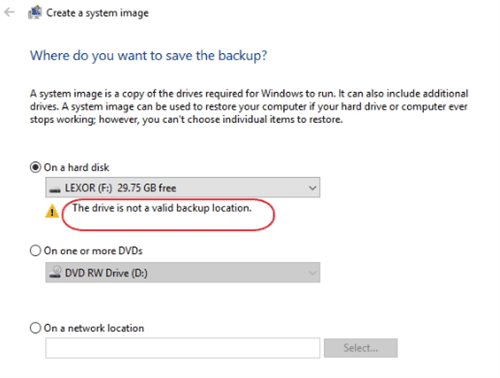
The "Backup and Restore" feature doesn't allow using a USB drive as a target because they are small and fill up quickly, and also because they can be easily lost or accessed by others.
The Windows built-in tool, Backup and Restore (Windows 7), has been criticized for being impersonal due to feedback from many users who have actually used it, with some finding it difficult to use and others feeling that it lacks personalization, making it less user-friendly compared to other backup software options.
1. It is complicated to operate.
2. To install Windows, you need a USB flash drive of 128GB or more, as the default Windows installation process looks for a drive of this size in the local drive.
3. If you set up regular backups, the hard drive storing the backups can become full, making it impossible to continue backing up, which can leave your system and important data unprotected.
If you're tired of dealing with frustrating errors, consider replacing the built-in backup software with a third-party professional tool. This can help streamline the process and minimize issues. Please review the relevant section below for more information.
Best Free Backup Software for Windows 11/10/8/7
Qiling Disk Master Standard is a professional backup and restore software that enables you to easily back up your computer system to a USB flash drive, external hard drive, or cloud drive, as well as providing file, partition, and disk backup solutions. It offers a comprehensive set of features to meet various user needs, including system backup, file backup, partition backup, and disk backup, making it a useful tool for users.
◉ Qiling Disk Master Standard supports Windows PC operating systems such as Windows 11/10/8.1/8/7/Vista/XP.
◉ The backup method allows for the use of incremental or differential backup, which optimizes backup efficiency compared to Windows' built-in tool, particularly in the paid edition.
◉ This feature allows you to automatically delete old backup files to save disk space, and requires an upgrade to the Qiling Disk Master Professional edition.
◉ This feature allows you to automate your backup tasks on a daily, weekly, monthly, etc. basis.
Download the freeware to have a try right now!
How to Backup Windows 11 to USB Step by Step
1. Connect an external USB hard drive to your PC and ensure it's recognized by the system.
2. Launch this reliable backup software, and select System Backup under the Backup tab.

3. The software will automatically select the system partition for you. You can also choose to save the system image to a USB drive, local hard drive, external hard drive, or network drive.

4. Confirm that the correct operation is selected, and then click "Proceed" to easily back up Windows 11 to the USB drive you specified.
Summary
To back up your Windows 11 system, it's recommended to use a third-party tool like Qiling Disk Master Standard, as the built-in backup tool often reports errors when backing up to a USB flash drive. This tool allows you to back up your system, files, disks, and partitions to any location you want, and also clone your system, disks, and partitions, making it a convenient option for tasks like cloning an SSD to another SSD in Windows 11.
Qiling Bootable Media is another useful feature that allows you to create a rescue media, similar to Windows recovery media or Linux live CD, containing a lightweight version of Windows (Windows PE) or a Linux system, along with the Qiling Disk Master. This can be especially helpful in restoring system backups created by Qiling Disk Master when your Windows system crashes and fails to boot up correctly.
If you want to enjoy these features, download and use it now!
Related Articles
- How to Make a Bootable Backup on Windows 11(2 Free Ways)
A bootable backup allows you to restore a bootable system image when your computer falls into serious system errors. Scroll down to learn how to make Windows 11 bootable backup easily in 3 free ways. - Backup Files to External Hard Drive in Windows 11 Easily (3 Solutions)
You can easily learn 3 methods to backup files to external hard drive in Windows 11. They are built-in tool "File History", "Backup and Restore" and a free backup software "Qiling Disk Master". - How to Copy Windows 11 to USB and Make it Bootable (3 Cases)
Learn how to Copy Windows 11 to USB and Make it Bootable (3 Cases) with clear steps, key checks, and practical tips. - Failed to enable backup service
Fix the Qiling Disk Master error Failed to enable backup service. Check the installation path, start DmAgent.exe, and set the schedule service to Automatic. - Solved| Windows 10 Update Missing Files 2018 (Version 1809)
This guide explains Solved| Windows 10 Update Missing Files 2018 (Version 1809) with clear steps, key checks, and practical tips. - Windows 10 Upgrade Keeps Restarting (Fixed with 3 Ways)
This guide explains Windows 10 Upgrade Keeps Restarting (Fixed with 3 Ways) with clear steps, key checks, and practical tips.
Products
Articles & Tutorials
- Data Recovery
- Data Backup
- File Recovery
- File Backup
- File synchronize
- System Backup and Restore
- Disk and Partition Clone
- Technical articles
- Disk Master Help
- Windows Deleted File and Disk Recovery Tutorials
- Windows File and Data Recovery Tutorials
- More Windows Tutorials for Install, Security, Files, and PC Tips
- Windows Boot, Repair, and Recovery Environment Tutorials
- Windows Backup Tutorials
- Windows Restore Tutorials
- Windows Clone and Migration Tutorials
- Windows Server Backup, Recovery, and Management Tutorials
- Windows Disk, Partition, and Storage Management Tutorials