My Bootable Pendrive Is Not Detecting
A bootable pendrive may not be detected in Windows, BIOS, UEFI, or the boot menu because of bad ports, wrong boot mode, damaged media, or incorrect creation method.
Understand the problem
Bootable USB media must match the target computer firmware. UEFI systems usually need a FAT32 EFI-compatible layout, while older systems may require Legacy boot support.
- Confirm the exact disk, partition, file system, Windows version, boot mode, or sync setting before making changes.
- Back up or recover important files before wiping, formatting, converting, cloning, reinstalling, or repairing Windows.
- For boot and update tasks, prepare recovery media and check BIOS or UEFI settings before deeper repair.
Use Windows built-in tools
Check detection step by step.
- Try another USB port and another computer.
- Check Disk Management to see whether the pendrive appears.
- Recreate the bootable USB with the correct UEFI or Legacy option.
- Check BIOS or UEFI boot order and Secure Boot settings.
- Replace the pendrive if it disconnects or shows wrong capacity.
Use Qiling tools for guided steps
 Qiling Disk Master
Create bootable media again with the correct USB device and boot mode.
Function. Create bootable media for repair or recovery
Step 1. Prepare an empty USB drive. Back up existing USB files because the drive may be formatted.
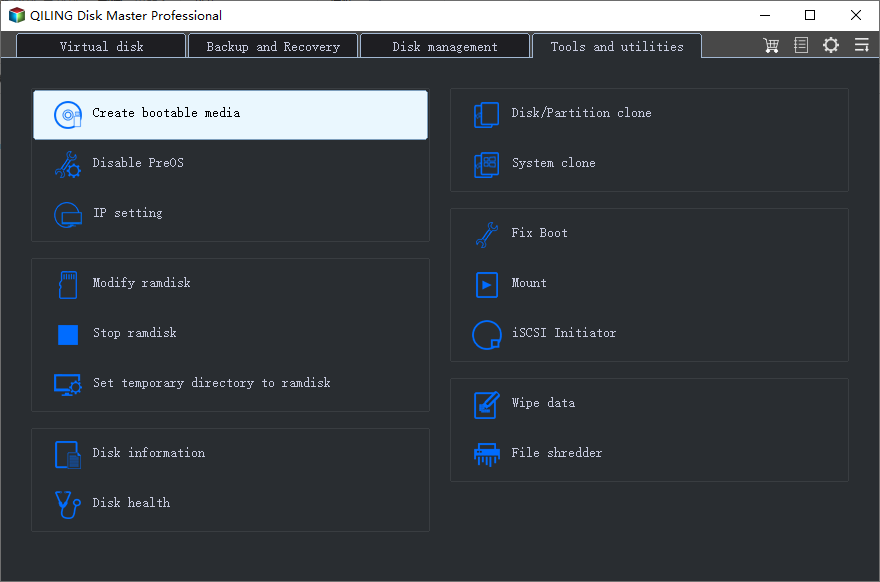
Step 2. Open Qiling Disk Master and choose Create Bootable Media.
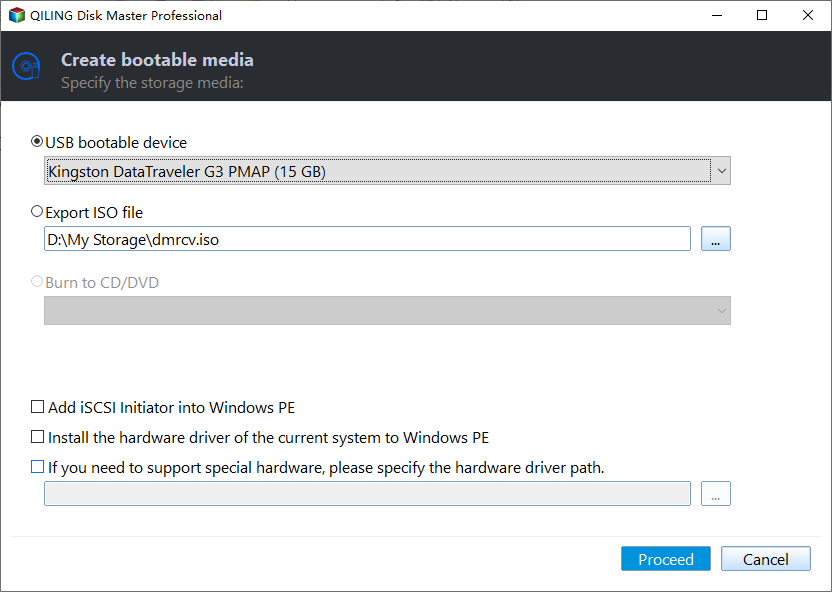
Step 3. Select the USB boot device option, then choose the correct USB drive by capacity and drive letter.
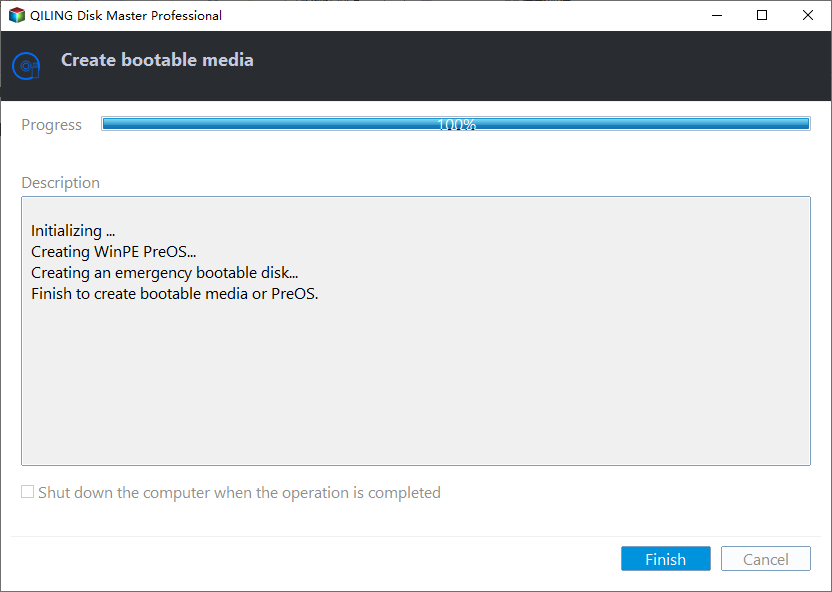
Step 4. Click Proceed and wait for the media to be created. Use it for boot repair, installation, or recovery when the old pendrive is not detected.
Check the result
Open the boot menu and confirm the pendrive appears under the correct UEFI or USB entry. Test it before relying on it for repair.
Related Articles
-
Windows Not Detecting USB
Fix USB devices that do not appear in Windows. -
Boot from Media
Boot from USB, CD, or recovery media with the right firmware settings.
Products
Articles & Tutorials
- Data Recovery
- Data Backup
- File Recovery
- File Backup
- File synchronize
- System Backup and Restore
- Disk and Partition Clone
- Technical articles
- Disk Master Help
- Windows Deleted File and Disk Recovery Tutorials
- Windows File and Data Recovery Tutorials
- More Windows Tutorials for Install, Security, Files, and PC Tips
- Windows Boot, Repair, and Recovery Environment Tutorials
- Windows Backup Tutorials
- Windows Restore Tutorials
- Windows Clone and Migration Tutorials
- Windows Server Backup, Recovery, and Management Tutorials
- Windows Disk, Partition, and Storage Management Tutorials