What is The Best Windows 11 USB Creator? Try 4 Options Here!
What is the best Windows 11 media creation tool?
A bootable USB is a regular USB storage device that contains an operating system's ISO image, allowing users to boot and install the OS on a computer, useful for system updates, installing Windows 11, or resolving system failures.
If you're looking to create a bootable USB with the best Windows 11 USB tool, you're in luck! This article will show you how to achieve this task simply and for free. With the relevant demands in mind, you'll be able to explore the ways to operate together and create a bootable USB without any effort.
👉Best free media creation tool for Windows 11/10/8/7
Full guide to creating Windows 11 bootable USB
To create a bootable USB for Windows 11, you can use one of four media creation tools: Windows Media Creation Tool, Rufus, DiskPart, or Qiling Disk Master Standard, a free third-party option.
Here are the steps to prepare for each tool:
- To prepare a blank USB drive with a capacity of at least 8GB, first ensure the drive is completely empty and does not contain any data. This can be achieved by formatting the drive.
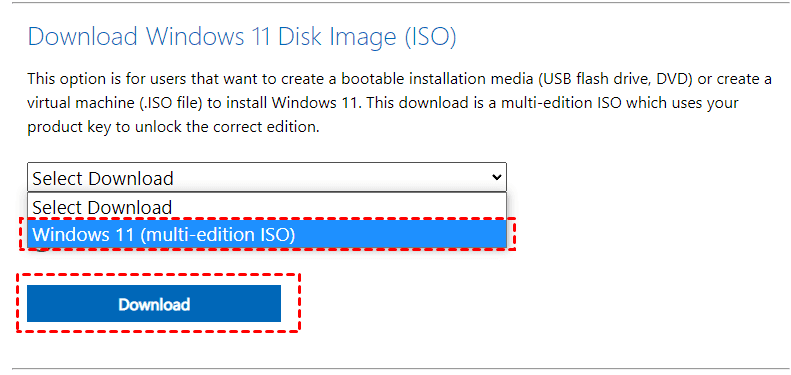
- To download the Windows 11 ISO file, you should visit Microsoft's official website.
- Tool 1. Windows Media Creation Tool
- Tool 2. Rufus
- Tool 3. DiskPart
- Tool 4. Best free media creation tool for Windows 11/10/8/7
Tool 1. Windows Media Creation Tool
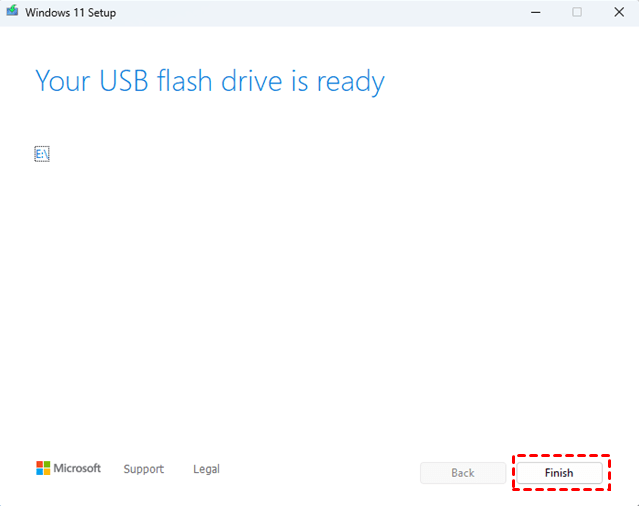
The free Windows 11 Media Creation Tool, developed by Microsoft, is a popular tool that allows you to easily upgrade Windows 11 to its latest version or create a Windows 11 installation USB drive/DVD disc to perform a clean install or fix a faulty PC. To use it, you can follow the steps to upgrade your Windows 11 or create a bootable media to install or repair your system.
1. Download and install Media Creation Tool on your PC, then click "Accept" to proceed.
2. In the next window, select the language and edition of Windows 11, then click on "Next".
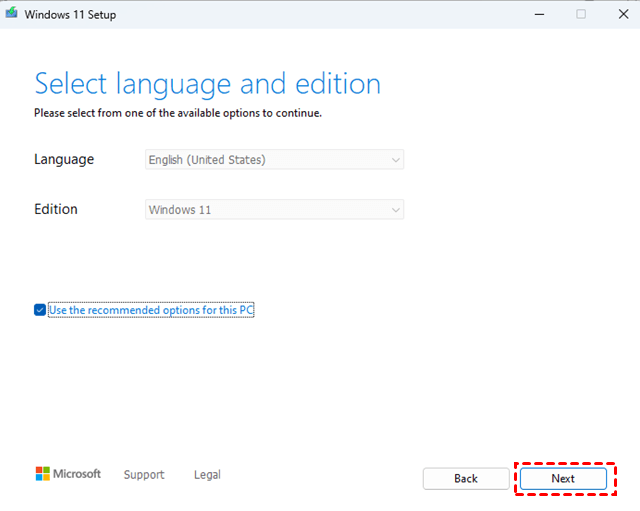
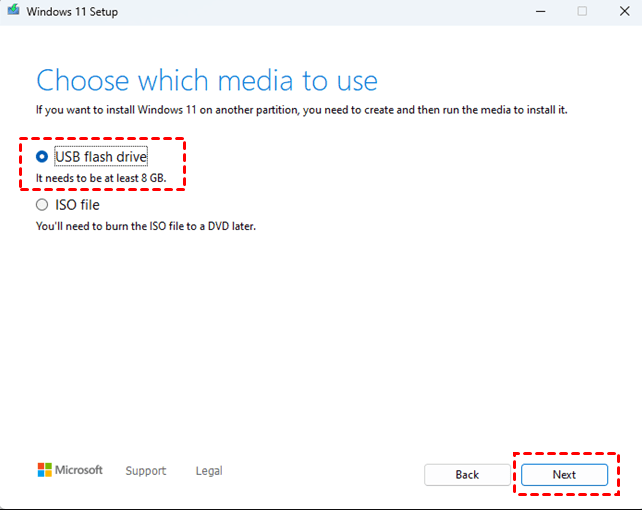
3. Select the USB flash drive, and click Next.
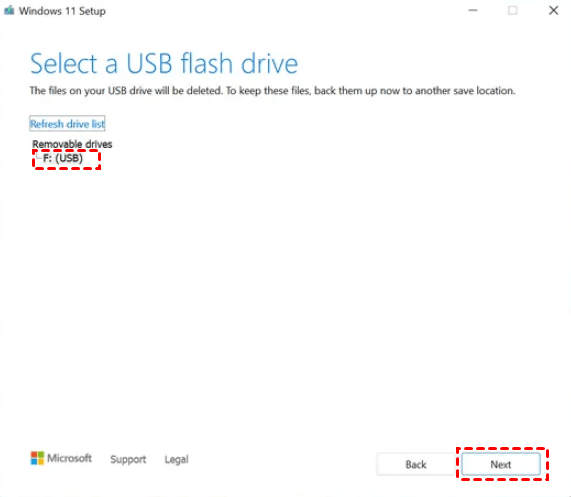
4. Select the connected blank USB drive from the list, and click Next.
5. To create a Windows bootable USB, first, download the Windows ISO file from Microsoft's official website. Next, open the Windows 10 Media Creation Tool, select the language, architecture, and edition of Windows you want to install, and choose the USB drive as the installation media. Then, insert the USB drive and select it as the target drive.
Tool 2. Rufus
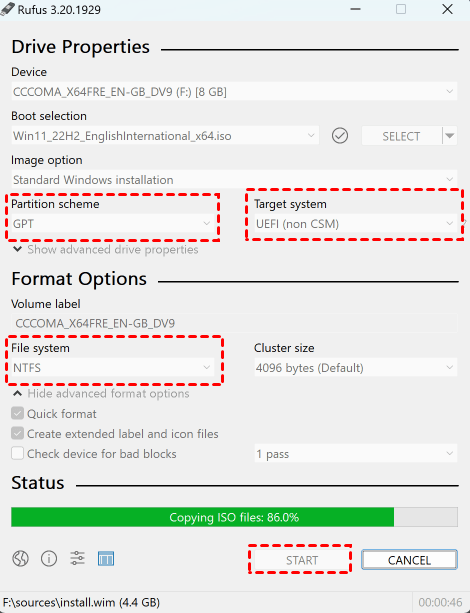
Rufus is a lightweight but powerful freeware to create bootable USB drives. It can be used to create a bootable USB drive by downloading the Rufus software, selecting the USB drive and choosing the operating system to install, and then following the on-screen instructions to complete the process.
1. The latest version of Rufus can be downloaded from the official website. Once downloaded, it can be launched directly without the need for installation.
2. Select the USB flash drive with at least 8 GB storage under Device, then click Select to choose the Windows 11 ISO file you downloaded beforehand.
3. Set the Image Option to Standard Windows Installation and the Partition Scheme to MBR/BIOS or GPT/UEFI, depending on your disk style.
4. To set the volume label, go to Format Options and type in a name for the drive.
5. When the warning that all data on the flash drive will be erased, click the "OK" button.
6. The rest of the options should remain the same. Once you're ready, click the "Start" button and wait for the bootable USB drive to be created. A progress bar will appear under the "Status" section while it's being made.
Tool 3. DiskPart
To create a bootable USB drive using DiskPart, start by opening Command Prompt as an administrator and type "diskpart" to enter the DiskPart tool. Then, type "list disk" to display a list of all disks on the system, and select the USB drive by typing "select disk X" where X is the number of the USB drive.
Part 1: Create a bootable USB flash drive
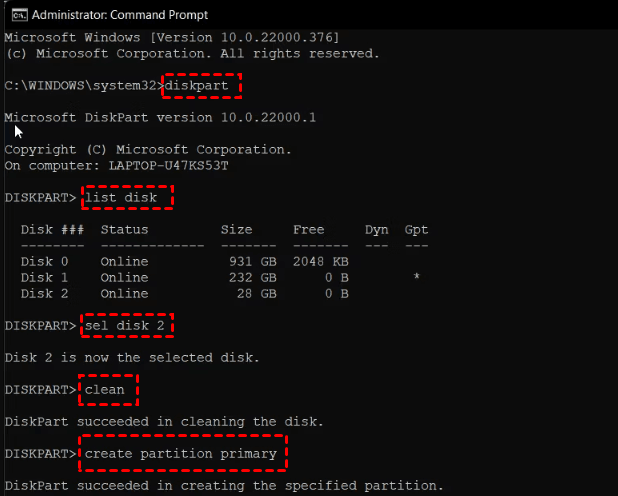
1. To create a bootable USB drive, insert a USB flash drive with 4GB or more storage space into a running computer. Open a Command Prompt window as an administrator and type "diskpart" to enter the disk management utility.
2. When the command prompt window appears, type "list disk" to display all the disks on this PC, and then click Enter.
3. Type sel disk 2, where 2 refers to the drive number or drive letter of your USB flash drive. Press Enter.
4. The command "Type clean, and then click Enter" is used to delete all data from a USB flash drive. This command is typically used to completely erase the contents of the drive, making it ready for reuse. It is essential to exercise caution when using this command, as it will permanently delete all files and data stored on the drive, and it cannot be undone.
5. To create a new primary partition on the USB flash drive, type "create partition primary" and press Enter.
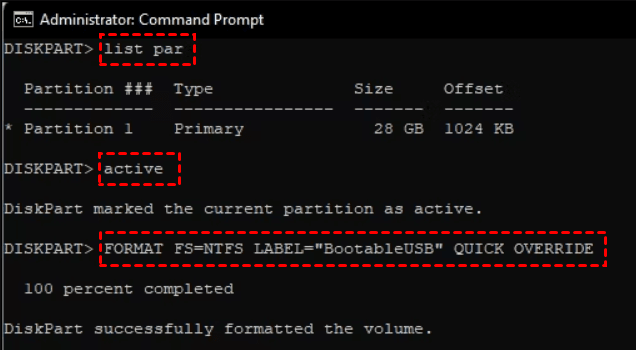
6. To select the partition you just created, type `list par` and press Enter.
7. Type active to mark the current partition as active.
8. To format the partition, type `format fs=ntfs label="BootableUSB" quick override` and press Enter.
Tip: To format the USB flash drive for UEFI boot, type "format fs=fat32 quick" and click Enter.
9. Type exit, and then click Enter to exit DiskPart.
Part 2: Mount the Windows 11 ISO image and copy it to your USB drive
1. To mount the ISO file, type the command `PowerShell Mount-DiskImage -ImagePath "C:\Users\UserName\Downloads\Win11_English_x64v1.iso"` in the PowerShell and press Enter, replacing the file path with the location of your Windows 11 ISO file.
2. Type diskpart to launch Diskpart again and press Enter.
3. List volume to show the available volume for the mounted ISO file and press Enter. Under the Ltr section, you will see the letter associated with the volume, and the Type column will list the mounted ISO as DVD-ROM.
4. After you have the volume details for the Mounted ISO, type Exit to exit Diskpart.
5. To open the Command Prompt as an administrator, right-click on the Start button and select "Command Prompt (Admin)" or type "cmd" in the search bar and right-click on the result, then select "Run as administrator." Then, type the command "dism /online /get-tpm /skiptpmed:yes" and press Enter. This will display the Trusted Platform Module (TPM) information.
6. Type cd boot to boot from CD.
7. Type "Bootsect /nt60 I" to apply the master boot code to the USB flash drive, replacing "I" with the actual drive letter assigned to the USB flash drive.
8. Type "xcopy X:\*.* I:\ /E /F /H" and press Enter to copy the Windows 11 ISO to the USB drive.
9. It may take several minutes to finish the process. If it is successfully completed, you will see a Files (s) Copied message. Then you can use the created bootable USB drive to start your PC.
Users who want to create a bootable USB manually often prefer to use third-party software over the official Windows method, which involves using the command line tool DiskPart due to its minimal interface and complex code requirements.
Tool 4. Best free media creation tool for Windows 11/10/8/7
When it comes to the best free media creation tool on Windows 11, third-party software like Qiling Disk Master Standard may be an easier choice. It allows you to create a bootable USB flash drive that helps you boot your computer in various operating systems, including Windows 11/10/8.1/8/7/Vista/XP, with an intuitive interface that doesn't require any technical expertise, making your operation effortless.
✍ You can use it to create bootable DVD/CD or USB that can be used to start computers with no brand and system restrictions, and the created media can boot in both BIOS and UEFI mode.
✍ This software provides comprehensive protection for your computer system and data by offering features like backup, restore, clone, and sync. It allows you to continuously back up your Windows 11 system to a USB drive, serving as a long-term protection solution.
Follow the specific steps below to create a bootable Windows 11 USB with the best free USB creator – Qiling Disk Master Standard.
1. Download and install this freeware on your PC.
2. Launch it, click the Tools tab page and then select Create Bootable Media.

Note: This process will overwrite all the data on the drive, so it's recommended to back up any important files before proceeding to avoid data loss.
3. To create a Windows 11 bootable USB, select "USB Boot Device" in the Media Creation Tool, then click "Next" to proceed with the process.
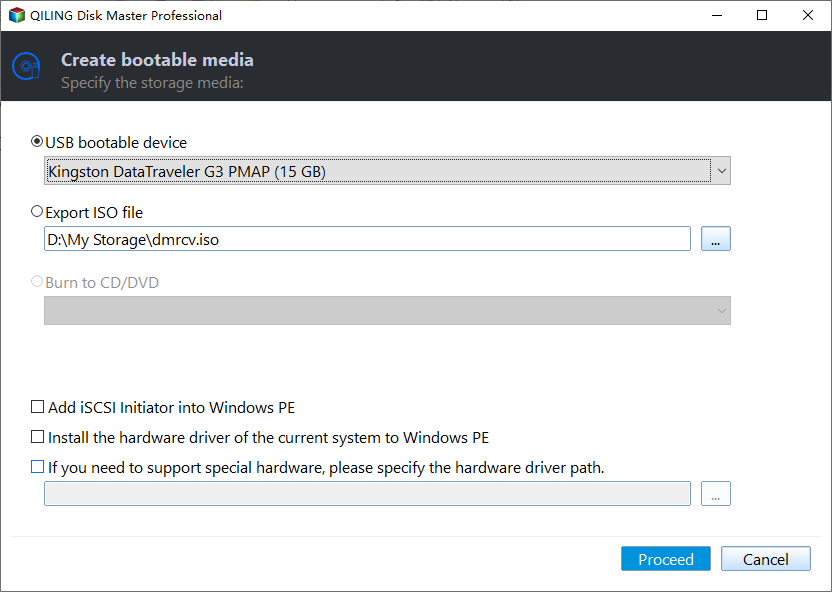
Notes (you can upgrade to Qiling Disk Master Professional edition to enjoy these features):
¤ If you don't have any CD/DVD or USB drive, you can simply enable the Qiling Recovery Environment to achieve the same effect.
¤ If you haven't made any system backups before the Windows 11 computer failure, you can also create a system image on another working computer and restore it to the computer in question with Universal Restore.
How to make the created Windows 11 USB boot successfully
To boot Windows 11 from a USB, you need to change the BIOS boot order to prioritize the USB device, ensuring the computer loads from the USB instead of the hard drive.
1. Press the computer Power button. During the initial startup screen, press F1, F2, F8, F10, or ESC to access the BIOS settings.
2. Once you enter the BIOS Setup Utility window, select the Boot tab using the arrow keys. This will display all available system devices in order of their boot priority.
3. To boot from a USB, enter the BIOS Setup, set the USB to be first in the boot sequence, save the change, and exit the BIOS Setup. The computer will then restart and boot from the USB.

Closing thoughts
You now know the best Windows 11 USB creator and how to create a Windows 11 bootable USB using the four media creation tools mentioned. Besides creating a bootable USB, it's also essential to frequently backup Windows 11 to prevent unforeseen problems like system failures and boot errors.
I strongly suggest giving Qiling Disk Master a chance to meet all your needs and safeguard your computer data security, making it a great choice for cloning Windows 11 to another hard drive or cloning an SSD to a larger one.
Related Articles
- How to Create Windows 11 Bootable USB | 2 Ways Included
A bootable USB of Windows 11 can help to repair or reinstall Windows 11 as necessary. Scroll down and learn two easy ways to create Windows 11 bootable USB below. - How to Make Windows 11 Boot from USB (Top 2 Ways + 1 Tip)
In this article, you are capable of booting from USB on Windows 11 securely with the presented top 2 ways. And you can make a bootable USB to avoid errors with the best backup software introduced below. - 3 Free Ways to Create Windows 10, 11 Recovery Disk or USB
This guide explains 3 Free Ways to Create Windows 10, 11 Recovery Disk or USB with clear steps, key checks, and practical tips. - How to Install Windows 11 on Pendrive and Run It Directly
Learn how to Install Windows 11 on Pendrive and Run It Directly with clear steps, key checks, and practical tips. - Delete Shadow Copies in Windows Server 2012 R2 (3 Ways)
You can learn how to delete shadow copies in Windows Server 2012 R2 with 3 effective methods, as well as one more powerful protect it and save disk space.
Products
Articles & Tutorials
- Data Recovery
- Data Backup
- File Recovery
- File Backup
- File synchronize
- System Backup and Restore
- Disk and Partition Clone
- Technical articles
- Disk Master Help
- Windows Deleted File and Disk Recovery Tutorials
- Windows File and Data Recovery Tutorials
- More Windows Tutorials for Install, Security, Files, and PC Tips
- Windows Boot, Repair, and Recovery Environment Tutorials
- Windows Backup Tutorials
- Windows Restore Tutorials
- Windows Clone and Migration Tutorials
- Windows Server Backup, Recovery, and Management Tutorials
- Windows Disk, Partition, and Storage Management Tutorials