How to Restore Windows 10 Backup to Dissimilar Hardware
Scenario: Windows 10 system image restore to different computer
You can create a system image and use it to restore the same computer when needed. However, sometimes you might need to restore the Windows 10 backup to dissimilar hardware, such as a new computer with different hardware specifications. In such cases, you can use a tool like Qiling Disk Master to create a clone or a disk image of the system, which can then be restored on the new hardware. This process involves creating a bootable USB drive or CD/DVD, and then using the tool to clone or image the system onto the new hardware.
- To move Windows 10 to a new computer, you can use the built-in feature called "Reset this PC" or create a disk image of your old computer and restore it to the new one. Alternatively, you can also use a third-party software like Qiling Disk Master to clone your old computer's hard drive to the new one.
- You want to upgrade the motherboard and CPU without reinstalling.
- You need to migrate Windows 10 OS to help fix a failing computer of your friend or family member.
- To deploy a Windows 10 image to computers with dissimilar hardware, you can use a tool like Windows Autopilot or a third-party imaging solution. Windows Autopilot allows you to create a provisioning package that can be used to configure and deploy Windows 10 to devices with varying hardware configurations.
In cases where the target computer has different hardware from the one used to create the backup, compatibility issues arise when attempting to recover the backup. The question remains whether it's possible to restore a Windows 10/11 backup to another PC with different hardware and what the easiest method would be to achieve this. To find out, keep reading.
- Can you restore Windows 10 to another computer with dissimilar hardware?
- How to backup Windows 10 and restore on another computer
- Steps of Windows 10 image backup restoring to different hardware
Can you restore Windows 10 to another computer with dissimilar hardware?
✤ Issue I: Hardware compatibility
When installing Windows on a new computer, the operating system is set up with drivers specific to the old computer's motherboard and chipset. This can cause errors and a BSOD (Stop 0x0000007B) when trying to restore a full system image from the old computer to the new one, due to the hardware abstraction layer (HAL) and hal.dll incompatibility.
The built-in Backup and Restore tool in earlier Windows operating systems, such as XP, Vista, 7, and 8, often resulted in issues and errors. However, newer systems like Windows 11 and 10 may have improved, but users may still encounter problems with this tool.
To minimize recovery and boot errors, use a backup tool that supports dissimilar hardware restore, allowing for backup and recovery on different hardware configurations.
✤ Issue II: License type
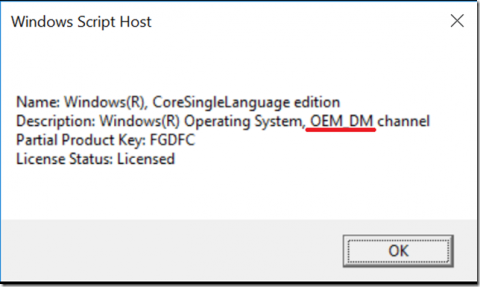
You need to check your license type to determine if it can be migrated to a different computer after resolving the issues mentioned above.
OEM licenses are tied to the motherboard and can only be migrated between the same hardware, whereas Retail licenses can be transferred between different hardware.
To check your Windows license type, open the Run window by pressing Win+R, type "Slmgr /dli" and press Enter. A pop-up window will then appear displaying your license details, including the type.
How to backup Windows 10 and restore on another computer
If Windows tools can't fix existing issues, consider using third-party backup software like Qiling Disk Master Professional, which supports all Windows versions and offers features such as system backup, creating bootable media, and universal restore.
Universal Restore helps restore a system image to a computer with different hardware and is also useful for physical-to-virtual (P2V) and virtual-to-physical (V2P) migrations.
✤ Preparations before migration:
If your target computer can boot properly, install the free Standard edition of Qiling Disk Master on the source computer to create a system image, then install and register the Professional edition on the target computer to support Universal Restore.
If your target computer can't boot normally, install the Professional edition on the source computer to create a system backup and a bootable media. Then, use the media to boot the target computer into WinPE and perform system restore.
Here's a free trial of the Professional edition:
✎ Tips:
- If you want to deploy a system image to multiple computers, you can use the Qiling Image Deploy tool, which allows for mass deployment of system images to multiple computers.
- Save the created backup image at an accessible place for the target computer, such as a removable device or network location.
Steps of Windows 10 image backup restoring to different hardware
*The following tutorial is based on the scenario where the target computer has no system or is unbootable. If your target computer can boot normally, then you do not need to create a bootable media, just install Qiling Disk Master on the target computer to perform a Universal Restore.
Step 1. Insert the bootable media, press the specific key at startup (usually Del, Esc, F2, etc.) to enter BIOS, set the bootable media as the first boot option, and the PC will then guide you into Qiling Disk Master interface.
Step 2. To restore Windows 10, go to the Backup and recovery page, then click Browse for recovery to select the Windows 10 backup image, usually a .fvd file.

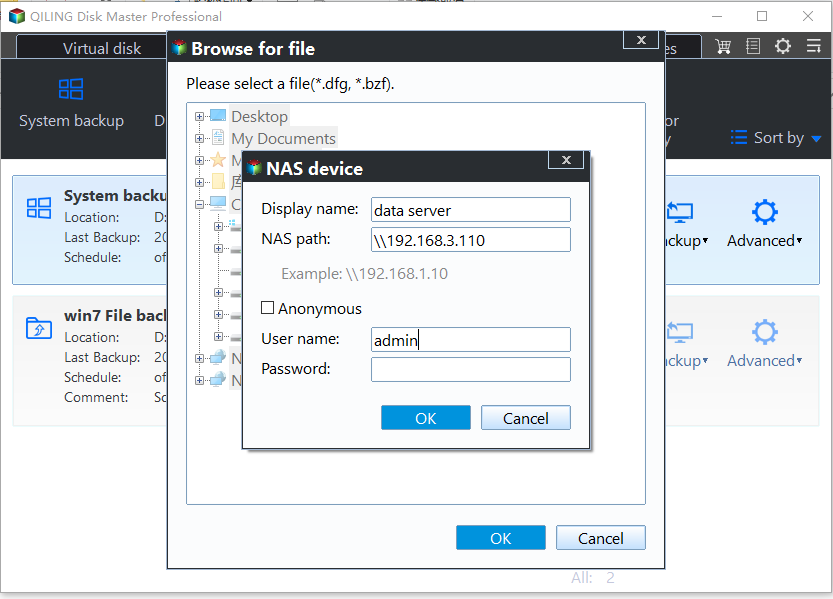
If the Windows 10 backup is saved on a network drive, you can add the network location by selecting "Share/NAS" and then "Add Network Location", where you'll enter the display name, IP address, username, and password of your network drive. This will allow you to select the backup image.
Step 3. Select the "Restore this system backup" option and make sure the "Universal Restore" checkbox is checked at the bottom.
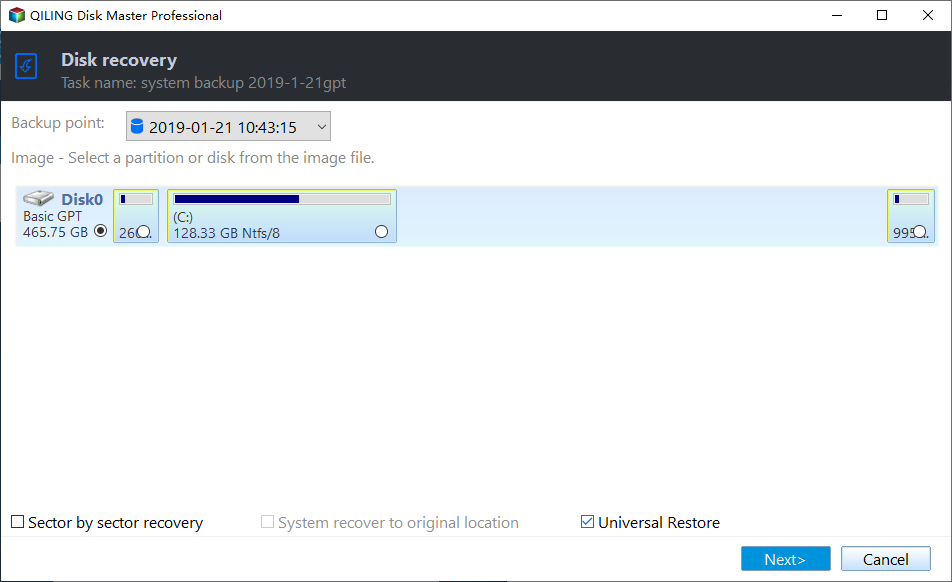
Step 4. Choose the destination disk you want to restore to and click Next.
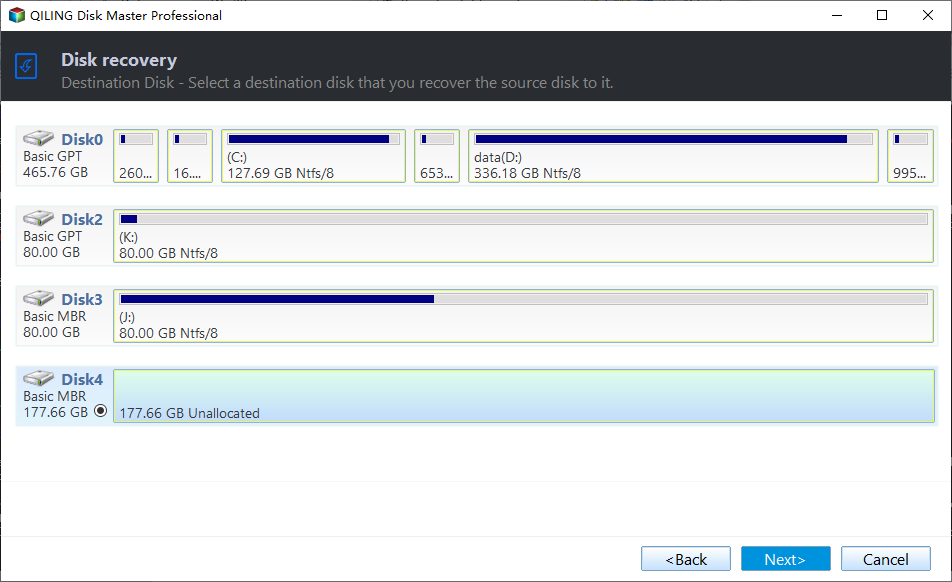
Step 5. After previewing all the operations, confirm them to proceed. Once the execution is complete, click "Finish" to complete the process of restoring a Windows 10 backup to dissimilar hardware.
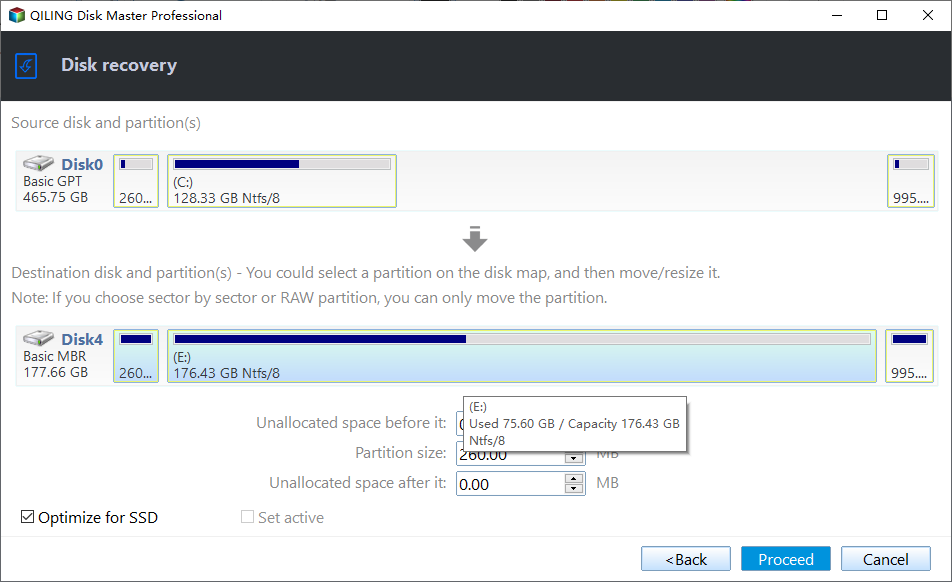
Tips:
- The Universal Restore option is enabled by default if the program detects any hardware differences between the source and target computers.
- This program also suggests checking the SSD Alignment box if the destination disk is an SSD.
Verdict
Qiling Disk Master Professional makes restoring Windows 10 backup to dissimilar hardware easy. You create a backup image, make bootable media, place the image on it, boot the target PC with the media, and then restore the image. That's the process.
This operation guidance can be applied in other operating systems as well. Qiling Disk Master is a disk clone software that can help you migrate Windows 10 from HDD to SSD without reinstalling, in addition to its features of backing up, restoring, and cloning disks.
Related Articles
- Restore Windows 10 from Recovery USB (4 Ways included)
- How to Use System Restore from Boot in Windows 10/8/7?
- 2 Ways to Restore Windows 10 System Image to New Hard Drive
- How to Solve System Restore Points Gone in Windows 10?
- Windows 10 System Restore Stuck on Initializing or Restoring Files︱Fixed
- Fix Kernel Security Check Failure Error in Windows 10/8/7
If you see a 'Kernel Security Check failure' blue screen in Windows 10/8/7, this guide explains common causes and practical fixes to get the PC running again.
Products
Articles & Tutorials
- Data Recovery
- Data Backup
- File Recovery
- File Backup
- File synchronize
- System Backup and Restore
- Disk and Partition Clone
- Technical articles
- Disk Master Help
- Windows Deleted File and Disk Recovery Tutorials
- Windows File and Data Recovery Tutorials
- More Windows Tutorials for Install, Security, Files, and PC Tips
- Windows Boot, Repair, and Recovery Environment Tutorials
- Windows Backup Tutorials
- Windows Restore Tutorials
- Windows Clone and Migration Tutorials
- Windows Server Backup, Recovery, and Management Tutorials
- Windows Disk, Partition, and Storage Management Tutorials