Transfer Windows 10 from HDD to SSD – No Data Loss
- Can I transfer Windows 10 from HDD to SSD?
- Why migrate Windows 10 from HDD to SSD?
- Best SSD cloning software for Windows 10
- How to transfer Windows 10 from HDD to SSD without losing data
- Method 1: Clone Windows 10 HDD to SSD
- Method 2: Transfer Windows 10 OS to SSD
- Tips on booting computer from the cloned hard drive
- More questions about transferring Windows 10 from HDD to SSD
- Wrapping things up
Can I transfer Windows 10 from HDD to SSD?
To reinstall Windows on your SSD instead of the HDD, you can try the following: boot from a Windows installation media (USB or CD), select the correct drive (your SSD) to install Windows on, and then proceed with the installation. If you're using a UEFI BIOS, you might need to select the correct drive in the BIOS settings before booting from the installation media. Alternatively, you can also try using a tool like Qiling Disk Master or MiniTool Partition Wizard to move the Windows installation to your SSD. If you're still unsure, you can also consider a clean install of Windows on your SSD, which will erase all data on the drive.
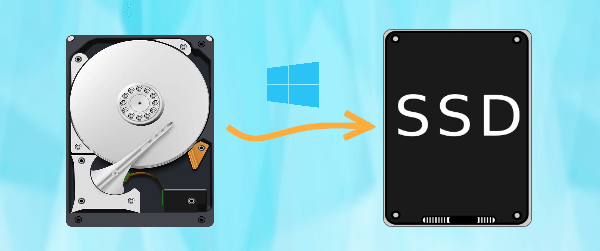
The user wants to upgrade their Windows 10 installation from a hard disk drive (HDD) to a solid-state drive (SSD) for improved performance, but is unsure how to transfer the operating system from the HDD to the SSD.
Replacing a hard drive can be a daunting task, especially if the old one contains valuable data. To make the process easier and avoid losing any important files, such as working documents, photos, and videos, you can use a disk cloning software to migrate the operating system to a new solid-state drive (SSD).
Why migrate Windows 10 from HDD to SSD?
Here are the advantages of SSD over HDD:
- The SSD's faster data access is due to its unique storage method, which differs from traditional HDDs.
- The data on SSD is safer than HDD.
- There is no noise of metal platter spinning.
- The SSD can operate in a wider temperature range than the HDD, functioning normally between -10 to 70℃, whereas the HDD can only operate between 5 to 50℃.
After moving Windows 10 to an SSD, you can expect a significant boost in your computer's performance, making it run faster than before. If you're looking to achieve this without reinstalling the OS, the best way is to use a reliable SSD cloning software to transfer Windows 10 from your HDD to the new SSD.
Best SSD cloning software for Windows 10
To complete the cloning process easily, I recommend using Qiling Disk Master Professional, a reliable and trustworthy software that supports cloning a disk, partition, or just the operating system.
💜 Disk Clone vs. System Clone
You can choose to clone your hard drive to a solid state drive (SSD) in Windows 10, but it's not the best practice due to the smaller storage space of SSDs, which can fill up quickly and impact performance. Instead, you can migrate only Windows 10 to the SSD using the "System Clone" feature to save time and storage space.
💜 Clone hard drive with different size
This software will only clone the used sectors in the hard drive by default, allowing for the cloning of larger disks to smaller ones or smaller disks to larger ones without issues.
💜 Useful clone options
A hard drive cloning software can clone all sectors of a hard drive with the "Sector by sector clone" feature, accelerate reading and writing speed on SSD with "SSD Alignment", and adjust partition size on a larger destination disk with "Edit Partitions" to utilize disk space efficiently.
You're likely familiar with this software. Download it right away to learn how to clone a Windows 10 hard drive or operating system in depth.
How to transfer Windows 10 from HDD to SSD without losing data
Before cloning HDD to SSD in Windows 10, you need to make some preparations:
- Make sure the destination SSD has enough space to store all data, and if it doesn't, consider using a different method to migrate only Windows 10 to the SSD.
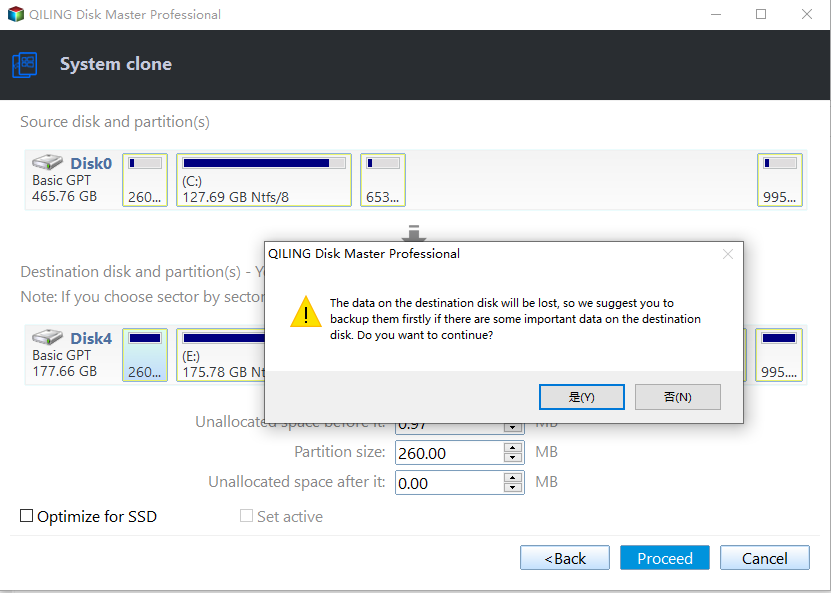
- Please back up files on the target hard drive in advance, as the destination disk will be overwritten.
- If you're transferring Windows 10 from an MBR disk to a GPT disk, ensure your motherboard supports EFI/UEFI and switch your boot mode from BIOS to UEFI when booting from the new SSD.
Method 1: Clone Windows 10 HDD to SSD
To clone the entire disk containing Windows 10, you will use the "Disk Clone" feature. This will create an exact copy of the entire disk, including the operating system, programs, and data.
Step 1. Launch Qiling Disk Master and click on Clone -> Disk Clone in order.

Step 2. Select the Windows 10 system hard drive (eg: Disk 0) and click the Next button to continue.

Step 3. Select the SSD disk as the destination, for example, Disk 1, and click the Next button to proceed.

Step 4. To improve the performance of your SSD disk, check the box next to "SSD Alignment" and then click "Proceed" to start the cloning process from your HDD to the SSD in Windows 10.

Step 5. Wait until the process is complete, then click Finish to close the window.
Method 2: Transfer Windows 10 OS to SSD
Use the System Clone feature to clone only the OS, which can improve your computer's performance without taking up much disk space.
If the destination disk is too small, consider using a solid-state drive (SSD) for the operating system and a hard disk drive (HDD) for storage. This approach leverages the strengths of both technologies, offering high performance from the SSD and large capacity from the HDD.
Step 1. Run Qiling Disk Master, then click Clone and select System Clone.

Step 2. The system partition (s) is (are) chosen by default, and you need to select the SSD you prepared as the destination disk, then click Next.

Step 3. In the Operation Summary window, check SSD Alignment to optimize SSD performance and prolong its lifespan, then click Proceed. Once the progress reaches 100%, click Finish.
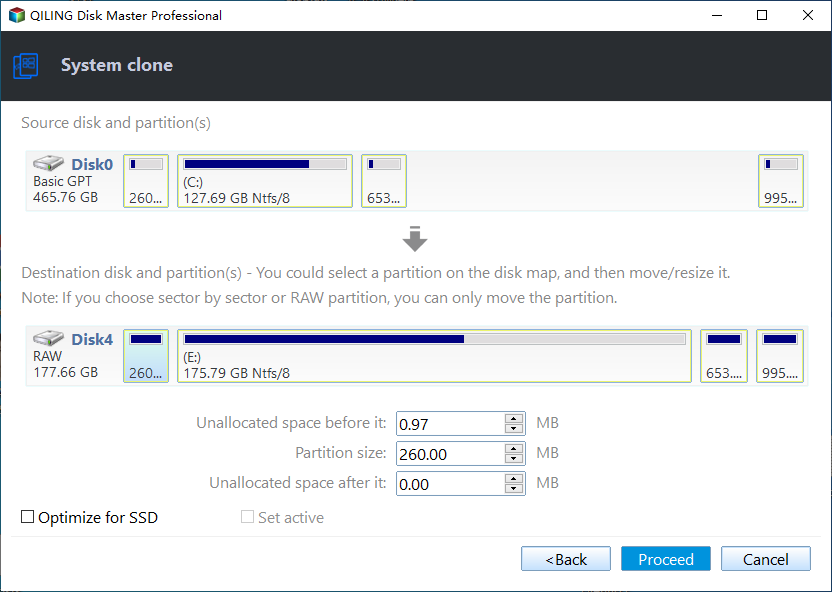
If the SSD is not empty, you will see a reminder pop-up window to confirm whether you want to continue the progress. Confirm the information and click OK, as you have already backed up important files in the preparation stage.
Notes:
❤ This software can migrate Windows 10 and previous versions (Windows 7/8) to a new hard drive, and also supports migrating Windows Server 2012 to a new hard drive.
❤ To transfer Windows 10 from an HDD to an SSD, you can also create a complete system backup of Windows 10 and then restore the system image backup to the SSD, ensuring that your data is safe and you don't lose anything in the process. This method is free and can be used in addition to cloning.
Tips on booting computer from the cloned hard drive
- To access the hard drive, completely shut down your computer. Then, remove the back panel or host, and take out the hard drive using screwdrivers.
- Install the solid-state drive (SSD) in the same location as the hard disk drive (HDD) and secure it tightly.
- Put the computer panel or host cover back.
- Restart your computer, and then press F2 to enter the BIOS setup.
- To set up your new SSD as the primary boot device, go to the BIOS settings, switch to the boot tab, and select the SSD as the first boot option. Save the changes and restart your computer. It should now boot from the SSD as usual.

More questions about transferring Windows 10 from HDD to SSD
Migrating Windows 10 from a Hard Disk Drive (HDD) to a Solid State Drive (SSD) is a process that can be done to improve the performance and speed of your computer. Here are some frequently asked questions and answers to help guide you through the process.
A Hard Disk Drive (HDD) is the basic storage disk of a computer, consisting of a metal platter with a magnetic coating. When it spins, data can be read and written, making it a fundamental component for storing and retrieving digital information.
A Solid State Drive (SSD) is a type of storage disk that uses solid-state electronic storage chips, unlike traditional Hard Disk Drives (HDD) which have moving parts. Data on an SSD is stored on memory chips, consisting of flash and Dynamic Random Access Memory (DRAM) chips, eliminating the need for spinning platters when reading or writing data.
To migrate Windows 10 to a new SSD, you can either clone the system partition directly using the "System Clone" feature or create a complete system image of Windows 10 and restore it to the new SSD, which is a free option.
To migrate a large hard drive to a smaller solid state drive, use the "intelligent clone" feature, which copies only the used sectors of the hard drive, ensuring all necessary data for Windows startup, including the operating system, system reserved partition, and recovery partition, is included.
Wrapping things up
To transfer Windows 10 from a hard disk drive (HDD) to a solid state drive (SSD), you can use the cloning software Qiling Disk Master. This software offers two options: the "Disk Clone" feature, which clones the entire hard drive, and the "System Clone" feature, which clones only the operating system.
If you want to protect unlimited computers within your company, you can use Qiling Disk Master Technician. This tool allows you to deploy or restore system image files on a server-side computer to multiple client-side computers over a network, making it easy to manage and protect your entire network.
Related Articles
- The Best Free OS Migration Software for Windows 10/8/7
- How to Transfer Windows 8/8.1 Installation from HDD to SSD?
- How to Migrate Windows 10 to M.2 SSD without Reinstalling?
- Top 2 Easy Ways to Install Windows 10 on SSD
- Easily Transfer OEM Windows 10 & License to New Hard Drive
- Convert Primary to Logical Windows 10 without Data Loss
How to convert primary to logical Windows 10 when there're already 4 primary partitions on a disk. This time, the most useful tool will be introduced.
Products
Articles & Tutorials
- Data Recovery
- Data Backup
- File Recovery
- File Backup
- File synchronize
- System Backup and Restore
- Disk and Partition Clone
- Technical articles
- Disk Master Help
- Windows Deleted File and Disk Recovery Tutorials
- Windows File and Data Recovery Tutorials
- More Windows Tutorials for Install, Security, Files, and PC Tips
- Windows Boot, Repair, and Recovery Environment Tutorials
- Windows Backup Tutorials
- Windows Restore Tutorials
- Windows Clone and Migration Tutorials
- Windows Server Backup, Recovery, and Management Tutorials
- Windows Disk, Partition, and Storage Management Tutorials