Convert Primary to Logical Windows 10 without Data Loss
Overview of primary and logical partitions
Before we start, we need to figure out what are primary and logical partitions on your computer disk. In the following contents, I'll explain their definition and features respectively in the most explicit words in the hope that you can understand them with more ease.
Primary Partition: A partition can be created as an independent unit on both MBR and GPT disks. On an MBR disk, each primary partition has an entry in the Master Boot Record, with a maximum of 4 entries, allowing up to 4 primary partitions. In contrast, a GPT disk can hold a maximum of 128 primary partitions.
Logical Partition: This type of partition can only be created on an MBR disk and must be created within an extended partition. It has limitations compared to its counterpart, and can only be created in an extended partition. However, it allows for more flexibility, enabling the creation of up to 4 primary partitions or 3 primary partitions plus one extended partition on an MBR disk, with the extended partition serving as a container for multiple logical partitions.
Why do we convert primary to logical Windows 10?
In a disk's Master Boot Record (MBR), only 4 primary partitions or 3 primary partitions plus 1 extended partition can be stored. To add a fifth partition, you would need to convert a primary partition to a logical partition, as the MBR can only accommodate a total of 4 primary partitions.
Software to convert primary to logical drive without data loss Windows 10
I spent time searching online for a tool to convert a primary drive to a logical drive, but most of the tools I found came with bundled software that cluttered my desktop and were too complex for beginners.
I found the software Qiling Disk Master Professional, which can convert a primary partition to a logical one without data loss. The process is simple, and it also offers features like NTFS and FAT32 conversion, MBR and GPT conversion, and dynamic and basic disk conversion. The software has a clean and intuitive UI and no bundleware, making it comfortable to use.
Try the demo version to convert primary to logical in just a few steps.
Step 1. Install and launch Qiling Disk Master Professional. The main interface will then list all disks and partitions.
Step 2. Right-click on the primary partition you want to convert, select "Advanced" > "Convert to Logical Partition".
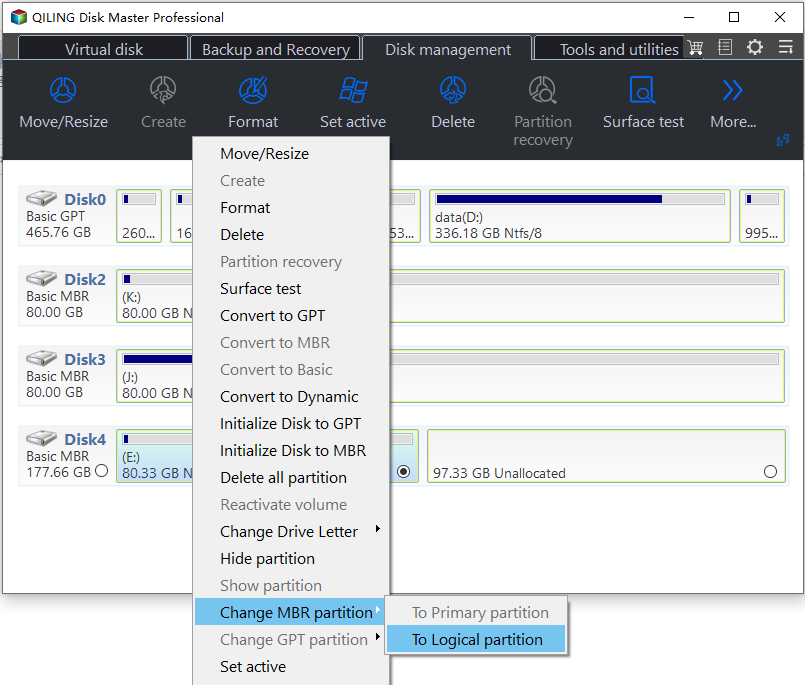
Step 3. Waiting a moment for converting to logical partition.
On your Windows 10 PC, the primary partition has been converted to a logical partition without losing any data inside.
Convert primary partition to logical Windows 10 CMD (damaging data)
The process described is not a real conversion, but rather a way to utilize unallocated space on a disk using the Windows Command Prompt (CMD). It involves deleting a primary partition, creating an extended partition with the freed space, and then creating a logical drive within it. This method is more complex and carries a risk of data loss, but it is a free feature provided by Windows.
Note: When using the Command Prompt (CMD), deleting a partition will result in its permanent removal. To avoid data loss, it's essential to create a backup of the partition before proceeding with the deletion. This ensures that your important files and data are safely stored elsewhere and can be restored if needed.
★ To open the DiskPart command-line utility, type "diskpart" in the search bar on your desktop and hit "ENTER" to bring up the DiskPart window.
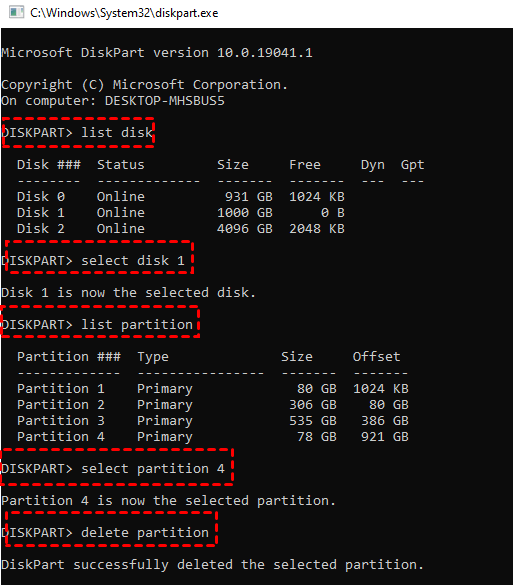
★ To list all disks on your PC, type "list disk" and press the "ENTER" key.
★ Select the disk where the 4 partitions exist, type "select disk *" and press ENTER.
★ To delete a partition in Windows, list the available partitions, select the one you want to delete, and confirm the deletion.
★ Type "select partition *" and hit "ENTER".
★ To delete a partition, type "delete partition" and press the "ENTER" key. This will remove the partition you selected.
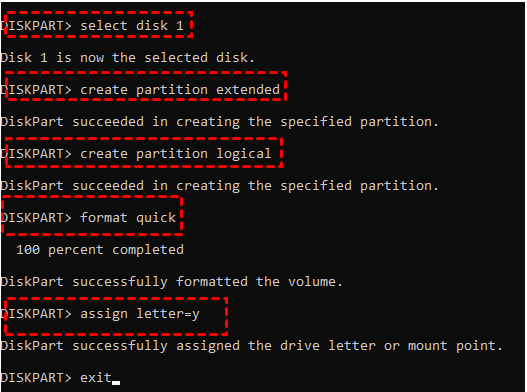
★ Type "select disk *" and hit "ENTER".
★ Type "create partition extended" and hit "ENTER".
★ Type "create partition logical" and hit "ENTER".
★ Type "format quick" and hit "ENTER". Wait until it's 100% completed.
★ To assign a letter to the created logical partition, type "assign letter=* " and press the "ENTER" key. This will allow you to assign a specific letter to the partition, making it easier to identify and access.
★ Type "exit" and hit "ENTER" to quit the operation.
Conclusion
You've learned the differences between primary partitions and logical partitions. Two ways to convert primary to logical partitions on Windows 10 have been introduced. If you want to convert primary partition to logical one without data loss, the Qiling Disk Master Professional is a better choice. The Server edition of Qiling Disk Master software is recommended for use on Server operating systems.
Related Articles
- How Do I Set Partition as Primary in Windows 10/8/7 Step-by-Step?
Three ways about how to set partition as primary are listed in this post and you can choose the one that you like. - How to Delete Files from External Hard Drive in Windows 10/8/7?
In this post, we will show you how to delete files from external hard drives in Windows 11, 10, 8 and Windows 7. You will learn 4 methods to remove files on external drive successfully. - How to Fix Bad Sectors on External Hard Drive?
Learn how to Fix Bad Sectors on External Hard Drive with clear steps, key checks, and practical tips. - How to Fix Corrupted Hard Drive Using CMD in Windows 11/10/8/7?
This page will demonstrate how to fix corrupted hard drive using CMD elaborately. A reliable tool-Qiling Disk Master, which offers easier ways to repair the corrupted hard drive, will also be introduced. - How to Recover Unallocated Space on USB Flash Drive?
Learn how to Recover Unallocated Space on USB Flash Drive with clear steps, key checks, and practical tips. - How to Remove MBR Partition Table from USB Flash Drive in Windows 7/XP?
Learn what a MBT partition table is and how to remove or delete MBR partition table from hard drive or USB flash drive in Windows XP and Windows 7.
Products
Articles & Tutorials
- Data Recovery
- Data Backup
- File Recovery
- File Backup
- File synchronize
- System Backup and Restore
- Disk and Partition Clone
- Technical articles
- Disk Master Help
- Windows Deleted File and Disk Recovery Tutorials
- Windows File and Data Recovery Tutorials
- More Windows Tutorials for Install, Security, Files, and PC Tips
- Windows Boot, Repair, and Recovery Environment Tutorials
- Windows Backup Tutorials
- Windows Restore Tutorials
- Windows Clone and Migration Tutorials
- Windows Server Backup, Recovery, and Management Tutorials
- Windows Disk, Partition, and Storage Management Tutorials