How to Remove MBR Partition Table from USB Flash Drive in Windows 7?
What is a MBR Partition Table?
The Master Boot Record (MBR) disk uses the standard BIOS partition table, which is a special boot sector at the beginning of partitioned storage devices. It contains information on how logical partitions, with file systems, are organized on the medium.
The MBR, or Master Boot Record, is the first sector of a hard drive or solid-state drive, which contains the partition table. This limits the maximum addressable storage space to 2 TB. The MBR supports up to four primary partitions, but DOS can only use one. The MBR is not located within a partition, but rather at the physical offset 0, preceding the first partition.
Why Need to Remove MBR Partition Table?
Following three factors may result in MBR partition deleting.
- If you're planning to install a new operating system like Linux, which doesn't support MBR partition style, it will overwrite the Master Boot Record (MBR) with GRUB, effectively removing the existing Windows installation.
- The MBR partition has limitations, supporting up to 2 TB disk capacity and only allowing four primary partitions. If an old MBR partition is cloned to a larger capacity disk, such as 3 TB or 4 TB, the MBR partition table is no longer necessary.
- Your MBR (Master Boot Record) partition table is either missing, compromised, or messed up. To resolve this issue, you have two options: either rebuild the MBR or delete the MBR and partition table to create a new and workable partition table.
If the MBR is deleted or removed, the entire hard drive becomes inaccessible, as the system can't find the partitions. It's recommended to back up important files before making any changes.
How to Remove MBR Partition Table in Windows XP/7?
You can delete MBR partition or GPT partition table using freeware like FDisk or GDisk, but to remove MBR, you have multiple solutions. You can also completely wipe the entire hard drive, including all existing partitions, hidden partitions, and MBR, for a fresh start. Alternatively, if you replace the MBR disk with a larger one, such as a 4TB drive, you can convert the MBR partition table to GPT for better management. In this case, you can use Diskpart in Command Prompt and Qiling Disk Master Professional to solve the issue.
How to Remove MBR Partition Table via CMD?
To run Diskpart, open Command Prompt by pressing the Windows + R key combination to start the Run box. From there, you can delete an internal hard disk's MBR partition, for example, by following the necessary commands in the Command Prompt.
- To access the Diskpart utility, type "diskpart" in the Run box, press Enter, and then run the Command Prompt as an administrator.
- Type "list disk"
- To convert a disk to a different file system, you would type "select disk X", where X is the number of the disk you want to convert.
- Be extremely careful with this command as it will irreversibly erase all data on the disk.
- Type "convert gpt".
- Type "exit" to exit the Command Prompt
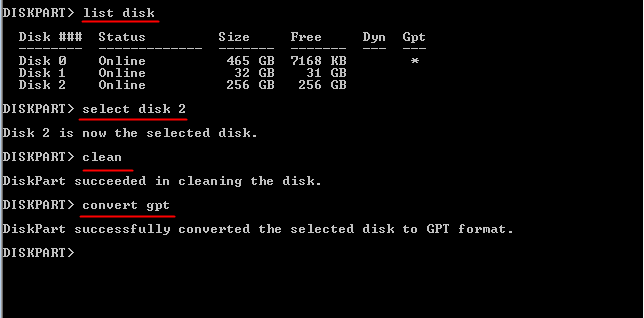
Converting a basic disk with the master boot record (MBR) partition style to a basic disk with GUID partition table (GPT) partition style is a quick and fast process, but it can be time-consuming and error-prone for users unfamiliar with command line operations, making it difficult to step back and correct mistakes. A GUI partition manager can be helpful in this situation.
Securely Remove MBR Partition on USB via Qiling Disk Master
This partition manager offers a range of features, including wiping hard drives and deleting MBR partitions by converting them to GPT in Windows XP to 11. It's a great alternative to Gptgen and can also fix issues with converting FAT32 to NTFS. With its user-friendly interface, it's suitable for both beginners and experts. You can download a free trial to try it out.
Step 1: To install Qiling Disk Master, plug in the USB drive and ensure it can be detected by Windows. Next, install Qiling Disk Master and launch the software.
Step 2: Right-click the USB drive and select "Wipe Hard Drive".
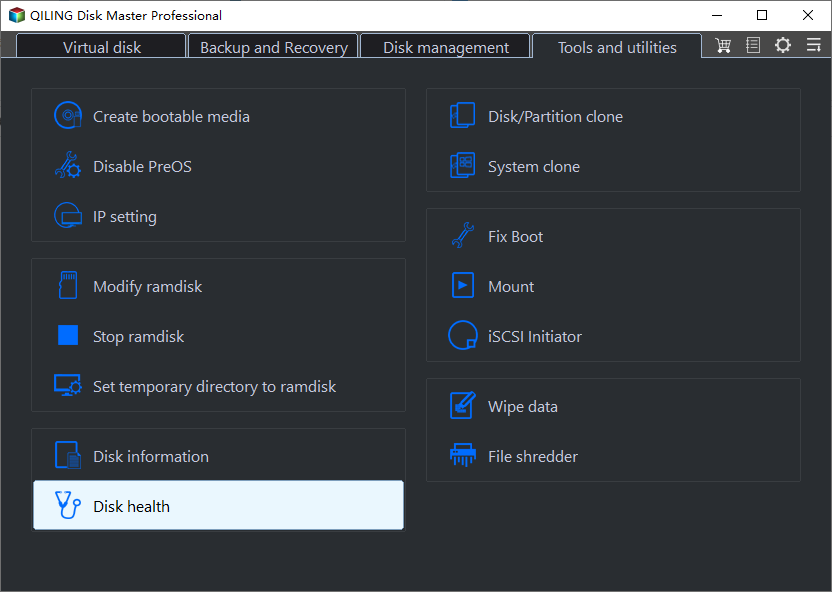
Step 3: In the pop-up window, select a wipe method and click "OK". For standard data erasure, the first option is sufficient. The wiping method becomes more thorough from top to bottom.
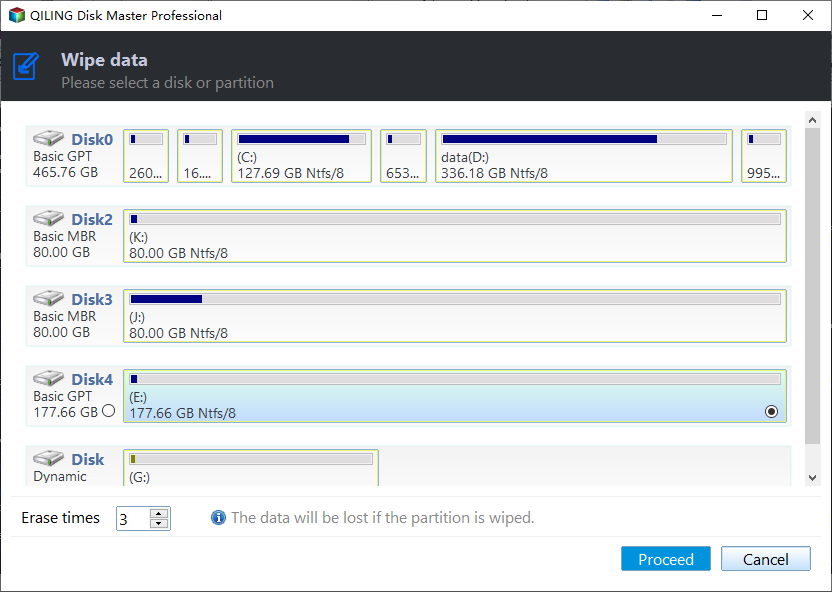
Step 4: Click "Apply" and then "Proceed" to execute the task.

You can easily remove the MBR partition table in Windows 7 and XP with minimal effort. Qiling Disk Master also supports command line partitioning, allowing you to manage your hard drive more effectively in the Command Prompt.
Related Articles
- The Simplest Way to Convert MBR Partition Table to GPT
Walks through MBR Partition Scheme for UEFI vs GPT for UEFI? with boot checks, repair options, and steps to keep Windows recoverable. It also touches on What is UEFI boot mode & the difference from Legacy boot?, Which parti. - How to Fix MBR2GPT Error in MBR to GPT Conversion in Windows 10?
If you faced "MBR2GPT error" when convert MBR to GPT, try alternative Qiling Disk Master, which can make disk conversion between MBR and GPT easily and safely. - How Do I Merge Extended Partition to Primary Partition Simply and Quickly?
If you want to merge extended partition to primary partition and find no way, you can get an easy way to merge two or more partitions without data loss in this article. - Microsoft Surface Data Eraser - Free Tool to Wipe Data
Covers safe ways to protect or remove data, including preparation steps to avoid unwanted file loss. It also touches on What Is Microsoft Surface Data Eraser?, How to Use Microsoft Surface D. - What Does a Disk Defrag do and Why Do I Need it?
Explains What Does a Disk Defrag do and Why Do I Need it? with practical disk checks and safer partition or file system changes. It also touches on What does a disk defrag do?, Do I need to defrag?. - What Files Can Be Moved C Drive to D Drive in Windows 10 and How to
See which files can be moved from C drive to D drive in Windows 10 and how to relocate personal data without affecting system files.
Products
Articles & Tutorials
- Data Recovery
- Data Backup
- File Recovery
- File Backup
- File synchronize
- System Backup and Restore
- Disk and Partition Clone
- Technical articles
- Disk Master Help
- Windows Deleted File and Disk Recovery Tutorials
- Windows File and Data Recovery Tutorials
- More Windows Tutorials for Install, Security, Files, and PC Tips
- Windows Boot, Repair, and Recovery Environment Tutorials
- Windows Backup Tutorials
- Windows Restore Tutorials
- Windows Clone and Migration Tutorials
- Windows Server Backup, Recovery, and Management Tutorials
- Windows Disk, Partition, and Storage Management Tutorials