Clone Larger Drive to Smaller SSD Drive in Windows 10 or 11
Quick Navigation:
- Can I clone larger drive to smaller drive?
- Powerful hard drive cloning software - Qiling Disk Master Professional
- Preparations for cloning to smaller drive
- Step by step guide: clone larger hard drive to smaller SSD
- What to do when cloned drive won’t boot?
- Summary
Can I clone larger drive to smaller drive?
* Acronis True Image
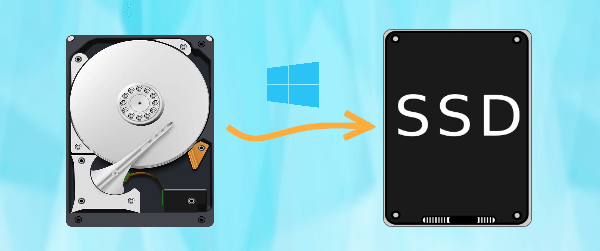
While it's possible to clone a larger drive to a smaller SSD, it's not always a straightforward process. The smaller SSD may not have enough space to hold all the data from the larger drive, which means some files or data may be left behind or deleted during the cloning process. Additionally, if the smaller SSD is significantly smaller than the larger drive, it may not be able to accommodate the operating system and all the installed programs, which can lead to system instability or crashes.
It's possible to clone a larger drive to a smaller SSD as long as the used space on the larger drive is smaller than or equal to the smaller SSD, and cloning software like Qiling Disk Master Professional can clone only the used sectors of the drive.
Powerful hard drive cloning software - Qiling Disk Master Professional
The Intelligent Clone feature in Qiling Disk Master Professional allows for cloning larger drives to smaller drives without boot issues, and also automatically skips bad sectors if the disk is slightly damaged, making it suitable for cloning hard drives with bad sectors, regardless of the cloning method used.
- Three Cloning Methods: The tool provides three cloning options: Disk Clone, System Clone, and Partition Clone. It allows users to choose between cloning the entire disk or migrating the OS to a smaller SSD.
- SSD Alignment: Qiling Disk Master's built-in technology automatically aligns 4K partitions on SSDs, enhancing performance and extending their lifespan.
- Edit Partitions: Qiling Disk Master can convert smaller SSDs from MBR to GPT or vice versa, preventing boot failures due to different disk partition styles. This feature is useful for cloning MBR disks to GPT or vice versa.
- SSD Compatibility: It supports all branded SSDs, including HP, Samsung, WD, SanDisk, Lenovo, and others, regardless of capacity or interface, such as SATA, NVMe, or PCIe.
Set your mind at ease to free download this software and have a try now. To clone a larger drive to a smaller one, take cloning to a smaller SSD for example, you can follow these steps: first, download and install the software, then select the source drive and target drive, and finally, start the cloning process. The software will handle the rest, ensuring a smooth and efficient transfer of data from the larger drive to the smaller one. By following these simple steps, you'll be able to clone your larger drive to a smaller one with ease.
Preparations for cloning to smaller drive
To make sure the cloning process runs smoothly, you need to make some preparations.
1️⃣ Connect SSD: To get started, install the smaller SSD disk on your computer and ensure it can be detected. If the disk is not initialized, you'll need to initialize it in the Disk Management first, which will allow it to be recognized by your system.
2️⃣ Connector: If your computer is a laptop, you'll need a SATA-to-USB cable or adapter to connect it to the desktop computer.
3️⃣ Capacity: If your larger drive is almost full, check the used space and make sure it can fit the smaller SSD. If not, clean up your larger drive or use the System Clone feature instead.
4️⃣ Disk Partition Style: To ensure a smooth setup, it's crucial that both the larger drive and the smaller drive are using either the GPT (GUID Partition Table) or MBR (Master Boot Record) partitioning scheme. If they're not, you'll need to convert them to the same scheme or utilize the "Edit Partitions" feature in Qiling Disk Master Professional to resolve any discrepancies.
Here are some simple steps to check disk partition style:
In Disk Management, right-To determine whether your computer uses a Master Boot Record (MBR) or GUID Partition Table (GPT) partition style, click on the hard disk or SSD, select "Properties" and then "Volume," followed by "Partition Style." This will display either "Master Boot Record (MBR)" or "GUID Partition Table (GPT)."

5️⃣ One external hard drive. You may need to transfer large files to free up some space or create a system backup or disk backup to prevent data loss due to computer failure.
Step by step guide: clone larger hard drive to smaller SSD
Here are two guides to help you clone a larger HDD to a smaller SSD with secure boot: a video tutorial that shows the whole process more intuitively and a graphic tutorial that provides more details, with a suggested starting point of checking the video first and then getting more information from the graphic tutorial.
Graphic Step-by-step Tutorial:
Step 1. Launch Qiling Disk Master Professional, which features a deep-blue interface. Click Clone, then select Disk Clone to initiate the cloning process.

Note: The disk clone feature can only be demonstrated in the trial version, but to clone a larger drive to a smaller drive and boot from it, you need to upgrade from the trial to the full version.
Step 2. Choose the larger drive as the source disk, and then click Next.

Step 3. Choose the smaller SSD drive as the destination disk and click Next.

Step 4. This operation uses Intelligent Clone by default, allowing for easy cloning to a smaller drive, and can be previewed before proceeding.

Notes:
① Ticking SSD Alignment during hard drive to SSD cloning can optimize SSD performance and speed up your computer after cloning.
② This feature should not be checked because it's designed for cloning an entire larger drive to another larger drive, and it will fail when trying to clone a larger drive to a smaller drive due to insufficient disk space.
③ Edit Partitions To avoid unallocated space on a cloned hard drive, use the "Copy without resizing partitions" option, which preserves the original partition layout, or manually adjust the partition size to match the original drive, or add unused space to all partitions to reclaim space.
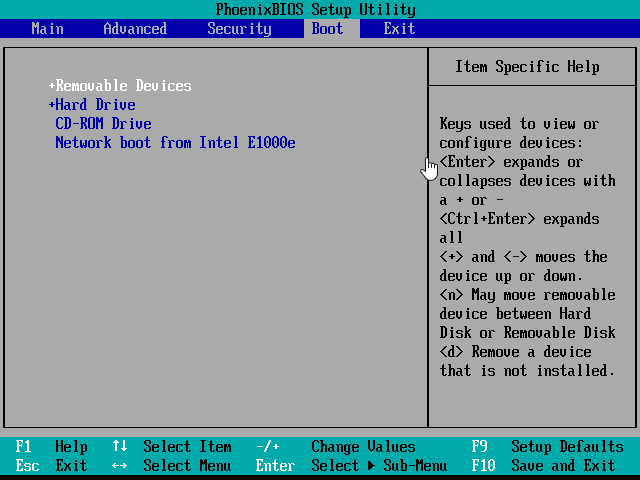
Step 5. Replace the larger drive with the smaller SSD, and attempt to boot from it. If it doesn't automatically boot from the cloned drive, change the boot priority to it in the BIOS and try again.
Tips:
① To get the best performance of a cloned SSD disk, it's recommended to clone Windows 10 to an NVMe SSD, as it offers the fastest speed.
② To clone a larger HDD to a smaller SSD without booting Windows, you can create a bootable media with cloning software and boot from it, then perform the disk clone.
What to do when cloned drive won’t boot?
A cloned hard drive may not boot as expected due to various reasons, including a corrupted operating system, a missing boot-related partition, or mistakes made during the cloning process, as well as incorrect boot order settings.
Don't panic if your cloned SSD won't boot. Understand that cloning has no harm to the original hard drive, as it only makes duplications. Follow the guides in this article to troubleshoot and fix the issue.
Summary
Cloning a larger drive to a smaller one, such as a smaller SSD, is a relatively straightforward process when using the right tool. Qiling Disk Master is a great option, as it ensures a safe boot after cloning and offers useful features to optimize the process, including intelligent clone, 4k alignment technology, and edit partitions.
Qiling Disk Master can be used to clone a hard drive to a larger drive, migrate Windows 10 to an M.2 SSD, create bootable Win PE & Linux media, and more. If you have these needs, download it to try it out now. Practice is the best way to learn.
Related Articles
- Clonezilla Clone Larger Disk to Smaller Disk - Workaround
- How to Easily Clone Disk to Larger Disk in Windows 10/8/7
- Clone Hard Drive with Different SizeEasily
- Clone 500GB HDD to 250GB SSD with A Cloning Software
- How to Clone Laptop Hard Drive to Smaller SSD or New Drive
- Solved: SCCM PXE Boot Not Working
This tutorial focus on how to solve the problem of SCCM PXE boot not working. To boot client computers easily, you can turn to Qiling Disk Master Professional.
Products
Articles & Tutorials
- Data Recovery
- Data Backup
- File Recovery
- File Backup
- File synchronize
- System Backup and Restore
- Disk and Partition Clone
- Technical articles
- Disk Master Help
- Windows Deleted File and Disk Recovery Tutorials
- Windows File and Data Recovery Tutorials
- More Windows Tutorials for Install, Security, Files, and PC Tips
- Windows Boot, Repair, and Recovery Environment Tutorials
- Windows Backup Tutorials
- Windows Restore Tutorials
- Windows Clone and Migration Tutorials
- Windows Server Backup, Recovery, and Management Tutorials
- Windows Disk, Partition, and Storage Management Tutorials