Windows Server 2012 Hard Drive Keeps Filling Up
A Windows Server 2012 drive may keep filling up because of logs, shadow copies, update cache, backup versions, database files, user profiles, or temporary files.
Understand the problem
On a server, deleting files blindly can break applications or remove useful restore points. Identify what is growing before cleanup.
- Confirm the exact disk, partition, drive letter, file system, and capacity before changing anything.
- Back up or recover important files before formatting, deleting, converting, resizing, or recreating partitions.
- For boot-related changes, check BIOS or UEFI mode, boot order, and system partition status before editing disk layout.
Use Windows built-in tools
Use Windows tools to locate growth sources before changing partition size.
- Check drive usage with File Explorer, Disk Cleanup, and folder size tools.
- Review Windows Update cache, IIS logs, database logs, backup versions, and user profile folders.
- Check shadow copy storage with vssadmin list shadowstorage.
- Move or archive logs according to application policy.
- If C drive is genuinely too small, add unallocated space and extend it after backup.
Use Qiling tools for guided steps
 Qiling Disk Master
Back up server data and resize the partition after confirming what consumes disk space.
Function. Back up files before changing locations or programs
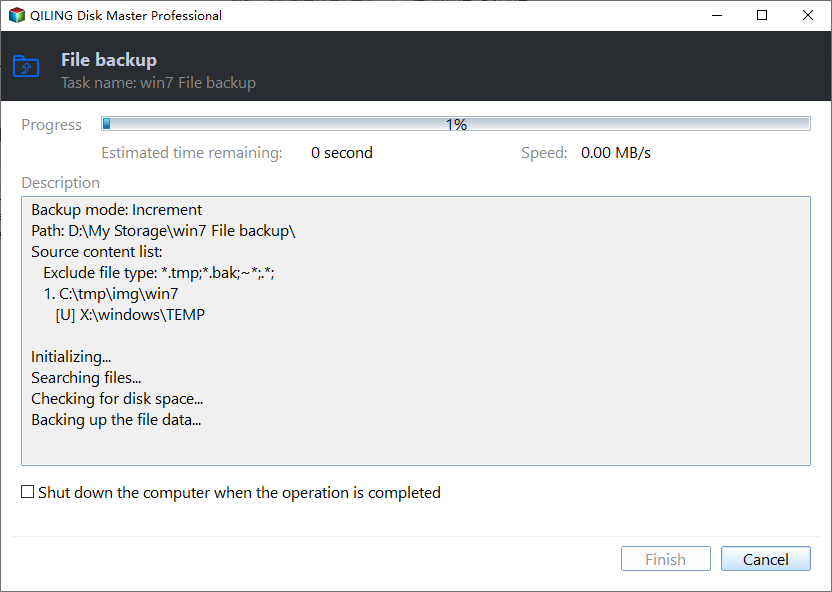
Step 1. Open Qiling Disk Master and choose Backup and Recovery > File backup.

Step 2. Select server logs, application data, and important shared folders and any related configuration folders that you may need later.

Step 3. Choose a destination on another disk, external drive, or network location. Avoid saving the backup to the disk you are about to modify.

Step 4. Review the source and destination, then click Proceed. Keep the backup until the new location or new program path is verified.
Function. Resize or move the partition with preview
Step 1. Back up important files from the Server 2012 system or data volume. Close running programs, pause large file transfers, and make sure the computer has stable power.
Step 2. Open Qiling Disk Master. In the disk map, select the Server 2012 system or data volume by drive letter, capacity, and position, then click Resize/Move.
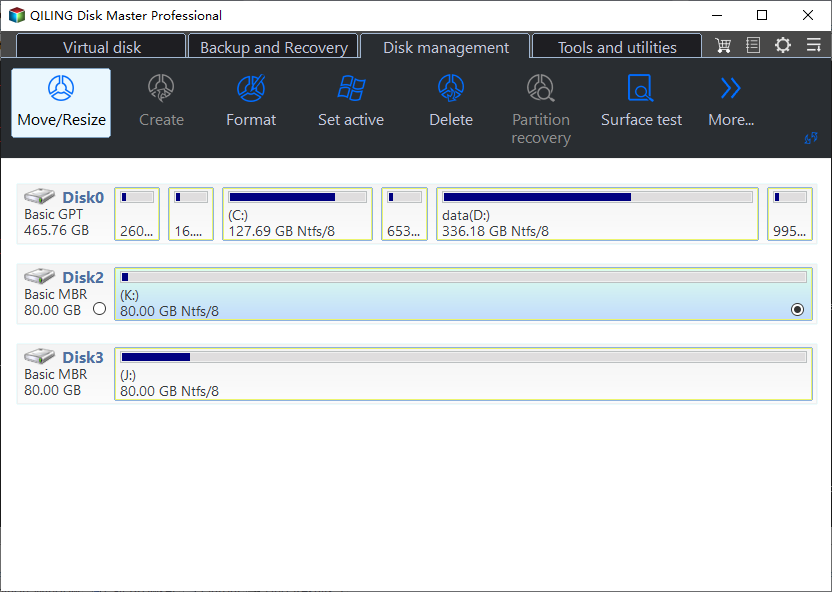
Step 3. Drag the partition border or enter the new size to extend the partition into available space. If unallocated space is on the wrong side, move the neighboring partition first so the final layout is correct.
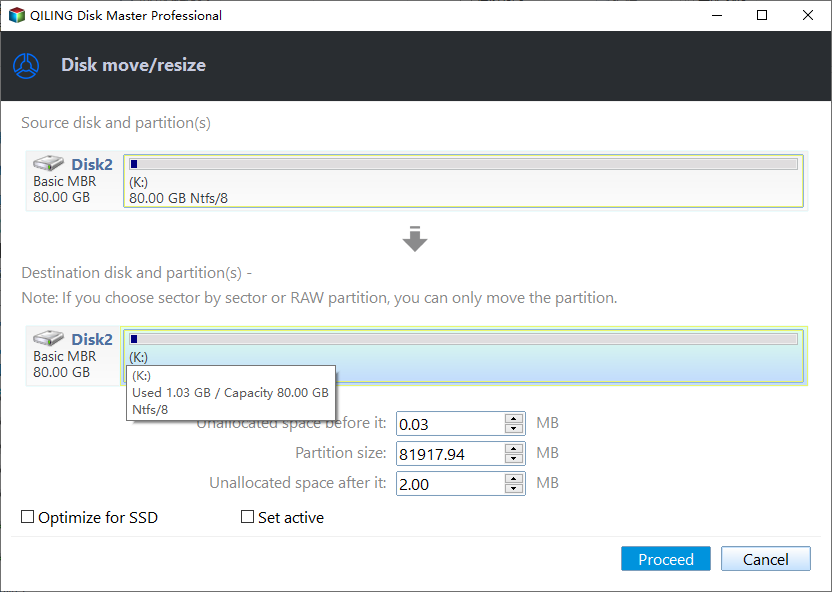
Step 4. Review the pending operations in the disk map. Confirm that only the intended partition will be changed.
Step 5. Click Proceed to apply the changes. Do not interrupt the process while the partition is being moved or resized.
Step 6. When the task finishes, reopen Disk Management and File Explorer. Confirm the final capacity, drive letter, and file access.
Check the result
Monitor free space for several days after cleanup or resizing. Confirm applications and scheduled backups still run normally.
Related Articles
-
C Drive Getting Full on Server 2012 R2
Find why Server C drive fills automatically and clean it safely. -
Windows Server C Drive Cleanup
Clean server C drive without damaging workloads.
Products
Articles & Tutorials
- Data Recovery
- Data Backup
- File Recovery
- File Backup
- File synchronize
- System Backup and Restore
- Disk and Partition Clone
- Technical articles
- Disk Master Help
- Windows Deleted File and Disk Recovery Tutorials
- Windows File and Data Recovery Tutorials
- More Windows Tutorials for Install, Security, Files, and PC Tips
- Windows Boot, Repair, and Recovery Environment Tutorials
- Windows Backup Tutorials
- Windows Restore Tutorials
- Windows Clone and Migration Tutorials
- Windows Server Backup, Recovery, and Management Tutorials
- Windows Disk, Partition, and Storage Management Tutorials