7 Easy Ways to Perform Windows Server C Drive Cleanup
What happens when the C drive is full on the Server?
A full C drive on a Windows Server 2016 or 2019 can cause system crashes, slow performance, and increased risk of data corruption. This is because the C drive typically contains the operating system and essential system files, and when it runs out of space, the system can become unstable and unable to function properly. The lack of available space can also prevent the system from installing updates, which can further exacerbate the issue.
①Decreased System Performance
The C drive, where Windows Server stores temporary files and system data, can become full, causing system performance to significantly decrease, leading to a slow and unresponsive server.
②System Instability and Crashes
A full C drive can cause system instability and crashes due to the operating system's inability to write essential system files or create temporary files, leading to errors, freezes, and crashes that can disrupt critical services and impact server stability.
③Limited Functionality
When the C drive is full, some system functions may not work properly or become unavailable, including Windows updates and software installations, which require free space to complete, potentially preventing system updates and software installations.
④Data Loss and File Corruption
When the C drive is almost full, it increases the risk of data loss and file corruption due to incomplete or corrupted files, and system crashes that can lead to data loss if files were being processed or modified at the time of the crash.
To address the issues of disk space usage on the C drive, it is crucial to regularly monitor the disk space and take proactive steps to perform a Windows Server C drive cleanup, ensuring the system remains efficient and stable.
How do I clean up my C drive on Windows Server
How to free space in C drive? Here are 7 ways to tell you the answers.
- #1. Turn off hibernation
- #2. Run Disk Cleanup
- #3. Delete temporary and downloaded files
- #4. Delete internet temporary files
- #5. Empty the Recycle Bin
- #6. Uninstall unnecessary Apps
- #7. Turn on the storage sense
- Further reading: Can I have a larger C drive space?
#1. Turn off hibernation
Hibernate mode is enabled by default in Windows Server and doesn't affect performance, so there's no need to disable it unless you don't use it.
To disable hibernation, you can follow these steps: Go to Control Panel > Power Options > Choose what the power buttons do. Then, uncheck the box next to "Turn on hibernation" and click "Save changes". This will disable hibernation and free up the disk space occupied by the hiberfil.sys file. Alternatively, you can also disable hibernation from the Command Prompt by running the command "powercfg /h off".
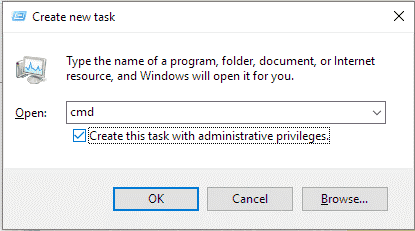
Step 1. Press Windows + R key and then type cmd in the Run box. And click OK to open the CMD.
Step 2. Type powercfg.exe /hibernate off command in the CMD window and hit the Enter key.
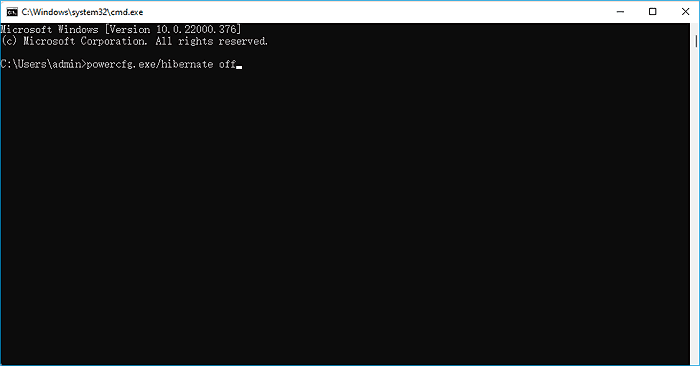
You can use the command "powercfg -h off" in the command prompt to turn off hibernation and free up space on your C drive. This will disable hibernation and clean up any temporary files, freeing up space on your C drive.
#2. Run Disk Cleanup
To reclaim disk space and optimize your Windows Server C drive, you can utilize the Disk Cleanup tool, which helps remove unnecessary files and free up valuable disk space.
✍Note: To clean up unnecessary files, ensure you only delete files that are not essential to the server's functionality. This will prevent any potential issues or data loss.
Step 1. Open File Explorer and locate at C drive. Then right-click the C drive to open Properties.
Step 2. Under the General tab, locate and then choose Disk Cleanup.
Step 3. In the Disk Cleanup window, select the box next to the item you want to delete, and then click OK to confirm.

#3. Delete temporary and downloaded files
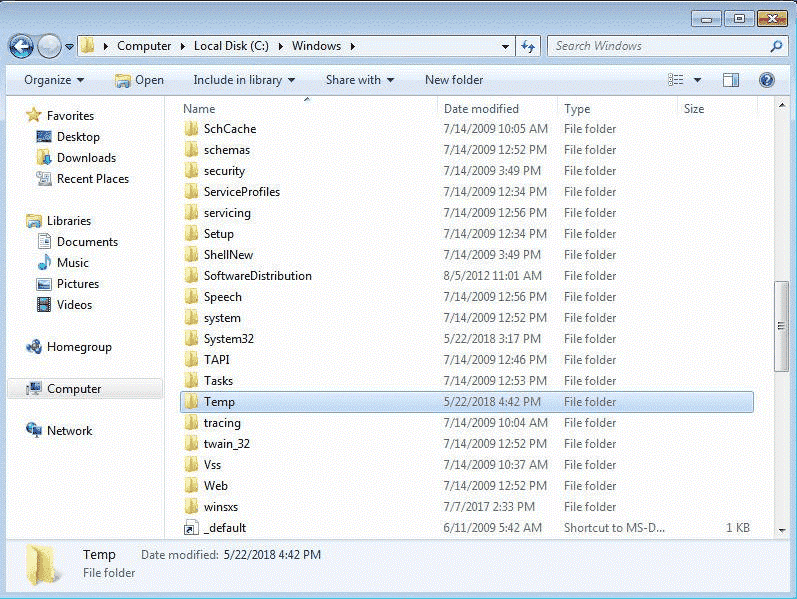
Temporary files can be deleted without running Disk Cleanup by removing files from the C:\Windows\Temp or C:\Documents and Settings\username\Local Settings\Temp folders.
#4. Delete internet temporary files
To delete Internet temporary files, you can follow these steps: simply navigate to the "Temporary Files" folder, which is usually located in the "C:\Users\[YourUsername]\AppData\Local\Temp" directory, and delete the files you want to remove. Alternatively, you can use the built-in Disk Cleanup tool, which can be accessed by searching for "Disk Cleanup" in the Start menu, to automatically delete temporary files and other unnecessary items on your computer.
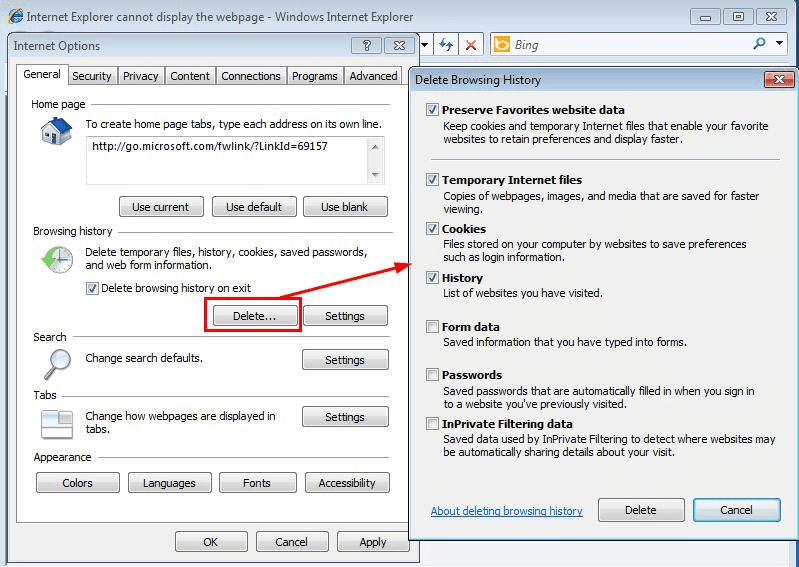
Step 1. Open Internet Explorer (IE), click Tool and select Internet Options.
Step 2. In the Internet Options window, click Delete, and in the Delete Browsing History window, choose to delete temporary files, history, and cookies, etc.
#5. Empty the Recycle Bin
When you delete files from your PC, they are not immediately removed from your hard drive. Instead, they are moved to the Recycle Bin, where they continue to occupy valuable storage space. To free up space on your C: drive, it is important to regularly empty the Recycle Bin.
There is how you can do it:
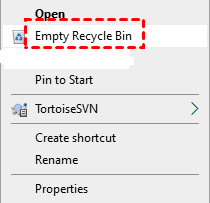
Step 1. Locate at the Recycle Bin icon on your desktop.
Step 2. Right-click on the Recycle Bin icon.
Step 3. From the context menu, select Empty Recycle Bin.
Step 4. Click on Yes when a warning message appears.

It's essential to double-check the contents of the Recycle Bin before emptying it, as deleted files cannot be recovered using standard methods once they're emptied. This means that important files should not be mistakenly deleted, and users should take care to ensure they're not discarding valuable data.
#6. Uninstall unnecessary Apps
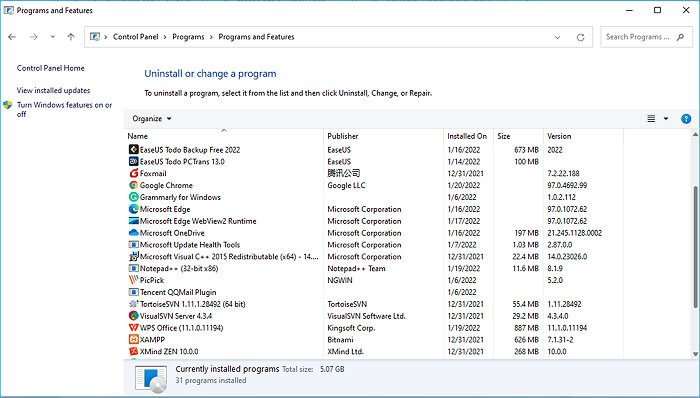
You can uninstall unused applications on your C drive to free up storage space and improve server performance. To do this, go to the Control Panel, click on "Programs and Features" (in Windows 10), or "Add or Remove Programs" (in older Windows versions), and select the applications you want to uninstall. Then, click "Uninstall" to remove them from your server. This process will help declutter your C drive and potentially improve your server's performance.
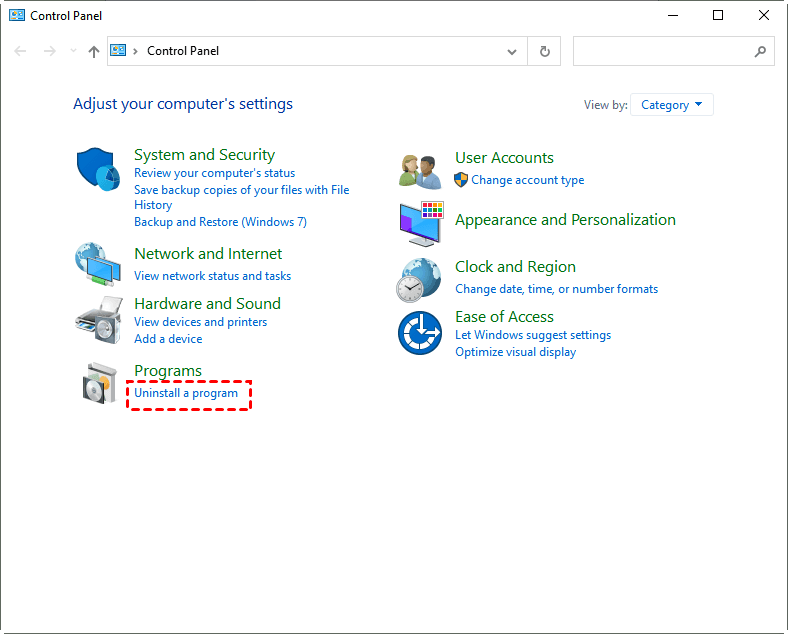
Step 1. In the search bar, search and open Control Panel.
Step 2. In the Control Panel window, select Uninstall a program under the Programs section.
Step 3. Then you just need to decide the needless applications and uninstall them one by one.
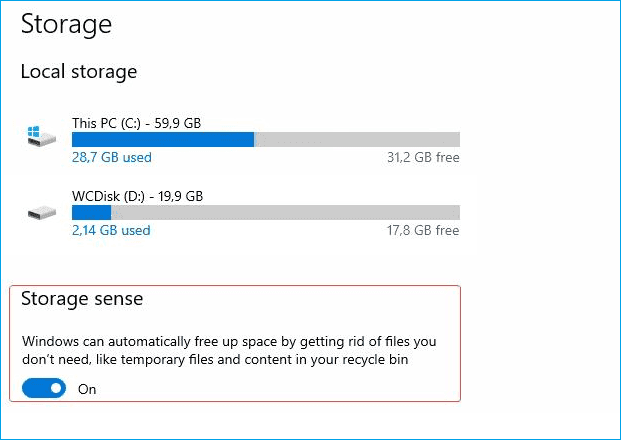
#7. Turn on the storage sense
Storage Sense in Windows Server helps manage system storage automatically by removing unnecessary files and data, freeing up space and keeping your system organized.
Step 1. Open Settings and locate at Storage section of the System menu.
Step 2. Toggle the Storage Sense slider. And then you just need to configure the storage sense settings.
Further reading: Can I have a larger C drive space?
Qiling Disk Master is a professional and reliable cloning software that can be used to supplement disk upgrades, such as upgrading the RAM on an HP Omen 15-ce0xx laptop. This software can also be used to free up disk space on Windows Server 2012R2, and can even upgrade the original C drive to a larger drive.
☂Intelligent clone: The process is efficient because it enables the copying of only used sectors from one drive to another, while skipping over any bad sectors.
☂Multiple choices: It offers three cloning options: clone disk, partition, and system, allowing users to choose the type of cloning they need.
☂Sector by sector clone: It allows cloning all sectors of a disk to another, but the destination disk must have at least the same capacity as the source disk.
Now download Qiling Disk Master and launch it.
Step 1. Select System Clone after you choose Tools and utilities tab page.

Step 2. Then the partitions included in the C drive will be selected by default.
Step 3. Then you need to choose a bigger disk to store the cloned C drive image and choose Next.

✍Note: If you have important data on your destination disk, make a backup of the entire disk before cloning, as the cloning process will overwrite the destination disk.
Step 4. Confirm by clicking Proceed to clone your C drive.

Conclusion
You can successfully clean up your Windows Server C drive using the above 7 methods, which will save storage space on the C drive. However, if you need a larger storage location, you'll need to upgrade your C drive. A professional system cloning software like Qiling Disk Master Server, which is also a top-rated external hard drive cloning software, can help you clone your C drive to a bigger disk.
Related Articles
- Clean up a Server 2008 hard drive
Check logs and backup retention before reclaiming legacy server space. - Fixed: C Drive Is Getting Full Automatically in Windows Server 2012 R2
- The Best Windows Server 2012 (R2) Disk Cleanup Tool
- Windows Server Backup Disk Full | Solutions & Workaround
- Benefits of SSD over HDD
Learn the key steps, checks, and practical tips for this related guide. - Five Effective Ways to Improve Windows 11 Performance
To improve Windows 11 performance, there are several effective solutions that can be implemented. First, disabling unnecessary startup programs can help reduce system load and free up resources. - How to Install Windows 11 from USB via CMD
Here's a tutorial to help users install Windows 11 from USB via CMD and with an easier way to install Windows 11 with a handy tool.
Products
Articles & Tutorials
- Data Recovery
- Data Backup
- File Recovery
- File Backup
- File synchronize
- System Backup and Restore
- Disk and Partition Clone
- Technical articles
- Disk Master Help
- Windows Deleted File and Disk Recovery Tutorials
- Windows File and Data Recovery Tutorials
- More Windows Tutorials for Install, Security, Files, and PC Tips
- Windows Boot, Repair, and Recovery Environment Tutorials
- Windows Backup Tutorials
- Windows Restore Tutorials
- Windows Clone and Migration Tutorials
- Windows Server Backup, Recovery, and Management Tutorials
- Windows Disk, Partition, and Storage Management Tutorials