How to Install Windows 11 from USB via CMD
Microsoft allows Windows users to upgrade to Windows 11 for free, but some computers may not meet the minimum requirements for the upgrade, such as having a GPT disk or TPM 2.0. In these cases, users may need to install Windows 11 from a USB drive instead of upgrading directly.
Some users want to create a Windows 11 bootable USB to install the operating system on another computer, either to replace an existing one or to fresh install on a new device. In both cases, creating a bootable USB can be a convenient and efficient way to achieve this goal.
Creating a Windows 11 bootable USB can be a bit challenging, especially if you want to use the Command Prompt (CMD) to create it. However, with a clear tutorial, you can easily finish the process. We've put together a step-by-step guide to help you create a Windows 11 bootable USB, making it easier for users to navigate through the process.
How to install Windows 11 from USB?
To get started, prepare a USB drive with at least 8GB of free space, and confirm that it's okay to wipe its contents.
1. Download Windows 11 ISO files
To perform a clean Windows 11 installation, download the Windows 11 ISO from the Microsoft website.
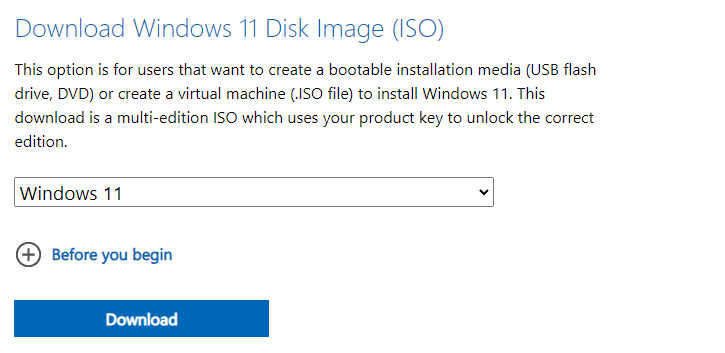
2. Create Windows 11 bootable USB via CMD
After downloading, click "Start", search for "Command Prompt", right-click the best match, and select "Run as Administrator" to open the Command Prompt.
▶ Section 1. Delete data on your USB
Step 1. Type "diskpart", press "Enter".
Step 2. Type "list disk", press "Enter".
Step 3. Type "select disk 1" (You need to change"1" to the number of your USB), press "Enter".
Step 4. Type "clean", press "Enter".
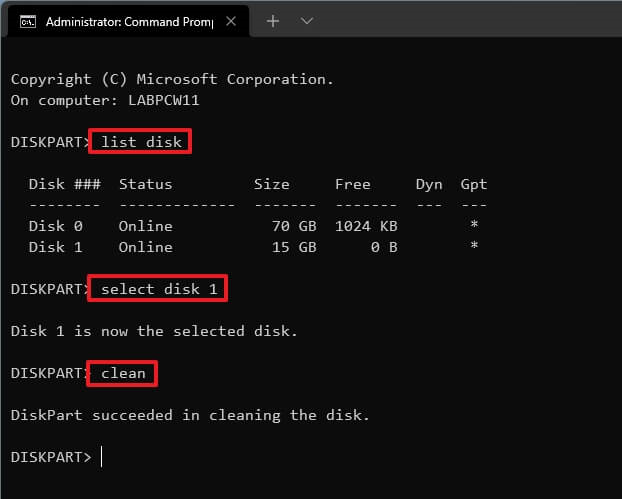
▶ Section 2. Create a primary partition
Step 1. Type "create partition primary", hit "Enter".
Step 2. Type "select partition 1", hit "Enter".
Step 3. Type "format FS=FAT32 quick", hit "Enter".
Step 4. Assign letter=A
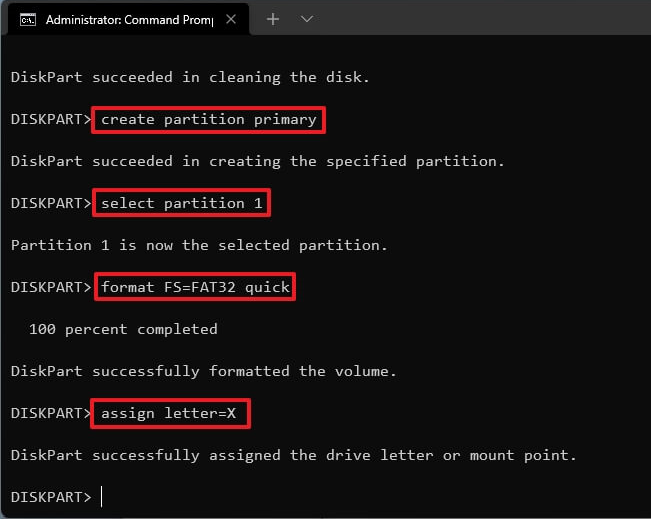
Step 5. Type "exit" and hit "Enter" to quit the tool.
▶ Section 3. Move ISO files to USB
Step 1. Open CMD again, type "PowerShell Mount-DiskImage -ImagePath "C:\path\to\Windows11.iso"(make sure the path is right), press "Enter".
Step 2. Type "diskpart", press "Enter".
Step 3. Type "list volume", press "Enter".
Step 4. Type "exit" to exit Diskpart, press "Enter".
Step 5. Type "E:" to access ISO files, press "Enter".
Step 6. Type "cd boot", press "Enter".
Step 7. Type "bootsect /nt60 X:", press "Enter".
Step 8. To create a bootable USB drive for Windows 11, type the command "xcopy E:*.* X: /E /F /H" in Command Prompt, replacing "E" with the drive letter of your Windows 11 ISO image and "X" with the drive letter of your USB drive. This command will copy all files from the ISO image to the USB drive, preserving the directory structure and permissions. Make sure to run this command in an elevated Command Prompt (right-click on the Start button and select "Command Prompt (Admin)") to ensure the necessary permissions are granted.
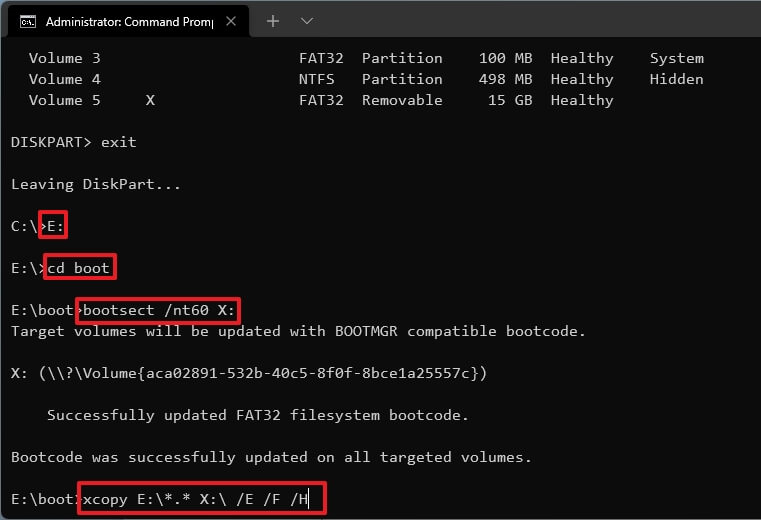
Then your USB is ready, let's move to the installation.
3. Install Windows 11 from a bootable USB
We'll install Windows 11 from the bootable USB we created, ensuring the computer is set to UEFI boot mode. This involves booting the computer from the USB drive, following the installation prompts, and setting up the operating system.
Step 1. To set up the USB as the first boot device, connect it to your computer, turn it on, and enter the BIOS settings. From there, change the USB drive to be the first boot order, save the changes, and then restart your computer. This will allow the computer to boot from the USB drive.
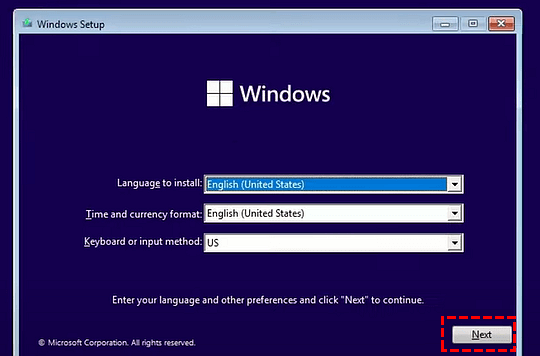
Step 2. You see the Windows Setup window, please follow the order to finish the settings.
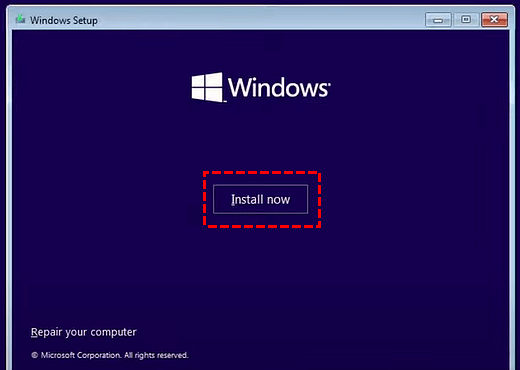
Step 3. Click "Install now".
Step 4. Choose "I don't have a product key".
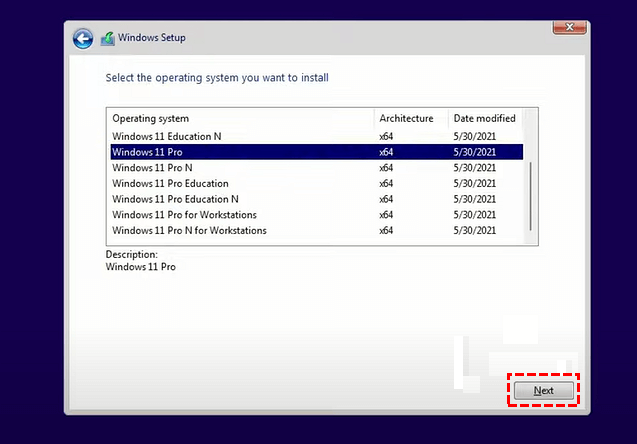
Step 5. Choose an OS edition you wish to install and click "Next".
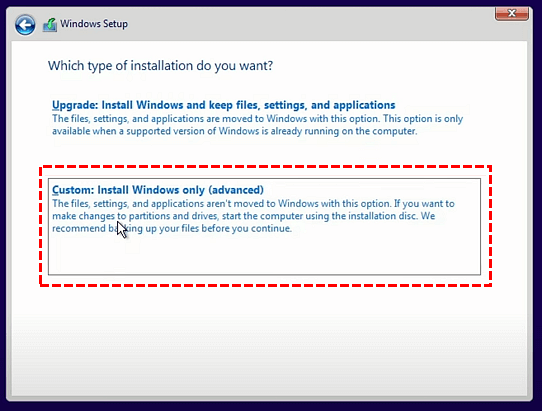
Step 6. Accept the License Term and click "Next", click "Custom: Install Windows only (advanced)" in the next window.
Step 7. Choose the target disk you wish to install Windows 11 OS, then click "Next".
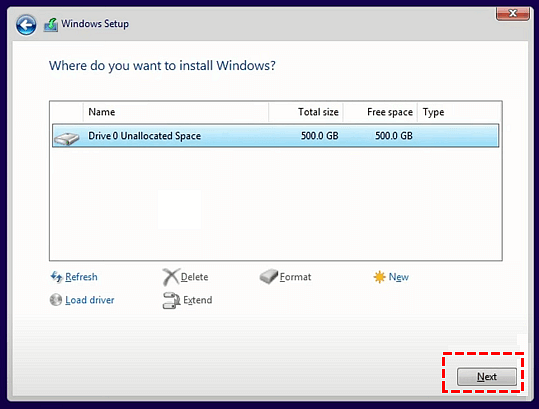
Step 8. Please wait for the process and your PC will reboot.
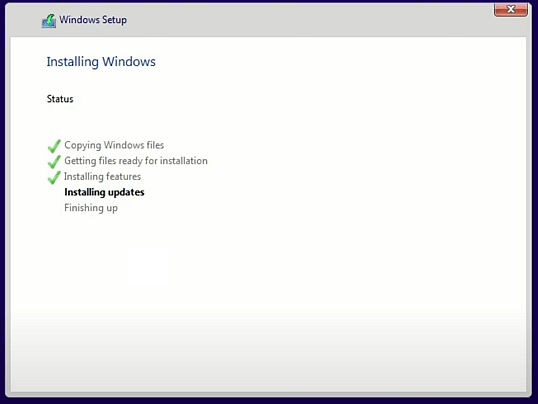
After your PC boots successfully, you can enjoy the Windows 11 OS.
An easier way to install Windows 11 on your disk
Yes, there are easier methods to install Windows 11 on your disk. You can use a tool like Rufus or PowerISO to create a bootable USB drive, which can save you time and effort compared to using the Command Prompt. These tools provide a user-friendly interface and can help you create a bootable USB drive with just a few clicks.
Qiling Disk Master Professional simplifies complex CMD operations, allowing users to migrate a Windows 11 OS to their disk without reinstalling from scratch. The "Migrate OS to SSD" feature copies all OS files and settings, preserving settings from the source system.
With the hot clone method, you can migrate without needing to reboot your computer multiple times, and running programs will remain in their current state throughout the process.
Step 1. Connect the disk of the target computer to a Windows 11 computer, then install and run Qiling Disk Master. Choose "Tools and utilities" > "System Clone" from the top pane to proceed.

Step 2. Click "Next' in the new window.

Step 3. Choose an unallocated space on your disk.

Step 4. Now you need to resize the size of the partition.

Step 5. Click "Proceed" in the bottom corner to continue.
Step 6. The warning message will be showing, Click "Yes" to migrate os.

Then, plug the disk back into your computer, start it.
Warning: If you have a computer with one more disk, you might need to change the boot order.
Ending
To install Windows 11 from a USB drive, you can use the Command Prompt to create a bootable USB if you're comfortable with the process. Alternatively, if you prefer a simpler approach, you can migrate an existing Windows 11 installation to your computer instead.
Qiling Disk Master can be used for more than just OS migration, including converting a system disk from MBR to GPT without data loss, extending a partition on a low-capacity drive, and moving installed programs to another drive or disk.
Related Articles
- How to Clone Hard Drive in Windows Server 2019 Easily
Learn how to Clone Hard Drive in Windows Server 2019 Easily with clear steps, key checks, and practical tips. - How to Clone Windows Server 2012 (R2) Hard Drive | 2 Ways
This paper shows how to clone Windows Server 2012 (r2), 2008(r2) or 2003 hard drive with secure boot under the help of the best disk clone software and Windows Server Backup. - How to Mirror the Boot Drive in Windows Server 2016?
Learn how to Mirror the Boot Drive in Windows Server 2016 with clear steps, key checks, and practical tips. - 7 Easy Ways to Perform Windows Server C Drive Cleanup
The article is a full collection of how to perform Windows Server C drive cleanup in 7 ways and offers one upgrade offer of C drive for users. - How to Migrate OS from MBR Disk to GPT SSD or HDD? (Bootable)
If you want to migrate OS from MBR disk to GPT SSD or HDD, here you can learn the simplest way to move OS from MBR to GPT disk without reinstalling everything from scratch. - Migrate OS from One SSD to Another with Professional Software
This article will show you how to migrate os in Windows from one SSD to another in a convenient and fast way.
Products
Articles & Tutorials
- Data Recovery
- Data Backup
- File Recovery
- File Backup
- File synchronize
- System Backup and Restore
- Disk and Partition Clone
- Technical articles
- Disk Master Help
- Windows Deleted File and Disk Recovery Tutorials
- Windows File and Data Recovery Tutorials
- More Windows Tutorials for Install, Security, Files, and PC Tips
- Windows Boot, Repair, and Recovery Environment Tutorials
- Windows Backup Tutorials
- Windows Restore Tutorials
- Windows Clone and Migration Tutorials
- Windows Server Backup, Recovery, and Management Tutorials
- Windows Disk, Partition, and Storage Management Tutorials