Automatic Backup Server 2008 to NAS or Network Share
Quick navigation:
- Windows Server 2008 (R2) Support Ended
- Why Perform Windows Server 2008 Backup to NAS?
- Unable to Access the Remote Shared Folder
- Workaround to Let Server 2008 Backup to Network Share
- More Flexible Way to Automatic Backup Windows Server 2008 to NAS
- Conclusion
Windows Server 2008 (R2) Support Ended
Windows Server 2008 and 2008 R2 support ended on January 14, 2020, meaning no more regular security updates from Microsoft to protect infrastructure and applications.
To keep your Windows Server 2008 and 2008 R2 safe, please upgrade to Windows Server 2016 or higher. If you haven't upgraded yet, follow these steps to protect your server.
- Migrate your Windows Server 2008 and 2008 R2 to Azure and get free three years of Extended Security Updates.
- Windows Server 2008 and 2008 R2 Datacenter, Enterprise, and Standard editions will receive Extended Security Updates, but other editions will not be eligible.
To ensure system and data security, consider backing up Server 2008 to a Network-Attached Storage (NAS) device, creating a duplicate copy that can be restored in case of a system crash or other issues, and using Windows Server 2008 (R2) system restore functionality to recover the system.
Why Perform Windows Server 2008 Backup to NAS?
Many users want to automatically backup Windows Server 2008 to NAS due to its advantages over external storage devices or cloud drives, including cost-effectiveness, high storage capacity, and ease of use.
- Easy access to your data. Since NAS is a shared network, you can access your data on it as long as your computer has a network connection and is connected to it.
- Own a big storage. NAS devices allow multiple hard drives to be connected simultaneously, eliminating the need to worry about running out of disk space.
- Cheaper. Compared to other devices, you only need to pay for the NAS device itself, without the need for recurring subscription fees or the cost of individual disks.
- ...
Unable to Access the Remote Shared Folder
Windows Server comes with a built-in backup software called Windows Server Backup, which allows you to create full, bare metal, system state backups, and more. The backup can be stored on a local disk, external disk (HDD or SSD), or even tapes.
Windows Server Backup does not support backing up to a NAS or network shared folder, resulting in errors like "Windows Server Backup is unable to access the remote shared folder. The specified path is invalid." This limitation prevents users from backing up Windows Server 2008 to a NAS or network shared folder.
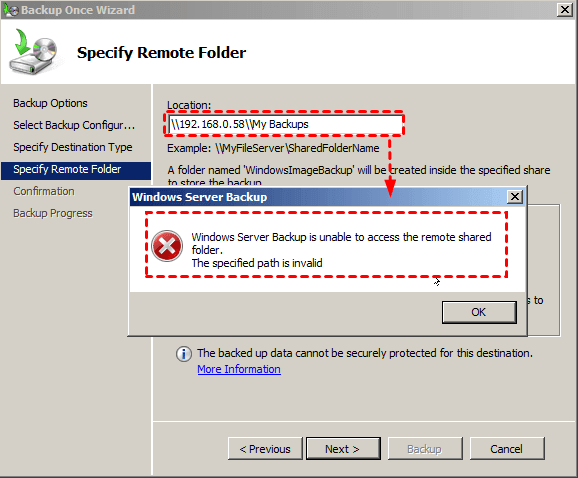
You're experiencing issues backing up to a network shared folder. Some users have reported errors when trying to backup to a shared folder on their network.
- error code 0x8078015B: Windows Backup encountered an error when trying to access the shared folder. Try the backup again after ensuring the shared folder is accessible.
- error code 0x81000039: The network path was not found.
To perform Windows Server 2008 backup to NAS or network shared folder, you may consider using third-party backup software that supports NAS or network shared folder as a backup destination. This can provide a more flexible and reliable backup solution. Some options include Qiling Disk Master, among others.
You can create a VHD file and attach it to a network-shared folder or use server backup software to backup Windows Server 2008 to a network-attached storage (NAS) device, such as a WD or Synology NAS.
Workaround to Let Server 2008 Backup to Network Share
Windows Server Backup can't access network shared folders in Windows Server 2008, but you can create a VHD file, attach it to your NAS, and use it as a local drive for backup storage. This approach allows you to keep multiple backups using the Volume Shadow Copy Service.
Part 1: Create and Attach Virtual Hard Disk on Windows Server 2008
1. To access Disk Management, go to the Control Panel, then select Administrative Tools, followed by Computer Management, then Storage, and finally Disk Management.
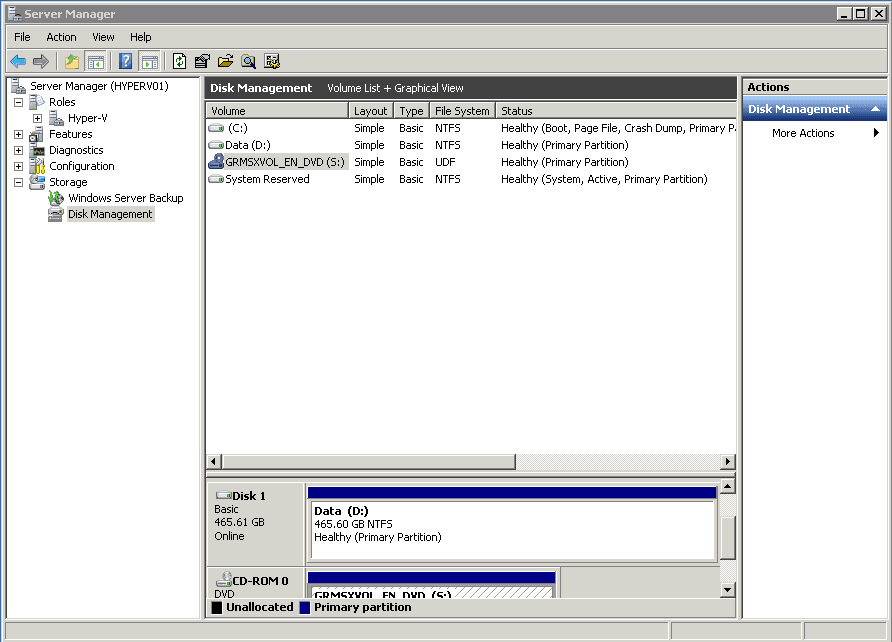
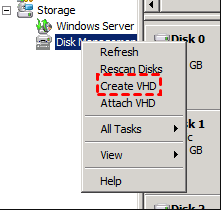
2. Click Action, and select Create VHD.
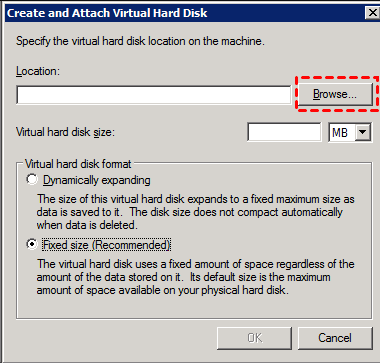
3. To create and attach a VHD disk, click Browse, select your NAS path, type a file name for the virtual hard disk location, and click OK.
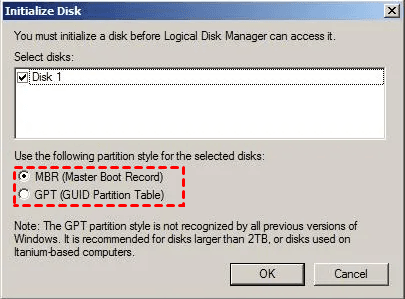
4. Right-click the virtual hard disk, select "Initialize Disk", choose "MBR or GPT" as the disk partition style, and click "OK" to initialize it.
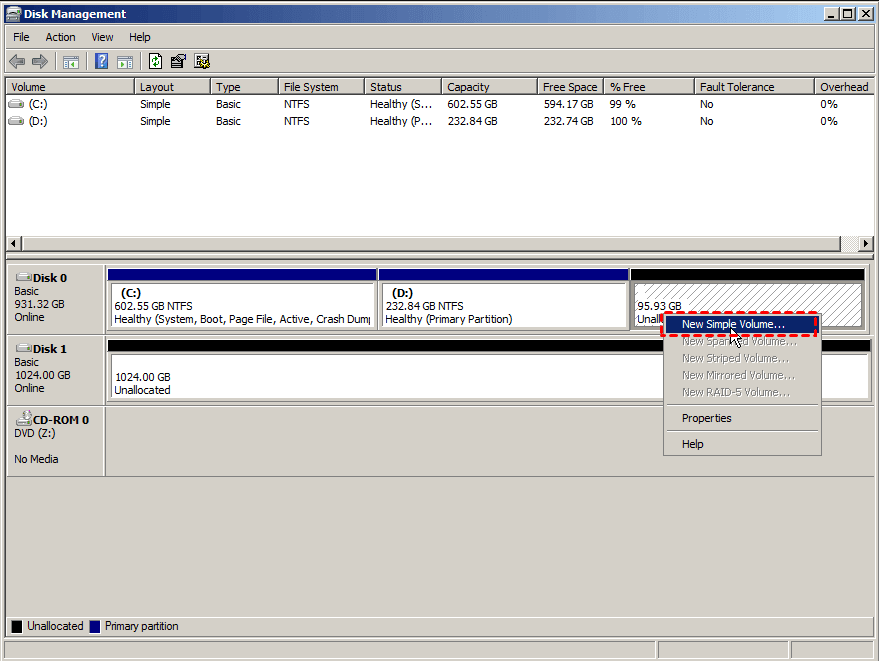
5. Right-click the VHD disk, select New Simple Volume..., specify the volume size, drive letter, file system, and click Next > Finish to make the VHD disk visible.
Part 2: Backup Windows Server 2008 to Network Share
Windows Server Backup needs to be installed first, which can be done through the Server Manager by adding the "Windows Server Backup Features" under Features > Add Features. Once installed, the installation can begin.

To create a full system backup in Windows Server 2008 using Windows Server Backup, follow these steps: First, open the Windows Server Backup tool, then select the backup configuration you want to use, which is typically a full server backup. Next, choose the backup destination, which can be a local disk or a network location. After that, select the backup frequency, which can be daily, weekly, or monthly, depending on your needs.
1. To open Windows Server Backup, click Start, then select Administrative Tools, followed by Windows Server Backup. Within the Windows Server Backup window, select Backup Once.
2. Choose backup option - Different options and click Next.
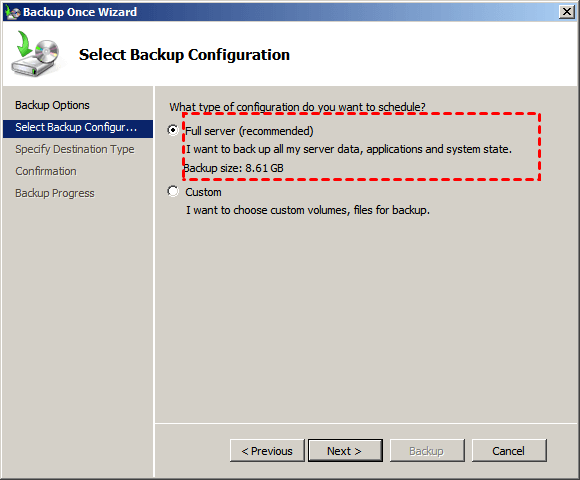
3. To backup all server data, applications, and system state, choose the "Full server" option.
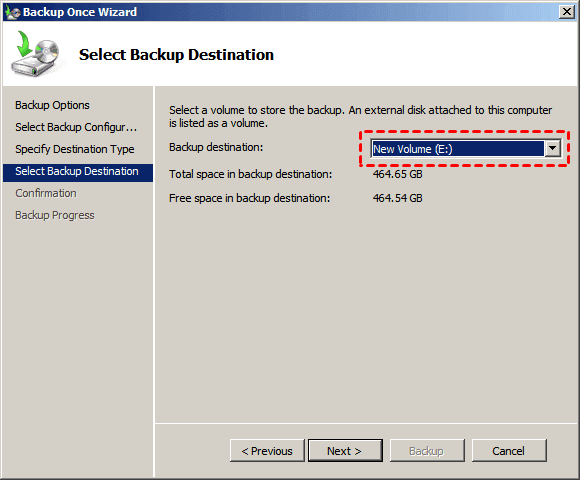
4. Select Local drives > virtual hard disk created previously and click Next.
5. In Windows Server 2008, confirm the backup task and click the "Backup" button to create a full system image.
To create a backup on Windows Server 2008, wait for the backup process to finish. If you want to schedule a backup, click on "Backup Schedule" in the first step, but note that it only allows daily or more frequent backups.
So if you want to back up at different time intervals, it's suggested to try the best server backup software. And I'll introduce you to it in detail. Please keep reading below.
More Flexible Way to Automatic Backup Windows Server 2008 to NAS
Here you will get the best server backup software - Qiling Disk Master Server, which allows you to directly backup Windows Server 2008 to NAS or network shared folder, such as WD My Cloud NAS, Synology NAS, etc, and keep multiple backups without creating and attaching VHD file, offering advantages like easy backup, multiple backup options, and more.
- More options to schedule backup Windows Server 2008. It supports daily, weekly, and monthly backups, allowing you to set backup time, intervals, or specific backup dates. Additionally, it offers event triggers and USB plug-in features for added functionality.
- Backup only changes after the first full backup. The app uses incremental backup by default, requiring no setup, and also offers differential backup options.
- Always keep enough space for new backup: This software allows for automatic backup cleanup methods to delete old backup images, freeing up disk space.
Please download the 30-day free trial to give it a try. It's available for Windows Server 2003, 2008, 2012, 2016, 2019, 2022, SBS 2003, 2008, 2011, including R2 versions and all Windows PCs.
To backup a Windows Server 2008 (or R2) to a NAS or network shared folder, follow the detailed steps provided, which can be applied to both Server 2008 and Server 2008 R2.
1. To launch the best Windows Server backup software, Qiling Disk Master Server, select the "Backup" and "System Backup" options.

2. This software automatically selects the operating system and system file partitions for Windows Server 2008, allowing you to simply select your NAS as the backup destination.
- Click where the arrow points, and select "Add Share or NAS Devices".

- Type the network location of your NAS Go to the file explorer, navigate to the folder where you want to store your data, right-click on it, select "Properties", then click on the "Security" tab, click on "Edit" and then click on "Add" to add the IP address of the remote computer, select the shared folder you want to store your data, and click "OK" to confirm it.

3. To schedule a weekly backup on Windows Server 2008, click Schedule Backup, toggle on Enable Schedule Backup, and select the desired frequency from Daily, Weekly, Monthly, Event triggers, or USB plug in. Then, click Proceed to initiate the backup.

For details, you can set more flexible as follow:
In Daily mode, you have 3 options:
- Run once only on a specific day and time.
- Run once every day at a specific time.
- Set a scheduled backup to run every hour, 24/7, from midnight to 11:59 PM.
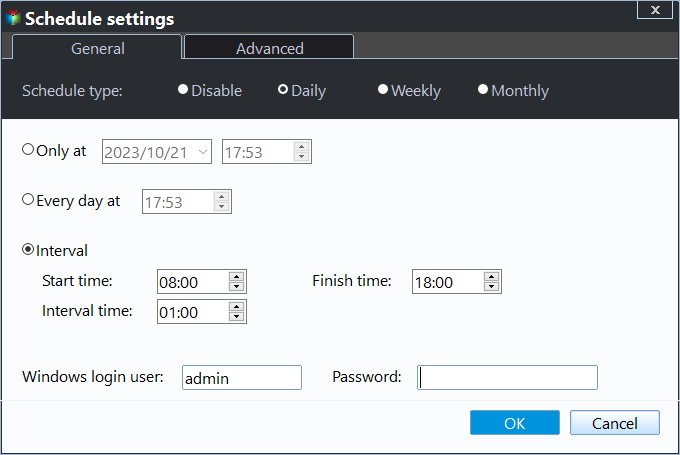
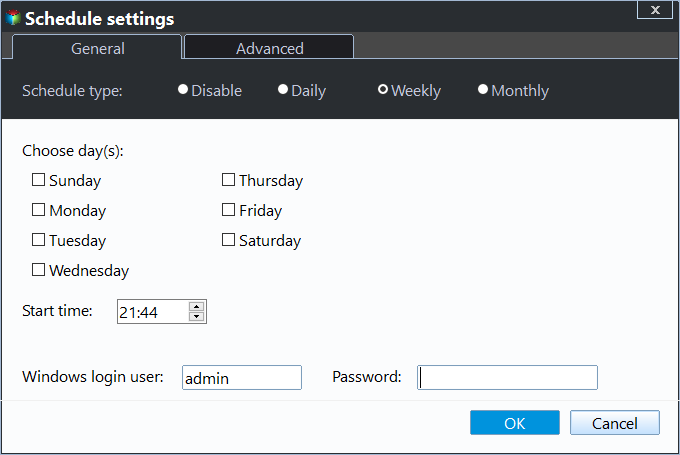
In Weekly mode, you can schedule a backup task to run on a specific day and time every week.
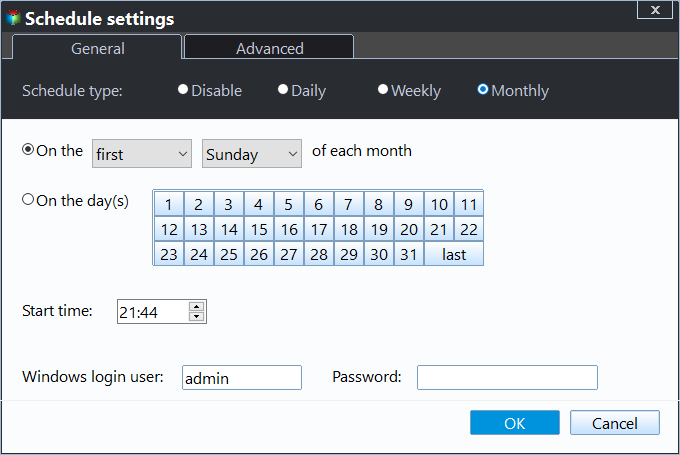
In Monthly, you can choose to run once on a specific day and time with the option to either run on the same day and time every month or run on the first day of the month.
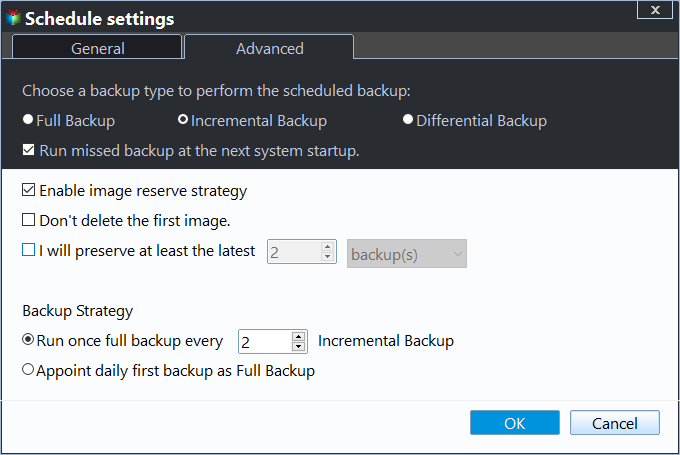
Besides, you can also set Options and Backup Scheme:
- Options: You could add features to a Server 2008 backup task, such as splitting, compressing, and encrypting (for a paid option) the task, as well as enabling email or SMS notifications after the task is completed. Additionally, you could utilize Volume Shadow Copy Service (VSS) to ensure a stable and reliable backup process.
- Backup Scheme allows you to choose from various backup methods, including full, incremental, and differential backups, and also offers automatic backup cleanup methods to efficiently manage disk space. This includes a total of 4 cleanup methods, with the "By space" option being available only when differential backup is selected as the backup method.
You can easily back up your Windows Server 2008 R2 to a NAS or network shared folder, or even to a Synology NAS, QNAP NAS, or other NAS devices, making it a straightforward process.
If you only want to backup specific files, you can use the Sync feature to sync files between Windows Servers.

For small and medium-sized companies, Qiling Centralized Disk Master can be used to create a centralized backup system for multiple computers. This allows for efficient backup management and monitoring.
Conclusion
Performing a Windows Server 2008 backup to a NAS (Network-Attached Storage) device can be challenging using the built-in Windows Server Backup utility. Unlike other backup tools, it does not natively support NAS or network shares as backup destinations, requiring users to create and attach a VHD (Virtual Hard Disk) and then perform a local backup. For those who find this process complicated, a more straightforward solution is to use a dedicated server backup software like Qiling Disk Master Server.
With this tool, you can easily backup Windows Server 2008 (R2) to a NAS or network shared folder, allowing you to keep multiple backups. You can also set the number of backups to keep and the rules for backing up the system and automatically deleting old backups. For managing backups on unlimited Windows PCs and servers, you may want to consider Qiling Disk Master Technician Plus.
Related Articles
- How to Perform Windows 2008/2012 File Server Backup with Ease
You will learn how to perform Windows file server backup easily for all server computers, two ways in total. - Windows Server 2008/2012/2016 Backup: Restore from Network Location
If you have trouble performing Windows Server Backup 2012 restore from network location, please read this article patiently to get the way to restore system sucessfully. - Backup Windows Server 2012 (R2) to Synology NAS
You can learn how to backup Windows Server 2012 to Synology NAS with a professional server backup software if Windows Server Backup failed to backup to Synology. - [Detail Guide] Create Windows 10 Bootable USB from ISO
To create a Windows 10 bootable USB from an ISO file for installation or a portable Windows environment, you can use either the Diskpart tool or the Windows To Go feature, both of which enable you to boot Windows 10 from a USB drive. - Clonezilla Clone Larger Disk to Smaller Disk vs Easier Way
It's possible to use Clonezilla clone larger disk to smaller disk but the steps are a little tricky. So you can try an easier way to complete the task - disk cloning software Qiling Disk Master Standard. - Clonezilla Failed to Clone - Why and What to Do?
It's recommended to use advanced parameters in the export mode to fix Clonezilla failed to clone due to bad sectors or disk size. If it doesn't work, you can try an easier alternative.
Products
Articles & Tutorials
- Data Recovery
- Data Backup
- File Recovery
- File Backup
- File synchronize
- System Backup and Restore
- Disk and Partition Clone
- Technical articles
- Disk Master Help
- Windows Deleted File and Disk Recovery Tutorials
- Windows File and Data Recovery Tutorials
- More Windows Tutorials for Install, Security, Files, and PC Tips
- Windows Boot, Repair, and Recovery Environment Tutorials
- Windows Backup Tutorials
- Windows Restore Tutorials
- Windows Clone and Migration Tutorials
- Windows Server Backup, Recovery, and Management Tutorials
- Windows Disk, Partition, and Storage Management Tutorials