Change the Default Download Location in Windows 10
Changing the default download location helps prevent C drive from filling up and keeps large files on a data drive. The correct setting depends on whether downloads come from browsers, apps, or the Windows Downloads folder.
Understand the problem
Moving only the Downloads folder does not automatically change every browser or application. Check each app that saves large files, especially browsers, game launchers, and cloud tools.
- Confirm the target disk, partition, drive letter, file system, and capacity before changing anything.
- Back up or recover important files before formatting, deleting, resizing, converting, or reinstalling Windows.
- For boot-related repairs, check BIOS or UEFI mode, boot order, and disk style before editing system partitions.
Use Windows built-in tools
Adjust Windows and browser download settings separately.
- Right-click the Downloads folder, choose Properties, then open the Location tab.
- Click Move and choose a folder on another drive.
- In Settings, System, Storage, change where new content is saved if needed.
- Open each browser and set its download location.
- Move existing downloaded files after confirming the new folder works.
Use Qiling tools for guided steps
 Qiling Disk Master
Back up Downloads and user folders before moving their default location.
Function. Back up important files before making changes
Step 1. Connect an external drive or choose another safe location with enough free space for the files on the Downloads folder and related user folders.
Step 2. Open Qiling Disk Master and choose File Backup. This protects documents, photos, downloads, and project files before you change Windows settings or disk layout.

Step 3. In the tree control, select the files and folders related to the Downloads folder and related user folders. This makes it easier to roll back if a browser or app still points to the old path.

Step 4. Select the external drive, another internal disk, or a network folder as the destination. Avoid saving the backup on the same partition that will be changed.

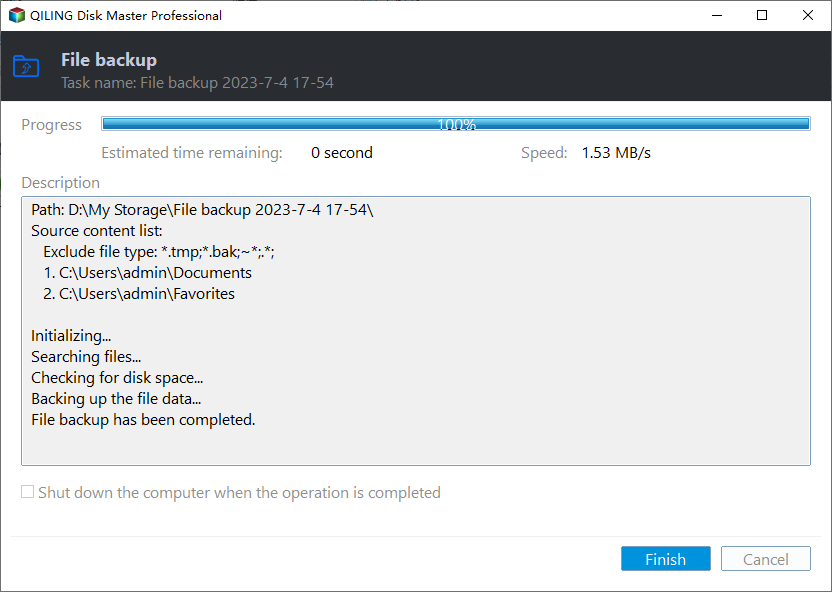
Step 5. Review the task name, source, and destination. Click Proceed and wait until the backup finishes.
Check the result
Download a small test file from each browser and confirm it appears in the new folder. Keep the old Downloads folder until all apps are verified.
Related Articles
-
Move Downloads from C Drive to D Drive
Move downloads to another drive to reduce pressure on the system partition. -
Move Folders to Another Drive
Move user folders while keeping paths and access easy to manage.
Products
Articles & Tutorials
- Data Recovery
- Data Backup
- File Recovery
- File Backup
- File synchronize
- System Backup and Restore
- Disk and Partition Clone
- Technical articles
- Disk Master Help
- Windows Deleted File and Disk Recovery Tutorials
- Windows File and Data Recovery Tutorials
- More Windows Tutorials for Install, Security, Files, and PC Tips
- Windows Boot, Repair, and Recovery Environment Tutorials
- Windows Backup Tutorials
- Windows Restore Tutorials
- Windows Clone and Migration Tutorials
- Windows Server Backup, Recovery, and Management Tutorials
- Windows Disk, Partition, and Storage Management Tutorials