How to Change Drive Letter in Windows 11/10/8/7 with Qiling Disk Master
If you buy a new disk, Windows might assign drive letters to it automatically, but you can change them using Qiling Disk Master to suit your preferences.
If you also need to create, resize, or format partitions, review how to partition a hard drive before changing drive letters.
Why change a drive letter?
Windows assigns a letter to most drives (C: D: E: etc.), but confusion can occur when upgrading or adding multiple hard disks. To bring order, you can change the drive letter to suit your preference. For example, if you add a new disk, Windows will automatically assign drive letters, but you can use Change Drive Letter to modify them, such as assigning D to G, E to H, and so on. This allows you to organize your drives in a way that makes sense to you.
A clear drive letter makes it easier to find files, set backup destinations, and distinguish internal disks from external drives. It can also help keep drive paths consistent after adding a new SSD, USB drive, or storage partition.
For example, you may want to assign a fixed letter to an external backup drive so scheduled backup tasks can find it every time. You may also change a newly added partition to a more recognizable letter for daily file management.
Before you do
If you're about to change the drive letter for a partition that has other applications running on it, Qiling Disk Master will alert you to close those applications first.
To change a drive letter
Step 1. To assign a new drive letter to a partition, right-click on the partition, select "Change Drive Letter" from the context menu.
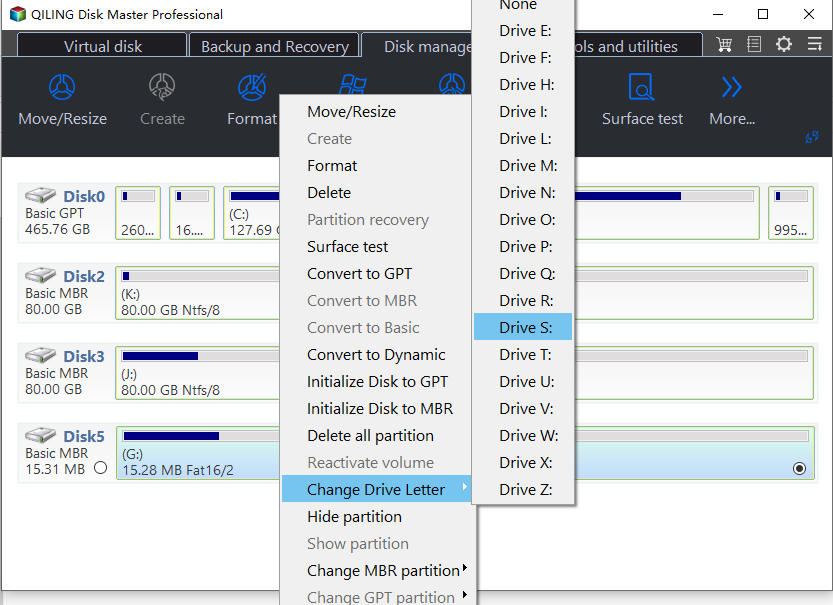
Step 2. After selecting a new drive letter, it will be displayed in the main window, replacing the previous letter, such as changing F to I.
What to check after changing the drive letter
Open File Explorer and confirm that the new drive letter appears correctly. If a backup task, shortcut, or program points to the old letter, update its path before running it again.
If the drive letter is used by a network mapping, script, or sync task, test the task after applying the change. This helps ensure Windows and your applications are reading the new path correctly.
Notes:
▪ Changing a drive letter can cause problems with programs and shortcuts that reference it, so it's best to avoid making such changes.
▪ You won't be able to change the drive letter for a partition where the system has been installed.
Related Articles
- Change Drive Letter and Paths Greyed Out in Windows 10
Fix Change Drive Letter and Paths greyed out in Windows 10 by checking partition type, file system, and safer assignment methods.
Products
Articles & Tutorials
- Data Recovery
- Data Backup
- File Recovery
- File Backup
- File synchronize
- System Backup and Restore
- Disk and Partition Clone
- Technical articles
- Disk Master Help
- Windows Deleted File and Disk Recovery Tutorials
- Windows File and Data Recovery Tutorials
- More Windows Tutorials for Install, Security, Files, and PC Tips
- Windows Boot, Repair, and Recovery Environment Tutorials
- Windows Backup Tutorials
- Windows Restore Tutorials
- Windows Clone and Migration Tutorials
- Windows Server Backup, Recovery, and Management Tutorials
- Windows Disk, Partition, and Storage Management Tutorials