How to Delete All Partitions on a Hard Drive?
Overview of Delete Partitions
Once, one of my neighbors asked me to help with his computer and I was always invited to solve PC problems by my neighbors and friends since I was engaged in this software company and I was happy that I could help him make full use of our partition manager.
He wanted to extend his C partition without merging any other partition with it, but there was no unallocated space. He decided to merge F partition with C, but F was not adjacent to C. He deleted F partition to create unallocated space, then extended C partition using that space. It was a simple solution.
How to Delete Partitions on Hard Drive?
Before you do
- Download and install Qiling Disk Master on a Windows computer.
- If you're about to delete all partitions from a disk that contains important data, create a backup of that data and save the image file on another drive before proceeding, as the data will be formatted.
- If you're running other applications on the partition where you're about to work, Qiling Disk Master will warn you to close them or run the operation in PreOS Mode. To avoid this, you can close the applications beforehand.
How to Delete All Partitions with Partition Assistant
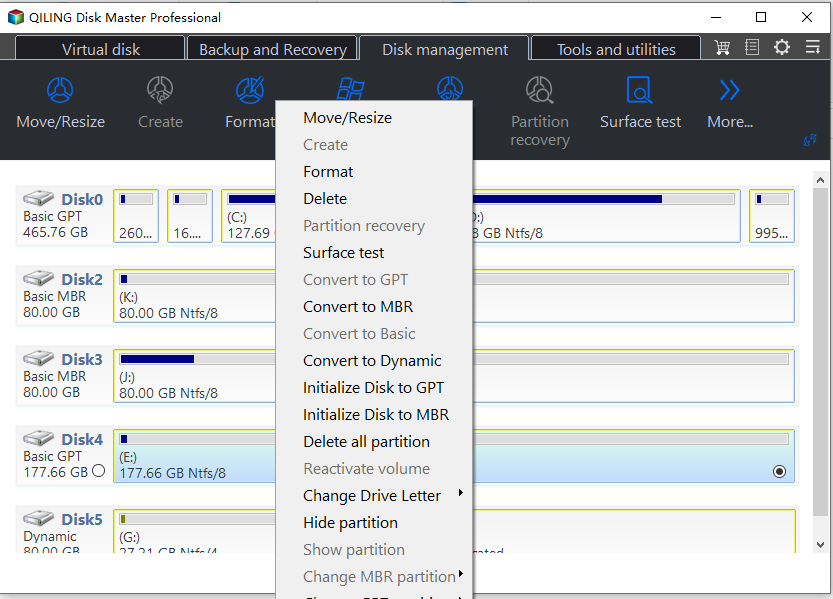
1. Select the disk you want to clear in the main window, right-click on it, and choose "Delete all Partitions" to open the related dialog.
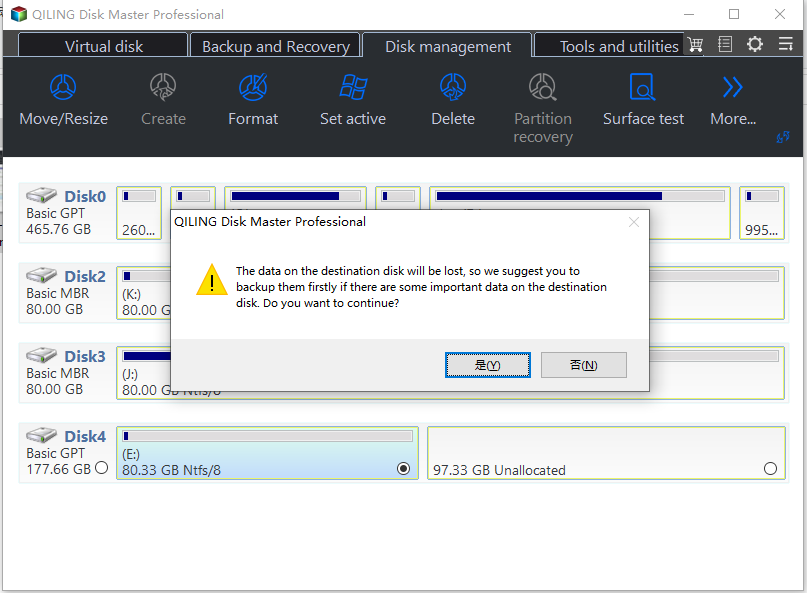
2. To proceed, click the "Proceed" button. This will initiate the deletion of all partitions on the disk, which will be permanent and irreversible.
How to Securely Clear Data on Solid State Drive in Windows 7?
Solid State Drives (SSDs) have become increasingly popular and are now widely used as a replacement for traditional hard drives. If you need to clear an SSD, you can utilize the "Secure Erase SSD" feature available on Qiling Disk Master. To do this, follow the detailed steps outlined below.
To Clear SSD Disk:
1. Connect the SSD from which partitions will be deleted to a PC through SATA slot. Ensure the PC can boot from the SSD.
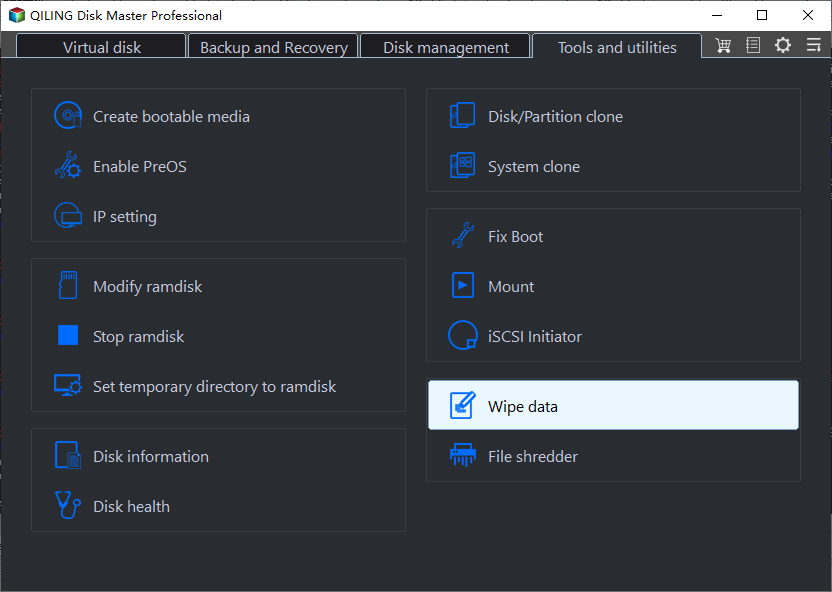
2. Launch Qiling Disk Master, click the "Tools" main tab and select "SSD Secure Erase".
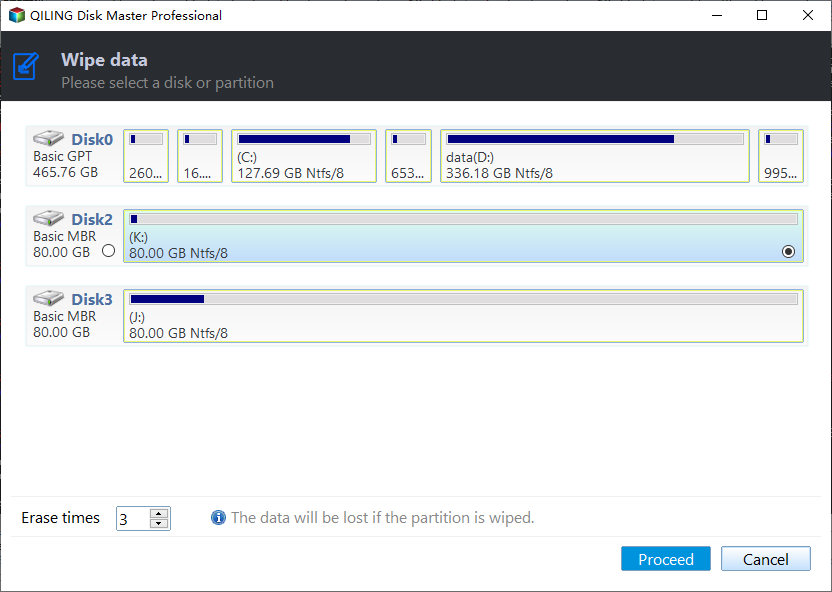
3. Choose the SSD and here takes my Disk 1 Kingston SSD as an example.
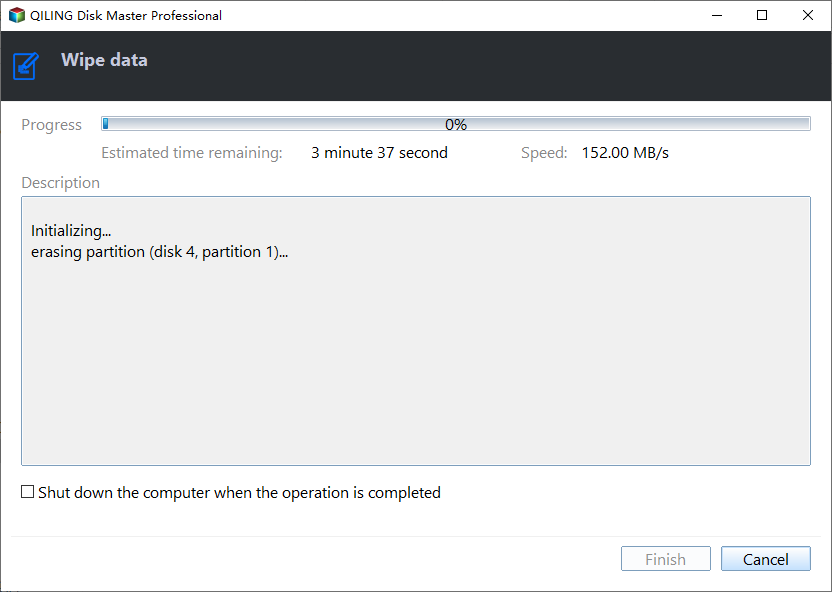
4. Hot Swap makes disk erasing workable. Now, it's the erasing process.
*How to Perform a Hot Swap?
- Open computer case cover or back cover or hard shell on laptop.
- Locate the SSD you want to remove and unplug its power cable to safely disconnect it from the system.
- Unplug SSD's SATA cable.
- Reconnect the SATA cable to the SATA or IDE port.
- Reconnect the power cable to the power port.
When the erasing process completes, Qiling Disk Master will prompt a window saying that it has erased the SSD successfully, resulting in unallocated space. There are multiple ways to delete all partitions on a disk, and Qiling Disk Master has different strategies for different types of disks, making it a great option. Additionally, the program's "Wipe Hard Drive" feature is also worth considering.
Conclusion
With the help of "Delete all partitions" tool in Partition Assistant, you can quickly delete all partitions on a hard drive, saving time, and optionally wipe all data on the disk if it's not important.
- You do not need these partitions anymore.
- You don't want to keep all the data on these partitions forever.
- To merge two non-adjacent partitions, you would need to delete the partition that is in the middle and then merge the two remaining partitions. This process can be done in a few steps: delete the middle partition, then merge the two remaining partitions.
- You want some unallocated space to extend another partition.
Partition Assistant offers additional useful and identical features, including the "Wipe Disk" and "SSD Secure Erase" functionalities, which enable users to securely erase a hard drive and SSD, respectively.
Notes:
- Be careful not to delete all partitions on the system disk, as Windows relies on this information to boot correctly, and deleting it will leave your computer unbootable.
- Deleting a primary partition results in unallocated disk space, whereas deleting a logical partition via Disk Management yields free space, which must be deleted again to become unallocated space. This empty space can then be used to create additional volumes.
- If you're not tired of repeated operations and are willing to delete the partitions one by one, you can also use Qiling partition manager to delete them. Simply choose "Delete Partition" repeatedly to delete each partition individually.
- There is also another method - To delete multiple partitions quickly, you can merge them together or delete them individually. Merging partitions can decrease the time it takes to click "Delete Partition", but you don't have to merge all partitions into one. Alternatively, you can simply click "Delete All Partitions", which is the easiest and fastest option.
FAQs:
Q: How long will it take to delete all partitions on a hard drive?
A: The time to delete all partitions on a drive can vary significantly depending on several factors, such as the drive's condition, the amount of data stored, and the operating system being used. In general, deleting all partitions on a drive is a relatively quick process that can take anywhere from a few seconds to a few minutes, but in some cases, it can take longer if the drive is heavily fragmented or contains a large amount of data.
Q: Is it able to recover data and partitions after I use the feature "Delete All Partitions"?
A: If you choose to delete all partitions on a hard disk, data might be recoverable with professional tools, but if you choose to delete all partitions and wipe all data, it is almost impossible to recover and the operation is irreversible.
Related Articles
Products
Articles & Tutorials
- Data Recovery
- Data Backup
- File Recovery
- File Backup
- File synchronize
- System Backup and Restore
- Disk and Partition Clone
- Technical articles
- Disk Master Help
- Windows Deleted File and Disk Recovery Tutorials
- Windows File and Data Recovery Tutorials
- More Windows Tutorials for Install, Security, Files, and PC Tips
- Windows Boot, Repair, and Recovery Environment Tutorials
- Windows Backup Tutorials
- Windows Restore Tutorials
- Windows Clone and Migration Tutorials
- Windows Server Backup, Recovery, and Management Tutorials
- Windows Disk, Partition, and Storage Management Tutorials