Defragment C Drive in Windows Safely
Defragmenting C drive can help a traditional HDD, but SSDs should be optimized with TRIM instead of classic defragmentation. Windows usually handles this automatically.
Understand the problem
Before running disk maintenance, check the drive type. If C drive is failing, unusually slow, or reporting errors, back up important files before optimization.
- Confirm the target disk, partition, drive letter, file system, and capacity before changing anything.
- Back up or recover important files before formatting, deleting, resizing, converting, or reinstalling Windows.
- For boot-related repairs, check BIOS or UEFI mode, boot order, and disk style before editing system partitions.
Use Windows built-in tools
Use Windows Optimize Drives for normal maintenance.
- Press Start, search for Defragment and Optimize Drives, and open it.
- Select C drive and check the Media type.
- For HDD, click Analyze and then Optimize if needed.
- For SSD, click Optimize to run TRIM instead of classic defrag.
- Keep the computer powered on until the operation finishes.
Use Qiling tools for guided steps
 Qiling Disk Master
Back up important files before disk optimization, especially if C drive shows errors or unusual slowdowns.
Function. Back up important files before making changes
Step 1. Connect an external drive or choose another safe location with enough free space for the files on C drive user folders.
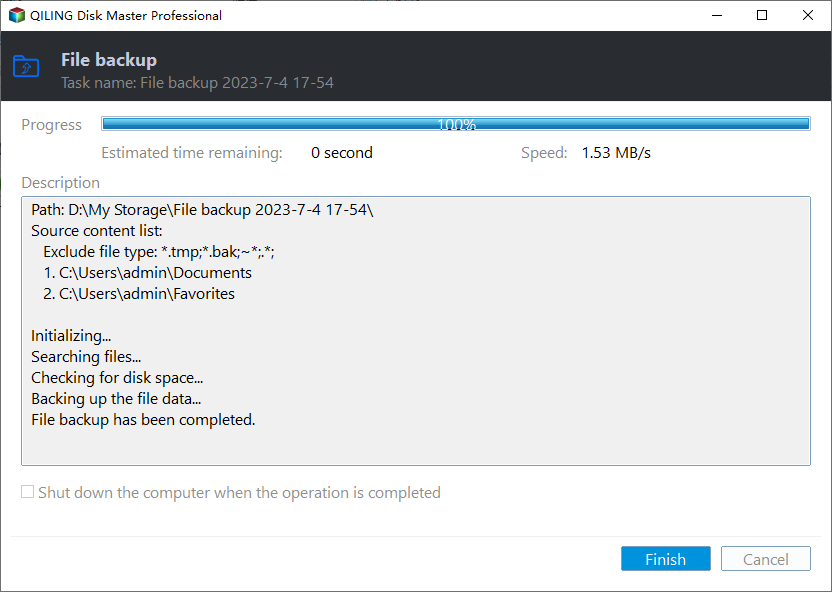
Step 2. Open Qiling Disk Master and choose File Backup. This protects documents, photos, downloads, and project files before you change Windows settings or disk layout.

Step 3. In the tree control, select the files and folders related to C drive user folders. Back up personal folders before disk maintenance when the drive may be unstable.

Step 4. Select the external drive, another internal disk, or a network folder as the destination. Avoid saving the backup on the same partition that will be changed.

Step 5. Review the task name, source, and destination. Click Proceed and wait until the backup finishes.
Check the result
After optimization, restart the computer and check system responsiveness. If the drive remains slow or reports errors, run a health check and consider replacing it.
Related Articles
-
How to Defragment
Learn when defragmentation helps and when Windows optimization is enough. -
Run Disk Defragment
Use Windows disk defragment tools correctly for HDDs and SSDs.
Products
Articles & Tutorials
- Data Recovery
- Data Backup
- File Recovery
- File Backup
- File synchronize
- System Backup and Restore
- Disk and Partition Clone
- Technical articles
- Disk Master Help
- Windows Deleted File and Disk Recovery Tutorials
- Windows File and Data Recovery Tutorials
- More Windows Tutorials for Install, Security, Files, and PC Tips
- Windows Boot, Repair, and Recovery Environment Tutorials
- Windows Backup Tutorials
- Windows Restore Tutorials
- Windows Clone and Migration Tutorials
- Windows Server Backup, Recovery, and Management Tutorials
- Windows Disk, Partition, and Storage Management Tutorials