How to Check If a Hard Drive Is Failing in Windows 10
A failing hard drive may show slow response, clicking sounds, corrupted files, disappearing partitions, boot errors, or repeated disk checks.
Understand the problem
When a drive may be failing, the first goal is to protect data. Stress tests and repeated repairs can make a weak drive worse.
- Confirm the disk, partition, file system, Windows version, boot mode, or update state before making changes.
- Back up or recover important files before conversion, deletion, formatting, cleanup, reimage, or boot repair.
- For boot-related work, check BIOS or UEFI mode, boot order, system partition status, and recovery media first.
Use Windows built-in tools
Check drive health with minimal risk.
- Back up important files immediately.
- Open Event Viewer and check Disk or NTFS warnings.
- Run wmic diskdrive get status or check SMART with a trusted tool.
- Use chkdsk only after backup if file system errors appear.
- Replace the drive if errors increase or SMART status is poor.
Use Qiling tools for guided steps
 Qiling Disk Master
Back up important files and prepare bootable media before a failing drive becomes unreadable.
Function. Back up important files before repair or conversion
Step 1. Connect an external drive or choose another safe destination with enough space for files on the suspected failing hard drive.
Step 2. Open Qiling Disk Master and choose File Backup. A backup gives you a rollback point before Windows repair, disk conversion, cleanup, or installation work.

Step 3. In the tree control, select the files and folders that must be protected. Copy critical files first, then back up larger folders if the drive remains stable

Step 4. Choose another internal disk, external drive, NAS folder, or network path as the destination. Avoid saving the backup on the partition that will be changed.

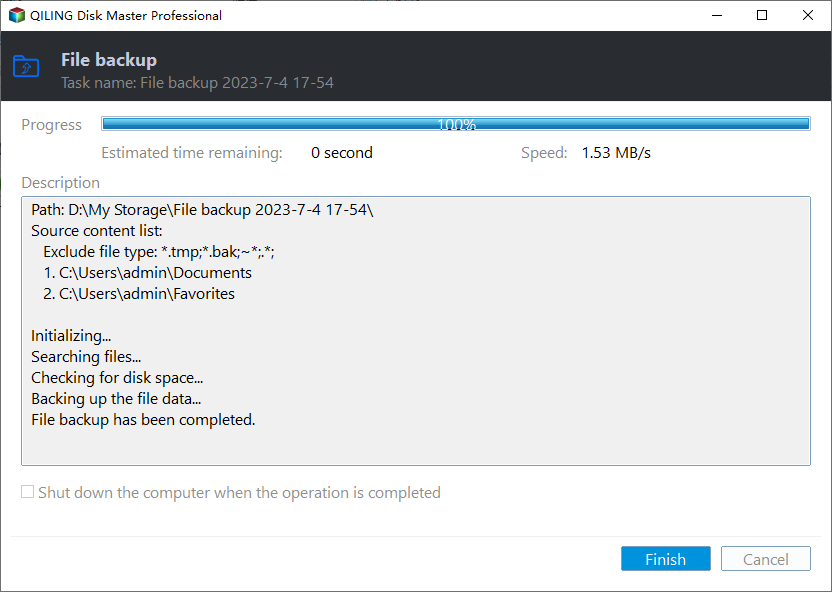
Step 5. Review the task and click Proceed. Wait for the backup to finish before continuing.
Function. Create bootable media for offline repair
Step 1. Prepare an empty USB drive and connect it to a working computer. Back up the USB because it may be formatted.
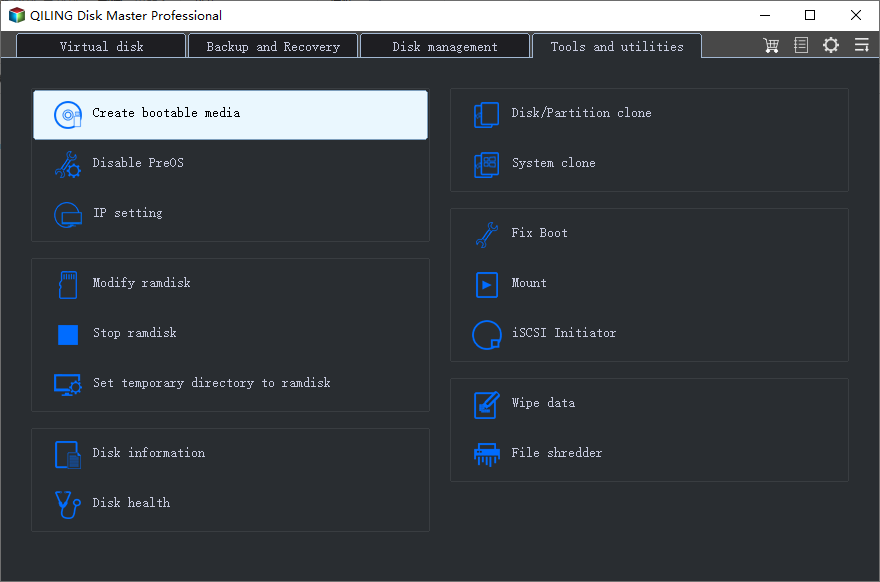
Step 2. Open Qiling Disk Master and choose Create Bootable Media. This helps when normal Windows startup or repair access is unavailable.
Step 3. Select the USB boot device option and choose the correct USB drive by capacity and drive letter.
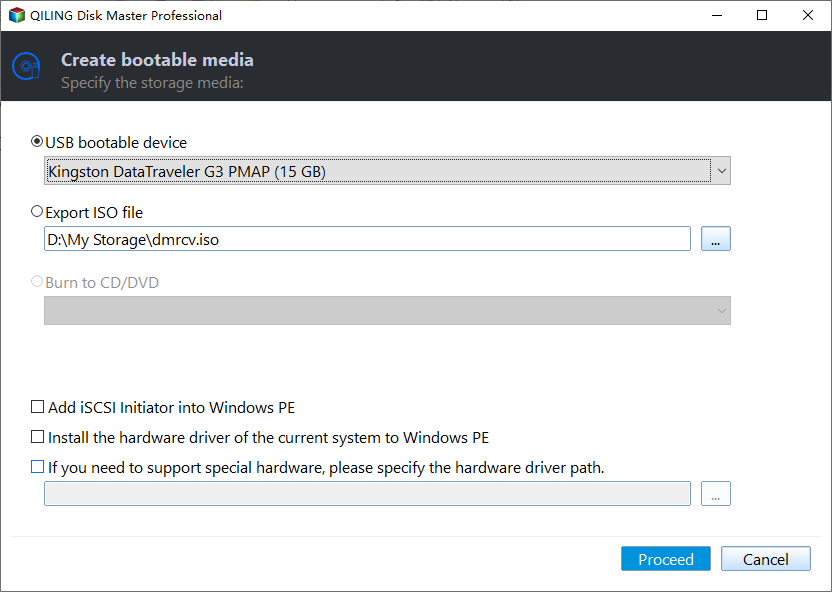
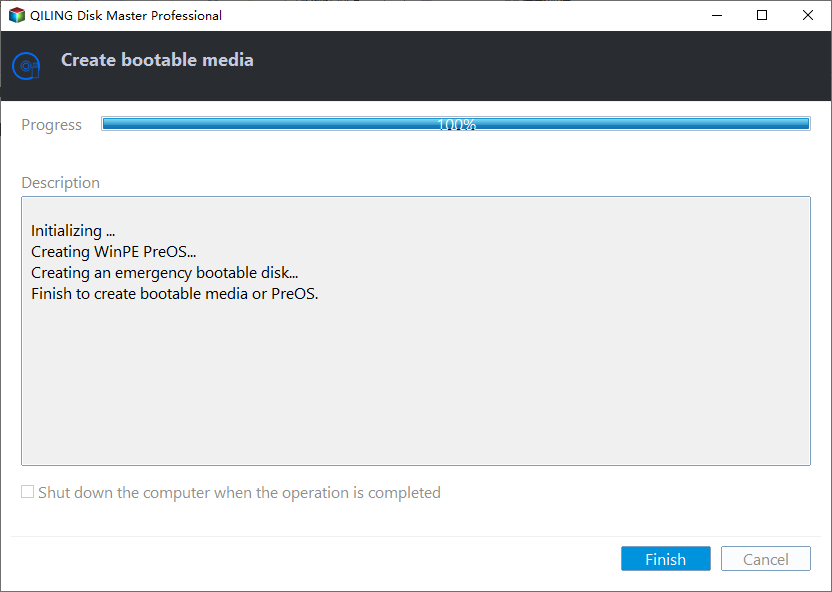
Step 4. Click Proceed and wait until creation finishes. Use the USB for offline recovery or cloning if Windows cannot boot.
Check the result
After backup, monitor the drive again. If errors continue, clone or replace the disk before using it for important files.
Related Articles
-
Check Hard Drive for Errors
Check and repair Windows drive errors after protecting important files. -
Fix Bad Sectors
Understand bad sectors and safe repair options for hard drives.
Products
Articles & Tutorials
- Data Recovery
- Data Backup
- File Recovery
- File Backup
- File synchronize
- System Backup and Restore
- Disk and Partition Clone
- Technical articles
- Disk Master Help
- Windows Deleted File and Disk Recovery Tutorials
- Windows File and Data Recovery Tutorials
- More Windows Tutorials for Install, Security, Files, and PC Tips
- Windows Boot, Repair, and Recovery Environment Tutorials
- Windows Backup Tutorials
- Windows Restore Tutorials
- Windows Clone and Migration Tutorials
- Windows Server Backup, Recovery, and Management Tutorials
- Windows Disk, Partition, and Storage Management Tutorials