How to Format an HP Laptop in Windows 10
Formatting an HP laptop can remove old accounts, fix severe system problems, or prepare the computer for a new owner. The right method depends on whether you want to keep files, remove everything, or reinstall Windows cleanly.
Understand the problem
Before formatting, save personal files, license keys, browser bookmarks, drivers, and BitLocker recovery information. A reset or clean installation may remove programs and custom settings.
- Confirm the target disk, partition, drive letter, file system, and capacity before changing anything.
- Back up or recover important files before formatting, deleting, resizing, converting, or reinstalling Windows.
- For boot-related repairs, check BIOS or UEFI mode, boot order, and disk style before editing system partitions.
Use Windows built-in tools
Windows 10 offers several reset choices.
- Open Settings, Update and Security, Recovery.
- Choose Reset this PC.
- Select Keep my files or Remove everything based on your goal.
- Choose Cloud download or Local reinstall.
- Review the summary carefully before starting the reset.
Use Qiling tools for guided steps
 Qiling Disk Master
Back up HP laptop files before formatting, resetting, or reinstalling Windows 10.
Function. Back up important files before making changes
Step 1. Connect an external drive or choose another safe location with enough free space for the files on the HP laptop system drive.
Step 2. Open Qiling Disk Master and choose File Backup. This protects documents, photos, downloads, and project files before you change Windows settings or disk layout.

Step 3. In the tree control, select the files and folders related to the HP laptop system drive. Include Desktop, Documents, Pictures, Downloads, browser export files, and work folders.

Step 4. Select the external drive, another internal disk, or a network folder as the destination. Avoid saving the backup on the same partition that will be changed.

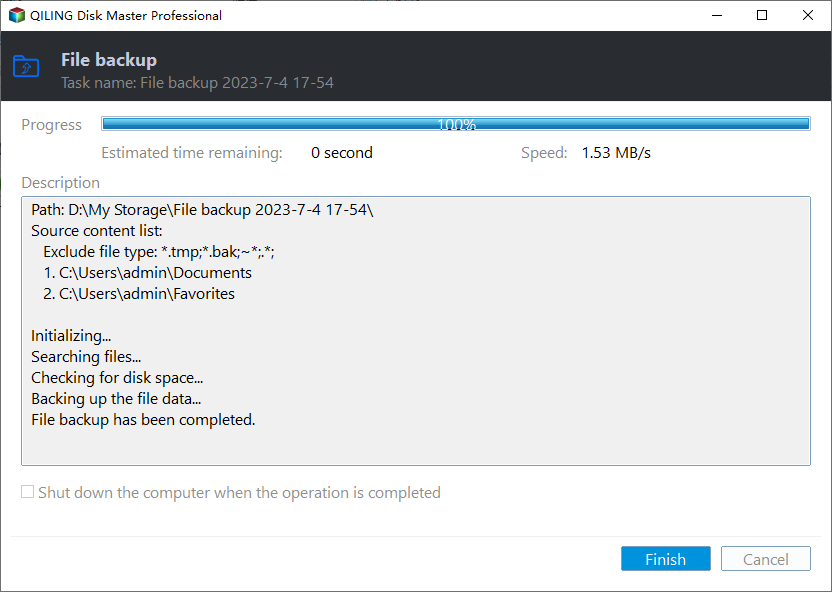
Step 5. Review the task name, source, and destination. Click Proceed and wait until the backup finishes.
Check the result
After formatting or reset, sign in to Windows, install drivers from HP Support Assistant if needed, restore personal files, and verify Wi-Fi, audio, graphics, and Windows activation.
Related Articles
-
Factory Reset a Laptop
Reset a laptop while understanding what happens to files and programs. -
Back Up Before Factory Reset
Protect personal files and settings before resetting a computer.
Products
Articles & Tutorials
- Data Recovery
- Data Backup
- File Recovery
- File Backup
- File synchronize
- System Backup and Restore
- Disk and Partition Clone
- Technical articles
- Disk Master Help
- Windows Deleted File and Disk Recovery Tutorials
- Windows File and Data Recovery Tutorials
- More Windows Tutorials for Install, Security, Files, and PC Tips
- Windows Boot, Repair, and Recovery Environment Tutorials
- Windows Backup Tutorials
- Windows Restore Tutorials
- Windows Clone and Migration Tutorials
- Windows Server Backup, Recovery, and Management Tutorials
- Windows Disk, Partition, and Storage Management Tutorials