System Restore with Qiling Disk Master
When your system crashes, restoring from a system backup is a better solution than reinstalling the OS, as it saves time and preserves data.
System restore can be used in the following scenarios:
- System malfunction: System restore can help fix system issues by restoring system settings and configurations to a previous point in time when the system was working properly, typically after a severe error, crash, or failure to start properly.
- Software conflicts: If new software or an update causes issues with other programs or the system, system restore can revert the system to a previous state, resolving the conflicts.
- Malware infection: When a computer is infected with viruses, malware, or ransomware, using system restore can revert the computer to a previous point in time when it was free from these threats, effectively removing the malicious software.
- Accidental operations or data loss: If important files or directories are accidentally deleted or system settings are changed, system restore can roll back to the previous state, recovering lost data.
- Test environment restoration: When conducting experiments, installing new software, or making configuration changes, it's a good idea to perform a system restore to back up the current environment. This allows you to restore the system to its previous state once the testing is complete, ensuring that any changes or issues caused by the testing don't affect the system's normal functioning.
How to Restore System with Qiling Disk Master in Windows 10 step by step
Prerequisites for system restore
Before restoration, there are some things you need to know.
- Qiling Disk Master system restore relies on a previously made system backup using the same software. You'll need to have at least one system image created by Qiling Disk Master, regardless of the source system being the current crashed one or another computer. Note that even if you have multiple Windows backup points, they won't work with Qiling Disk Master, as it only recognizes system images made by its own software.
- If you haven't created a system backup with Qiling Disk Master, you can create one based on another working system, but the restored system will be a copy of the backup, not the original crashed system. This method is viable if you have another working system to base the backup on.
- If a PC fails to boot or has crashed, users can create a WinPE bootable media using Qiling Disk Master or Qiling PE Builder on another healthy computer, and then boot the crashed PC from the WinPE bootable media to run the system restore under WinPE.
Users should create a WinPE bootable media as soon as they start using Qiling products, and store it safely to ensure they can boot a failed computer if needed, as not having this media may result in being unable to recover the computer.
If you don't have the necessary items, please download Qiling Disk Master and prepare what you need.
Detailed steps about how to restore a system backup
Restore System under Windows:
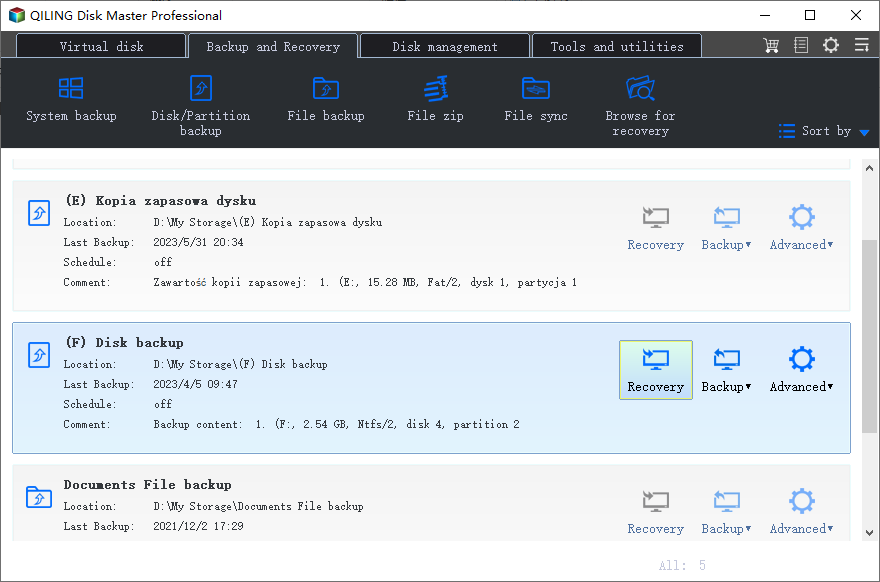
1. Select the task you want to restore from the list, then click Restore to start the restore process. This will restore the task to its original state, overwriting any changes you made since the backup was created. Be careful when restoring tasks, as this will delete any changes you made since the backup was created.
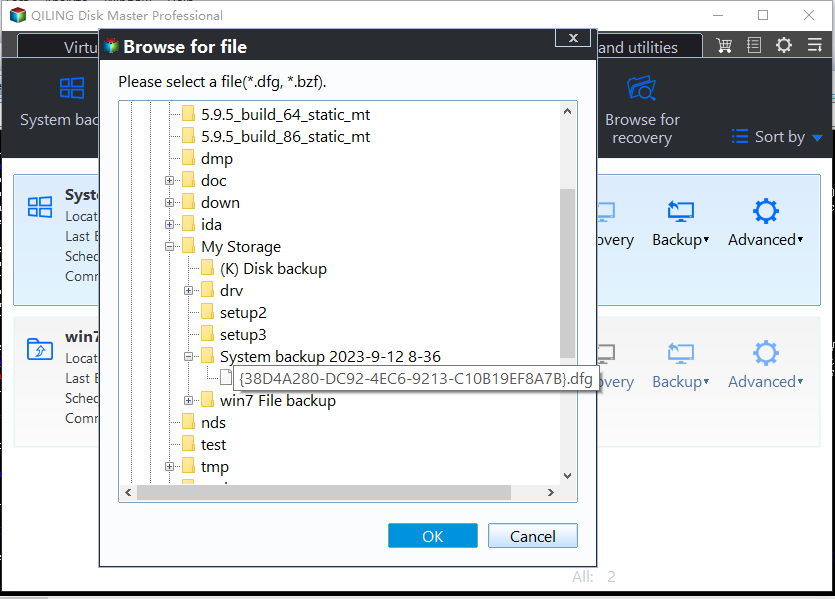
2. To recover your system, select a backup image and click the "Next" button, which will restore your system to the state it was in at the time the backup was taken.
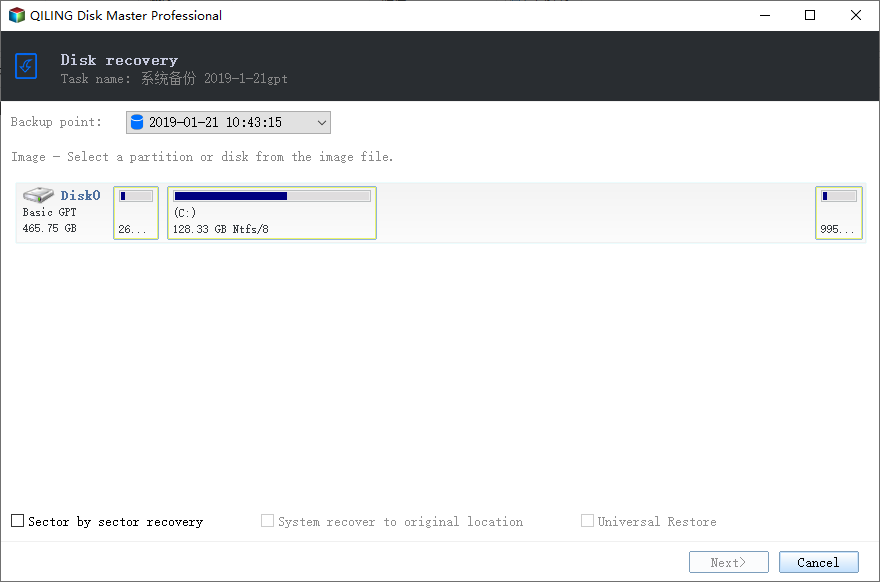
3. Choose to restore the entire image or part and click Next.
4. To execute the operation, first, preview the operation on the "Operation Summary" page, then click "Proceed". Wait for the process to complete, and finally click "Finish".
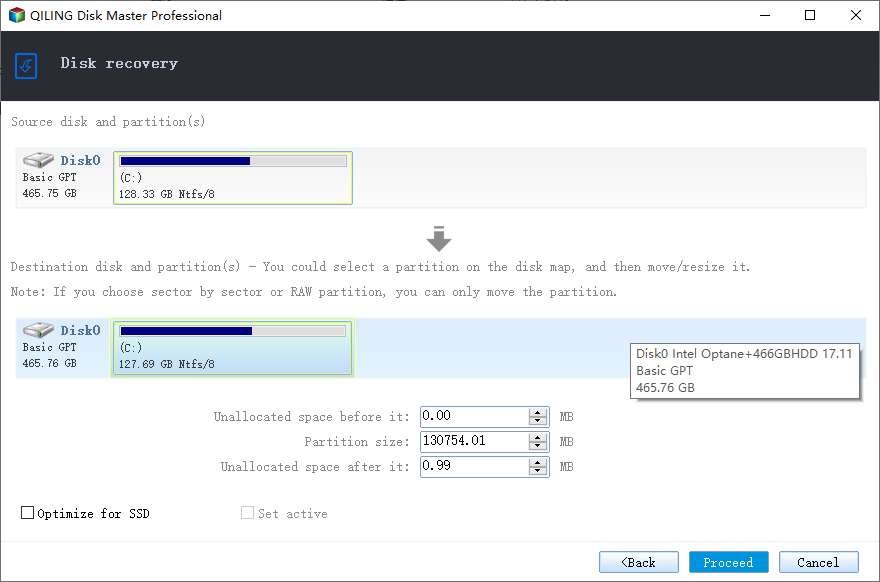
- Tips: If the system image is taken from another computer, you should enable the "Universal Restore" feature to ensure the system is bootable after recovery. This is a paid function.
- To do a System Restore, go to the Start menu and type 'System Restore' in the search bar. Click on the result to open the System Restore window.
Restore System under WinPE:
If your PC won't boot or has crashed, you'll need to create a WinPE bootable media using Qiling Disk Master, then boot your PC into WinPE to run system restore.
1. To create a WinPE bootable media using Qiling Disk Master or Qiling PE Builder on another healthy computer, follow these steps: First, download and install Qiling Disk Master or Qiling PE Builder on the healthy computer. Next, launch the software and select the option to create a WinPE bootable media.
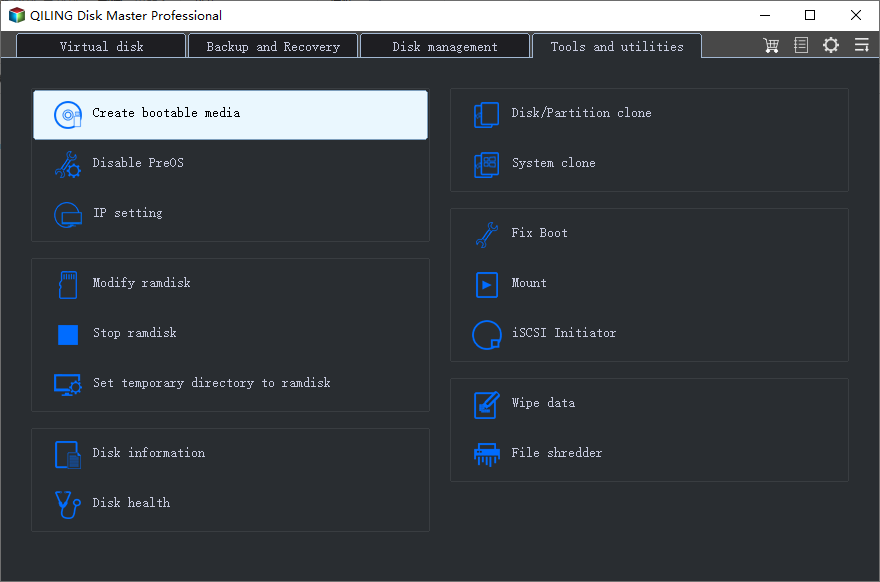
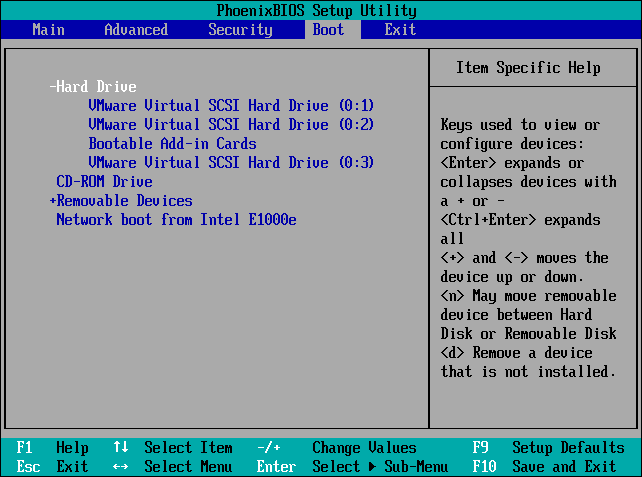
2. Insert a bootable media into the failed computer and boot from it, possibly by changing the boot sequence and boot mode in the PC's BIOS/UEFI Setup Utility.
3. When the PC boots up successfully, Qiling Disk Master, already installed on the bootable device, will run automatically, allowing you to start the system recovery process just like under Windows.

4. After a successful system restore, remove the bootable media and restart your PC. You might still need to adjust the boot sequence and boot mode in your PC's BIOS/UEFI Setup Utility.
Notes:
- You regularly backup your system, so each backup will generate an image at a given point in time, resulting in multiple backup points to choose from.
- The destination disk/partition will be completely erased, so any important data should be backed up to another location before proceeding.
- During a system restore, the computer will be prompted to restart, and then enter into a "Restart Mode" for the restore operation.
- If your system uses an "EFI partition + system partition + recovery partition" layout, there may be more than one EFI partition after restore. To fix this, try deleting the extra EFI partition and keeping only one, which should allow the system to boot normally.
- If you can't boot into Windows to run the program for the restore, you can create a WinPE bootable media using Qiling Disk Master beforehand and then boot from the WinPE media to perform the restore operation.
- System restore will restore the entire system to a specific point in time, so it's recommended to back up important files and data before doing so.
Conclusion
System Restore is a feature that allows you to revert your system to a previous state in case of a crash, saving you the time and hassle of reinstalling the system.
FAQs:
Q: What should I do if the system partition is on a dynamic disk and the restore fails?
A: If programs are running on the destination partition during the restore process, the system will automatically restart and run Disk Master in Linux or WinPE mode to complete the restore. This issue occurs because image files in dynamic partitions cannot be recognized by the Linux environment, leading to the need for a restart and re-run of the restore process.
1) Copy the image file to a basic partition and then restore it again.
2) Click Tools > Create Bootable Media to create a WinPE bootable media. This will allow you to recognize image files in a dynamic volume. Once created, boot from the WinPE bootable media to proceed with the restore process.
Q: What should I do if the image file is stored on a shared drive or NAS network?
A: If you're trying to restore an image to a shared folder or NAS device, but getting a message saying that programs can't close, you can resolve this by creating a bootable media, booting from it, and then completing the restore process.
Q: Why does "Unable to get the backup information" error appear when clicking Restore?
A: The task may not be able to locate the backup files, so you need to delete the task and re-import the backup task by browsing the backup files under Tools > Import/Export Configuration, which should then list the task on the Home screen again.
Related Articles
- How to Perform Windows Scheduled Disk Defragmentation?
Learn how to Perform Windows Scheduled Disk Defragmentation with clear steps, key checks, and practical tips. - Windows Server 2019: Bare Metal Backup and Recovery
Learn how to create a Windows Server 2019 bare metal backup in this article to perform bare metal recovery in the event of an unexpected situation on your server. - 3 Ways to Fix Windows Won't Install on SSD or HDD
There are 3 situations where Windows 11/10/8/7 won't install on SSD. Learn the step-by-step guide to make it right. - 2 Methods to Wipe Hard Drive without Deleting Windows 10/8/7
This guide explains 2 Methods to Wipe Hard Drive without Deleting Windows 10/8/7 with clear steps, key checks, and practical tips. - How to Perform Google Drive File Stream Local Backup (2 Ways)
You will learn 2 useful ways to perform Google Drive file stream local backup, including the Google Drive desktop app and the free third-party software. Please read on. - How to Solve "GPT-Formatted Disk. Legacy Boot Not Suppor"
Fixing the 'GPT formatted disk. Legacy boot not supported' issue can be resolved with some professional suggestions.
Products
Articles & Tutorials
- Data Recovery
- Data Backup
- File Recovery
- File Backup
- File synchronize
- System Backup and Restore
- Disk and Partition Clone
- Technical articles
- Disk Master Help
- Windows Deleted File and Disk Recovery Tutorials
- Windows File and Data Recovery Tutorials
- More Windows Tutorials for Install, Security, Files, and PC Tips
- Windows Boot, Repair, and Recovery Environment Tutorials
- Windows Backup Tutorials
- Windows Restore Tutorials
- Windows Clone and Migration Tutorials
- Windows Server Backup, Recovery, and Management Tutorials
- Windows Disk, Partition, and Storage Management Tutorials