Fix - The File Too Large for the Destination File System
▶ Can't copy my large file to a FAT32 SD card
▶ Solutions for file too large for destination file system error
✔ Convert file system from FAT32 to NTFS without formatting
✔ Change file system from FAT32 to exFAT
Can't copy my large file to a FAT32 SD card
You're trying to transfer a 5.02GB file to a 32GB FAT32 formatted SD card, but Windows is blocking the transfer due to the file size limit of FAT32, which is 4GB. You can either skip the file or cancel the transfer. If you want to transfer the file, you might need to reformat the SD card to a larger file system like NTFS that can handle larger file sizes.
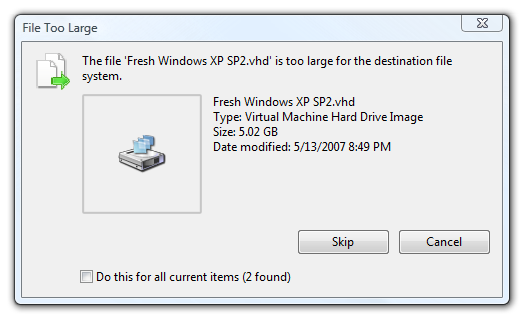
The error "file too large for the destination file system" means that the file you're trying to move is too big for the SD card's file system to handle. Despite having 20 GB of free space, the SD card's file system has a limit on the maximum file size it can handle, which is usually much smaller than the total free space. To resolve this issue, you can try splitting the large file into smaller chunks, or use a file system that supports larger file sizes, such as exFAT. You can also try formatting the SD card with a different file system, but be aware that this will erase all data on the card.
Solutions for file too large for destination file system error
The error occurs due to the 4GB file size limit of FAT32, which can be resolved by formatting the drive to NTFS or exFAT. This allows for larger file transfers.
NTFS and exFAT both overcome the 4GB file size limit of FAT32, but NTFS excels in data security and read/write speed. While NTFS is fully supported by Windows XP and later, as well as Microsoft Xbox One, exFAT has broader compatibility, working on most Windows, Mac OS X, Xbox One, and PlayStation 4 versions. If speed is a priority, convert to NTFS, but for broader compatibility, choose exFAT.
✐ Convert file system from FAT32 to NTFS without formatting
To resolve the "file too large for destination file system" error, you can convert a FAT32 file system to NTFS without formatting using a free partition manager like Qiling Disk Master Standard. This allows you to upgrade the file system without losing data.
It has graphic and user-A user-friendly interface allows effortless conversion of SD cards, USB flash drives, or external hard drives from FAT32 to NTFS, compatible with Windows 10, 8, 8.1, XP, and Vista.
You can now download the software for free and take a look at how it works.
✍ Tips:
✔ This software allows you to convert an NTFS drive back to FAT32 without losing any data.
✔ You can upgrade it to a Professional version, which offers more features like quick partition and partition alignment.
You can convert a FAT32 drive to NTFS using the Command Prompt (CMD) without any third-party tools. To do this, follow these steps:
Step 1. To access the Command Prompt, press the Windows key + R, type "cmd" and press Enter. This will open the Command Prompt interface.
Step 2. Type "convert N:/fs:ntfs" (n refers to the drive letter assigned to the partition going to be converted).
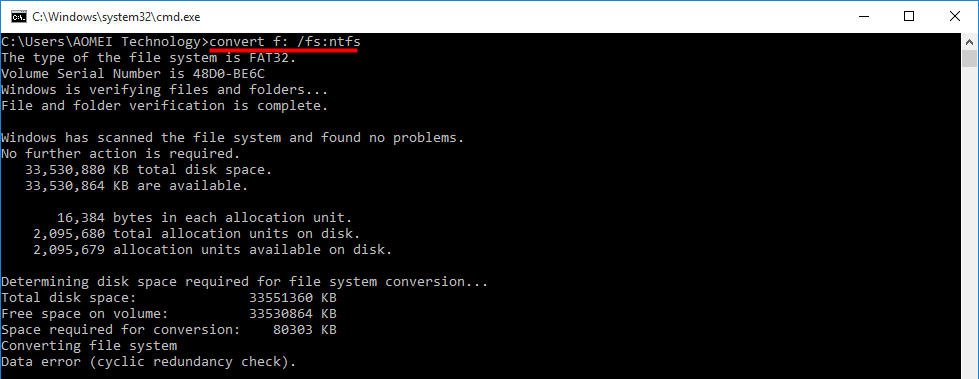
Step 3. If you're prompted to enter the current volume label for the drive, enter it and let the process complete.
✍ Notes:
• Unfortunately, it's not possible to convert NTFS to FAT32 using the Command Prompt (CMD) in Windows. If you've accidentally converted a partition to NTFS, you won't be able to revert it to FAT32 using CMD.
• If you're experiencing issues converting a drive to NTFS in CMD, it's possible that you may have encountered problems such as insufficient free space, drive inconsistencies, or other issues. In such cases, it's essential to address these problems first before attempting to convert the drive again.
• You can choose to format the drive to NTFS if you don't need the data saved on the FAT32 partition.
✐Change file system from FAT32 to exFAT
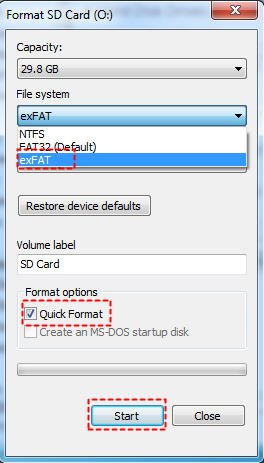
If you're looking to change the file system to exFAT to break the file size limit, you can use File Explorer to format the partition to exFAT.
Please back up your important files before formatting your drive to avoid losing any data.
Step 1. Double click "This PC" in Windows 10 or "My Computer" in Windows 7 to open File Explorer.
Step 2. Right-click on the listed drive, select "Format" from the context menu.
Step 3. Choose exFAT and click "Start".
Notes:
- If the drive is not showing up in File Explorer, you can try checking Disk Management to see if the drive has been assigned a drive letter, which would explain why it's not visible.
- If you can't find the exFAT option in your file system, you can use the Command Prompt or a free partition manager to format your drive to exFAT, which can help resolve the "file is too large for the destination file system" error.
Related Articles
- How to Remove Write Protection on Micro SD Card SanDisk?
Learn how to Remove Write Protection on Micro SD Card SanDisk with clear steps, key checks, and practical tips. - Free Resize Bootcamp Partition without Reinstalling Window
Sometims, you might need to resize Bootcamp partition to make it bigger, then you can use the free Qiling Partition software, and it allows you to add more space to Bootcamp partition with simple steps. - How to Restore Multiple Databases in SQL Server (3 Methods)
To restore multiple databases in SQL Server at once, you can use a T-SQL script that utilizes a loop to apply the restore process to each database, or opt for a software solution that can handle the task with fewer restrictions. - How to Restore Windows 11 to Previous Date (2 Methods)
If Windows 11 upgrade or system issues cause problems, you can restore it to a previous date using two easy solutions. - Best Way to Backup Windows Server 2008 to NAS/Network Share
This article tells you how to get Windows Server 2008 automated backup to NAS or network share in simple steps. And you are able to keep multiple backups for disaster recovery. - Easiest Solution to Backup Windows Server to Amazon Drive
This article shows how to back up Windows Server 2008/2012/2016 (R2) files to Amazon Cloud Drive with Qiling Disk Master, which also supports backup to hubiC, OneDrive,Dropbox, etc.
Products
Articles & Tutorials
- Data Recovery
- Data Backup
- File Recovery
- File Backup
- File synchronize
- System Backup and Restore
- Disk and Partition Clone
- Technical articles
- Disk Master Help
- Windows Deleted File and Disk Recovery Tutorials
- Windows File and Data Recovery Tutorials
- More Windows Tutorials for Install, Security, Files, and PC Tips
- Windows Boot, Repair, and Recovery Environment Tutorials
- Windows Backup Tutorials
- Windows Restore Tutorials
- Windows Clone and Migration Tutorials
- Windows Server Backup, Recovery, and Management Tutorials
- Windows Disk, Partition, and Storage Management Tutorials