How to Wipe Seagate External Hard Drive Securely in Windows 10, 8, 7?
Quick Navigation
- Real user case
- When need to erase a Seagate external hard drive?
- Software to wipe clean Seagate external hard drive in Windows PC
- Steps to secure erase Seagate external HDD&SSD
- Conclusion
Real user case
You can format the Seagate external hard drive to erase the existing data, but this may not be sufficient to completely wipe the drive, especially if you've stored sensitive information. To thoroughly erase the drive, you can use a secure erase tool or overwrite the drive with zeros. However, the most secure method would be to physically destroy the drive or use a professional data destruction service. If you're looking to resell the drive, formatting it should be enough, but if you're concerned about sensitive data, it's best to take extra precautions. Would that help?
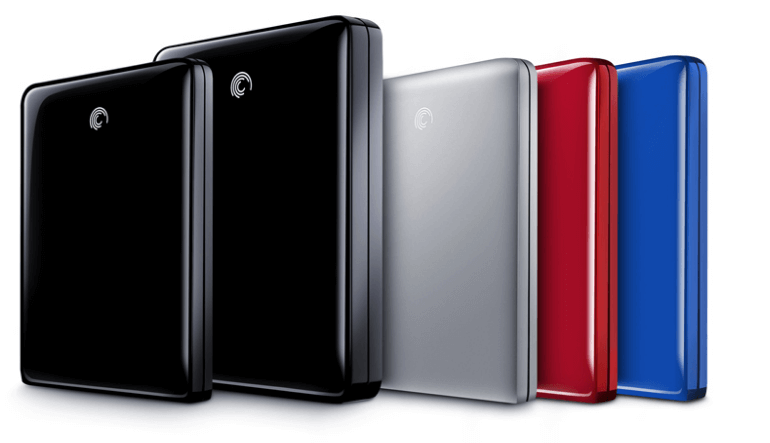
Why need to erase a Seagate external hard drive?
To erase everything permanently from a Seagate external hard drive, you need to perform a low-level format, which will overwrite the entire hard drive with zeros, making it impossible to recover any data. This process is usually done using specialized software, and it's essential to note that it will delete all data, including operating systems and programs, so be sure to back up any important files before proceeding.
To completely erase all data from a Seagate hard drive and make it unrecoverable, a professional hard drive wiper should be used, which can completely wipe the hard drive and protect the information.
Software to wipe clean Seagate external hard drive in Windows
In order to permanently and safely wipe out the data from your Seagate external hard drive, you can apply Qiling Disk Master Professional, which provides a "Wipe Hard Drive" feature with four different wiping methods available for selection.
1. Fill sectors with zero: Wipe the hard drive contents by overwriting them with zeros, replacing each bit with a zero value, hence the name "zero filling".
2. Fill sectors with random data: Fill the disk with random data instead, making it harder for recovery software to find any meaningful data, which is considered more secure.
3. DoD 5220.22-M: A software-based data sanitization method, used in file shredder and data destruction programs, overwrites existing information on a hard drive for 3 passes. This makes it virtually impossible for all software-based file recovery methods and most hardware-based recovery methods to lift information from the drive.
4. Gutmann: To securely sanitize the data, the hard disk should be wiped and the existing information should be overwritten for 35 passes. This ensures that the data is completely erased and cannot be recovered.
To wipe clean Seagate solid-The SSD drive offers a "SSD Secure Erase" function that securely and permanently deletes data on the drive, significantly reducing the chance of data recovery.
Steps to secure erase Seagate external HDD/SSD
Make a backup of important files and data via Qiling Disk Master before wiping the external drive to ensure they are safe and won't be deleted.
PS.: You can download the Pro demo and have a try first.
Part 1. Wipe clean Seagate external HDD permanently
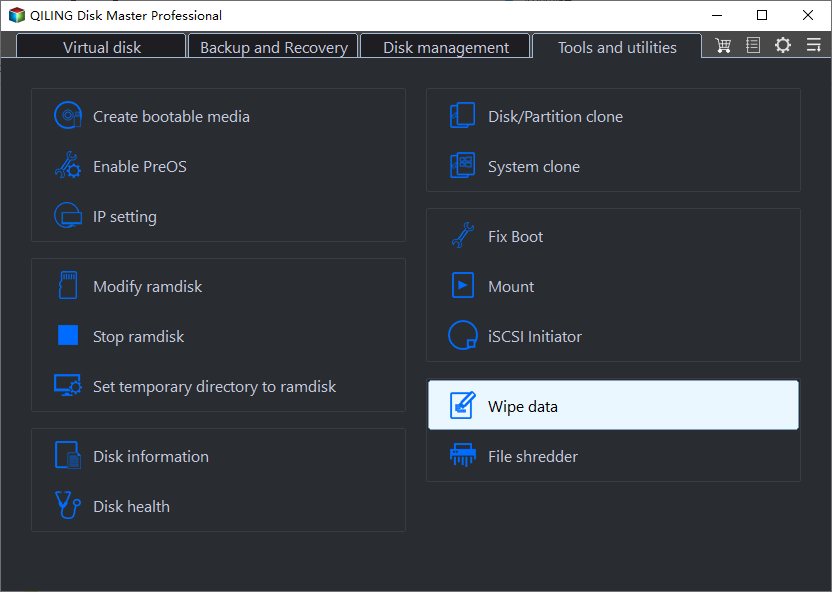
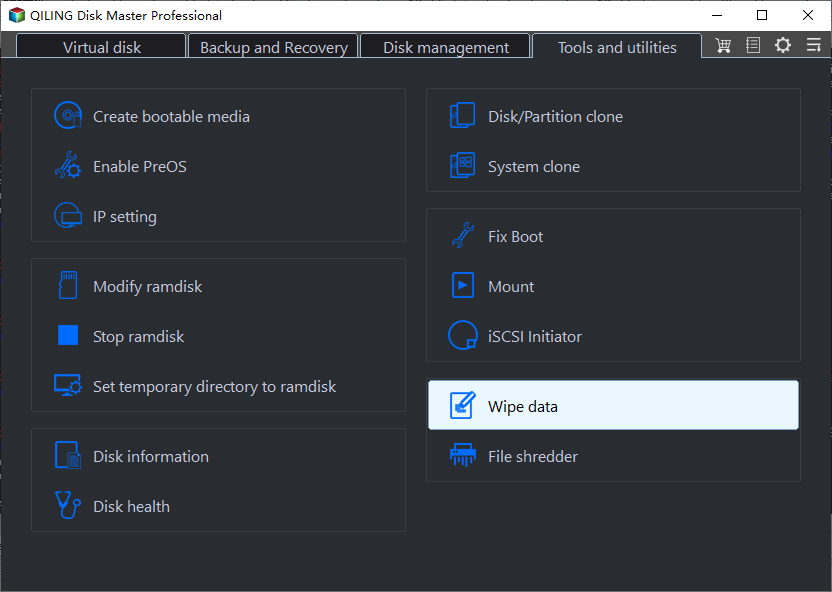
1. Install and launch the software. Locate the Seagate HDD and click on the "Tools and utilities" page to select "Wipe Data" from the page.
2. To wipe a Seagate external hard drive, you can use the built-in Disk Utility on a Mac or the Command Prompt on a Windows PC. For a Mac, go to Applications > Utilities > Disk Utility, select the drive from the sidebar, click the "Erase" button, and choose "Quick Erase" or "Security Options" for a more thorough wipe.
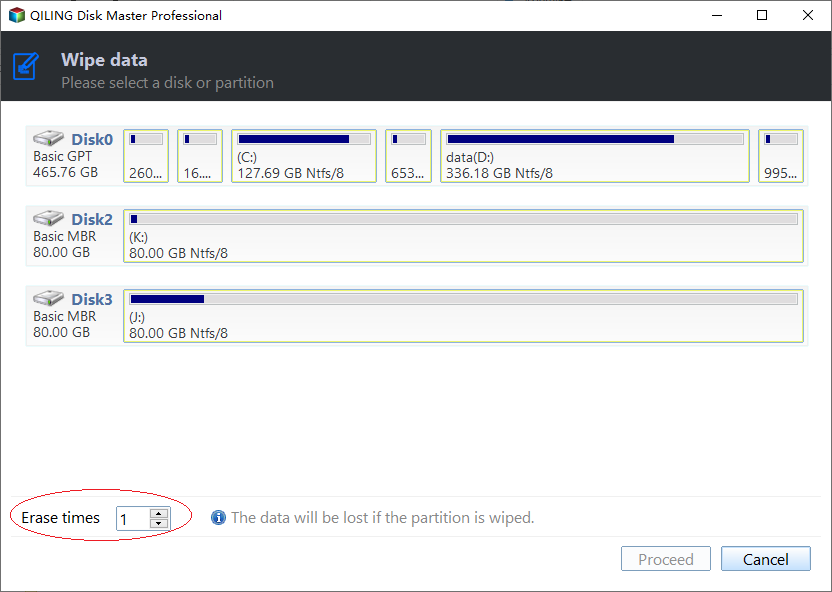
3. Click "Proceed" to execute the pending operations.
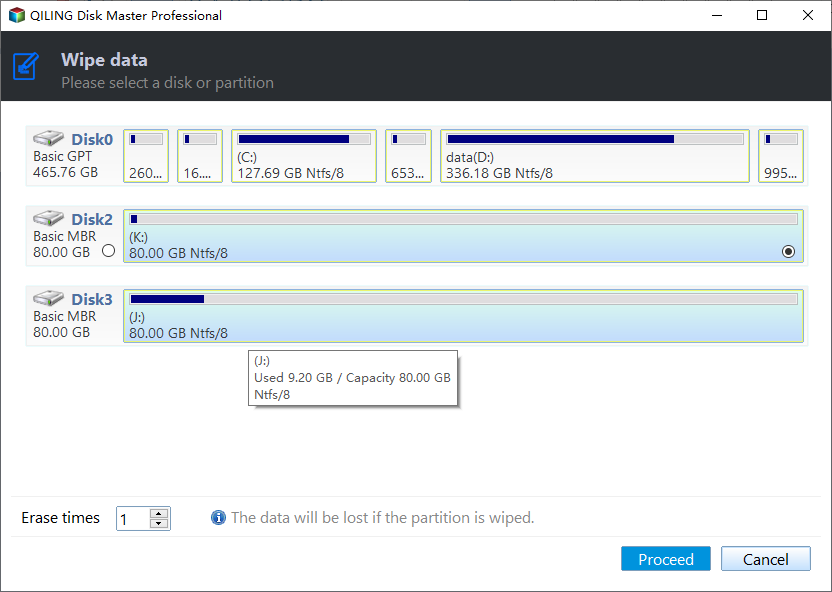
☞Qiling Disk Master Professional allows you to wipe an entire external hard drive or a single partition, such as wiping the C partition for a fresh Windows installation.
Part 2. Wipe clean Seagate SSD
The Seagate SSD requires a different method of wiping compared to HDDs. The "SSD Secure Erase Wizard" in Qiling Disk Master can securely erase all data on the SSD without affecting its performance or lifespan.
But this feature could only work in Windows7, so firstly please connect the Seagate SSD to a computer running Windows7 and make sure it is recognized. Then follow the steps:
1. To erase data from a Seagate SSD drive, you would run Qiling Disk Master Professional on your computer, click on the Seagate SSD drive, and then select "Tools and utilities" followed by "Wipe data".
2. Choose the target SSD drive.
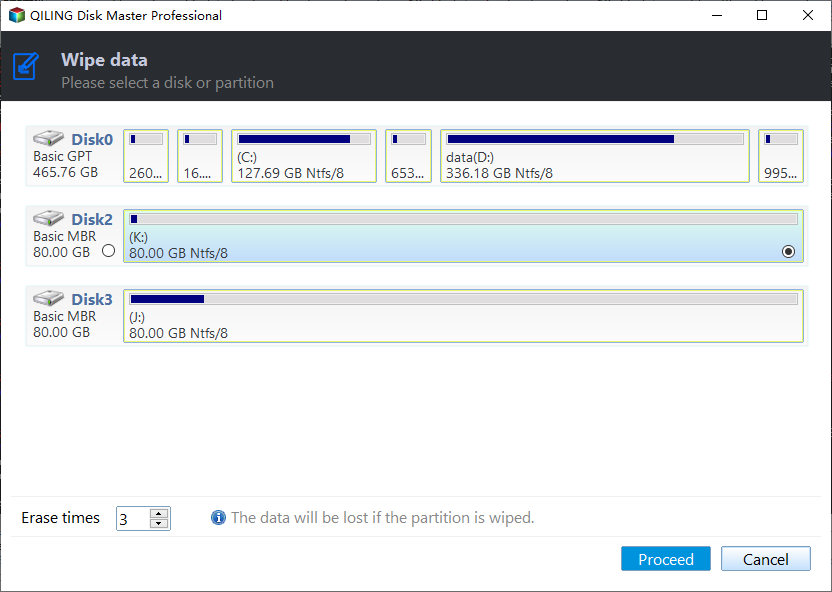
Note: To perform a hot-swap, refer to the tutorial provided in the window by clicking "here".
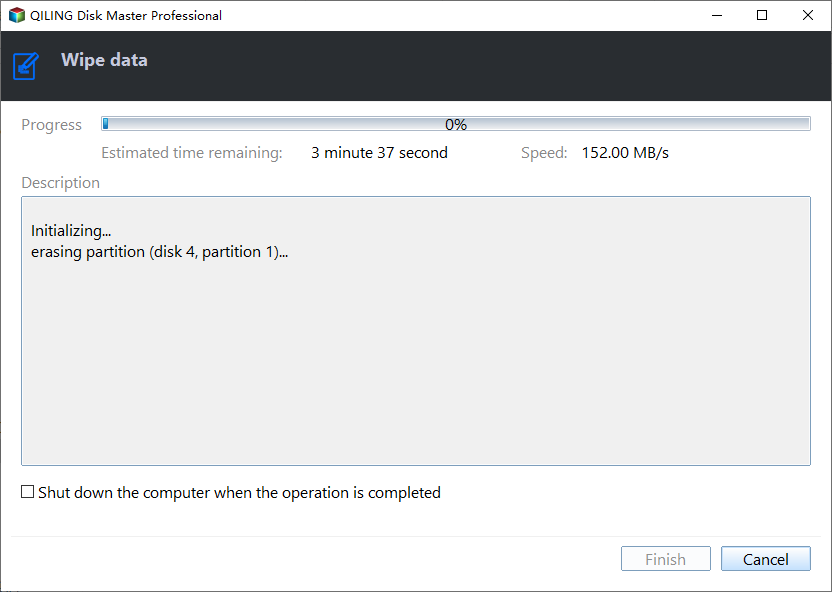
3. This will completely erase all data on your SSD drive, including any files, folders, and operating system. Proceed with caution, as this action cannot be undone.
Conclusion
After wiping a Seagate external hard drive, the entire disk space becomes unallocated in Disk Management. To reuse it, you can use Quick Partition to create new partitions in one click. Wiping or erasing the drive also resets it to factory settings or addresses SSD slow issues.
The Qiling Disk Master Standard is a reliable tool for wiping hard drives, regardless of the brand. If you're running Windows Server 2003, 2008 (R2), 2012 (R2), 2016, or SBS 2003, 2008, 2011, you can use the Qiling Disk Master Server instead.
Related Articles
- How to Destroy A Hard Drive and Make A Hard Drive Unrecoverable
How to destroy a hard drive and make a hard drive unrecoverable. It would help if you had data destruction software (Support Windows 11, 10, 8, 7, Server 2021-2022) and a physical solution. - How to Wipe A Hard Drive for Reuse? Check the Quickest Way to Wipe A Hard Drive
Learn how to wipe A Hard Drive for Reuse Wipe A Hard Drive safely, including what to check before formatting, wiping, or deleting data. - Use Reset PC or Other Easier Solution? Check How to Wipe A Hard Drive
Learn how to use Reset PC or Other Easier Solution Check How to Wipe A Hard Drive safely, including what to check before formatting, wiping, or deleting data. - 5 Best PC Cleaner Free Download for Windows 10/11 in 2022
Enjoy a faster, cleaner PC. Here are the 5 best PC cleaners Free Download for Windows 10. Windows users pick a reliable PC cleaner software to optimize their computer performance. - 5 Best Free Drive Wiper Tools Are Here, Feel Free to Download
This guide explains 5 Best Free Drive Wiper Tools Are Here, Feel Free to Download with clear steps, key checks, and practical tips. - Best SSD Wipe Software
This guide explains Best SSD Wipe Software with clear steps, key checks, and practical tips.
Products
Articles & Tutorials
- Data Recovery
- Data Backup
- File Recovery
- File Backup
- File synchronize
- System Backup and Restore
- Disk and Partition Clone
- Technical articles
- Disk Master Help
- Windows Deleted File and Disk Recovery Tutorials
- Windows File and Data Recovery Tutorials
- More Windows Tutorials for Install, Security, Files, and PC Tips
- Windows Boot, Repair, and Recovery Environment Tutorials
- Windows Backup Tutorials
- Windows Restore Tutorials
- Windows Clone and Migration Tutorials
- Windows Server Backup, Recovery, and Management Tutorials
- Windows Disk, Partition, and Storage Management Tutorials