How to Clone 500GB HDD to 256GB SSD without Data Loss
Quick Navigation:
- Need to clone 500 GB HDD to 256 GB SSD
- Great cloning software: Clone HDD to SSD easily and safely
- How to clone 500 GB HDD to 256 GB SSD
- A faster way to upgrade HDD to SSD without reinstalling
- Bottom Line
Need to clone 500 GB HDD to 256 GB SSD
To upgrade your storage from a traditional Hard Disk Drive (HDD) to a Solid State Drive (SSD), you can clone your existing HDD to the new SSD. This process will copy all your data, including the operating system and installed programs, to the SSD. You can use a cloning software like Qiling Disk Master to transfer your data from the HDD to the SSD.
You can clone your old HDD to the new Toshiba SSD using software like Qiling Disk Master. These tools can help you transfer your entire system, including Windows and applications, to the new SSD without having to reinstall everything. Just make sure the new SSD is large enough to hold all your data. If it's not, you might need to delete some files or resize your partitions before cloning. Additionally, you can also use the built-in Windows feature called "Clone" to clone the HDD to the SSD.
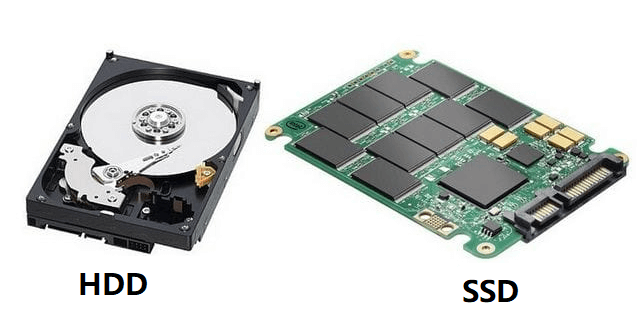
Great cloning software: Clone HDD to SSD easily and safely
You can clone a 500 GB HDD to a smaller SSD, such as 256/120 GB, as long as the used space on the source drive doesn't exceed the target SSD's capacity, using drive cloning software like Qiling Disk Master Professional.
► It can clone only used space of source disk, allowing you to clone larger hard drives to smaller drives, such as cloning a 500 GB HDD to a 120/256 GB SSD or a 2 TB HDD to a 500 GB SSD, all without losing any data.
► This software can make SSD partition alignment to improve SSD's performance while copying HDD to SSD.
► The software supports cloning a hard drive to a solid-state drive (SSD) on various Windows operating systems, including Windows 11, 10, 8, 7, XP, and Vista. For Windows Server users, specifically Server 2022, 2019, 2016, 2012, and 2008, a separate version called Qiling Disk Master Server is recommended for this purpose.
Connect your SSD to your PC via a USB-to-SATA cable if your laptop doesn't have an M.2 slot, and ensure your operating system detects the drive.
✍ Note: You can download a demo version of Qiling Disk Master Professional to get a feel for how it works and see the results of its operations.
How to clone 500 GB HDD to 256 GB SSD
Step 1. Install and run the software, then click on "Clone Disk" in the tools page.

Step 2. Choose your source disk and click "Next".

Note: Sector-by-Sector Clone is useful for cloning BitLocker encrypted disks or hard drives with bad sectors, but the target disk must have a capacity equal to or greater than the source disk's.
Step 3. Choose your destination disk and click "Next". As the target disk is an SSD, select the box next to "Optimize" to enable partition alignment on SSD.

Step 4. You have two options to clone your data from a large hard drive to a smaller SSD: you can either clone the entire hard drive, which will fill up the entire SSD, or you can clone only the used space on the hard drive, which will only fill up the used space on the SSD.

Fit partitions to entire disk - automatically adjust the partition size to the entire destination disk based on the scale of the source disk.
To edit partitions on this disk, manually adjust the size of the partition according to your needs.
Step 5. Confirm the pending operations and click "Proceed" to implement the operation.

Notes:
▪ To keep your 500 GB HDD as your data storage while booting from a new 256 GB SSD, you need to enter the BIOS settings and change the boot order. This allows you to use the SSD for the operating system and the HDD for data storage.
▪ If you clone a hard drive to a larger disk, you may end up with unallocated space. To utilize this space, you can add it to an existing partition.
A faster way to upgrade HDD to SSD without reinstalling
If the used space of the HDD is larger than the capacity of the SSD, you may need to consider deleting some files or data from the HDD before transferring the data to the SSD using Qiling Disk Master Professional. This will ensure that the total used space on the SSD does not exceed its capacity, allowing for a successful transfer without reinstalling Windows.
If you don't mind other applications, you can use Qiling Disk Master Professional to move OS-related partitions from a 500 GB HDD to a smaller 256 GB SSD, allowing you to upgrade to SSD without reinstalling Windows. The process involves migrating the OS from the 500 GB HDD to the 256 GB SSD, and the detailed steps to achieve this are as follows:
Step 1. Run Qiling Disk Master Professional, select "Migrate OS to SSD", and then click "Next".

Step 2. Choose disk space on the SSD and click "Next".

Step 3. Adjust the system partition on SSD as you like.

If you're looking to install a new operating system, it's usually best to boot from the destination disk. This means booting your computer from the installation media (such as a USB drive or CD/DVD) rather than your existing operating system. This allows the installation process to start fresh and not interfere with your existing system.
Step 4. Click "Proceed" to perform the operation.
Bottom Line
When cloning a large hard drive to a smaller SSD, consider using Qiling Disk Master Professional. This tool allows you to clone a 500 GB HDD to a 256 GB SSD, and its features can be explored further through the provided help guides.
Related Articles
- How to Clone BitLocker Encrypted Hard Drive [Proven Way]
To clone BitLocker drive in Windows 11/10/8/7, you can use Qiling Disk Master. - How to Clone Large HDD to Smaller SSD without Data Loss?
Use this guide for How to Clone Large HDD to Smaller SSD without Data Loss?, with cloning or migration steps, boot checks, and tips to keep data safe during the move. - [Bootable] Clone OS Drive in Windows 11, 10, 8, 7
Here, you'll learn to clone an OS drive to another drive like SSD or HDD quickly in Windows 11, 10, 8, 7. - How to Copy Recovery Partition to New Hard Drive in Windows 11/10/8/7?
Learn how to Copy Recovery Partition to New Hard Drive in Windows 11/10/8/7 with clear steps, key checks, and practical tips.
Products
Articles & Tutorials
- Data Recovery
- Data Backup
- File Recovery
- File Backup
- File synchronize
- System Backup and Restore
- Disk and Partition Clone
- Technical articles
- Disk Master Help
- Windows Deleted File and Disk Recovery Tutorials
- Windows File and Data Recovery Tutorials
- More Windows Tutorials for Install, Security, Files, and PC Tips
- Windows Boot, Repair, and Recovery Environment Tutorials
- Windows Backup Tutorials
- Windows Restore Tutorials
- Windows Clone and Migration Tutorials
- Windows Server Backup, Recovery, and Management Tutorials
- Windows Disk, Partition, and Storage Management Tutorials