How to Clone All Partition to SSD with Secure Boot in Windows
Quick Navigation:
- Do I Need to Clone All Partitions to SSD?
- Which Partitions Make up the Boot Hard Drive?
- How to Clone Entire Hard Drive Including Partitions to SSD
- Detailed Steps on How to Clone All Partitions from Hard Drive to SSD
- Verdict
Do I Need to Clone All Partitions to SSD?
"I have purchased a new PNY SSD drive and would like to clone all my partitions from the current hard drive to the SSD drive. One of my friends had encountered cloned drive won't boot You're looking to clone all drives, including boot-related partitions, to an SSD. There are reliable cloning tools available to assist with this process. Some popular options include Qiling Disk Master. These tools can help you create a precise, sector-by-sector clone of your existing drives, including any boot-related partitions, to your new SSD. Before proceeding, ensure the chosen tool supports your operating system and can handle the size of your drives."
Cloning a hard drive to an SSD is a great way to upgrade your computer's storage, as SSDs offer improved performance. To do it successfully, you'll need to follow a step-by-step process, including preparing the SSD, cloning the data, and verifying the clone. This process typically involves using specialized software, such as Qiling Disk Master, to create an exact copy of the original hard drive on the new SSD. It's essential to ensure that the SSD is properly formatted and prepared before cloning, and that the cloning software is set up to preserve all data and settings. With the right tools and a bit of patience, you can successfully clone your hard drive to an SSD and enjoy the benefits of faster loading times and improved overall performance.
To replace your entire hard drive with a new SSD without reinstalling Windows system and applications, you'll need to clone the disk, including all partitions, to the target disk. This involves understanding what partitions contain your hard drive, ensuring a seamless transition.
Which Partitions Make up the Boot Hard Drive?
Users typically plan to replace their primary disk containing the operating system with a new one. For laptops, which often have only one disk, all partitions are on the system disk. This disk usually contains a hidden boot-related drive (such as a system reserved partition or UEFI drive), the C drive (system drive), and additional drives (D, E, F) for installed programs and personal data.
For desktops with multiple disks, the system disk is partitioned to only show hidden boot-related drives and the C drive, with some favorite programs. This setup helps prevent data loss in case of system failure by storing personal data on a separate disk.
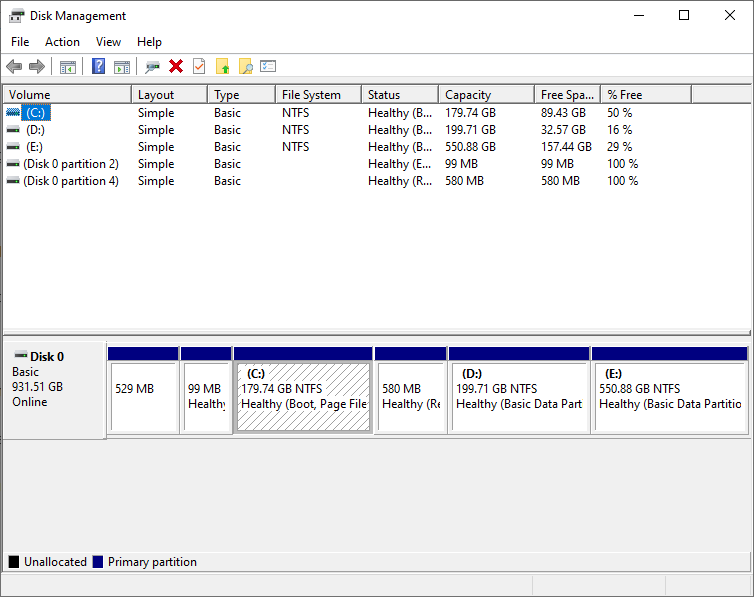
To perform a complete hard drive replacement, you'll need to clone all partitions from the old disk to a new one using a reliable disk cloning tool. This tool will ensure a seamless transition by accurately duplicating all data, settings, and operating system files from the old disk to the new one, allowing for a smooth replacement of the hard drive.
How to Clone Entire Hard Drive Including Partitions to SSD
Qiling Disk Master Professional is a comprehensive disk cloning software that allows users to clone all partitions to an SSD or another HDD, ensuring a successful boot. It offers two cloning methods, accommodating different SSD sizes.
When cloning partitions from one drive to another, the process can be optimized based on the size of the source and target drives. For instance, if cloning from a larger hard disk drive (HDD) to a smaller solid state drive (SSD), an "Intelligent Clone" method can be used, which only copies the used part of the source drive to the target, ensuring it fits within the target's capacity. Conversely, when cloning from a smaller drive to a larger SSD, all partitions can be cloned to the target drive to avoid any unallocated space after the cloning process.
The sector-by-sector cloning method clones every sector of the source disk to the target disk, regardless of whether it's used or not, as long as the target disk is equal to or larger than the source disk. This method can also recover formatted or deleted files that haven't been overwritten.
This tool supports all Windows PC systems, including Windows 11/10/8/7/XP/Vista, and features a clear and user-friendly interface. It allows you to clone all partitions to an SSD, making it a useful tool for upgrading your computer's storage. For server users, a separate version called Qiling Disk Master Server is available.
Detailed Steps on How to Clone All Partitions from Hard Drive to SSD
1. Connect your SSD to your computer using a SATA-to-USB cable if necessary, then ensure the disk is detected by your computer.
2. Run the disk cloning software, and click Clone > Disk Clone.

- ★Tip:
- The System Clone function is useful for cloning the entire system, including all required Windows installation and startup files, to the target drive, ensuring a 100% successful boot after cloning.
3. Select the current hard drive as your source disk.

4. Select the connected SSD as the destination disk.

5. On the summary page, check the option "SSD Alignment" to improve SSD performance, and consider editing partitions to resize or convert disk types if needed, but note that sector-by-sector clone will disable partition editing.
- Copy without resizing partitions: It will not resize the partition size.
- Add unused space to all partitions: The software will redistribute the unused space on the target disk to each partition, taking into account the disk's size.
- Manually adjust partition size: The Disk Management tool allows you to extend unallocated space to any partition on the destination disk you want.
- Convert the destination disk from MBR to GPT: It's helpful to convert the partition style of the destination disk if it is different from the source disk.
6. Click "Proceed" to clone the hard drive for all partitions to the SSD, and wait for the process to finish.

7. To boot from a cloned SSD drive, you need to either replace the original HDD with the cloned SSD or change the boot order in the BIOS settings, effectively shutting down your computer first.
Related tips:
👉 The steps to clone all partitions on an SD card include using a tool like Qiling Disk Master to create a full backup of the SD card. This process can be used to clone all partitions on an SD card, including the operating system, data, and other partitions.
👉 To clone only system drives, you can follow the steps outlined in the article on transferring everything from the C drive to an SSD, which provides a detailed guide on how to clone your system drive.
👉 The free version of Qiling Disk Master only supports cloning data disks between two MBR disks, but upgrading to the professional edition allows for cloning between GPT and MBR disks.
MBR and GPT are two different disk types for data storage. To check the disk properties in Disk Management, follow these steps:
- Press Win + R to open the Run window. Then, type diskmgmt.msc and hit OK to open disk management.
- Then, right-Click the disk you want to clone and select Properties in the pop-up window.

- If the destination disk is still in MBR type, you can clone your hard drive to SSD for free.
👉 To move all partitions on laptops, you can try the backup & restore feature with Qiling Disk Master. First, download and install Qiling Disk Master, then back up all partitions to an image file. Next, reinstall your operating system, and finally, restore the backed-up partitions to the new installation.
- Create a disk backup image of the current disk and save it to a location that can be accessed later.

- Then, create a bootable USB drive, which can help your computer boot up even when it fails to do so normally.
- After the initial steps, shut down the computer and replace the hard drive with a Solid-State Drive (SSD). Then, boot from the bootable drive, navigate to the restore tab, select the backup image, choose the items to restore, and specify the destination disk.
Verdict
For a complete hard drive replacement, it's necessary to clone all partitions to an SSD drive. A reliable cloning tool is also essential, and Qiling Disk Master is a great option as it can clone a HDD to an SSD or another HDD with different sizes using either Intelligent Clone or Sector-by-Sector Clone methods.
|
💡 Intelligent Clone |
Selectively cloning used sectors from the source is a great option, especially when cloning large HDDs or SSDs to smaller SSDs. This approach allows you to transfer only the used data from the source, making it ideal for situations where storage space is limited. |
|
💾 Sector-by-Sector Clone |
Clone all sectors of a source disk to a destination disk, useful for data recovery and backup purposes. |
Qiling Disk Master is a professional backup software that offers various features such as System Backup, Disk Backup, File Backup, and File Sync. It also allows you to create a recovery disk for your PC, providing an added layer of protection.
Related Articles
- How to Clone A Hard Drive with Multiple Partitions
- Free Clone Multiple Partition Hard Drive to SSD
- Best Way to Clone Only OS Partition to SSD in Windows 11, 10, 8, 7
- Easiest Way to Clone Hard Drive to SSD without Reinstalling
- Free Bootable USB Clone Tool: Copy Bootable USB in Windows 11, 10, 8, 7
If you are looking for a bootable USB clone tool to make an exact copy of your USB drive, the free Qiling Disk Master is a great choice. It allows you to free clone a bootable USB drive in Windows 11, 10, 8, 7 with easy steps. - How to Change Boot Drive on Windows 10 [Compatible with Windows 11]
To change the boot drive easily and safely, refer to the detailed tutorial provided, which guides you through the process according to your specific needs.
Products
Articles & Tutorials
- Data Recovery
- Data Backup
- File Recovery
- File Backup
- File synchronize
- System Backup and Restore
- Disk and Partition Clone
- Technical articles
- Disk Master Help
- Windows Deleted File and Disk Recovery Tutorials
- Windows File and Data Recovery Tutorials
- More Windows Tutorials for Install, Security, Files, and PC Tips
- Windows Boot, Repair, and Recovery Environment Tutorials
- Windows Backup Tutorials
- Windows Restore Tutorials
- Windows Clone and Migration Tutorials
- Windows Server Backup, Recovery, and Management Tutorials
- Windows Disk, Partition, and Storage Management Tutorials