How to Clone Bootable SD Card in Windows 10 or 11 (5 Steps)
Why Clone Bootable SD Card in Windows?
SD cards are widely used in various devices such as tablets, digital cameras, smartphones, music players, and game consoles. They are popularly made by brands like Samsung, Raspberry PI, and SanDisk. A bootable SD card can minimize downtime by allowing users to switch to another operating system or work environment.
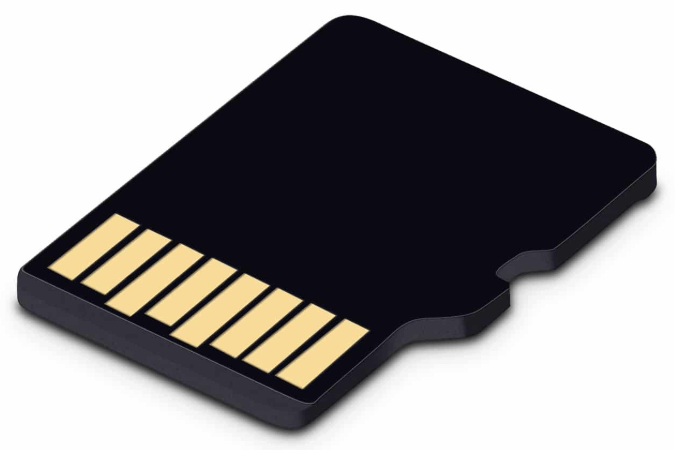
The two main reasons a user would like to clone a bootable SD card are to have a backup of their current system and to create a new bootable SD card with the same configuration for another device or purpose.
- For backup. Duplicating a bootable SD card is a good way to protect it, allowing for quick recovery in case the original is lost or damaged.
- For device upgrading. SD cards are susceptible to various forms of damage, including physical harm, virus infections, and human error, which can compromise their performance and security. Cloning an SD card to a larger or newer one can significantly improve its performance and security by protecting it from potential risks and ensuring continued functionality.
If you need to copy a bootable SD card, you'll want to figure out how to clone the device. Windows doesn't have a built-in cloning feature, so you'll need to explore other options.
Best Bootable SD Card Copier - Qiling Disk Master
Qiling Disk Master Professional is a powerful SD card copier that allows you to clone a bootable SD card to another SD card, external storage, or computer. With its Disk Clone feature, you can easily copy the contents of one SD card to another, making it a convenient tool for backing up important data or transferring files between devices.
- clone a smaller SD card to a larger SD card without unallocated space left.
- clone only used sectors If your new SSD card is smaller than the original one, you can still make it bootable by using a larger bootable card as a "bridge" or "intermediary" to clone your data. This way, you can clone your data to the larger bootable card first, and then clone the data from the larger card to your smaller SSD card, ensuring that your smaller SSD card is still bootable after the cloning process.
- make an exact copy You can create a copy of the bootable SD card, without modifying its partition size and layout, by cloning it sector-by-sector.
- clone SD card with multiple partitions, if it has.
- The card reader can clone all types of SD cards, including Standard SD, SDXC, SDHC, micro/mini SD, xD picture, and CF cards, regardless of their capacity or brand.
You can also choose to back up a bootable SD card into an image file with its Disk Backup feature, which allows you to save the entire card or only changed files after the first backup. This way, you can easily restore your SD card to its previous state.
You can download this software (which is safe and clean) and give it a try. It's user-friendly and easy to use, making it suitable for all types of users.
This software only supports Windows operating systems, including Windows 7, 8, 10, 11, XP, and Vista. If you're a server user, you may want to consider Qiling Disk Master Server instead.
How to Clone Bootable SD Card Step by Step
1. Connect the bootable SD card to a Windows PC via an SD card reader or the computer's card slot, ensuring it's detected. If cloning to another device, also connect that device. This setup allows the cloning process to access both the source and destination devices.
2. Install and run Qiling Disk Master Professional, then click "Tools" and "Disk Clone".

3. Select the source disk, i.e. the bootable SD card.

4. Select the destination disk where you want to clone the bootable device. This can be an SD card, flash drive, portable drive, internal disk, external disk, or any other compatible storage device.

5. On the summary page, preview the operation and click "Proceed" to clone SD card to another one.

If your new SD card is larger, it's suggested to edit the partitions and either add unused space to all partitions or manually adjust the partition size to resolve the cloned drive's unallocated space left issue.
- Add unused space to all partitions: It will reallocate the unallocated space to each partition of the target disk, appropriate for the disk size, making it suitable for use.
- Manually adjust partition size: You can extend unallocated space to any partition on the destination disk you want.
The software can convert disk types, from MBR to GPT or GPT to MBR, and ensure the card is bootable.
Tips:
👉 Sector by sector clone: Checking this option allows the software to copy every sector on the bootable SD card, but it's recommended to leave it unchecked when cloning from a large SD card to a smaller one.
👉 You can use the software to clone a disk from the command prompt by booting into the recovery environment, going to Tools, and selecting Windows shell command.
Bootable SD Card vs. USB Drive
Some users are looking to clone a bootable SD card and are wondering about the differences between bootable SD cards and USB drives. A bootable SD card is a memory card that can be used to boot a device, such as a computer or a single-board computer, while a bootable USB drive is a flash drive that can also be used to boot a device. The main difference between the two is the physical form factor and the interface - SD cards are typically used in mobile devices and cameras, while USB drives are used in computers and other devices with a USB port.
Secure Digital (SD) cards and USB flash drives are both popular removable storage options for transferring and storing small amounts of data, utilizing non-volatile memory to store files. When deciding which is better for a bootable device, consider two key aspects: the SD card's limited capacity and potential compatibility issues with booting systems, versus the USB drive's generally higher capacity and wider compatibility with booting operating systems.
- Transfer rate. A USB 3.0 flash drive is generally faster than a Classic 10 SD card, which may have similar performance to a USB 2.0 flash drive.
- Device capacity. When you spend the same amount of money, you'll get more storage capacity on an SD card device compared to a USB flash drive.
The main difference between USB and SD cards is their universal compatibility, with USB able to connect to any device with a USB port, whereas SD cards often require a separate reader if the device doesn't have a built-in SD card slot.
For general use, an SD card is sufficient, but if you prioritize speed and performance, a USB flash drive is a better option.
Conclusion
Qiling Disk Master Professional allows you to clone a bootable SD card to another SD card in just five steps, and also enables cloning of bootable USB drives, hard drives to SSDs, and SSDs to HDDs in Windows 10.
This software provides a reliable backup and restore solution, protecting your computer and operating system, making it a trustworthy option for those in need of a robust backup solution.
Related Articles
- Quick Fix: SD Card Copy Hangs While Copying Files to Computer
This guide explains Quick Fix: SD Card Copy Hangs While Copying Files to Computer with clear steps, key checks, and practical tips. - Guide: Asus X505ZA SSD Upgrade-No Data Loss and Boot Issues
You can learn how to perform Asus X505ZA SSD upgrade and safely migrate your data and system with a powerful disk cloning software on this page. - Benefits of SSD over HDD
This guide explains Benefits of SSD over HDD with clear steps, key checks, and practical tips. - [Solved] Black Screen After Cloning Disk
This article will help you solve the problem of Windows 11/10/8/7 black screen after cloning. You won't encounter boot errors if you use the best disk cloning software - Qiling Disk Master. - How to Clone Hard Drive to USB Flash Drive in Windows 10, 8, 7?
Learn how to Clone Hard Drive to USB Flash Drive in Windows 10, 8, 7 with clear steps, key checks, and practical tips. - How to Clone Hard Drive with Bad Sectors?
This tutorial tells you how to clone hard drive with bad sectors on a Windows 11, 10, 8, and 7 laptop or desktop computers, and the cloned hard drive can boot normally.
Products
Articles & Tutorials
- Data Recovery
- Data Backup
- File Recovery
- File Backup
- File synchronize
- System Backup and Restore
- Disk and Partition Clone
- Technical articles
- Disk Master Help
- Windows Deleted File and Disk Recovery Tutorials
- Windows File and Data Recovery Tutorials
- More Windows Tutorials for Install, Security, Files, and PC Tips
- Windows Boot, Repair, and Recovery Environment Tutorials
- Windows Backup Tutorials
- Windows Restore Tutorials
- Windows Clone and Migration Tutorials
- Windows Server Backup, Recovery, and Management Tutorials
- Windows Disk, Partition, and Storage Management Tutorials