Easily Clone Hard Drive from Bootable USB in Windows 10, 11
Quick Navigation:
- Why Clone Hard Drive with Bootable USB Flash Drive?
- Best Bootable USB Hard Drive Cloner for Windows - Qiling Disk Master
- How to Easily Clone Hard Drive Using Bootable USB
- Part 1: Create A bootable USB on A Working Computer
- Part 2: Clone Hard Drive from Bootable Media
- FAQs on Cloning HDD from Bootable USB Drive
- Conclusion
Why Clone Hard Drive with Bootable USB Flash Drive?
Cloning a hard drive has become a popular solution for upgrading to a new hard drive or recovering from computer issues. This process allows users to save time and effort by restoring their operating system, installed applications, games, and personal files with just one click, making it a convenient and efficient solution.
You may be in one of two situations where you want to clone your HDD to an SSD or use a bootable USB drive, which requires rewriting in one paragraph shortly.
1. Your computer cannot boot normally. Your system files have been damaged, making your computer unbootable, so you'll need to use a bootable USB stick to clone your hard drive and get your computer back to normal.
2. The cloning failed. Cloning a computer can be done using a bootable USB disk, but it's essential to ensure that no running programs interfere with the cloning process. The bootable USB disk clone tool is necessary to carry out the cloning successfully.
You can use a tool like 7-Zip or WinRAR to create a portable version of a program. These tools allow you to compress and extract files, and can also help you create a self-extracting archive that can be run on any Windows machine without requiring installation. This way, you can ensure that all necessary files are included and the program will run correctly.
Fortunately, the Qiling Disk Master Professional software can help you clone a hard drive using a bootable USB flash drive, making the process relatively easy.
Best Bootable USB Hard Drive Cloner for Windows - Qiling Disk Master
Qiling Disk Master is an all-Windows backup software can help clone, backup, restore, and sync data according to users' needs. It also has a feature to clone a hard drive from a bootable USB, making it a perfect solution for your specific need.
- Easy to use. Whether you're a seasoned technician or a beginner, you can easily clone a hard drive from a bootable USB drive by following the simple step-by-step instructions provided, thanks to the user-friendly interface.
- Intelligent Clone. The software allows you to copy only the used part of the source to the new hard drive, making it easy to transfer to a smaller drive, such as cloning an old hard drive to a smaller SSD.
- Sector-by-sector clone. It allows you to copy all sectors to the destination, whether in use or not, which can be useful if the new hard drive has enough space to maintain the same partition layout.
- Bootable USB drive. To clone a hard drive using a bootable USB, you'll need to create a bootable USB drive first, which this software can also assist with through its Create Bootable USB feature.
Download Qiling Disk Master on your Windows 11/10/8/7/XP and follow the steps below to perform disk clone using bootable USB. For server users, try Qiling Disk Master Server.
How to Easily Clone Hard Drive Using Bootable USB
To clone a hard drive using a bootable USB drive in Windows 10 or 11, you need to create a bootable USB with Qiling Disk Master first, which requires a working computer.
If the computer fails to boot, you'll need to download the software on a separate working computer, and then try the cloning process again. Once you have the software on the working computer, start the computer from the USB and use it to clone the hard drive. That's the entire process.
Part 1: Create A bootable USB on A Working Computer
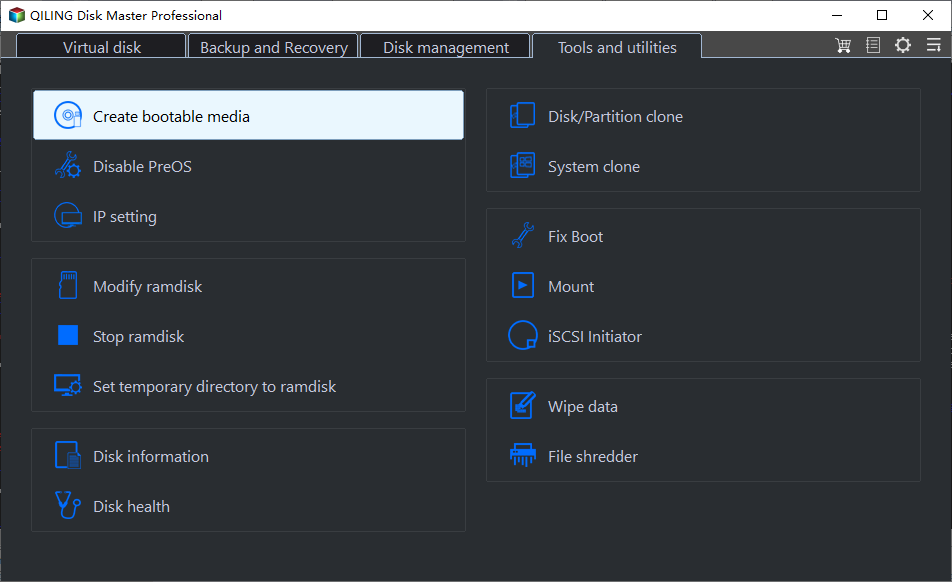
Step 1. Launch the hard drive cloning software, and go to Tools > Create Bootable Media.

Step 2. Insert a USB drive, select it as the bootable media, and follow the on-screen instructions to create a bootable USB drive that can be used on any Windows computer from XP to Windows 11.

Part 2: Clone Hard Drive from Bootable Media
Step 1. To clone your hard drive, plug in your bootable drive and set the bootable USB as your boot device when entering the BIOS. This will allow Qiling Disk Master to start automatically. Then, click "Clone" and select "Disk Clone" from the options.

Step 2.To proceed, select the original hard drive as the source disk and click Next.

Step 3. Select the hard drive you prepared as the destination and click Next to proceed to the next step.

Step 4. Confirm the source and destination disks, click proceed, and wait. Also, check SSD alignment if transferring to an SSD to increase read and write speed.

You can use the "Sector by sector clone" option to keep the old partition layout, or the "Edit Partitions" option to adjust the partition size on the destination disk, which is more practical as it resolves two potential issues during the cloning process.
You may facing #1: The cloned drive not show full capacity
To prevent an exact copy of the source disk, try the following options in the full version of Qiling Disk Master Professional: change the partition size while cloning. This will ensure that the cloned disk is not identical to the original.
👉 Copy without resizing partitions: It will not resize the partition size.
👉 Add unused space to all partitions: It will reallocate the unallocated space to each partition of the target disk, making it suitable for the disk size.
👉 Manually adjust partition size: It allows you to expand unallocated space to any partition on the destination disk you want.
You may facing #2: The cloned drive not bootable after cloning
The main reason for this issue is that the destination and source disks have different partition styles, specifically MBR and GPT, and haven't been converted to the same style before cloning. To resolve this, you can check the option to convert the destination disk from MBR to GPT or vice versa, depending on the disk partition styles of the source and destination disks.
MBR and GPT are two different types of disks for data storage. To determine which type a disk is, you can check its properties in Disk Management. This will help you identify whether the disk is an MBR or GPT type. You can check this in Disk Management by opening the disk properties and reviewing the partition style.
- To open Disk Management, press Win + R to open the Run window, type diskmgmt.msc and hit OK.
- Then, right-Click the disk you want to clone and select Properties in the pop-up window.
- In the Properties window, select the Volume tab and confirm the partition style, which can be either MBR (Master Boot Record) or GPT (GUID Partition Table).

- If the destination disk is still using the Master Boot Record (MBR) partition style, you don't need to convert it. However, if it has been converted to another partition style, such as GUID Partition Table (GPT), you may need to convert it back to MBR using the Edit Partitions option.
☆Tips: To clone a hard drive from a portable device on any computer, you can create a portable Qiling Disk Master with the Technician or Technician Plus edition.
FAQs on Cloning HDD from Bootable USB Drive
1. Is it possible to clone only specific partitions from a hard drive using a bootable USB drive?
Many cloning software options, such as Qiling Disk Master, allow users to select specific partitions to clone, rather than cloning the entire hard drive, which can be useful for cloning only the operating system and essential files, while leaving out larger data partitions that may not be necessary to clone.
2. Yes, you can clone a hard drive with a different size using a bootable USB drive. You'll need to use a cloning software like Qiling Disk Master create a bootable USB drive and clone the source drive to the target drive, taking into account the size difference. The software will automatically resize the partitions on the target drive to match the new size.
Qiling Disk Master enables cloning a hard drive to a destination drive of a different size, allowing for adjustments or resizing of partitions to ensure the cloned data fits properly on the new drive.
3. What should I do before cloning a hard drive from a bootable USB drive in Windows 10?
To initiate the cloning process, back up all critical data, ensure you have a reliable and tested bootable USB drive, and a destination drive with enough space to accommodate the cloned data.
4. What should I do after successfully cloning a hard drive from a bootable USB drive?
After a successful cloning process, verify that the cloned drive is functioning correctly by testing booting from the new drive and ensuring all data and applications are intact, and possibly updating drivers or configuring the system if the cloned drive is being used in a different system.
Conclusion
Cloning a hard drive from a bootable USB is a breeze with Qiling Disk Master. The bootable USB is universal and can be used on any computer, making it a convenient option. Additionally, the disk clone feature ensures that the cloned drive is bootable, allowing you to easily replicate your existing setup.
You can use this tool to copy a hard drive to a flash drive, copy USB to USB, clone bootable USB, and more, while keeping your data safe with its various backup solutions.
Related Articles
- Free USB Clone Tool for Cloning Bootable USB Drive
- Backup and Restore Bootable USB Drive with Best Freeware
- Quick Copy USB to USB in Windows 11/10 [with Boot Files]
- Backup Computer to USB Flash Drive of All Brands (3 Ways)
- How Do You Mirror a Hard Drive to SSD in Windows 7/8/10?
Learn the key steps, checks, and practical tips for this related guide.
Products
Articles & Tutorials
- Data Recovery
- Data Backup
- File Recovery
- File Backup
- File synchronize
- System Backup and Restore
- Disk and Partition Clone
- Technical articles
- Disk Master Help
- Windows Deleted File and Disk Recovery Tutorials
- Windows File and Data Recovery Tutorials
- More Windows Tutorials for Install, Security, Files, and PC Tips
- Windows Boot, Repair, and Recovery Environment Tutorials
- Windows Backup Tutorials
- Windows Restore Tutorials
- Windows Clone and Migration Tutorials
- Windows Server Backup, Recovery, and Management Tutorials
- Windows Disk, Partition, and Storage Management Tutorials