How to Clone Internal Hard Drive in Windows 11/10/8/7
Quick Navigation:
- Why clone internal hard drive
- ☛ For data protection
- ☛ Upgrade hard drive to a larger or faster one
- What do you need to prepare for internal HDD cloning
- Best hard drive cloning software for Windows OS
- How to clone the internal hard drive step by step?
Why clone internal hard drive
There are different purposes for a hard drive cloning under different situations. The need of cloning internal hard drive varies from situation to situation, with two of the most common purposes being to create a backup of one's current operating system and data, and to upgrade or replace an existing hard drive with a new one, ensuring continuity and minimal disruption to the user's workflow.
☛ For data protection
Cloning an internal hard drive is a simple process that creates an exact copy of the original drive, including hidden partitions, without the need for restoration or mounting. This is different from backup strategies, which require restoring or mounting the backup to access the files. Cloning a drive is a straightforward process that mirrors all data from the source disk to the destination disk.
The cloning process leaves the source disk intact, preserving data and maintaining bootability if the source disk is a boot disk.
☛ Upgrade hard drive to a larger or faster one
Cloning a hard drive to a solid state drive (SSD) is a popular option for improving performance, especially since SSDs are becoming increasingly affordable and fast. By creating a clone of your hard drive on an SSD, you can ensure business continuity in case the original drive fails, and take advantage of the speed and reliability of an SSD. This is a proactive measure that can provide peace of mind, especially if you're using a hard drive that's prone to failure.
What do you need to prepare for internal HDD cloning
To perform a hard drive clone, you'll need a computer running Windows 10/8/7, and a spare drive (SSD or HDD) to receive the clone, which will serve as the internal hard drive replacement.
To connect the destination disk to your computer, you'll need to attach it to your computer using a SATA cable and a SATA power cable, if it's a desktop. This will allow you to install the disk on your computer.
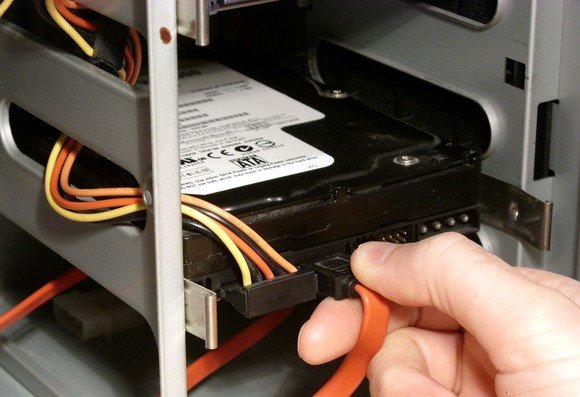
If your laptop doesn't have a second drive bay, you'll need a SATA-to-USB adapter to connect the drive externally. Alternatively, if your laptop has a second drive bay, you can install a second HDD or SSD on your laptop or connect it via the USB port.
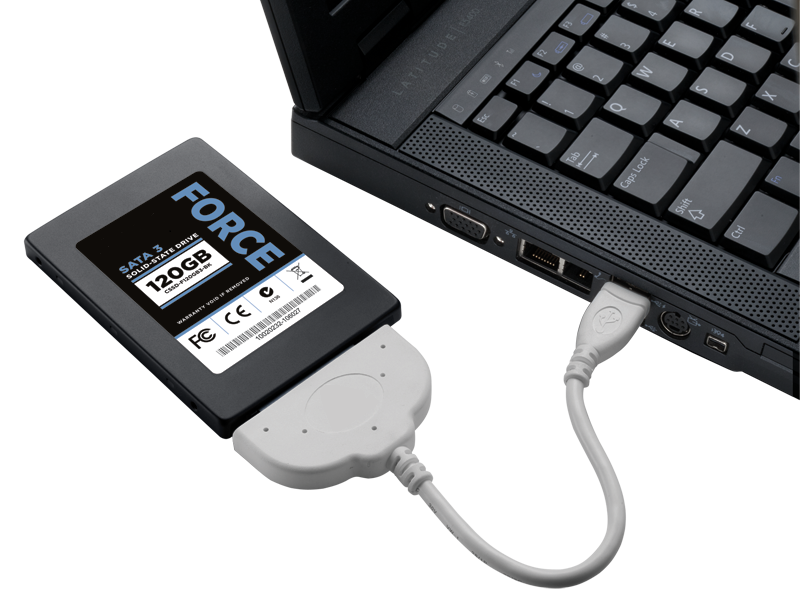
To clone a hard drive, you'll need hard drive cloning software, which can save you time and effort. You'll also need a screwdriver and some screws if you want to physically open your computer and replace the destination disk.
Cloning a hard drive can be done without a bootable disk, using software that allows the clone to be performed without loading Windows, and without needing to shrink the partitions on the source disk to fit the cloned disk. This means you won't need a bootable CD or USB disk to complete the cloning process.
Best hard drive cloning software for Windows OS
Qiling Disk Master Professional is a software that can clone a hard drive (HDD) to another HDD or a solid state drive (SSD), and is recommended for its user-friendly interface, reliable performance, and multiple functions to manage hard drives.
Qiling Disk Master allows you to clone a disk within Windows and also copy a hard drive from bootable media. When cloning a large disk to a smaller one, the software automatically shrinks the partition on the clone drive, ensuring all partitions are cloned with no changes to the original disk.
Qiling Disk Master offers an additional feature to optimize SSD performance, and also allows cloning a system disk to another with a different partition style, making the cloned disk bootable. This means it can clone an MBR disk to a GPT disk and vice versa.
Note: If you want to clone a boot disk between MBR and GPT, be aware that you must change the boot mode beforehand, as MBR disks require Legacy BIOS mode and GPT disks require UEFI boot mode.
How to clone the internal hard drive step by step?
Cloning a hard drive in Windows 10/8/7 is a straightforward process that can be completed with just a few clicks using Qiling Disk Master.
1. Download and run this best hard drive cloning software.
2. To clone the entire hard drive, go to the "Tools and utilities" tab and select "Disk Clone".

3. The process of cloning a hard drive involves selecting the source and destination drives, and then clicking "Next" to continue. The source drive is the original drive that contains the files and data to be cloned, while the destination drive is the new drive that will be created.

4. To clone a hard drive, click on the hard drive to select it, and then click "Next" to proceed with the cloning process.

5. Check the "SSD Alignment" option if the target disk is an SSD, then click on "Proceed" to start the cloning process.

Tips: To clone an OS only to the destination hard drive, you can use the System Clone feature. This feature allows you to copy the operating system and all its components to the destination drive, effectively creating an exact replica of the original OS.
The cloning process typically takes around an hour, depending on the size of the data being transferred, allowing you to use the computer for other tasks while waiting.
Besides cloning internal hard drives to protect data or upgrade hardware, Qiling Disk Master also allows you to use its Backup and Restore feature to achieve similar results. This feature also enables you to restore backups to dissimilar hardware without encountering boot issues.
Related Articles
- Copy Bootable USB to another USB in Windows 7/8/10 Efficiently
This guide explains Copy Bootable USB to another USB in Windows 7/8/10 Efficiently with clear steps, key checks, and practical tips. - A Simple Way to Move Windows 10 Hard Drive to New Computer
In this article, you'll learn how to move your old hard drive to a new computer without losing secure boot or your Windows 10/11 activation. The greatest thing is that you won't need to reinstall Windows 10/11 on your PC. - Freeware to Clone Hard Drives with Bad Sectors (Bootable)
This post introduces how to clone hard drives with bad sectors on your laptop or desktop PC in Windows 11, 10, 8, and 7. After reading, you will be able to successfully migrate the operating system to an SSD and boot your PC as usual. - Easiest Way to Clone Hard Drive or SSD to External Hard Drive
This page introduces you to the easiest way to clone hard drive or SSD to external drive and boot successfully.
Products
Articles & Tutorials
- Data Recovery
- Data Backup
- File Recovery
- File Backup
- File synchronize
- System Backup and Restore
- Disk and Partition Clone
- Technical articles
- Disk Master Help
- Windows Deleted File and Disk Recovery Tutorials
- Windows File and Data Recovery Tutorials
- More Windows Tutorials for Install, Security, Files, and PC Tips
- Windows Boot, Repair, and Recovery Environment Tutorials
- Windows Backup Tutorials
- Windows Restore Tutorials
- Windows Clone and Migration Tutorials
- Windows Server Backup, Recovery, and Management Tutorials
- Windows Disk, Partition, and Storage Management Tutorials