Freeware to Clone USB Drive without Data Loss in Windows 11, 10, 8, 7
Can you copy a (bootable) USB to another USB?
Yes, you can clone a USB drive to another USB drive, and it's a straightforward process. You can use a cloning software like Qiling Disk Master to clone the contents of your SanDisk USB drive to the Samsung USB drive. These software programs will create an exact copy of the original drive, including all files, folders, and settings. Simply connect both USB drives to your computer, select the source drive (SanDisk) and the target drive (Samsung), and the software will handle the rest. Make sure the Samsung drive has enough free space to accommodate the contents of the SanDisk drive.
- Question from answers.microsoft.com
Why do you need to clone USB drive?
USB flash drives have become a popular data storage option due to their small and portable size, making them easy to carry around. Many users save important files on these drives, and to prevent data loss when the drive is not recognized, it's a good idea to make a backup of the files stored on it.
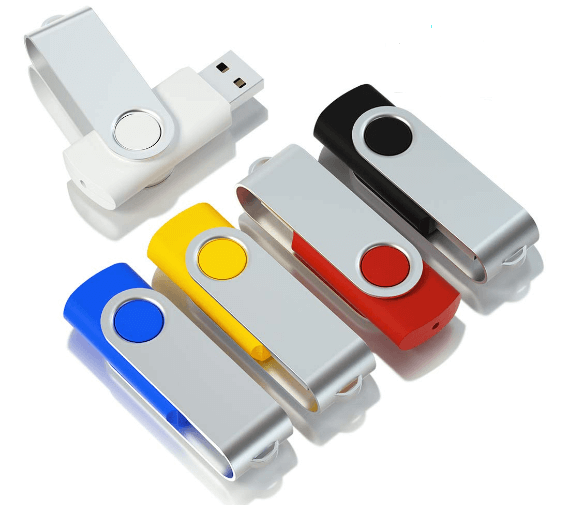
To transfer files from one USB drive to another, you can use the "Ctrl+C" and "Ctrl+V" method for personal files, but for bootable drives with system files, cloning the entire drive is a safer option to preserve boot functionality and transfer mass data.
Top free USB drive cloner: Clone USB drive easily and safely
To clone a bootable USB drive, you'll need a USB clone tool, such as Qiling Disk Master Standard, which is a free software that can clone a USB drive without damaging the original data and is compatible with Windows 11, 10, 8, 7. This tool can also clone SD cards, memory cards, HDDs, and SSDs to another data storage device.
Besides, it is equipped with many other exciting features:
❥ Enables you to wipe a USB hard drive to completely erase privacy data from the drive.
❥ This tool allows you to create a bootable USB drive for entering WinPE mode, enabling special operations like system recovery, disk cloning, and password reset, among others.formatting C drive, wiping system disk, etc.
❥ This tool allows you to easily rebuild the Master Boot Record (MBR) to resolve Windows boot issues, making it a useful troubleshooting tool for Windows problems.
❥ Supports creating portable operating system USB with system disc or ISO.
Step-by-step: Clone USB drive in Windows 11/10/8/7
To copy a USB drive to another disk in Windows 11/10/8/7, download the free Qiling hard drive cloning program, connect the USB drive and the destination disk to your computer, and ensure both are detected successfully.
Note: To clone a USB drive in a Server OS, first back up any important data on the destination disk as the cloning process will erase its data. Then, use a tool such as Qiling Disk Master Server to clone the USB drive.
Step 1.Install and launch Qiling Disk Master, then click the "Tools" main tab and select "Clone Disk" from the menu.

Step 2. Choose the drive that you need to clone as the source drive and click "Next".

Step 3. To transfer data from one drive to another, first select the destination drive where the data from the source drive will be placed, and then proceed to the next step.

Step 4. You will enter a Confirm interface where you can check the source and destination drive. Once everything is set, you can click the "Confirm" button to proceed.

The settings button in the lower left corner of the window allows you to adjust the partition size on the destination drive, offering three options.
- Clone without resizing partitions: All partitions will be cloned to the target disk with the same size as the original partition. This option is available if the target disk is larger than the source disk, and will be disabled if the target disk is smaller.
- Fit partitions to entire disk: All partitions will be cloned to the target disk, filling its entire capacity, in proportion to their original sizes.
- Edit partitions on this disk: You can adjust the size of each partition on the target disk to suit your needs.
After finishing the adjustment, please click "Save".
Notes:
- To improve the reading and writing speed of an SSD, you can select the "4k alignment" option when choosing the destination disk, if it's an SSD storage.
- All data on the selected destination disk will be deleted after saving the operation to the physical disk, so please back up any important data before proceeding.
- If you clone to a smaller SSD, the first option is unavailable, and selecting Sector-by-Sector Clone prevents adjusting the size on the destination disk.
Step 5. To commit the disk cloning operation, click "Apply" and then "Proceed" in the "Pending Operations" section.
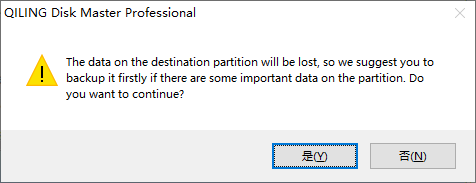
Step 6. The cloning process will start and you can check the cloning process.

You can easily and quickly clone a USB drive to another USB drive in Windows 11/10/8/7 with Qiling Disk Master Standard, which allows you to do so with just a few clicks.
Summary
The free Standard edition of Qiling Disk Master can only clone data disks between MBR and GPT, and clone systems from MBR to MBR, for free. Upgrading to the Professional edition is required to clone systems from MBR to GPT, GPT to MBR, or GPT to GPT, and to access advanced features such as partition management and recovery.
FAQs
Can you clone a USB flash drive?
You can copy a bootable USB drive to another USB using Qiling disk cloning software. Cloning is a more reliable method than simply copying and pasting, and Qiling Disk Master makes the process straightforward, allowing you to select the appropriate cloning method according to your needs.
What is the free tool to clone a USB drive?
Qiling Disk Master Standard supports Windows 11/10/8/7/XP/Vista and offers free USB cloning capabilities, allowing users to clone a USB drive to another USB drive or external device.
How do I clone a USB drive in Windows 11?
To clone a USB drive in Windows 11, you can use built-in tools or third-party software like Qiling Disk Master. Open Qiling software, choose the cloning method, select the source and target drive, and follow the on-screen instructions to complete the cloning process. This will create an exact copy of the source drive on the target drive, ensuring that all data and settings are preserved.
Does Windows 11 have a cloning tool?
To clone Windows 11 for free, you'll need reliable cloning software, as Windows 11 doesn't have a built-in cloning tool. Fortunately, we have identified the most suitable solution for you: Qiling Disk Master Standard.
Related Articles
- Freeware to Copy Partition to Another Drive in Windows 10, 8, 7
With the free Qiling Disk Master Standard, you can easily clone partition to another drive or disk in Windows 11, 10, 8, 7. It also allows you to clone C drive to another drive effectively.
Products
Articles & Tutorials
- Data Recovery
- Data Backup
- File Recovery
- File Backup
- File synchronize
- System Backup and Restore
- Disk and Partition Clone
- Technical articles
- Disk Master Help
- Windows Deleted File and Disk Recovery Tutorials
- Windows File and Data Recovery Tutorials
- More Windows Tutorials for Install, Security, Files, and PC Tips
- Windows Boot, Repair, and Recovery Environment Tutorials
- Windows Backup Tutorials
- Windows Restore Tutorials
- Windows Clone and Migration Tutorials
- Windows Server Backup, Recovery, and Management Tutorials
- Windows Disk, Partition, and Storage Management Tutorials