How to Use Clonezilla Partclone in Windows 11/10/8/7
Quick Navigation:
- Clonezilla Partclone Overview
- How to Use Clonezilla Partclone in Windows 11/10
- A Free Tool to Backup or Clone Your Hard Drive
- Backup Partition
- Restore Partition
- Clone Partition
- Conclusion
Clonezilla Partclone Overview
Partclone is a free and open-Partclone is a tool for partition backup, restore, and clone. It's a precursor to Clonezilla and provides utilities to save and restore used blocks on a partition. Partclone can help you save a file system to an image or restore an image to a partition, and it can also clone devices. It attempts to skip bad blocks and back up all good blocks for the partitions, making it a useful tool for managing and maintaining partitions.
Partclone aims to support most major file systems worldwide. Currently, it supports various file systems, including btrfs, ext2, ext3, ext4, reiserfs, reiser4, xfs, and jfs for Linux, as well as non-Linux file systems like NTFS, FAT, EXFAT for Windows, HFS plus for Mac, UFS2 for FreeBSD, and VMFS for VMWare Vsphere.
How to Use Clonezilla Partclone in Windows 11/10
To use Partclone, first download the tool from the Partclone website. The program follows the usual GNU command line syntax with long options starting with two dashes ('-'). The basic usage is as follows.
- `partclone.ext4 -d -c -s /dev/sda1 -o sda1.img`
- To restore an image to a partition, use the following command: `partclone.ext4 -d -r -s sda1.img -o /dev/sda1`. This command uses partclone to restore the image `sda1.
- The command `partclone.ext4 -d -b -s /dev/sda1 -o /dev/sdb1` is used to clone an ext4 partition from `/dev/sda1` to `/dev/sdb1`. The options used are: `-d` for dry run, `-b` for binary mode, and `-s` for source partition, with the `-o` option specifying the output partition.
- display image information: partclone.info -s sda1.img
- check image: partclone.chkimg -s sda1.img
Indeed Clonezilla and Partclone are good image engines, but some users may find them difficult to use, especially for newbies. They can only help with backing up, restoring, and cloning partitions. However, users may also want to back up their system or selected files, and for that, there's a more all-sided backup tool available.
A Free Tool to Backup or Clone Your Hard Drive
Qiling Disk Master Standard is a comprehensive backup software that keeps your desk PC and laptop data safe. It supports all Windows OS, including Windows 11/10/8/7, and offers functions for backup, restore, and clone.
- Backup. You can easily create a backup for your Windows system, entire hard drive, selected partitions, or specific files, and even set a custom schedule for automatic daily, weekly, or monthly backups.
- Restore. With the restore feature, you can quickly restore your computer to an earlier state that works normally, or restore the entire hard drive, selected partitions/files, or even restore an image backup to another hard drive as needed.
- Clone. Qiling Disk Master allows users to clone a hard disk to another one directly, and also clone a partition from one disk to another, either on the same hard drive or to a different disk.
- Easy to use. Qiling Disk Master has a user-friendly graphical user interface (GUI) that makes it easy to perform backup, restore, and clone tasks with a clear and intuitive interface.
To backup, restore, and clone a partition, you can use Qiling Disk Master. First, download the software on your Windows computer and follow the steps below to make it work.
Backup Partition
Step 1. Launch Qiling Disk Master and choose Partition Backup.
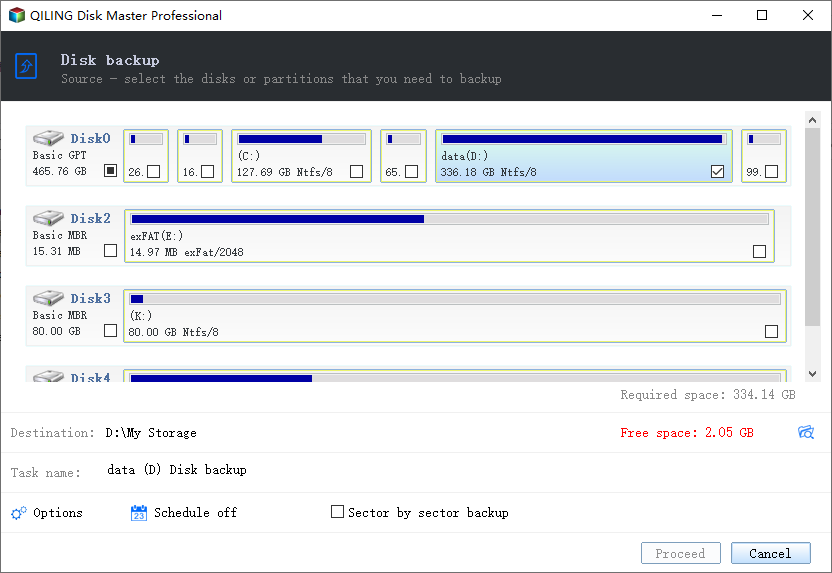
Step 2. To backup partitions, follow these steps: select the partitions you want to back up, choose the destination path, click Schedule to set the backup task, and then click Proceed to execute it.
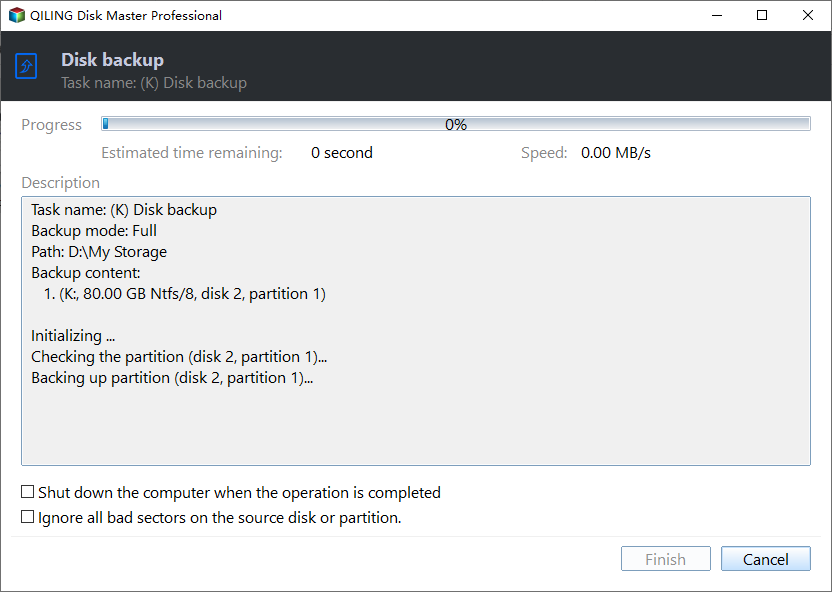
Note: In the Options section, you can adjust the compression level for backups and also decide whether to back up only used sectors of the file system or all sectors of the partition, including unused ones.
Restore Partition
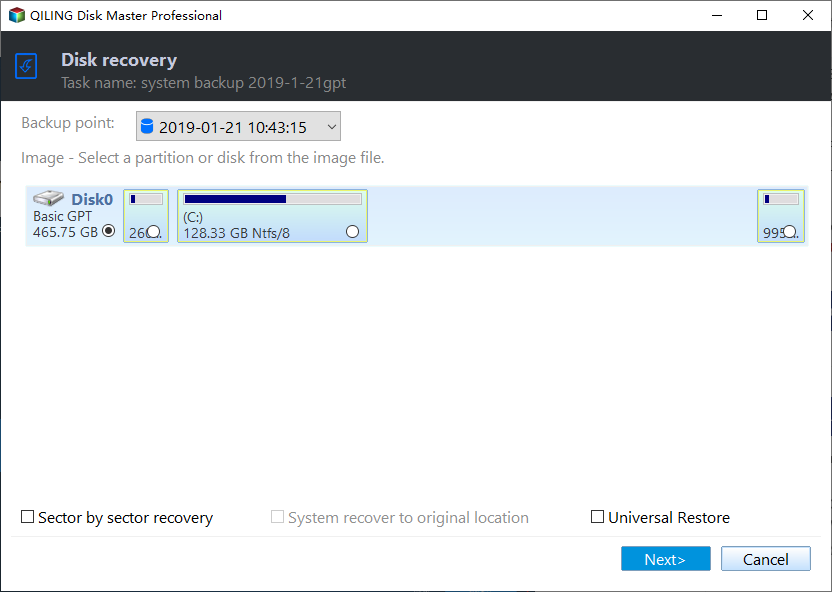
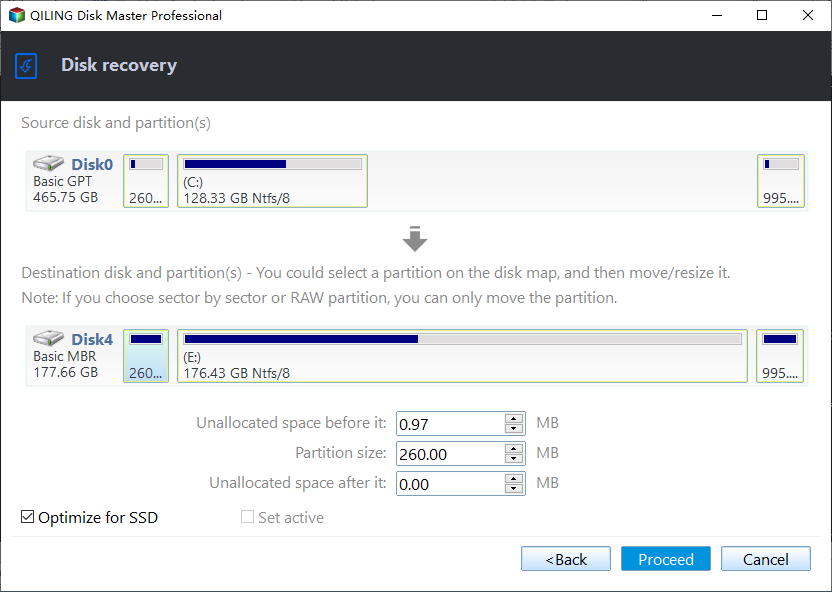
Step 1. Open Qiling Disk Master and click Restore. Select the backup image you need and click Next to continue.
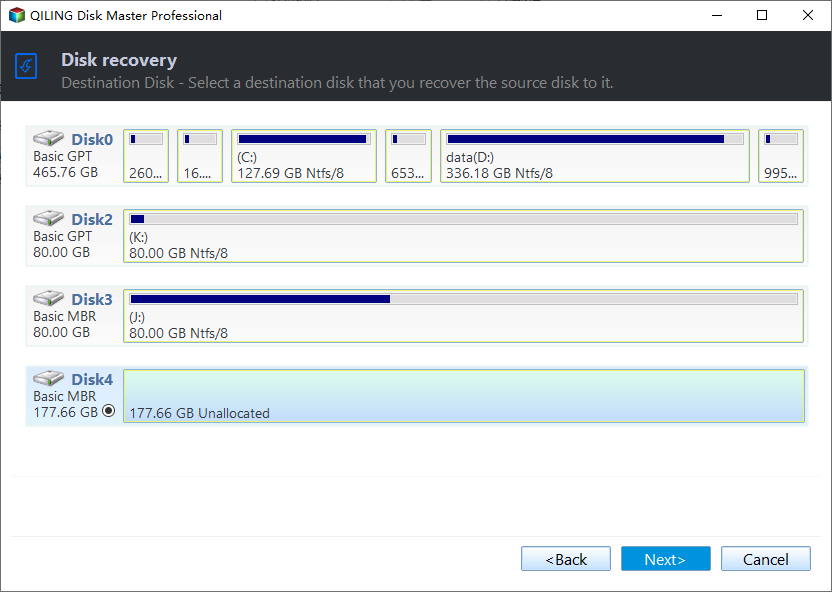
Step 2. Select a partition as the destination and click Next.
Step 3. Confirm the operation summary page and click Proceed.
Clone Partition
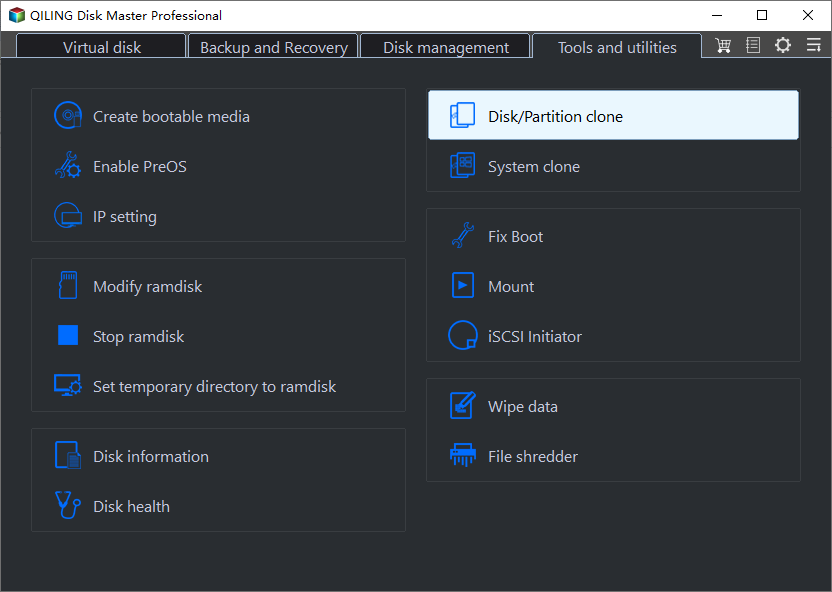
Step 1. Choose Partition Clone on Qiling Disk Master home page.
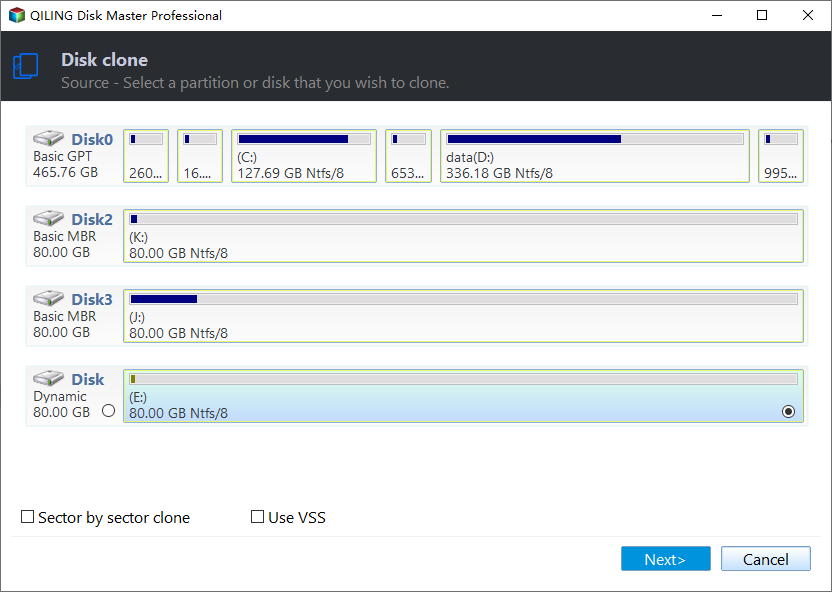
Step 2. Select the partition you want to clone and click Next.
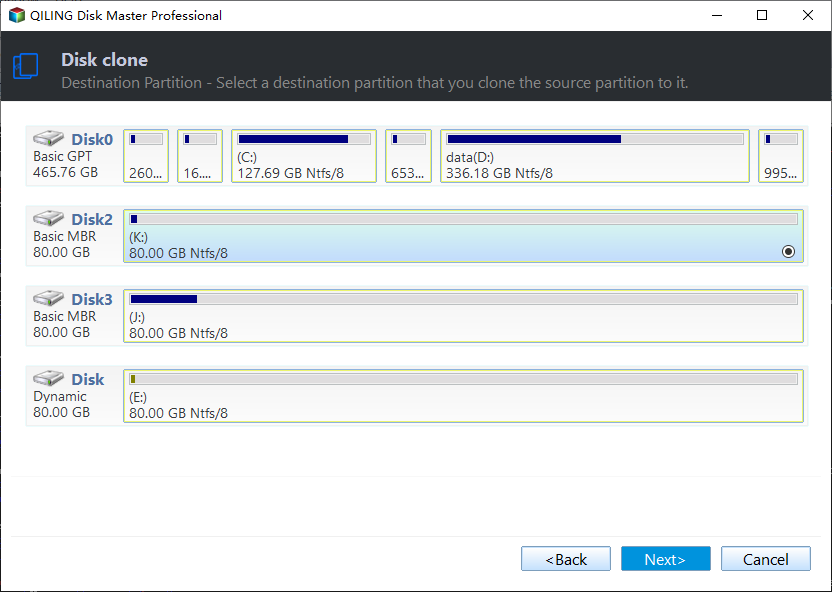
Step 3. Select the destination partition and click Next.
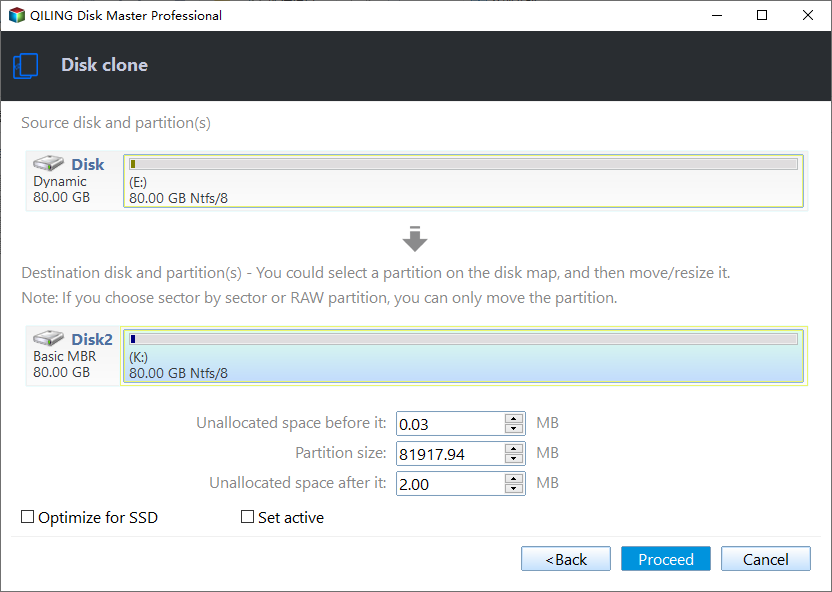
Step 4. Confirm the operation and choose Proceed to make it.
- ★Notes:
- Edit Partition Cloning allows you to edit the size of the partition to optimize its status after cloning.
- To clone every sector on your hard drive, regardless of whether they're used or not, you would use the "Sector by sector clone" option. This method involves copying every sector of the source drive to the destination drive, including any empty or unused sectors.
- To clone a hard drive to an SSD using the Disk Clone feature, make sure to check the SSD Alignment option to enhance the speed of reading and writing, as well as extend the lifespan of the SSD.
Conclusion
If you're looking to back up, restore, or clone your partition, Partclone is not the tool for the job. However, the free tool Qiling Disk Master Standard can help you achieve this goal easily and quickly, making it a great alternative for those needing to manage their important partitions.
There's also a System Clone feature that can help you directly transfer your Windows system from one hard drive to another one, which can be accessed by upgrading to Qiling Disk Master Pro.
Related Articles
- Introduction
There are several reasons why Outlook cannot connect to server error occurs. This article will discuss the potential reasons and show you how to Fix Outlook Not Connect to Server Error. - (Solved!) Secure Boot Enabled But Not Active🔥
One of the most common problems computer users have faced is secure boot enabled but not active. Learn about the solutions here and solve this problem within minutes. - What Is SoftThinks Agent Service and How to Fix Its High Disk and CPU Usage
SoftThinks Agent Service is one of the nagging issues in Dell computers, as it takes a lot of Disk and CPU usage. This article will tell you why exactly that happens and how you can stop this service from slowing down your computer. - How to Split Your Screen on a Windows 10/11? [Step by Step]
This article will teach you how to split screen on Windows using snap layouts and shortcuts. - [Tried and True] How to Upgrade HDD to SSD Without Reinstalling Windows
Learn how to upgrade an HDD to an SSD without reinstalling Windows by cloning the system, apps, and files to the new drive safely. - Intel Data Migration Software Not Working - How to Fix?🔥
If your Intel data migration software isn't working properly, preventing you from transferring your operating system, installed applications, and personal files from an old storage device to a new Intel SSD drive, this blog can help you resolve the issue.
Products
Articles & Tutorials
- Data Recovery
- Data Backup
- File Recovery
- File Backup
- File synchronize
- System Backup and Restore
- Disk and Partition Clone
- Technical articles
- Disk Master Help
- Windows Deleted File and Disk Recovery Tutorials
- Windows File and Data Recovery Tutorials
- More Windows Tutorials for Install, Security, Files, and PC Tips
- Windows Boot, Repair, and Recovery Environment Tutorials
- Windows Backup Tutorials
- Windows Restore Tutorials
- Windows Clone and Migration Tutorials
- Windows Server Backup, Recovery, and Management Tutorials
- Windows Disk, Partition, and Storage Management Tutorials