Disk Clone vs System Clone - All You Want to Know
What is disk clone or system clone?
In computing, a clone is a method of replicating every bit of information from one place to another, making the source and destination exactly the same. There are two types of clones: disk clone, which replicates the entire hard drive, including data, programs, and settings; and system clone, which replicates the operating system, applications, and settings, but not user data.
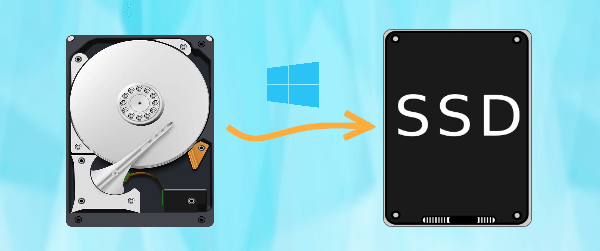
- Disk clone Disk cloning is the process of copying an entire disk, transferring all data saved on the drive, including the operating system, applications, drivers, and personal files.
- System clone The system copy process only copies the system partition and related partitions, such as the EFI system partition and recovery partition. This ensures that all necessary information for the system to run in the destination location is transferred, along with any files stored on system partitions.
When deciding between a disk clone and a system clone, consider the specific needs of your situation. If you want to create an exact copy of your entire hard drive, including all data, programs, and operating system, a disk clone might be the better choice. On the other hand, if you only need to clone your operating system, applications, and settings, without the unnecessary data, a system clone would be more suitable.
System clone vs disk clone: how to choose between them
When deciding between disk clone and system clone, consider the following factors: a disk clone creates an exact replica of the original disk, including all data, files, and operating systems, while a system clone focuses on the operating system and installed applications, leaving out personal files and data. If you need to duplicate the entire disk, including all data, a disk clone is the way to go.
1. The contents you want to transfer
If you want to exactly replicate the original drive, choose disk clone. If you only want to use the old operating system on the new drive, select system clone.
2. The capacity of the destination disk
When cloning a larger disk to a smaller one, ensure the destination disk has enough capacity to hold all data from the source disk, using disk clone. If not, system clone may be necessary due to capacity limitations.
Whether to use a system clone or disk clone depends on your needs and the capacity of your destination disk. Since Windows doesn't have a built-in cloning utility, you may need to rely on third-party software to get the job done.
All-in-one cloning software in Windows - Qiling Disk Master
Qiling Disk Master Professional is a powerful cloning software for Windows, offering both Disk Clone and System Clone features, allowing users to clone their entire system or just their disk.
★ With the Disk Clone feature, you can clone a large drive to a smaller one, convert a MBR disk to a GPT disk and vice versa, and even clone an HDD to an SSD of a different brand, such as Samsung, WD, or Crucial. Additionally, the SSD Alignment feature is available to optimize the performance of the SSD.
★ With the System Clone feature, you can easily transfer your OS from an SSD to a new SSD or from an HDD to an SSD without any effort. The program automatically selects the system partition and system-related partition(s) to reduce the risk of human error. After cloning, you can enjoy secure boot from the new drive.
To get started, simply download and install Qiling Disk Master on your PC.
How to perform system clone or disk clone
To perform a disk clone and system clone using Qiling Disk Master, follow these steps: Take cloning to an SSD as an example. First, connect the SSD to your computer and ensure it is recognized by the system. Next, launch Qiling Disk Master and select the source disk (e.
Preparations:
◈ Connect the target SSD to your computer, ensuring it is recognized by the system.
◈ During the cloning process, the target drive will be completely replaced with the new destination SSD, so it's essential to back up any important files on the target drive to the destination SSD, to prevent any data loss.
Video tutorial:
Graphic tutorial:
Case 1: Clone HDD to SSD via Qiling Disk Clone
Step 1. Run Qiling Disk Master. Click "Clone" on the left pane and select "Disk Clone".

Step 2. Select the current disk as the source disk.

Step 3. Select the SSD as the destination disk.

Step 4. Tick "SSD Alignment". Confirm the operation and click "Proceed".

- Notes:✎...
- The sector-by-sector clone process clones every sector on the source disk, including unused ones, to the destination disk, which must be equal to or larger than the source disk in size.
- Cloning Windows 10 to an NVMe SSD is recommended for optimal performance, as NVMe SSDs have the fastest transfer speeds.
- Besides cloning software, it also serves as an M.2 SSD cloner, allowing you to clone M.2 SSD to M.2 SSD, migrate Windows 10 to M.2 SSD, and more.
Case 2: Migrate OS to SSD using Qiling System Clone
Step 1. Launch Qiling Disk Master. Click "Clone" and select "System Clone".

Step 2. The system partition is selected by default and the partition on the connected SSD is chosen as the destination path, then click "Next".

Step 3. Tick "SSD Alignment" to improve the read/write speed of the target SSD and click "Proceed".

- Notes:✎...
- Make full use of disk space: If the target disk is larger than the source disk, the software will automatically expand the system partition to make full use of the available disk space.
- To boot from the new drive, you can either change the boot order in the BIOS settings or replace the source disk with the destination SSD.
To sum up
Qiling Disk Master is a cloning software that can help you complete disk clone and system clone tasks perfectly. In addition to cloning, it also serves as a backup and sync software, allowing you to perform system backup, disk backup, file synchronization, and more. If you're a server user running Windows Server 2019/2016/2012, Qiling Disk Master Server is available. You can start using it right now!
Related Articles
- How to Clone Hard Drive to SSD in Windows 7/8/10? (Updated)
- How to Clone Only OS Partition to SSD in Windows 10/8/7
- How to Do System Clone in Windows 10 without Reinstalling OS
- How to Fix Windows Backup Error Code 0x8078002a [5 Methods]🔥
Nowadays, people tend to consult Windows backup to create a system image or to back up their important files in case of data loss. However, you may encounter an error code 0x8078002a in the process. If you are struggling with that, - How to Fix Acronis Clone Disk Failed Error
There are two methods to fix the Acronis clone disk failed error and both have been discussed here. If the first one does not work for you, then you can try the second method and vice versa. - How to Clone A Hard Drive in Windows 7(No OS Reinstalling)
You might need to clone a hard drive in Windows 7 to a new HDD/SSD for many reasons. Cloning Windows hard drives to HDD or SSD isn't tricky if you use the right tool. Qiling Disk Copy is a perfect solution for hard drive cloning without reinstalling OS and applications.
Products
Articles & Tutorials
- Data Recovery
- Data Backup
- File Recovery
- File Backup
- File synchronize
- System Backup and Restore
- Disk and Partition Clone
- Technical articles
- Disk Master Help
- Windows Deleted File and Disk Recovery Tutorials
- Windows File and Data Recovery Tutorials
- More Windows Tutorials for Install, Security, Files, and PC Tips
- Windows Boot, Repair, and Recovery Environment Tutorials
- Windows Backup Tutorials
- Windows Restore Tutorials
- Windows Clone and Migration Tutorials
- Windows Server Backup, Recovery, and Management Tutorials
- Windows Disk, Partition, and Storage Management Tutorials