Best Inland SSD Clone Software – Stay Away from Boot Issues
Quick Navigation:
- Overview of Inland SSD
- Why You Need Inland SSD Clone Software?
- The Most Reliable SSD Migration Software for Inland SSD
- Stepwise Guide to Clone HDD to Inland Professional SSD
- FAQs on Inland SSD Migration
- To Sum Up
Overview of Inland SSD
Inland is a smaller brand that is carried in-store at Micro Center, offering a more affordable alternative to well-known brands like SanDisk, Western Digital, and Seagate. With the general consensus that any SSD is better than an HDD, many users opt to replace their HDD with an SSD to boost their computer's performance, and Inland's budget-friendly option is a popular choice.
Except for the product packaging, you can't learn the specifications of Inland SSDs from anywhere. Here, I will introduce 2 different series of Inland SSD.
| Aspect | Inland Premium 1TB NVMe SSD | Inland Professional 1TB SSD |
| Available Capacities | 256GB to 2TB | 256GB to 1TB |
| Form Factor | Single-sided M.2 2280 (80mm) | Single-sided M.2 2280 (80mm) |
| Read Speed | 3100 MB/s | 2000 MB/s |
| Sequential Write Speed | 2800 MB/s | 1600 MB/s |
| Endurance Rating | 1600TB | 75TB |
| Comparison with Competitors | Comparable performance, higher endurance | Lower performance, potentially better endurance |
| Notable Point | Excellent endurance for a 1TB SSD | More budget-friendly option |
Why You Need Inland SSD Clone Software?
Issues with cloning boot drive
I recently purchased an Inland Premium 1TB SSD (3D NAND M.2 2280 PCIe NVMe 3.0 x4). I cloned my boot drive (C:) to it using Macrium Reflect, but when I attempt to boot off of it, I'm unsuccessful.
You're experiencing an issue where your system won't boot without including your A: drive in the BIOS boot priority list. You're wondering if cloning both C: and A: drives to your new NVMe drive would resolve this problem. Cloning both drives might indeed help, as it would create a bootable copy of your system on the new drive, including the Windows system files on A:. This could potentially fix your issue, but it's essential to ensure that the cloning process is done correctly to avoid any data loss or corruption. Would you like me to guide you through the cloning process?
- Question from Micro Center Community
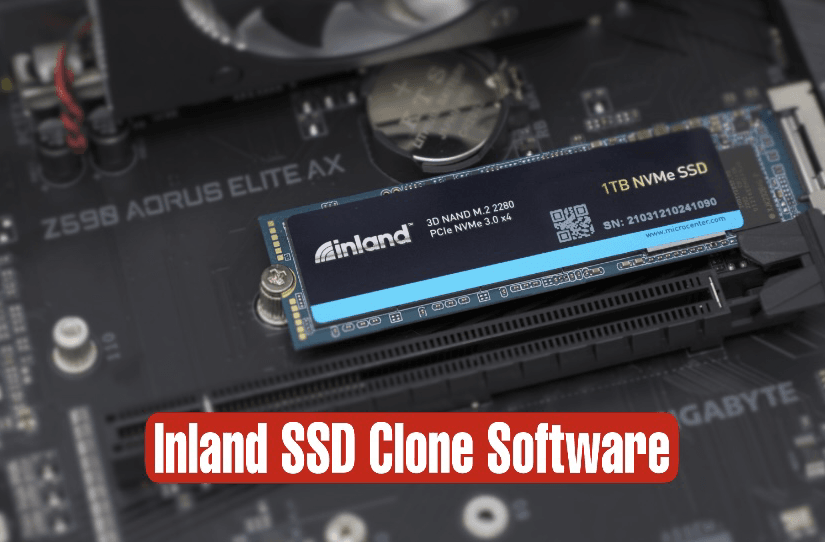
Replacing the system disk is a common scenario that requires SSD clone software. Upgrading to an SSD can provide significant benefits, including shorter boot times, more immediate data transmission, and higher bandwidth, making it a worthwhile investment for many users. By using SSD clone software, users can easily transfer their operating system, programs, and data to the new SSD, minimizing downtime and ensuring a seamless transition. This process can be particularly useful for those looking to upgrade their system disk, as it allows them to take advantage of the improved performance and capabilities offered by SSDs.
The desire to convert HDDs to SSDs is understandable, and with various brands on the market, users have options. Inland SSDs are a popular choice due to their affordability, leading to an increase in demand for Inland Professional SSD clone software.
The Most Reliable SSD Migration Software for Inland SSD
Qiling Disk Master Professional Cloning software Clonezilla is one of the most reliable options on the market. It supports all Windows PCs, including Windows 7/8/8.1/10/11/XP/Vista, and allows users to copy all data from one disk to another, ensuring that the computer can start normally after cloning.
To clone an HDD to an Inland Professional SSD using Qiling Disk Master, start by downloading its demo. If the Inland SSD contains important data, back up the files in advance, as the cloning process will overwrite all data in the destination.
- Migrate OS only from HDD to Inland SSD Drive
- Clone entire hard drive to Inland SSD
- Clone from larger disk to smaller disk via Intelligent clone
- Support all popular disk brands, Samsung, WD, Kingston, Crucial, etc.
- The device supports all types of disk interfaces, including HDDs, SATA SSDs, NVMe SSDs, M.2 SSDs, and others.
Stepwise Guide to Clone HDD to Inland Professional SSD
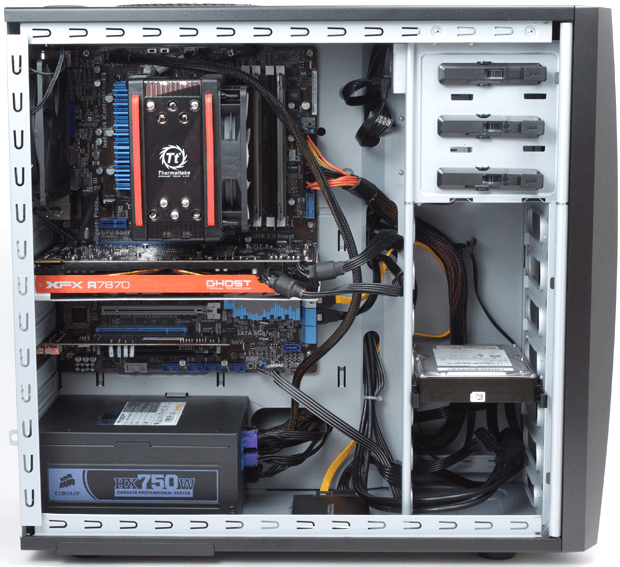
Step 1. To install the Inland SSD, first ensure your computer is completely powered down. Remove the side panel of the tower case by unscrewing it. Next, take the Inland SSD and install it, then restart your computer.
Step 2. Launch Qiling Disk Master, the Inland SSD clone software, and you'll see its deep-blue screen. Click on Clone and then select Disk Clone to initiate a hard drive copy, which will clone all the data from the source disk to the target disk.

Step 3. To clone your original HDD, select it as the source disk on your computer. Then, click on the cloning software to begin the process, ensuring that the destination disk is properly selected and configured. This will allow you to create an exact duplicate of your original HDD, which can be used for backup purposes or as a replacement if needed.Next.

Step 4. Select the Inland SSD as the destination path.

Step 5. Check the "SSD Alignment" option to improve the writing and reading speed of the SSD disk during the hard drive to SSD cloning process, then click "Proceed".
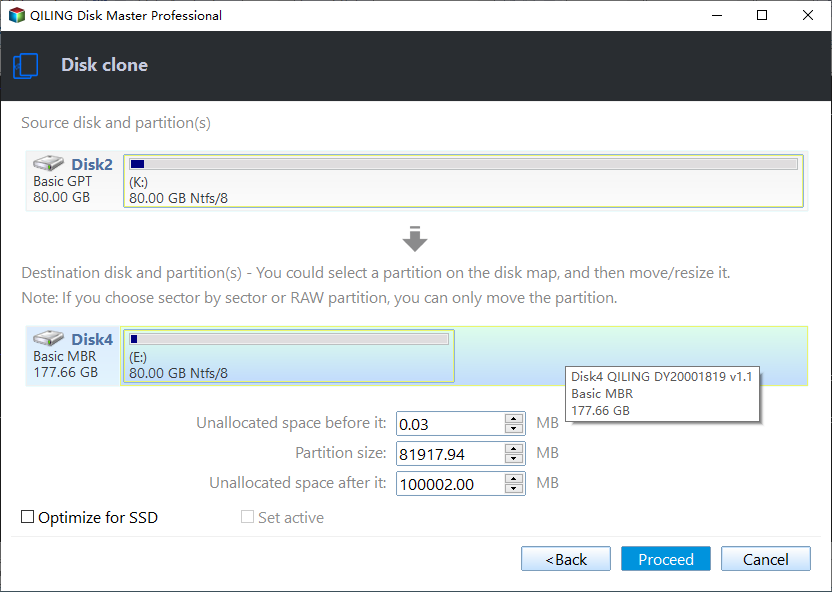
Tips: ◑ Sector by Sector Clone: This tool allows you to clone all sectors of a hard drive, including bad sectors and empty sectors, and also enables you to edit partitions, adjusting the partition size of the destination disk to fix issues where the cloned hard drive shows a wrong size when cloned to a larger disk.
❔ The Sector by Sector Clone and Edit Partitions cannot be used together. It's suggested to use the Edit Partitions feature if you are in the situation where you need to clone and edit partitions at the same time, or if you need to clone and edit partitions in a sector. This is because the Edit Partitions feature allows for more flexibility and control over the cloning and editing process.
#1: The cloned drive not show full capacity.
When cloning a disk, the cloned drive typically does not show its full capacity due to the exact copy made by the software. If the target disk is larger, you can try modifying the partitions in the cloning software's Edit Partitions section. Three options are available, with the last two being exclusive to the Professional version.
- Copy without resizing partitions: It will not resize the partition size.
- Add unused space to all partitions: It will reallocate the unallocated space to each partition of the target disk, appropriate for the disk size.
- Manually adjust partition size: It allows you to extend unallocated space to any partition on the destination disk you want.
#2: The cloned drive not bootable after cloning.
The main reason for the issue is that the destination and source disks have different partition styles, which wasn't converted to the same before cloning. To resolve this, check the option to convert the destination disk from MBR to GPT or vice versa, matching the partition style of the source disk.
Step 6. After cloning is complete, set the cloned SSD as the first boot priority in the BIOS to boot from it.

FAQs on Inland SSD Migration
Inland may not provide specific migration software, but you can use third-party tools like Qiling Disk Master, which is compatible with SSD migrations.
If your old drive is larger, you'll need to shrink partitions to fit the SSD's capacity before migrating, or use the Intelligent Clone method in Qiling Disk Master.
It's unlikely that Windows activation would be tied to the storage drive, as it's typically tied to the motherboard.
It's not recommended to migrate data from a HDD with bad sectors without fixing them first, as it may lead to data loss and corruption. It's best to repair the bad sectors on the HDD before migrating the data to ensure data integrity.
To Sum Up
Using the free Inland SSD clone software, Qiling Disk Master, you can easily transfer data or operating system without boot issues, making it ideal for tasks such as performing a bootable clone on Windows 11.
The tool offers a cloning function, as well as various other useful features, including backup, synchronization, restore, and tools. It can be used to safeguard or transfer data, making it a valuable resource for protecting or migrating your information.
Related Articles
- How to Clone Hard Drive to SanDisk SSD in Windows 7/8/10?
- Easiest Way to Clone Hard Drive to SSD without Reinstalling
- Samsung Data Migration on Non Samsung SSD – How to Deal with It
- Upgrade M.2 SSD without Reinstalling Windows 10, 11
Products
Articles & Tutorials
- Data Recovery
- Data Backup
- File Recovery
- File Backup
- File synchronize
- System Backup and Restore
- Disk and Partition Clone
- Technical articles
- Disk Master Help
- Windows Deleted File and Disk Recovery Tutorials
- Windows File and Data Recovery Tutorials
- More Windows Tutorials for Install, Security, Files, and PC Tips
- Windows Boot, Repair, and Recovery Environment Tutorials
- Windows Backup Tutorials
- Windows Restore Tutorials
- Windows Clone and Migration Tutorials
- Windows Server Backup, Recovery, and Management Tutorials
- Windows Disk, Partition, and Storage Management Tutorials