[4 Fixes] Desktop Files Disappeared in Windows 7
Why did my Desktop files disappear?
Windows users have likely encountered the frustrating issue of data loss, regardless of the Windows Operating System they're using. Data loss can occur due to various reasons such as system crashes, disk formatting, or accidental file deletion, causing inconvenience and worry for users.
Missing desktop folder
I can't find my desktop folder. The only way left is for me to use the Recent folder to find files on my desktop to attach which is quite hard. Please assist
- Question from SCN
Windows 10 users are seeking help to recover files that have disappeared from their computers, and now Windows 7 users are also facing the same issue, seeking assistance to recover their lost files.
Different methods are needed to settle this issue depending on the situation.
The reason why files/folders disappeared from desktop in Windows 7
In Windows 7, files and folders disappearing from the desktop can be caused by several factors. To resolve the issue, it's essential to check and take the corresponding solutions, which can be found in the next part. (Note: I removed the "
✍ The wrong account was logged in. If you've noticed that your desktop looks unfamiliar, it's possible you've logged into a temporary account instead of your usual one.
✍ Viruses. If your computer is infected with viruses, the file system may become corrupted and viruses may intentionally delete, modify, or encrypt your files.
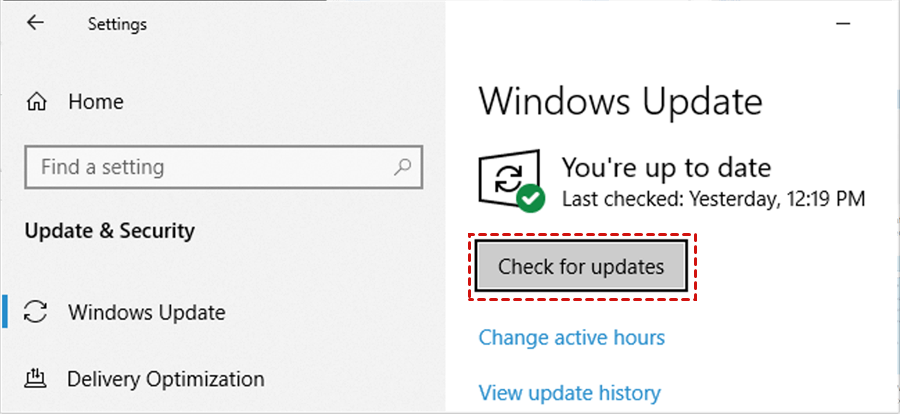
✍ Windows update. Windows updates may cause issues such as incompatibility and data loss, with some users experiencing missing desktop files after an update.
Deletion. File deletion is the most common reason for data loss on desktops, and many users have lost folders on their desktop. To recover a lost folder, users can try using data recovery software or taking advantage of built-in features like Windows' Recycle Bin or macOS' Trash. These tools can help restore deleted files and folders, but it's essential to act quickly before the data is overwritten.
How to recover desktop files disappeared in Windows 7
How to get back the missing desktop folders and files?
With the causes of data loss introduced, we can now move on to the relative solutions. Let's explore and choose a suitable solution that fits your specific data loss scenario.
Fix 1. Re-log into your own account
If you restarted your computer and everything is gone, including icons, apps, files, and folders, you may have signed into a temporary account, which could be due to a virus or corrupted account.
You can resolve this issue by signing back into the correct Windows user account. If the original user profile is corrupted, create a new user account and check whether the desktop files are available under the old profile folder.
To log in to your own account:
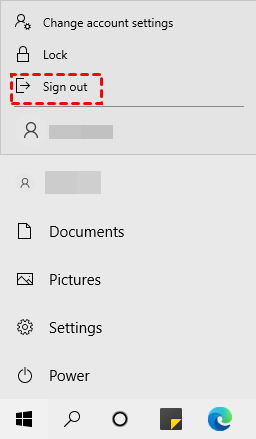
Step 1. Click the Start Menu > Power.
Step 2. Sign out of the current Windows account, then sign in to the original account where the desktop files were saved.
If the files folder keeps disappearing from your desktop, create a new one to resolve the issue.
To create a new account:
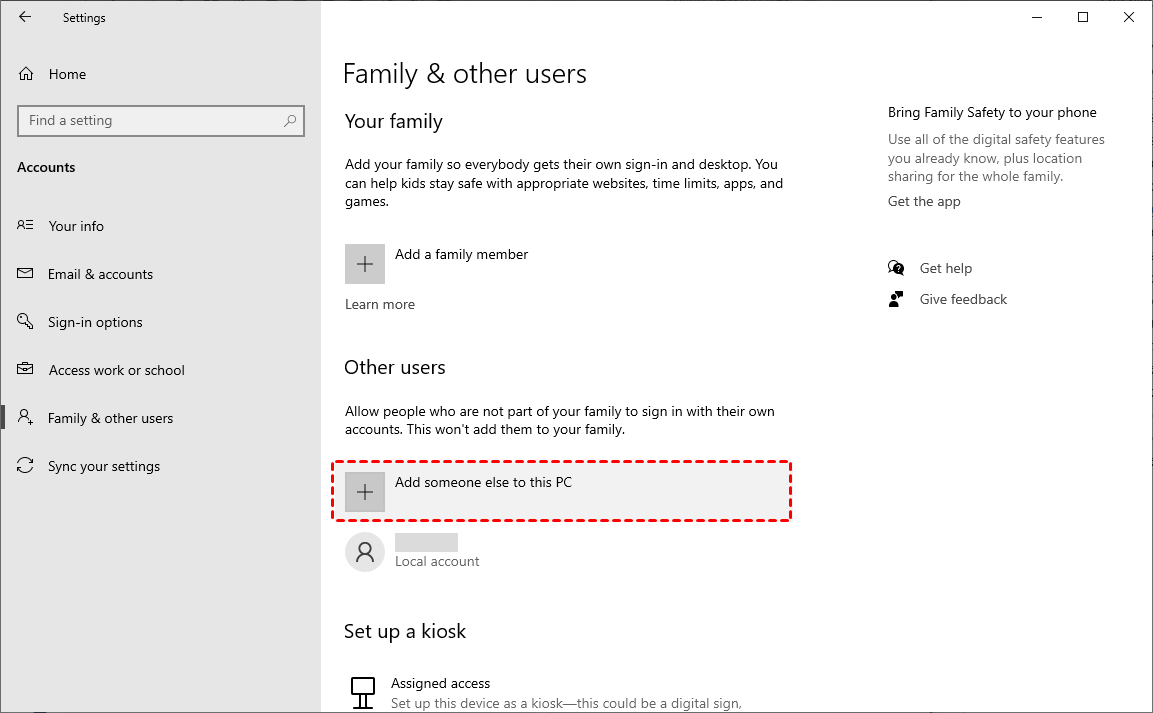
Step 1. Start Menu > Settings > Accounts.
Step 2. Go to User Accounts, choose Manage another account, and create a new account if the current profile is damaged.
Fix 2. Show hidden files on desktop
Viruses can hide your files, but this issue can be resolved by adjusting the file explorer settings.
Step 1. Start This PC > navigate to the directory C:\Users\username\Desktop.
Step 2. To view hidden files, folders, and drives, go to the "View" menu, select "Options", and then choose "View" again. From the dropdown menu, select "Show hidden files, folders, and drives".
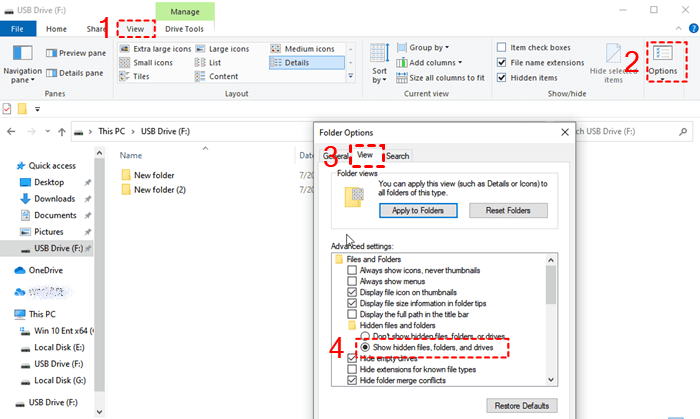
Thus you could find the missing desktop folders and files.
Fix 3. Use antivirus software and check the file system
In Windows 7, desktop files may disappear because of virus infection, hidden-file settings, user profile errors, accidental deletion, or file system problems.
To protect your PC from malicious viruses, take the following precautions: they might delete, edit, modify, or encrypt your important files to extort money, so be sure to take these steps to prevent this.
Use the antivirus software to scan and fix potential viruses.
Be cautious of any unfamiliar programs or apps on your device and uninstall them immediately if you're unsure of their origin or purpose.
Never visit suspicious sites again and use antivirus apps to scan the computer from time to time.
Fix 4. Recover missing desktop folders/files effortlessly
If you're experiencing issues with missing or disappeared desktop files in Windows 7, try checking your Recycle Bin, as deleted files are temporarily stored there. If the files are still not found, check your system's restore points or previous versions of files, as Windows 7 has a built-in feature to save previous file versions. You can also try searching for the files using the Start menu or by checking the file's properties.
If you've removed files from your desktop and then accidentally emptied the Recycle Bin, the files will be permanently deleted and can't be recovered.
You can still recover deleted files on Windows with the help of professional data recovery software, giving you a chance to get them back.
Using an efficient tool like Deep Data Recovery, you can recover your data without worrying about further damage or overwriting the original data, saving you time and labor.
It facilitates users with its amazing features.
- Scan and recover data from HDD/SSD/USB/SD card, etc.
- Over 200 types of files, including photos, videos, office files, zip files, and more, can be recovered using this software.
- Select files to restore while scanning directly.
- Deleted files can be recovered and restored to their original state, retaining their original filenames, formats, and paths.
- Support Windows 11/10/8/7/Server, and also NTFS/FAT32/exFAT/ReFS, etc.
To recover files or folders that have disappeared from your desktop, follow these 3 simple steps. First, check if the item has been moved to a different folder or location on your computer.
Step 1. Install and run the software, then hover your mouse over the drive and click the Scan button.

Step 2. When scanning for files, filters such as Date modified, Type, and Size are available to narrow down the search and locate specific files more efficiently.

Step 3. Go to the "Deleted files" section, navigate to the "Desktop" folder, select the files you want to recover, and click "Recover".

This software allows users to recover deleted files from their desktop, laptop, and external hard drives, making it a convenient solution for those who need to retrieve lost data.
FAQ
Methods to settle the desktop files disappeared Windows 7 issue has been introduced. In case you need more help, some frequently asked questions will be given with answers.
After a Windows 10 update, desktop files can go missing, but there are generally 5 methods to resolve this issue. These methods include checking the system restore point, looking for the files in the Windows.
1. If you're searching for files that you thought were deleted, try looking for them in File Explorer. It's possible that the files were not actually deleted or wiped from your computer, so they may still be accessible. You can search for the file name, or look in the recycle bin or other folders where files are often stored.
2. Unhide the files. Similarly, your files might get hidden by viruses. This can be done by going to the folder options, then view, and then selecting "show hidden files.
3. To resolve the issue, sign in to the correct account associated with your user profile. This will allow you to access the files you're looking for.
4. Use File History to recover deleted/lost/damaged files.
5. Turn to professional Windows data recovery tools.
To restore desktop icons on Windows, several fixes can help you.
Enable Show desktop icons in Windows settings.
Disable Tablet mode.
Carry out SFC scan.
Perform a system restore.
Some users experienced an issue where their desktop suddenly became empty, with no icons or files visible. They were able to resolve this by unhiding desktop icons, adjusting or correcting desktop icon settings, restarting the desktop process, checking the system file, or rolling back a recent Windows update.
Related Articles
- Tears of the Kingdom Corrupted Data | PC and Switch Fixes
If you're experiencing Tears of the Kingdom corrupted data issue on PC or Nintendo Switch, you can use Deep Data Recovery to find lost game files. To troubleshoot the issue on Switch, check the game's save data, update the game to the latest version, and try deleting and reinstalling the game. - Where Are Steam Games Stored? How to Locate
Find where Steam stores game files and check common locations before moving or recovering game data. - Recover Deleted LINE Attachments on iPhone/Android
If you lost LINE attachments, Qiling MobiSaver can help retrieve deleted or missing attachments from your iPhone or Android device. - 4 Working Ways to Recover Lost Files After macOS Monterey Update
If you've lost files after updating to macOS Monterey, There are practical ways to recover them, and Qiling Mac data recovery software is a standout option for its ease and efficiency. - How to Recover Data from WD My Passport
If you're struggling to recover data from your WD My Passport, follow these steps. First, download the WD Passport hard drive recovery software. This tool will help you recover deleted or lost files from your drive. - How to Recover Data from a Wiped Hard Drive on Windows PC/Mac
Data recovery from wiped hard drive on Windows PC or Mac, if you can do it soon, then you'll recover data from wiped or reset hard drive easily. Free download the wiped hard drive data recovery software to do it.
Products
Articles & Tutorials
- Data Recovery
- Data Backup
- File Recovery
- File Backup
- File synchronize
- System Backup and Restore
- Disk and Partition Clone
- Technical articles
- Disk Master Help
- Windows Deleted File and Disk Recovery Tutorials
- Windows File and Data Recovery Tutorials
- More Windows Tutorials for Install, Security, Files, and PC Tips
- Windows Boot, Repair, and Recovery Environment Tutorials
- Windows Backup Tutorials
- Windows Restore Tutorials
- Windows Clone and Migration Tutorials
- Windows Server Backup, Recovery, and Management Tutorials
- Windows Disk, Partition, and Storage Management Tutorials