5 Ways to Fix External Hard Drive Access Denied
- Why is my external hard drive not accessible?
- How do I fix access denied external hard drives?
- Fix 1. Check your drive connection
- Fix 2. Modify permissions to access the external hard drive
- Fix 3. Assign a drive letter to access the external hard drive
- Fix 4. Run CHKDSK to check and fix the external hard drive
- Fix 5. Format the inaccessible external hard drive
- Further reading: How to recover files from external hard drive Windows 10/11?
- Fast Q&A about external hard drive data/partition recovery
Why is my external hard drive not accessible?
I cannot access my external HDD at all. It's a Seagate 2TB if that helps. I keep getting this message saying that the Location is not available. F:\ is not accessible. Access Denied. I feel I've tried everything. I recently did a full reset of my Windows PC and backed up all my files on this external hard drive. And it also shows up in Windows File Explorer and Disk Management. Does anyone know any methods to fix it? I really hope to avoid re-formatting the drive. Thanks.
- A user from Microsoft Community
External storage refers to devices that store data outside of a computer, which can be permanently connected or removable media.
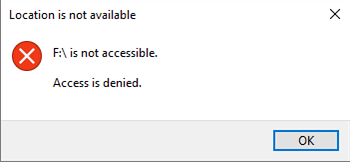
Users may encounter an 'access denied' error when trying to access an external hard drive. Possible causes include corrupted files, incorrect drive letter assignment, or file system issues. To resolve the issue, users can try checking the drive's file system, running a disk check, or assigning a different drive letter. Additionally, users can try formatting the drive or using a data recovery software to recover data from the drive. It's also recommended to check for any malware or viruses that may be causing the issue.
Possible causes of external hard drive access denied Windows 10
Access to an external hard drive is often denied due to various reasons. It's possible that the drive is not properly connected or recognized by the computer, or the drive's file system is corrupted. Additionally, the drive's permissions might be set to read-only, or there could be an issue with the drive's firmware or drivers.
- Inadequate power supply
- Permission settings
- Cannot be recognized by Windows OS
- Corrupted file systems of external hard drive
- Manufacturing defects
How do I fix access denied external hard drives?
If you're experiencing an "access denied" error when trying to access your external hard drive, there are several potential solutions you can try. First, ensure that the drive is properly connected and recognized by your computer. Next, check the drive's file system and format it if necessary. If you're using a Mac, try restarting the computer and then accessing the drive.
Fix 1. Check your drive connection
Before trying to troubleshoot your external hard drive, make sure to check your drive's connection to your computer's power source. If the ports on your motherboard can't receive direct power, it may not be able to activate the drive properly, leading to connectivity issues.
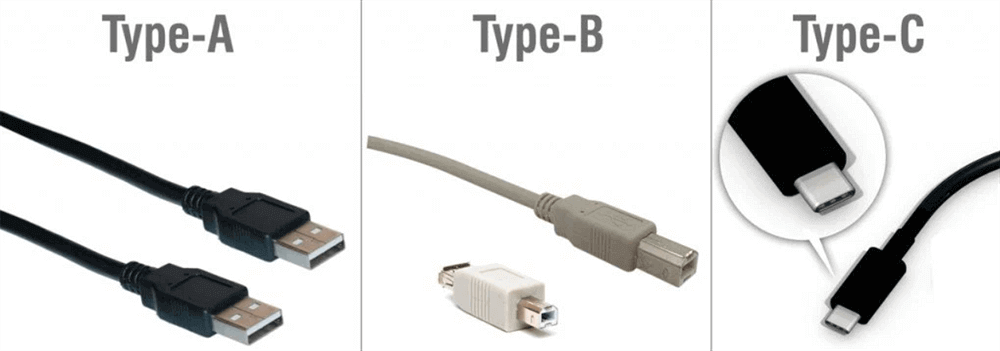
Improperly connected cables or a malfunctioning USB port could also cause external hard drive access denied, aside from corrupted files and outdated drivers.
Fix 2. Modify permissions to access the external hard drive
Check the permission settings to see if you have access to the drive, and if not, follow the steps to modify the permissions.
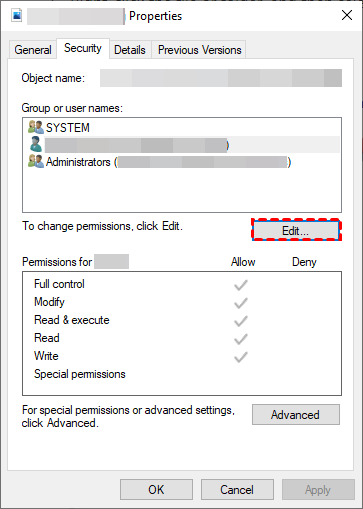
Step 1. Connect your external hard drive to the computer. Then right-click on this drive, click Properties, and then Security.
Step 2. Locate your username and click the "Edit" button.
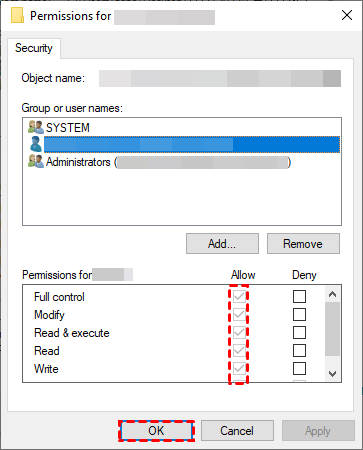
Step 3. Check the "Allow" box beside "Full Control". After clicking the "Apply" button, click "OK" to close it.
Fix 3. Assign a drive letter to access the external hard drive
In computer data storage, drive letter assignment is a process of assigning alphabetical identifiers to volumes. This allows users to access and manage different storage devices, such as hard drives, solid-state drives, and USB drives, using a single letter or character.
To see if your external hard drive is recognized by Windows, open File Explorer. If it's not visible, it's likely because it doesn't have a drive letter assigned to it. In this case, you'll need to use Disk Management to assign a drive letter, which will allow Windows to recognize and access the drive. Let's proceed with assigning a drive letter via Disk Management.
This method can also show hidden partitions in Windows 7, 8, 10, or 11 computers.
Step 1. To access the Disk Management utility, press the "Win + R" keys to open the Run window, type "diskmgmt.msc", and then hit "Enter" or click "OK" to open the utility and view your connected external hard drive.
Step 2. Right-click on your external hard drive, then select the "Change Drive Letter and Paths" option.
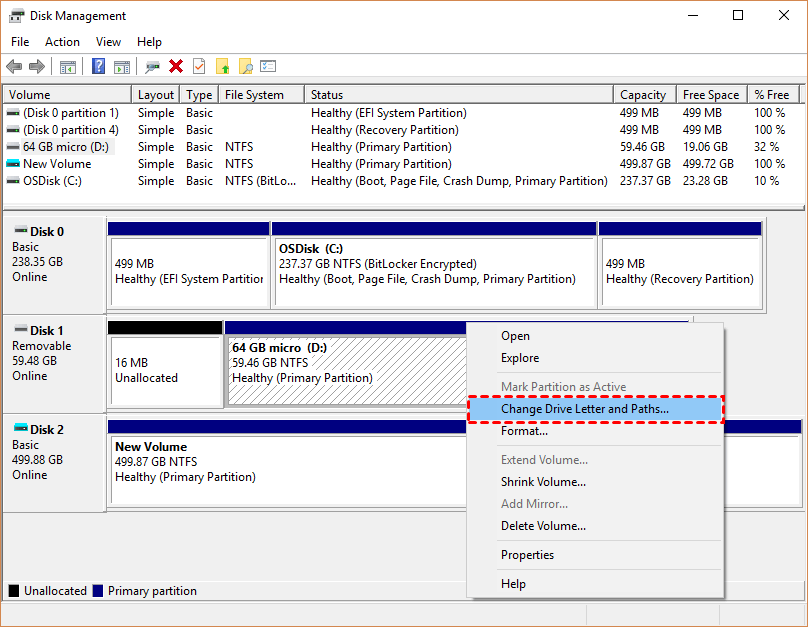
Step 3. To assign a new drive letter to the connected SD card, select the "Add" option. This will allow you to create a new drive letter for the SD card, making it easier to access and manage its contents.
Step 4. To assign a drive letter to a new drive, select the "Assign the following drive letter" option from the drive properties menu. Make sure the chosen drive letter is different from all the existing drive letters to avoid any conflicts or errors.
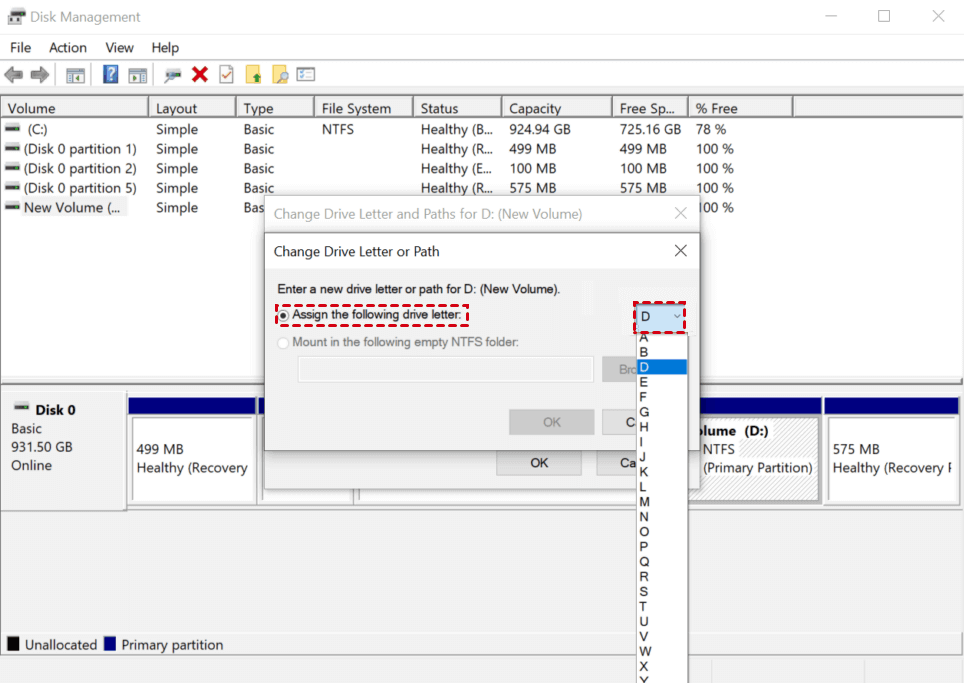
Fix 4. Run CHKDSK to check and fix the external hard drive
Chkdsk is effective in recovering corrupted hard drives, especially if there are bad sectors or errors on your external hard drive. It can help resolve issues such as "access denied" on your external HDD.
Step 1. To open the command prompt window, enter "cmd" in the search box and select "Run as administrator".
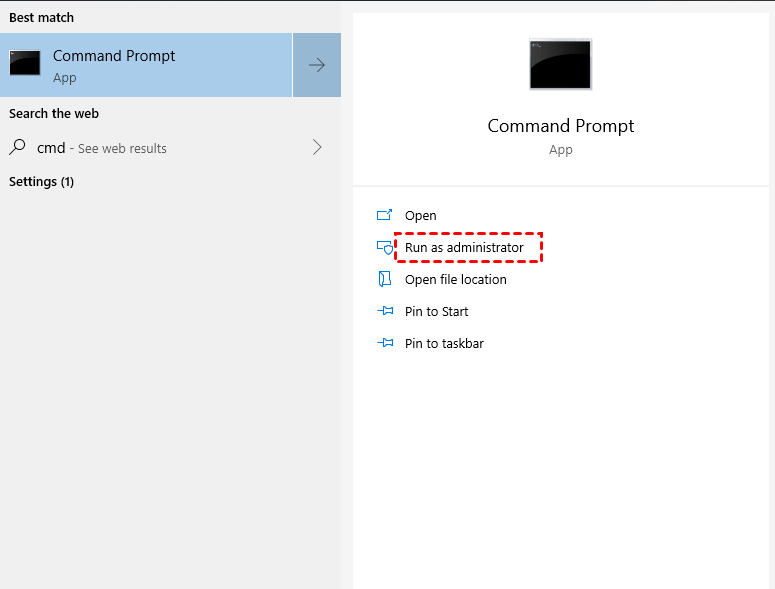
Step 2. Type "chkdsk" and "chkdsk d: /f" in the window respectively.
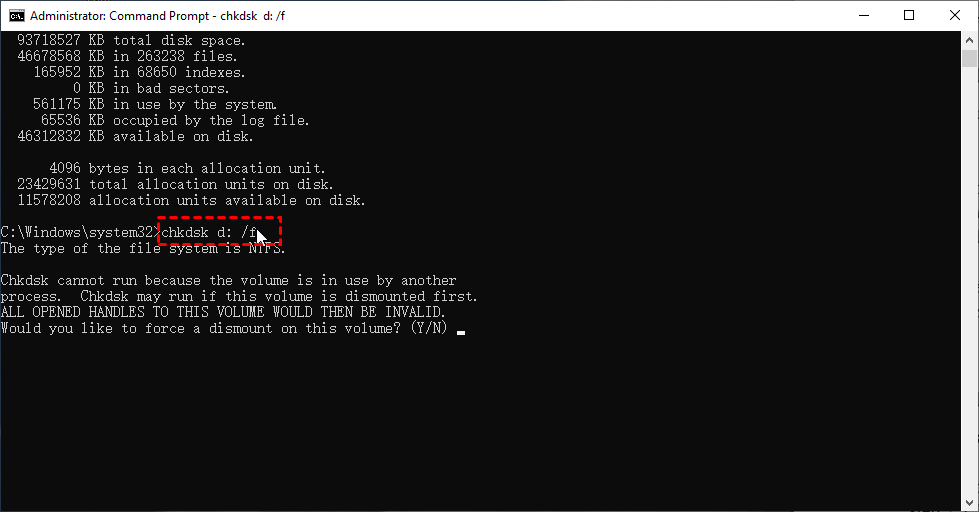
If your SD card is not accessible, you can also use the Windows Repair Tool to fix any detected errors.
Fix 5. Format the inaccessible external hard drive
External hard drive access denied on Windows 10/11? It might be due to an incompatible file system with your Windows computer.
The free Qiling Disk Master Standard allows you to format and convert a disk to another suitable file system, providing a simple and efficient way to manage your storage needs.
- Please pay attention that this fix needs to erase all the data on your external hard drive.
Step 1. Download and install the tool on your PC, then connect the external hard drive to the computer.
Step 2. Right-click on the connected external hard drive, then select the "Format Partition" option from the menu. This will erase all data on the drive and prepare it for new data.
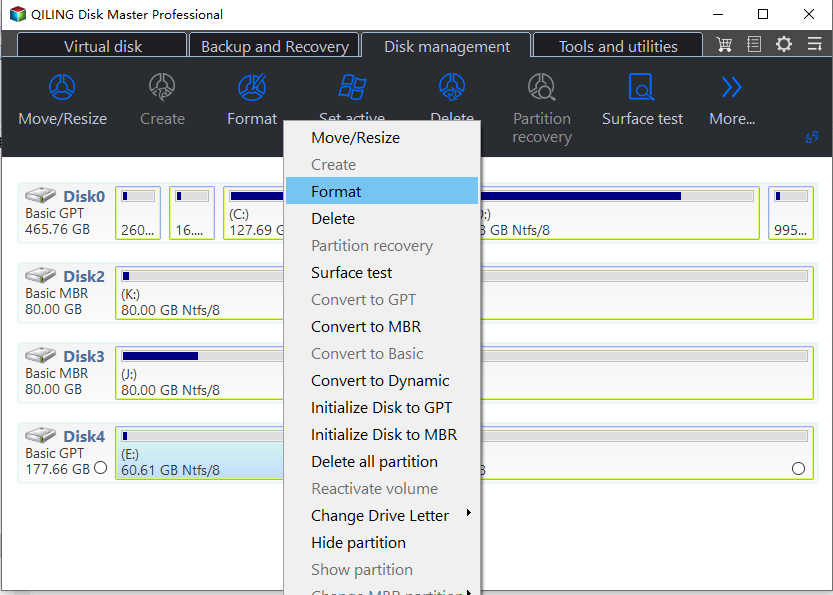
Step 3. Select a proper file system and edit volume label.
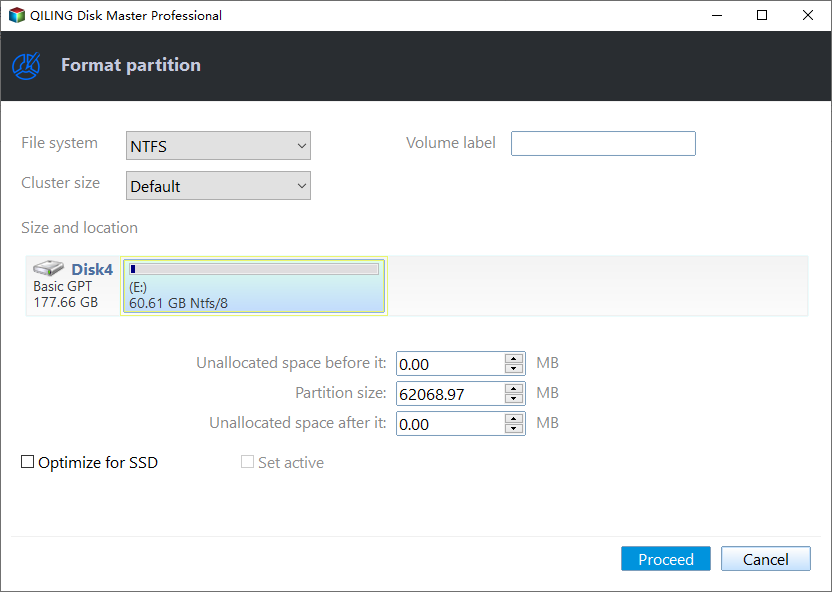
Step 4. Click "Proceed" in the main interface. Then please wait patiently.
Further reading: How to recover files from external hard drive Windows 10/11?
If you've lost data due to the described operation, you can attempt external hard drive data recovery by using data recovery software, such as Deep Data Recovery Wizard, to scan the drive for recoverable files. Alternatively, you can also try using a USB drive to boot into a live Linux environment and use the built-in data recovery tools to retrieve your data. It's essential to stop using the external hard drive immediately to prevent overwriting of the lost data.
If you're unable to come up with an idea, you could try using Deep Data Recovery to recover files from an external hard drive on Windows 10.
- ★Powerful features & friendly design of this data recovery software:
- Recover deleted/lost files from various devices, including HDD, USB, SD cards, and portable devices, with support for over 200 file types, including Word, Excel, PPT, PDF, photos, videos, audio, and folders.
- The recovered files should be evaluated based on their original paths, filenames, and format to determine their authenticity and usability. This involves comparing the files' current state with their original characteristics, such as the directory they were stored in, the name they were given, and the file type they were saved as. By doing so, you can ensure that the recovered files are genuine and can be used as intended.
- During Quick Scan and Deep Scan, you can either enter filenames in the search bar to locate specific files or wait for the scan to find all deleted and lost files on your computer.
- Support NTFS, exFAT, FAT32, and ReFS file systems.
Deep Data Recovery is a software tool that specializes in recovering lost, deleted, or corrupted data from various storage devices. It can be installed on Windows operating systems, including Windows 11, 10, 8, 7, and Windows Server versions.
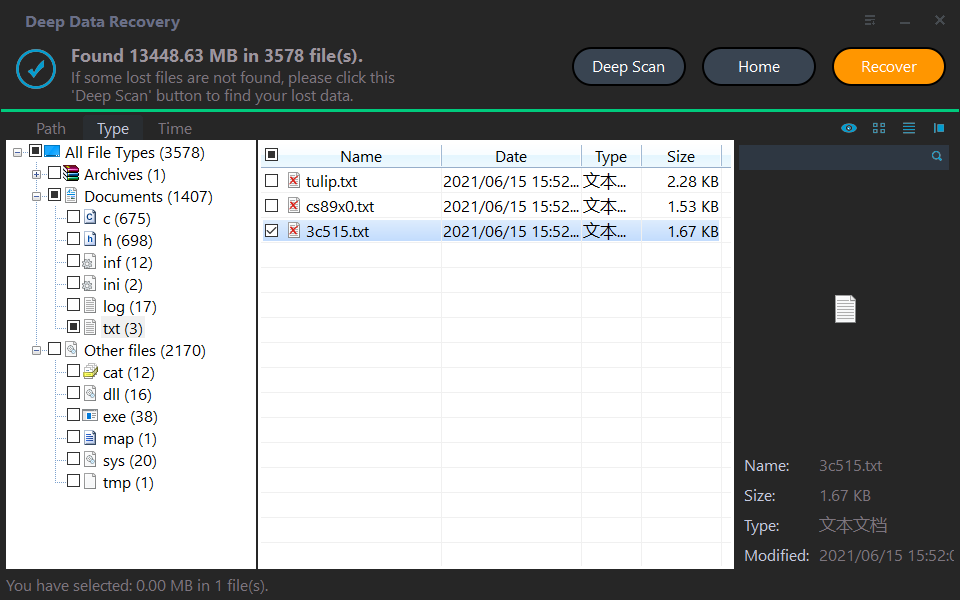
Step 1. Connect your external hard drive to the computer. Run the tool, then hover your mouse over the drive where the deleted files were saved and click "Scan".
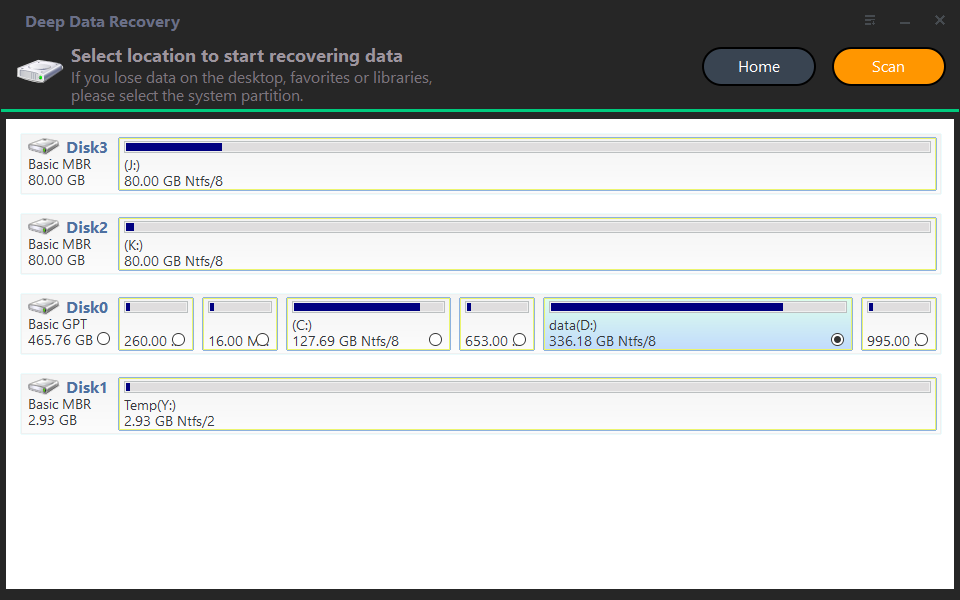
Step 2. To view deleted files and raw files, you can use the "Show deleted files" option in the search bar, which will display all the deleted files. Alternatively, you can also use the "Raw files" option in the search bar to view all the raw files.
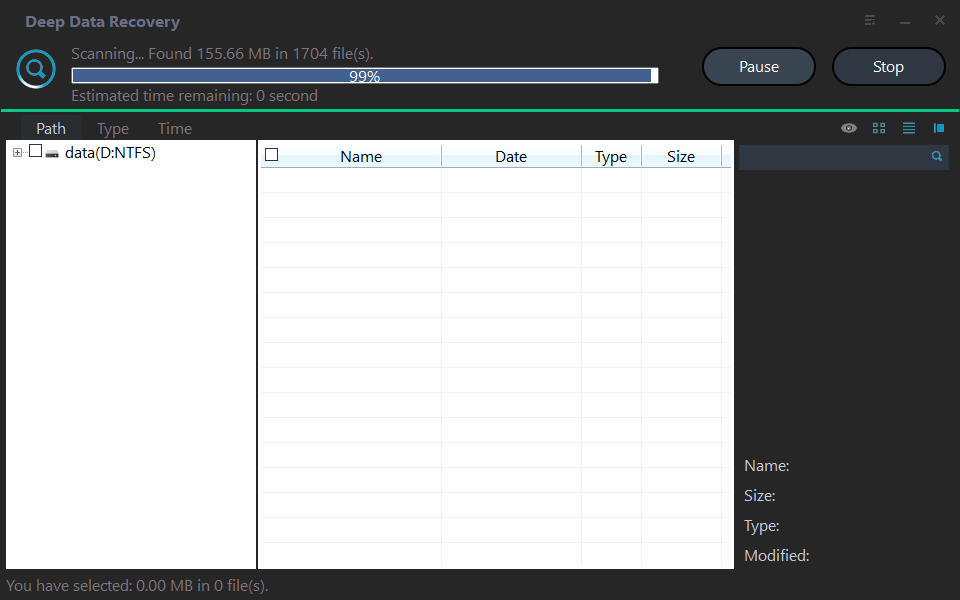
Step 3. Go to the Deleted Files/Raw files folder, select the files you want, click "Recover", and save them in a new location.
Fast Q&A about external hard drive data/partition recovery
If you're experiencing "access denied" issues with your external hard drive on Windows 10/11, try restarting your computer and the external drive, or unplugging and replugging it. If that doesn't work, check the drive's file system and format it if necessary. To recover files, use built-in tools like File Explorer's "Properties" option to check the drive's status, or try Command Prompt commands like `chkdsk` and `fsutil`. If the drive is corrupted, you can try using data recovery software like Deep Data Recovery Wizard or Recuva to scan the drive and recover your files.
Additionally, there are some related external hard drive data/partition recovery software tips that can be helpful, providing further assistance in recovering lost data.
If a folder has disappeared from an external hard drive, you can try showing hidden files, folders, and drives via File Explorer to see if it's still there. If the folder has been deleted, you can try recovering it using Windows File Recovery or Deep Data Recovery.
Seagate external hard drive files not showing up could be due to three possible reasons: the files may be hidden, corrupted, or deleted.
Qiling Disk Master is a powerful tool that can also recover data from external hard drives, making it a leading partition recovery tool.
Related Articles
- 8 Fixes | Windows Text Not Showing up!
Learn how to fix Windows text not showing up via eight solutions and how to retrieve deleted texts via Windows features or data recovery software on this page. - How to Recover Deleted MP4 Files on Windows 10/11 [NEW]
Learn how to Recover Deleted MP4 Files on Windows 10/11 with clear steps, key checks, and practical tips. - Where Is Steam Screenshot Folder? How to Access and How to Restore
Use this guide to where Is Steam Screenshot Folder How to Access and How to Restore and improve the chance of getting important data or partitions back safely. - How to Restore Lost AI Files After Adobe Illustrator CC Crashes
If you lost AI files in Windows 10 due to Adobe Illustrator CC 2019 suddenly stopping or crashing, You can try to fix Illustrator crashes when closing, and then use the best Adobe file recovery software to restore deleted or lost AI files with ease. - How to Recover a Deleted/Lost Partition on External Hard Drive
You can recover a deleted or lost partition on an external hard drive using either a Windows PC or Mac. To do this, you'll need to download free lost external hard drive partition recovery software to retrieve it. - How to Recover Deleted and Unsaved Notepad Text Files in Windows 10/7 [2021]
Whatever reason it is to lose the text files, the associated anxiety is the same. If you experience this, you can use an effective method in this article to recover deleted text files in Windows 7 and Windows 10.
Products
Articles & Tutorials
- Data Recovery
- Data Backup
- File Recovery
- File Backup
- File synchronize
- System Backup and Restore
- Disk and Partition Clone
- Technical articles
- Disk Master Help
- Windows Deleted File and Disk Recovery Tutorials
- Windows File and Data Recovery Tutorials
- More Windows Tutorials for Install, Security, Files, and PC Tips
- Windows Boot, Repair, and Recovery Environment Tutorials
- Windows Backup Tutorials
- Windows Restore Tutorials
- Windows Clone and Migration Tutorials
- Windows Server Backup, Recovery, and Management Tutorials
- Windows Disk, Partition, and Storage Management Tutorials