[Stepwise Guide]: How to Recover Deleted Files on Windows
Scenario
You can try using a data recovery software to scan your computer and recover your deleted files from the OneDrive folder. This might be a good option since you didn't empty the recycle bin, and the files were simply deleted due to the folder being too large. However, keep in mind that the success of this method depends on various factors, such as the type of files and the condition of your computer's hard drive. If you're not comfortable with the process, you might want to consider seeking help from a professional data recovery service.
Have you encountered a similar situation? Actually, there are other ways to solve this kind of situation. In the following part, let's explore ways to retrieve deleted data.
Windows built-in feature to restore deleted files
If you don't want to download additional software, you can use Windows built-in tools to recover your files, such as the Recycle Bin and File History.
Way 1. Check the Recycle Bin to retrieve deleted files
The Recycle Bin is a temporary storage location for deleted files, and you can easily retrieve them by checking the Recycle Bin.
Step 1. Open your Recycle Bin on the desktop, and find your target file.
Step 2. Right-click the target file and click Restore.

- Notes:✎...
- This method is used to recover files deleted by right-clicking or Ctrl+D, but files permanently deleted with Shift+D are unrecoverable.
-
When you delete files from an SD card on your computer, they won't be sent to the Recycle Bin, unlike files deleted from the computer's hard drive. This is because the SD card is an external storage device, and its deleted files are not managed by the computer's operating system in the same way.
Way 2. Restore files from File History
If you can't find the files in the Recycle Bin, you can use File History to restore them. This feature can recover a wide range of files, including word documents, zip files, PDFs, images, and more. However, you must have turned on File History before losing the files. To use File History, follow these steps.
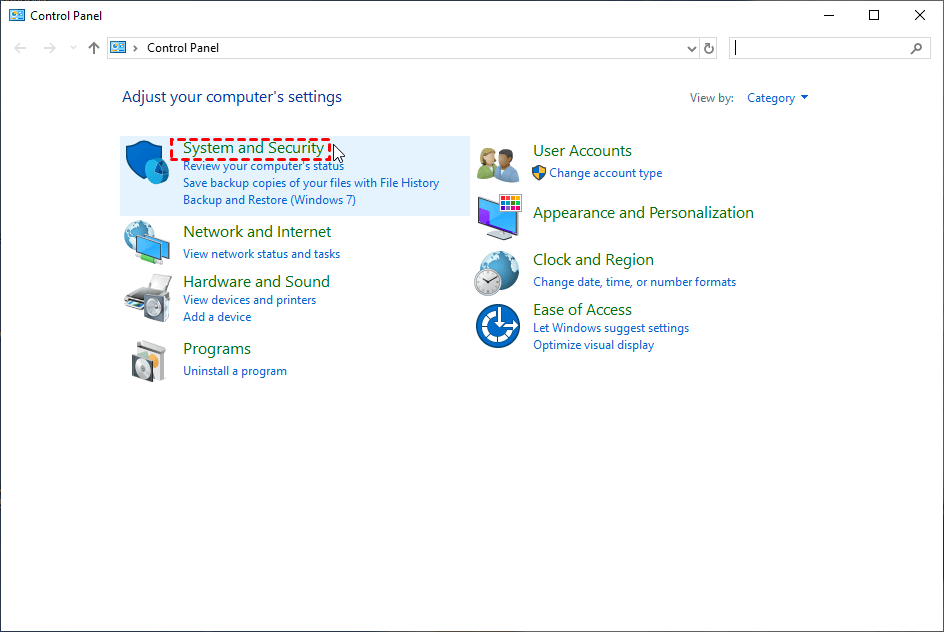
Step 1. Open the Control Panel, and then click the System and Security.
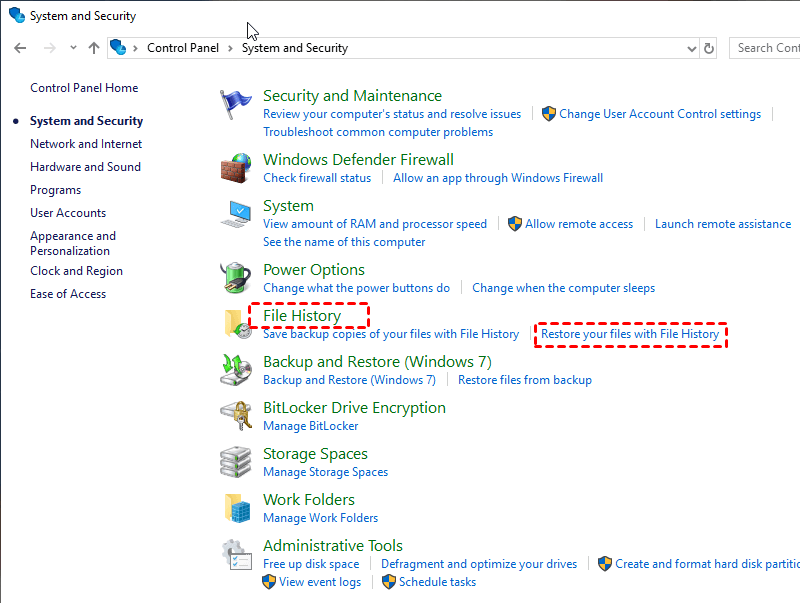
Step 2. Tap File History, and then click Restore your files with File History.
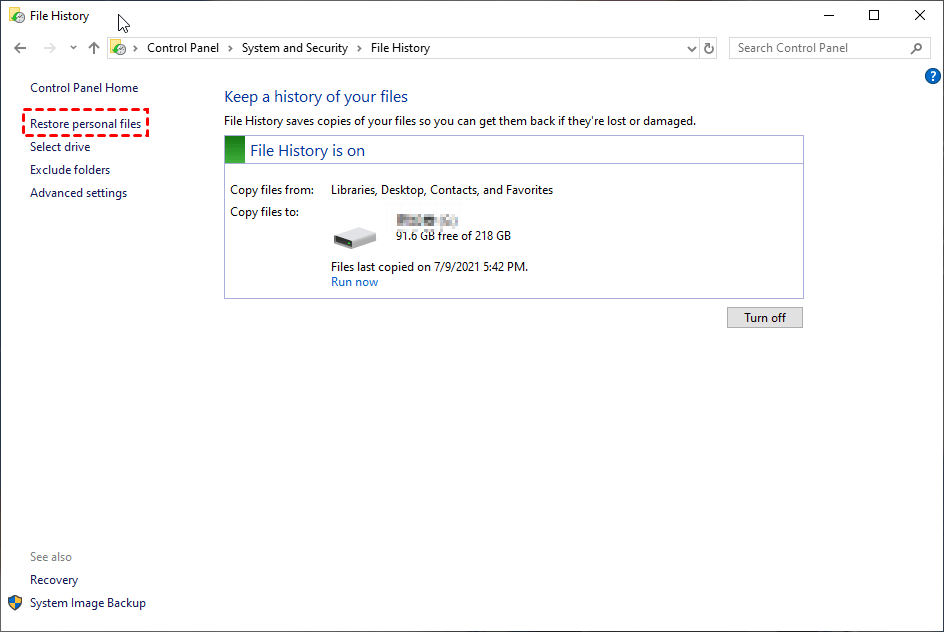
Step 3. On the left list, find and right-click the Restore personal files.
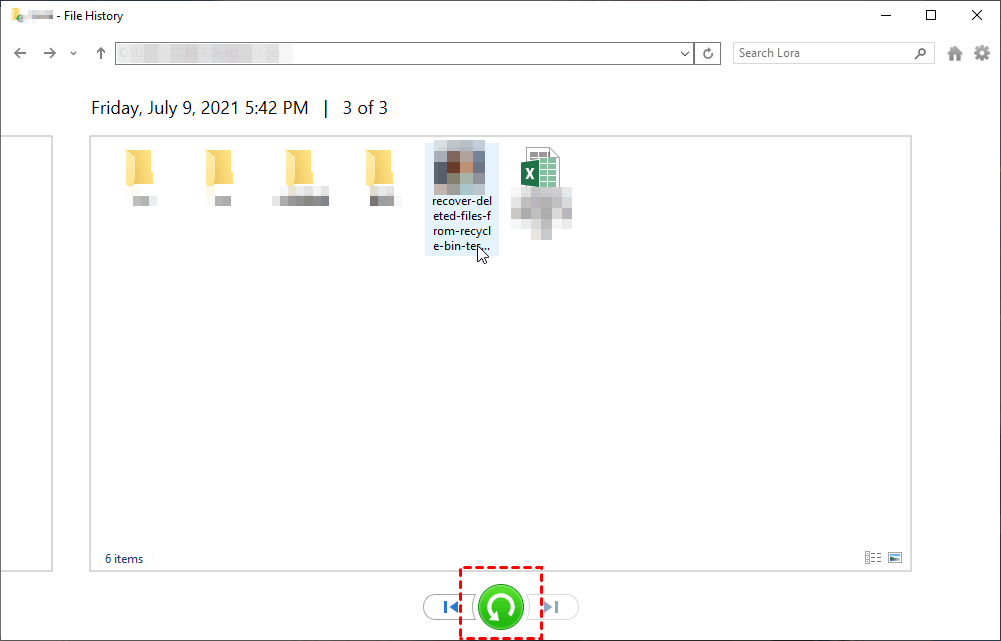
Step 4. The deleted file will appear on your interface and then click the Restore button.
Recover permanently deleted files in windows 10/11 using the recovery tool
If you've permanently deleted files or didn't back up, you may want to consider using professional data recovery software.
Recover deleted files using CMD recovery tool
Microsoft issued Windows File Recovery, a command-line tool that helps users recover files, but its complexity may be a barrier for those without a computer background, as it requires understanding unfamiliar parameters.
First of all, you need to understand the parameters below that you will use.
|
Source drive |
where you have lost your files |
|
Destination drive |
the place that you store your recovered files |
|
Mode |
regular & extensive |
|
Switch |
narrow the scanning range |
|
File system |
Your operating system (OS) uses a combination of file systems and memory management techniques to store and retrieve data. When you save a file, the OS breaks it down into smaller chunks called blocks, which are then stored on the hard drive or solid-state drive (SSD) in a hierarchical structure. |
Note:
☞The source drive and destination drive must be different.
☞To check your file system, go to This PC, right-click on the source drive, and tap Properties.
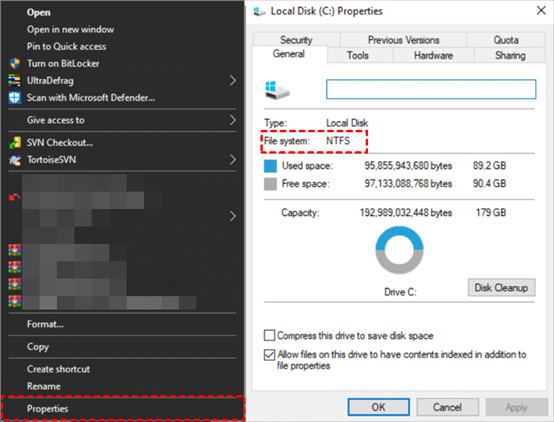
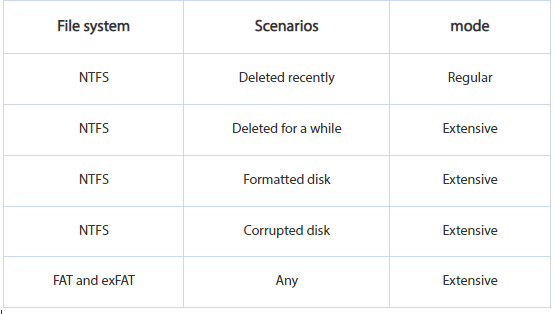
To determine the correct mode for a file system, you should select the right mode depending on the file system being used.
Next, choose the suitable switch according to the table below.
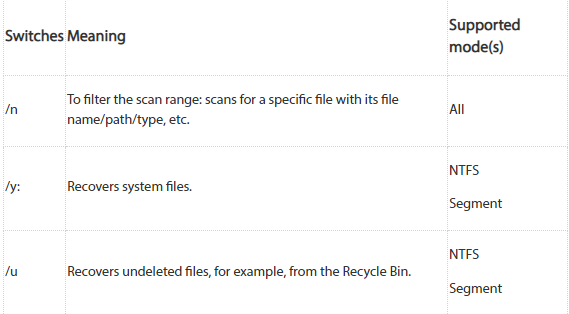
The final structure of a Windows File Recovery command line is: `winfr source-drive: destination-drive: [/mode] [/switches]`. This format indicates that the command will recover files from the source drive and save them to the destination drive, with optional mode and switch specifications.
Step 1. Right-click on the Start button, find the Microsoft Store, search Windows File Recovery, and install it.

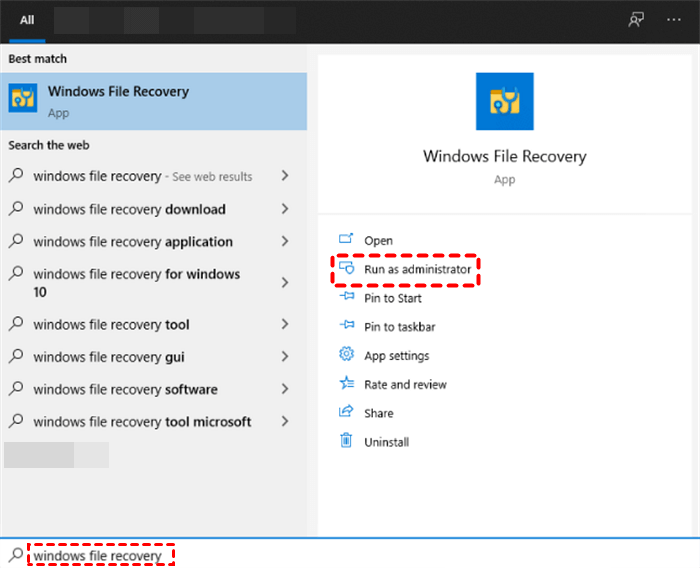
Step 2. Open it and click Run as administrator.
Step 3. Enter the command prompts to restore the file.
The command line `winfr C: D: /regular mode /n *.docx` is used to restore a .docx file from C: drive to D: drive in regular mode.
Restore deleted files using a GUI data recovery software
While there is a more convenient data recovery tool called Deep Data Recovery, Windows File Recovery still offers a reliable solution for recovering lost files. Compared to Windows File Recovery, Deep Data Recovery is simpler to use and quicker to restore. Other highlights of Windows File Recovery include its ability to recover files from corrupted or damaged storage devices, and its support for various file systems, including NTFS, FAT, and exFAT. Additionally, Windows File Recovery can recover files from BitLocker-encrypted devices, making it a versatile tool for data recovery.
▪ Easy to use: The software provides a user-friendly graphical interface that simplifies the operating process for users.
▪ Wide range of repairs: Data recovery software can be used in various scenarios, such as recovering data after a virus attack or system crash, to retrieve lost information.
▪ High compatibility: It supports NTFS, FAT32, exFAT, and ReFS file systems in Windows 11/10/8/7 & Windows Server.
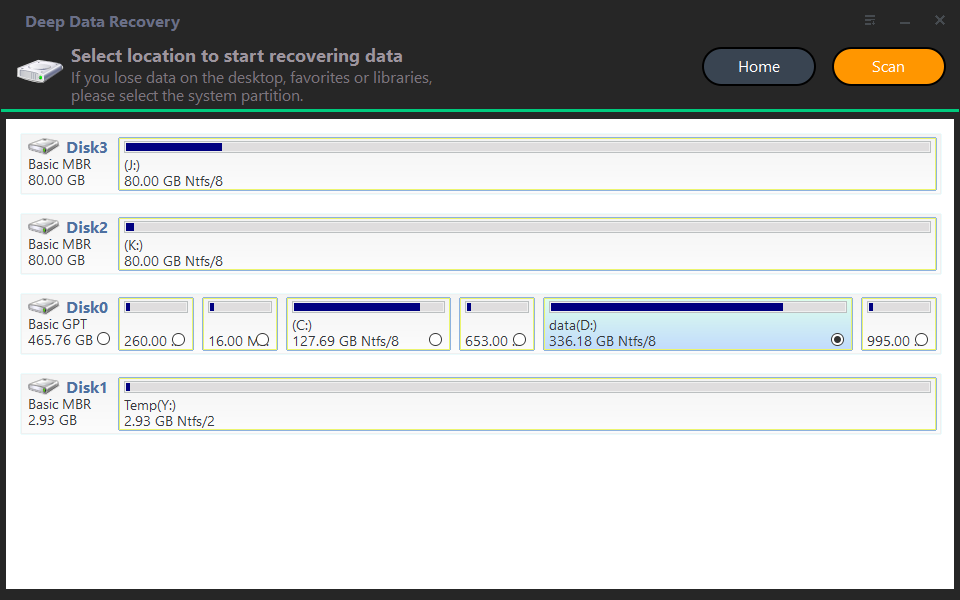
Step 1. Install Deep Data Recovery on your PC and launch it. Hover your mouse over the drive where the deleted files were saved and click "Scan" to start the recovery process.
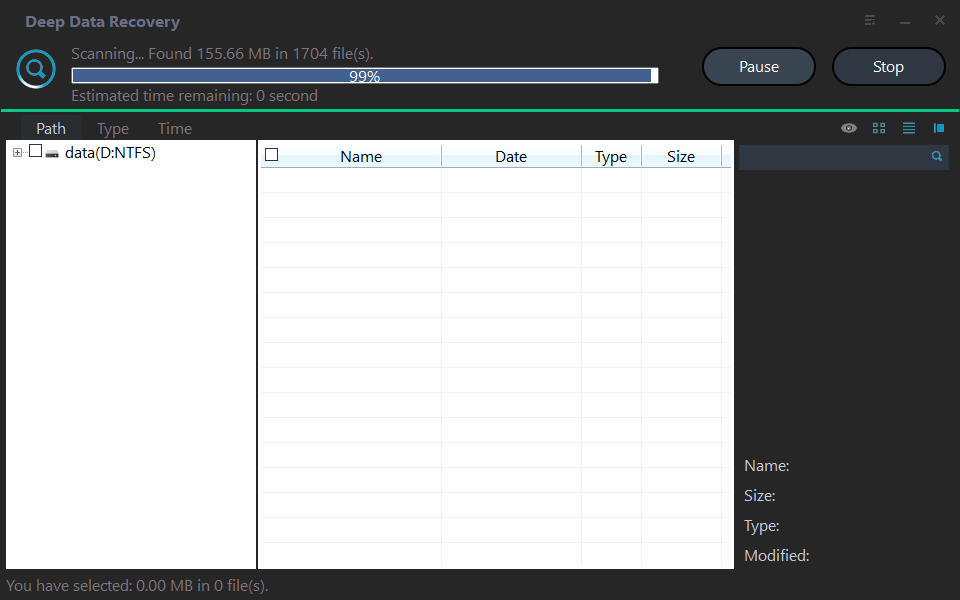
Step 2. The Quick Scan & Deep Scan feature will scan the selected hard drive and recover any deleted files and other lost files.
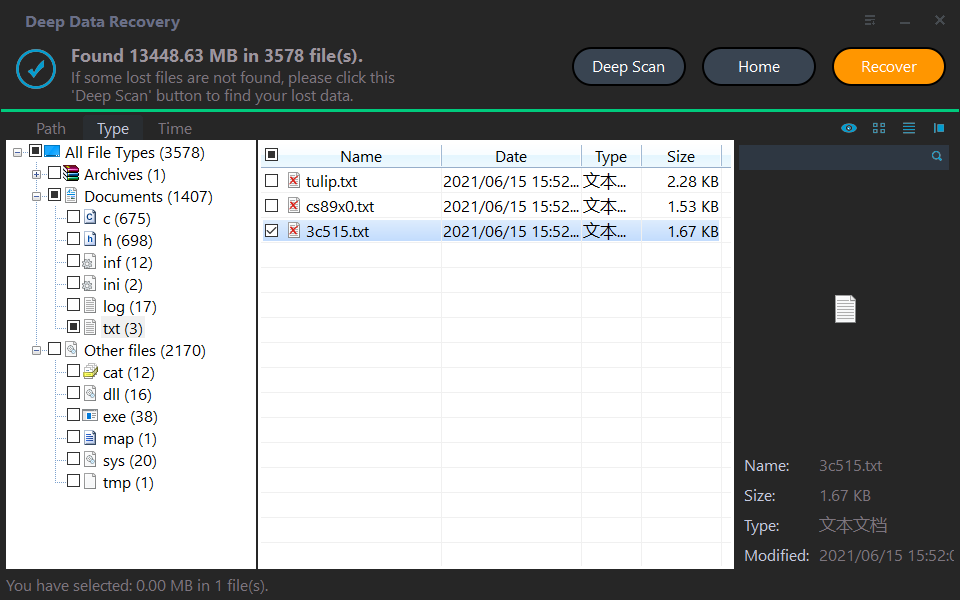
Step 3. Click Recover to retrieve your desired data, and locate a destination path to save them.
Further reading: How to recover deleted files from iPhone and Android
How can I recover deleted files on iPhone?
Deleting iPhone data, such as photos, memos, reminders, etc., can be recovered from the Recently Deleted folder within 30 days. If it's been more than 30 days, using recovery software like Qiling Data Recovery for iOS can help restore various types of files, including photos, videos, WeChat chat history, notes, and voice memos.
What can I do to retrieve the deleted data from Android?
Many Android users can also recover deleted data, such as photos or notes, from the "Recently Deleted" section, but may need to restore other data from a backup.
Take the Samsung phone as an example, if you want to restore data from backup.
To restore data on your device, go to Settings, then Accounts and back up, tap on Backup and Restore, select Restore data, choose the data you want to restore, and click the Restore button.
Wrapping up
Recovering deleted files has become a common issue due to increased electronic device usage. If a file is deleted, check the Recycle Bin or File History first. If that doesn't work, using Deep Data Recovery is recommended, as it's user-friendly, fast, and highly compatible.
Related Articles
- How to Recover Deleted Partition in Windows 11, 10, 8, 7?
Follow this step-by-step guide on how to recover deleted partition in Windows 11/10. Some tested solutions are provided here, including repairing damaged/corrupted partitions. - PDF Won't Open? 3 Quick Ways to Fix 'can't open pdf' Error on Windows/Mac
If your PDF file won't open, several factors might be at play, causing the issue. To resolve the problem, you can try checking for reliable solutions to fix the issue with your PDF file. - 2022 Guide: How to Recover Deleted Files from Pen Drive in 3 Ways
Recover deleted files from a pen drive or USB flash drive by stopping use, scanning with recovery software, or checking hidden files with CMD. - [Official & Latest] Deep Data Recovery Key 2.6 and Qiling License Code
Stop using Qiling data recovery crack, keygen, or serial number to activate Deep Data Recovery. Instead, download the official license code and serial key available here to activate the software legally and safely recover your data. - An Effective Way to Recover Deleted Files in Windows
Emptying recycles bin, mistakenly deleting files Free download this deleted file recovery tool to recover deleted files in Windows and other storage devices. - How to Recover Deleted/Lost Files in Windows 10/8/7/XP
If you accidentally deleted or lost files in Windows, try these methods to recover deleted or lost files in Windows 10/8/7/XP. - Recover Photos from Recycle Bin in Windows
Recover photos from the Recycle Bin, backups, or the original drive after deletion, with clear steps for safer recovery. -
Best Free File Recovery Software for Windows
Choose a recovery tool and restore deleted files without overwriting source data.
Products
Articles & Tutorials
- Data Recovery
- Data Backup
- File Recovery
- File Backup
- File synchronize
- System Backup and Restore
- Disk and Partition Clone
- Technical articles
- Disk Master Help
- Windows Deleted File and Disk Recovery Tutorials
- Windows File and Data Recovery Tutorials
- More Windows Tutorials for Install, Security, Files, and PC Tips
- Windows Boot, Repair, and Recovery Environment Tutorials
- Windows Backup Tutorials
- Windows Restore Tutorials
- Windows Clone and Migration Tutorials
- Windows Server Backup, Recovery, and Management Tutorials
- Windows Disk, Partition, and Storage Management Tutorials