Easy & Free Ways to Recover Files from Hard Drive Using CMD
- Can I recover lost files from hard disks using command prompt?
- Recover hidden files from hard drive using CMD
- Recover deleted files from hard drive using cmd
- Recover deleted files from hard drive with Winfr.exe
- Recover formatted data from hard disk using cmd
- Recover files from coruppted hard drive using cmd
- To sum up
Can I recover lost files from hard disks using command prompt?
The Command Prompt (CMD), also known as cmd.exe, is a command-line interface that allows users to manage disk and partition, delete data, and perform various tasks, including hard drive data recovery, recover files from flash drives, SD cards, and other storage devices.
Losing vital data from a hard drive can be frustrating, whether it's due to accidental deletion, hard disk corruption, or a virus attack. However, there are methods to recover the lost data, and you can find them in this article, which provides a step-by-step guide on how to recover files using the command line (cmd).

✍ How to recover files from hard drive using CMD?
❤ In the Command Prompt (CMD), various commands are used in different situations. For example, `chkdsk` is used to check and repair disk errors, `attrib` is used to change file attributes, `rescan` is used to rescan a disk for changes, `format` is used to format a disk, and others.
❤ Microsoft also offers an offline command-line data recovery software for Windows 10 2004 and above, while for lower systems or more complex data loss scenarios, users can try the free software Deep Data Recovery.
Recover hidden files from hard drive using CMD
If your files seem deleted, it's possible they're just hidden instead. To rule out this possibility, try running a check disk (chkdsk) and attrib command to recover hidden files from your computer's hard disk, as well as other storage devices like USB flash drives, pen drives, and memory cards.
Hidden files on a hard drive are often caused by a virus or lack of permission to view all files. To recover hidden files using CMD, follow these steps.
Step 1. Press the Win + X keys, and select "Command Prompt (Admin)" or "Windows Powershell (Admin)" for Windows 10.
Step 2. Type the command `attrib -h -r -s /s /d *:\*.*` and press Enter, then wait for the command to complete. Replace * with the drive letter (e.g. C, D, E) where you lost files.
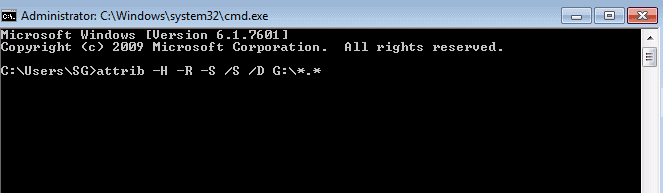
✍ Attrib syntax meaning:
- –h Used to clear the Hidden file attribute.
- –r Used to clear the Read-only file attribute
- –s Used to clear the System file attribute.
- The command line applies to matching files in the current directory and all of its subdirectories.
- /d applies command lines to directories.
Recover deleted files from hard drive using cmd
If you can't see files in your hard drive or other storage devices, it's likely that they have been deleted. In this case, you may need to use both the chkdsk and attrib commands in the Command Prompt to recover the deleted files. Alternatively, you can try recovering them from the Recycle Bin.
Step 1. Open cmd with administrator.
Step 2. Type chkdsk *: /f and press Enter. The * stand for the drive letter of your drive containing deleted files.
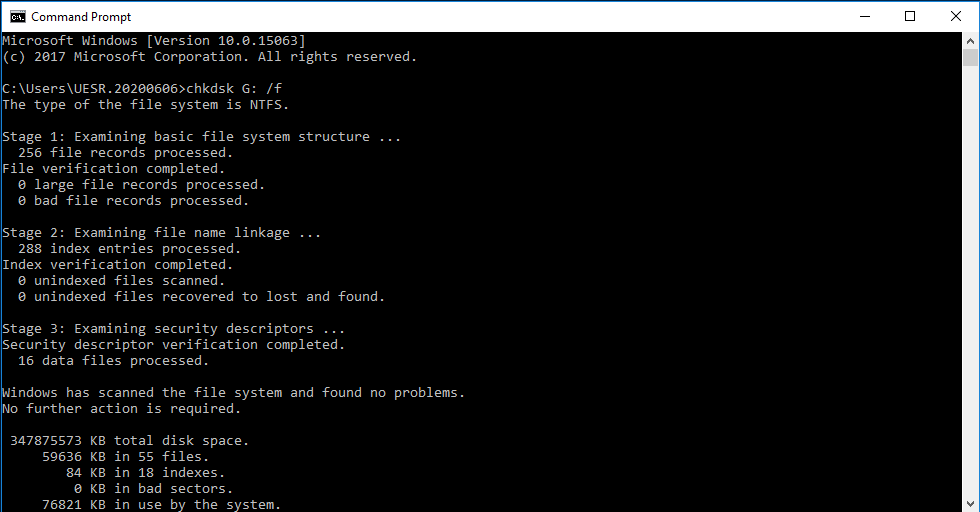
Note: The chkdsk command only works for recognized drives and may not function if a drive becomes RAW, resulting in the "CHKDSK is not available for RAW drives" error.
Step 3. You will be asked to run this command at the next system startup if the drive is locked. Type 'y' and press Enter to confirm this.
Step 4. Restart your system, wait for the disk check process to complete, and then type the drive letter in CMD and press Enter.
Step 5. Type attrib -h -r -s /s /d *.* and press Enter.
All recovered files will be saved in .chk format, which can then be converted to their original format and saved to a new location.
Recover deleted files from hard drive with Winfr.exe
If your files are still not showing in hard drive, you can try to recover deleted files from hard drive with command-line based data recovery software - Windows File Recovery, which also works for external disk and USB drive.
To use Windows File Recovery, you need to learn its syntax, recovery mode, and multiple switches, which can be complex. For a detailed guide, you can refer to the "How to use Windows File Recovery" resource.
winfr source-drive: destination-drive: [/mode] [/switches]
This software has two basic modes: regular and extensive, with the extensive mode having two advanced modes - Segment and Signature modes. The regular and Segment modes support only NTFS file system.
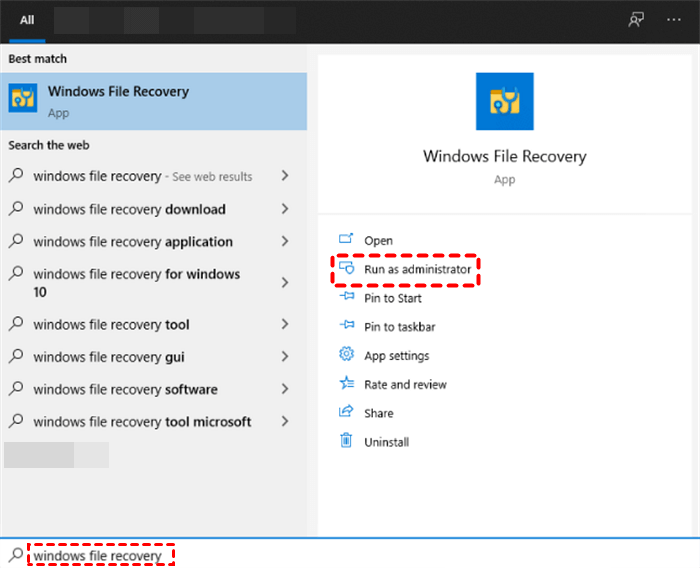
Step 1. To recover deleted files, download and install Windows File Recovery from the Microsoft Store. Search for "Windows File Recovery" in the store, select the app, and run it as an administrator to launch the recovery tool.
Step 2. Right-click your Local Disk (C:) and select "Properties" to view the file system and confirm the recovery mode and switches you will use.
The recovery mode & scenarios:
|
File system |
Scenarios |
Recommended mode |
|
NTFS |
Deleted recently |
Regular |
|
NTFS |
Deleted a while ago |
Extensive |
|
NTFS |
After formatting a disk |
Extensive |
|
NTFS |
A corrupted disk |
Extensive |
|
FAT and exFAT |
Any |
Extensive |
The Winfr.exe switches:
|
Parameter/switch |
Description |
Supported mode(s) |
|
/n |
To scan for a specific file, you can use the `find` command with various options. For example, to scan for a file named "example.txt" in the current directory, you can use the command `find .
|
|
|
/y: |
Recover specific extension groups, comma separated |
Signature |
|
/p: |
Specifies the path and file name of the log file to save the recovery operation results in. If not specified, the operation will save the log file in the default location on the recovery drive (for example, D:\logfile). |
All |
|
/segment |
In segment mode, the recovery option for NTFS drives using file record segments, also known as "segment-based recovery", is a technique used to recover data from a damaged or corrupted NTFS volume. This method involves breaking down the file system into smaller segments, called "file record segments", which are smaller chunks of the file system that can be independently recovered. |
Segment |
|
/signature |
In signature mode, recovery options are available for all file system types using file headers, allowing for recovery of data even when the file system is damaged or corrupted. |
Signature |
Step 4. Follow the examples below to recover deleted files from hard disk.
- To recover an entire folder, you can use the following command: `tar -xvf /path/to/folder.tar` where `/path/to/folder.
winfr C: D: /n \Users\Stephanie\Documents\Test\
- You can use the following command to recover files with the string "Test" in their names: `find . -type f -name "*Test*" -print`
winfr C: D: /r /n *Test*
The command prompt can be challenging for many users, requiring a significant learning curve. As a result, many people prefer using user-friendly, free software with a graphical user interface (GUI), such as Deep Data Recovery, for tasks like data recovery.
The software is capable of recovering files from various storage devices, including hard drives, external disks, USB drives, and SD cards, in Windows operating systems from 7 to 11, as well as Windows Server, and can handle different data loss scenarios such as accidental deletion, virus infection, disk format, and system crashes.
The software supports recovering deleted files of various types, including Word documents, Excel files, PPT, pictures, videos, compressed files, and more than 200 other types. The recovered files will retain their original file name, format, quality, and path.
Step 1. Download and install Deep Data Recovery software on your Windows system, then hover over the drive you want to scan and click "Scan" to start the recovery process.
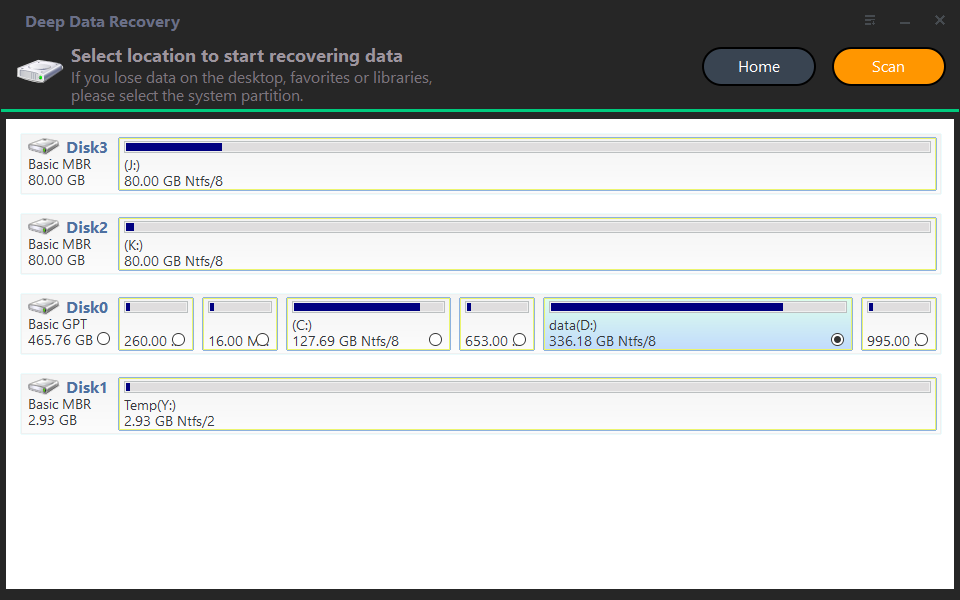
Step 2. The program quickly and deeply scans the selected drive to find deleted files and Raw files, displaying them for search or viewing.
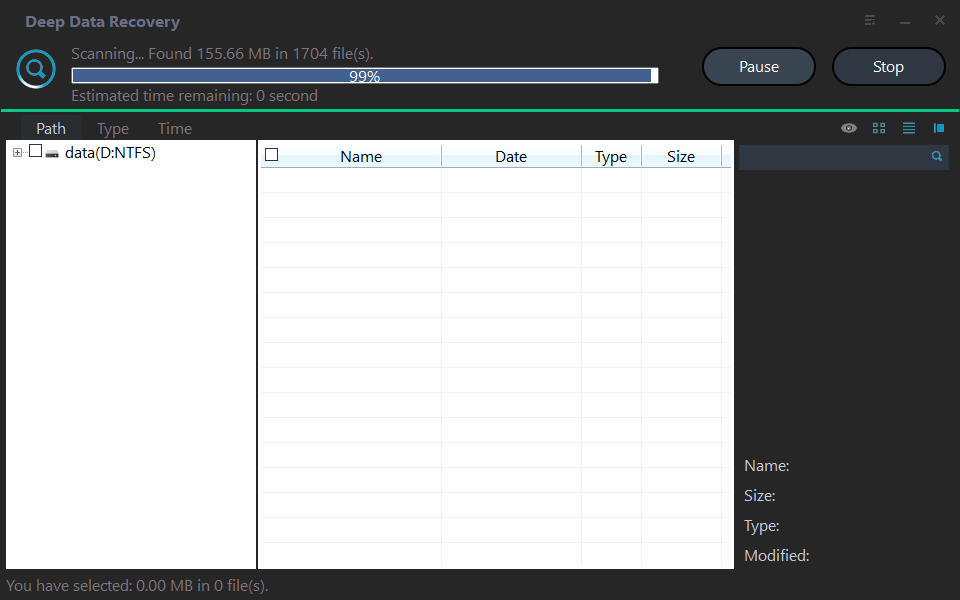
Notes:
- You can filter files through various criteria, including file name, type, date modified, size, and path, and even recover files from a specific folder.
- You can click the Stop or Pause button if you select the wrong disk or something goes wrong.
Step 3. During scanning, you can recover any file you want or wait for the final result and select all files or folders, then confirm and click "Recover xxx files".
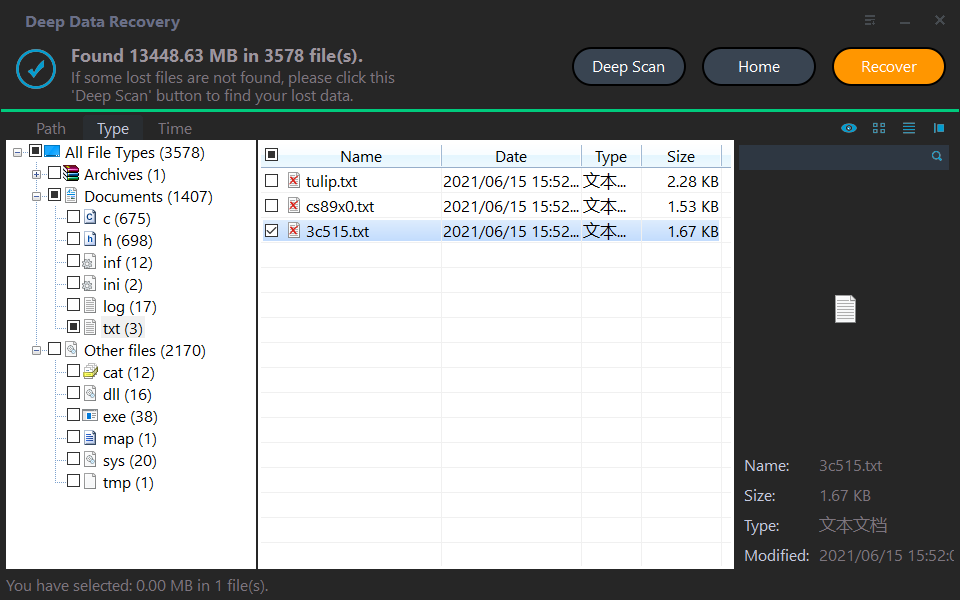
Note: Deep Data Recovery shows the number of lost files to be recovered and their total size, helping you verify if you've selected all lost files on that location.
Step 4. To recover files, select a new folder to store the deleted or lost files and confirm it by clicking "Select Folder". This will automatically recover files from the hard disk. Ensure the recovered files are not saved to their original location to avoid data corruption or permanent loss.
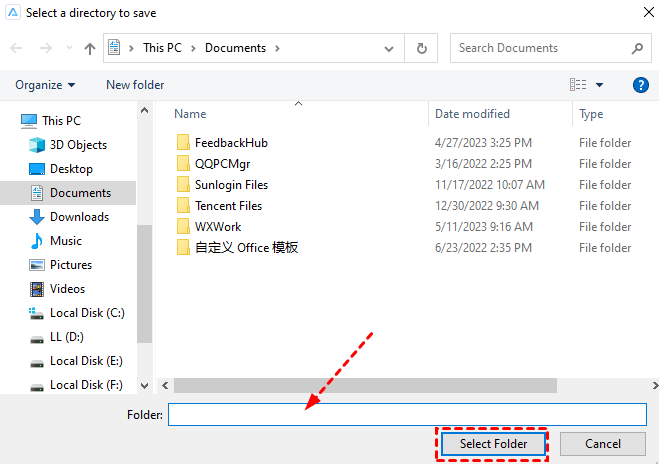
Notes:
- Deep Data Recovery allows users to recover deleted or lost files for free, up to 500MB in total, and unlimited files with an advanced edition.
- It can be used to recover files from formatted hard drives, recover files lost in cut and paste, and fix issues where Seagate external hard drive files are not showing up.
Recover formatted data from hard disk using cmd
Formatting a disk can result in data loss, and if it's already formatted, you may be prompted to format it again. In such cases, using the rescan command in the DiskPart tool can help recover data from a formatted hard disk.
Step 1. Open CMD with administrator.
Step 2. Type the following commands and press Enter to execute them one by one.
- diskpart
- list disk
- select disk *: (Replace * with drive letter of your formatted disk.)
- rescan
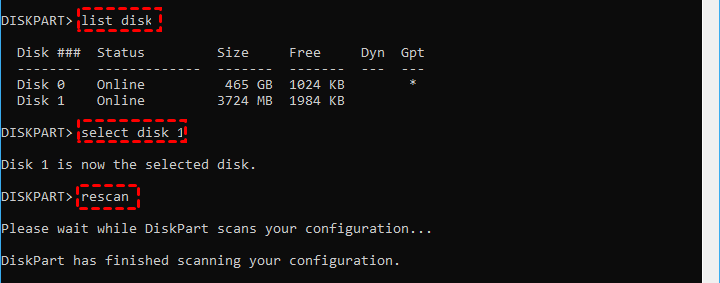
Step 3. Wait for the scan process to complete. It will recover data from a formatted hard disk.
✍ What if your hard drive is a system disk?
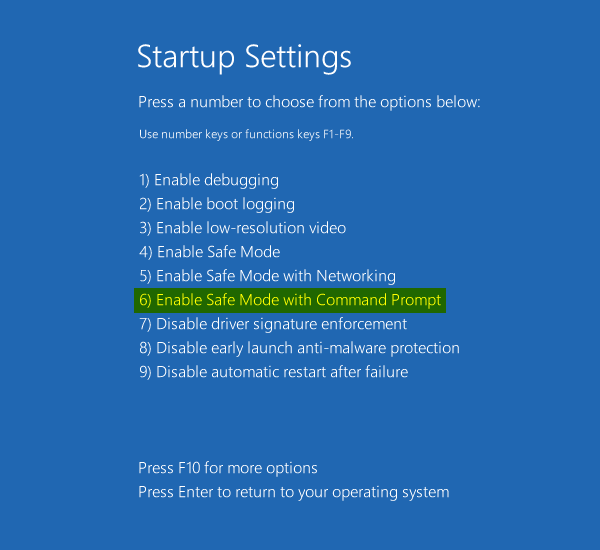
If your hard disk contains the system partition, you'll need to boot into safe mode and run the Command Prompt (CMD) to repair the disk and recover any lost data.
- To open Settings and go to Update & Security, press the Windows key + I keys on your keyboard. This will open the Settings app and take you directly to the Update & Security section.
- To access Windows recovery environment, click Recovery, go to Advanced startup, and hit Restart now to restart your computer and access the recovery options.
- Click Restart and select Enable Safe Mode with Command Prompt.
Recover files from coruppted hard drive using cmd
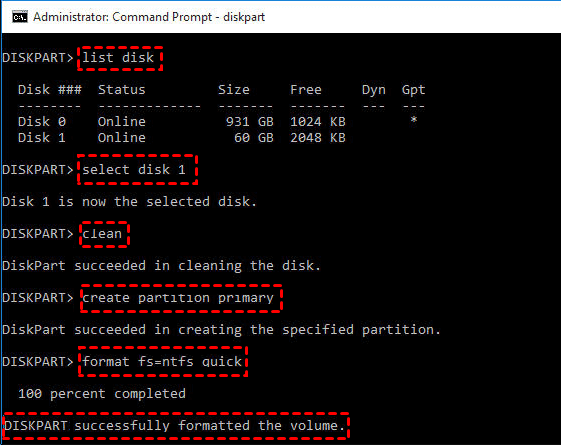
If you suspect your disk is damaged, try the format command in the DiskPart tool. If the disk contains important data, try to recover files from the hard disk first using the above methods. Deep Data Recovery is highly recommended for its multi-system compatibility and suitability for multiple data loss scenarios.
Step 1. Run CMD with administrator.
Step 2. Type diskpart as well as the following commands. Remember to press Enter after each line.
- list disk
- select disk *: (Replace * with drive letter of the damaged disk.)
- clean
- create partition primary
- format fs=ntfs quicks
To sum up
If you're trying to recover files from a hard drive using the Command Prompt (CMD), you can start by checking if the files are hidden using the attrib command. If they're not hidden, you can try one of five other methods to recover them.
Windows data recovery program isn't a substitute for regular backups. To avoid data loss, use free backup software like Qiling Disk Master Standard.
Related Articles
- CCTV DVR Data Recovery: How to Get Data From DVR Hard Disk
The CCTV DVR data recovery guide provides a step-by-step process to recover data from a DVR hard disk. Using professional DVR data recovery software and a previous hard drive backup, you can easily retrieve deleted surveillance videos/footages. - A Complete Guide to Recover Deleted Files
This guide explains A Complete Guide to Recover Deleted Files with clear steps, key checks, and practical tips. - Recover Unsaved or Deleted PSD (Photoshop) Files in 2022
If you've lost Photoshop files without saving due to accidental closure, crashing, or computer shutdown, you can recover them using Photoshop's AutoSave feature. Alternatively, you can use a data recovery tool like Qiling Data Recovery to easily recover deleted Photoshop files. - How to Recover Deleted Photos from SD Card on Android Phone
You can learn effective ways here to recover deleted photos from SD card on Android phone with SD card recovery software. Besides, you can also leran how to recover deleted photos from SD card on Android phone without computer by using Android data recovery app. - JPG/JPEG Recovery: How to Recover Deleted JPG/JPEG Files
If you've lost JPG/JPEG files and are unsure how to recover them, this article provides a solution. We've outlined various methods to recover deleted JPG/JPEGs, both online and offline, using a JPG/JPEG recovery tool. - M4A Audio File Recovery - How to Recover Deleted/Corrupted M4A Audio Files
To recover a deleted or corrupted .m4a file, follow these simple steps: first, select the target destination to scan for the .m4a file, then preview and recover the m4a audio file.
Products
Articles & Tutorials
- Data Recovery
- Data Backup
- File Recovery
- File Backup
- File synchronize
- System Backup and Restore
- Disk and Partition Clone
- Technical articles
- Disk Master Help
- Windows Deleted File and Disk Recovery Tutorials
- Windows File and Data Recovery Tutorials
- More Windows Tutorials for Install, Security, Files, and PC Tips
- Windows Boot, Repair, and Recovery Environment Tutorials
- Windows Backup Tutorials
- Windows Restore Tutorials
- Windows Clone and Migration Tutorials
- Windows Server Backup, Recovery, and Management Tutorials
- Windows Disk, Partition, and Storage Management Tutorials