Four Options: How to Recover Lost Data from Hard Disk for Free
- How can I recover lost data from my hard disk for free?
- What are the common causes of hard disk data loss?
- How to recover lost data from hard disk for free [four options]
- Option 1. Restore data from hard disk via Windows backup
- Option 2. Recover lost data from a hard drive using CMD via Windows File Recovery
- Option 3. Restore lost data via Qiling Disk Master after partition lost
- Option 4. Use Deep Data Recovery to restore hard disk after format
- Bonus tips: How to prevent hard disk data loss and protect data safety
- Conclusion
How can I recover lost data from my hard disk for free?
If you deleted files accidentally, you can try using free data recovery software like Recuva, Deep Data Recovery Wizard, or Disk Drill. These tools can scan your hard drive and attempt to recover deleted files. Be sure to stop using the affected drive and avoid writing new data to it to prevent overwriting the deleted files. You can also try using the built-in Windows feature, "Previous Versions," if you have System Restore enabled. However, please note that the effectiveness of these methods depends on various factors, such as the type of file system, the age of the deleted files, and the presence of disk errors.
- Question from Emily
What are the common causes of hard disk data loss?
Data loss can occur unexpectedly, such as from a sudden power outage or physical damage to the hard drive, or due to various reasons like accidental deletion, formatting, or virus attacks, resulting in the loss of important files and data.
- Changing the structure of the hard drive. The hard drive can be partitioned, divided, and resized, but this may result in data loss if not done carefully, as some information might not be transferred to the new drive.
- Hard drive formatting. Formatting your hard drive will erase all data, including files, photos, and programs, and you will need to reinstall your operating system and software.
- Damage to the hardware. Physical damage to a hard disk can occur due to improper handling or unexpected events, leading to potential data loss.
- Virus or malware attack. Data loss on a hard drive can also be caused by virus or malware attacks.
How to recover lost data from hard disk for free [four options]
After identifying the causes of hard disk data loss, we can move on to discussing four options for recovering lost data from a hard disk. These options will provide a clear path forward for individuals looking to retrieve their important files and data.
Option 1. Restore data from hard disk via Windows backup
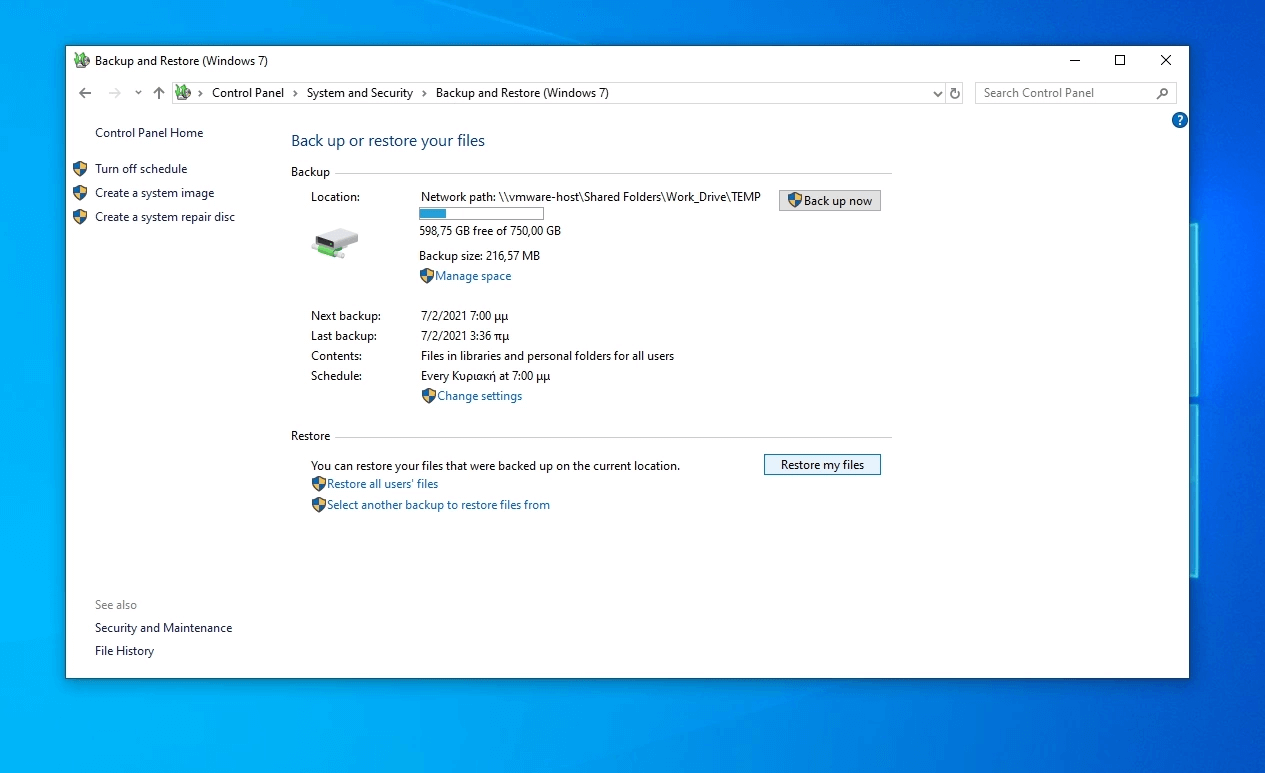
Backup and Restore, Windows 10's built-in backup and recovery program, can help you recover lost data, but you'll need to manually configure it. If you haven't already, you can move on to the next option.
Step 1. Press the Win + S on the keyboard and type Control Panel, then press Enter.
Step 2. Select System and Security > Backup and Restore (Windows 7).
Step 3. Click on Restore my files and follow the wizard to recover permanently deleted data.
Option 2. Recover lost data from a hard drive using CMD via Windows File Recovery
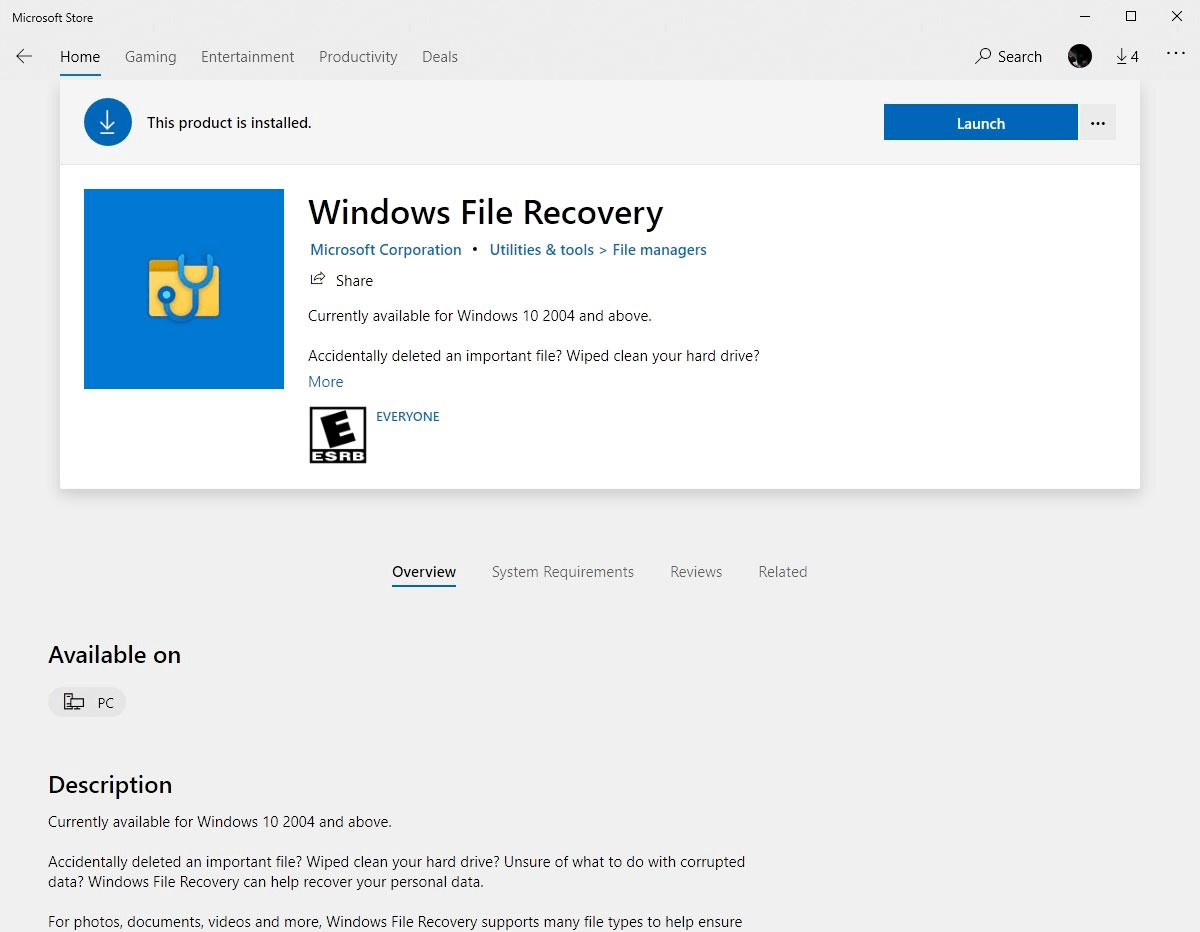
Windows File Recovery is a command-line tool that can help recover lost files from a hard disk, but it requires Windows 10 2004 or later to be installed.
Step 1. Download and install Window File Recovery on your computer from Microsoft Store and then open it.
Step 2.Open Powershell or Command prompt (run as administrator). In the command prompt, enter commands as the following command format:
winfr source-drive: destination-drive: [/mode] [/switches]

Notes:
- Because this is a command-Recovering erased data can be a complex process, especially for non-technical users, as it often requires following specific instructions in a line application, which can be confusing and overwhelming.
- The tool only works with Windows 10 versions 2004 and up.
- Even with Windows File Recovery, you may not be able to recover all of your lost data.
Option 3. Restore lost data via Qiling Disk Master after partition lost
If your data has been lost due to an entire partition being lost or erased during a hard drive structure change, Qiling Partition Recovery can assist you to recover your data. This tool can help you recover your data by scanning the hard drive and identifying the lost partition, allowing you to recover your files and data.
Step 1. Download, install and run Qiling Disk Master.
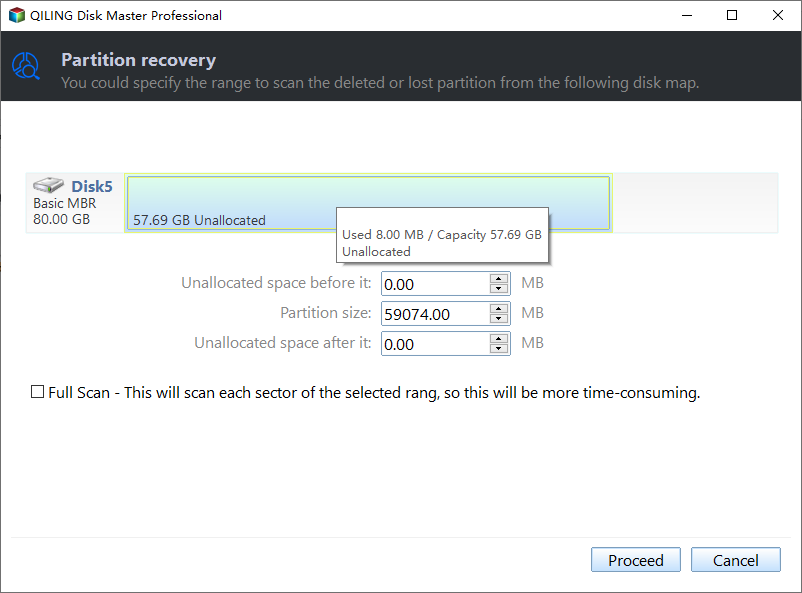
Step 2. Click on Partition Recovery Wizard on the disk management page and select the disk you want to restore.

Step 3. Select a search mode, preferably Fast Search for the first time, and then click Proceed.
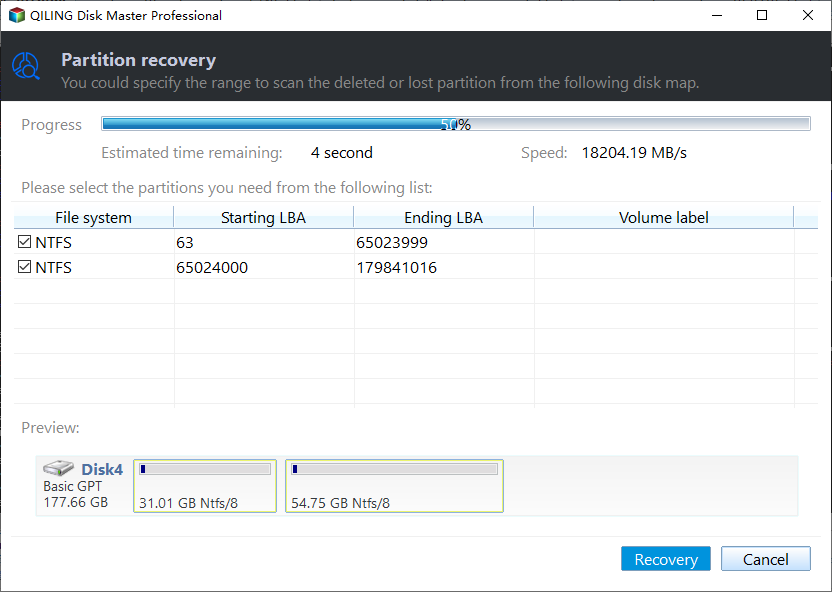
Step 4. Qiling Disk Master will show you the list of all lost or deleted partitions. You can select the one you want to recover, and then click on the "Recover" button.
Step 5. When the partition recovery process is completed, you will be informed by the Congratulations window. Click Finish.
Step 6. Then go to Windows File Explorer to check whether the deleted or lost partitions and files were recovered.
Option 4. Use Deep Data Recovery to restore hard disk after format
For various reasons such as disk format, system crash, or virus attack, you can use the powerful Windows Data Recovery Software Deep Data Recovery to recover lost data. This software allows users to recover over 200 types of files, including images, videos, documents, and office files like PDF, Word, PPT, and Excel. With a high success rate and fast scanning speed, it can help you easily restore lost hard disk data.
Step 1. Download, install and launch Deep Data Recovery on your computer.
Step 2. Hover the mouse over the drive and click Scan to scan.
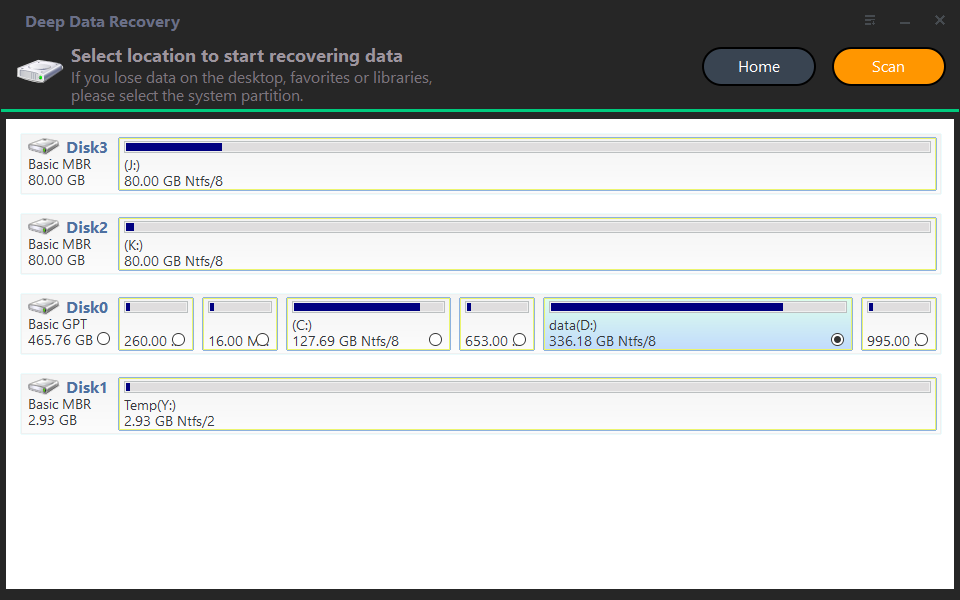
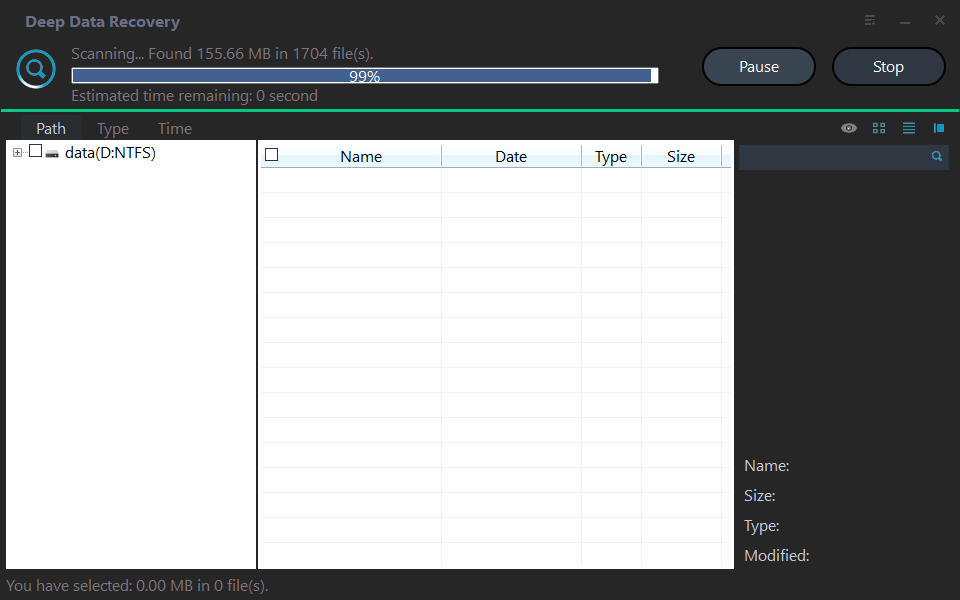
Step 3. You can stop the scanning process if you find the data you want to recover, and then proceed with the recovery process.
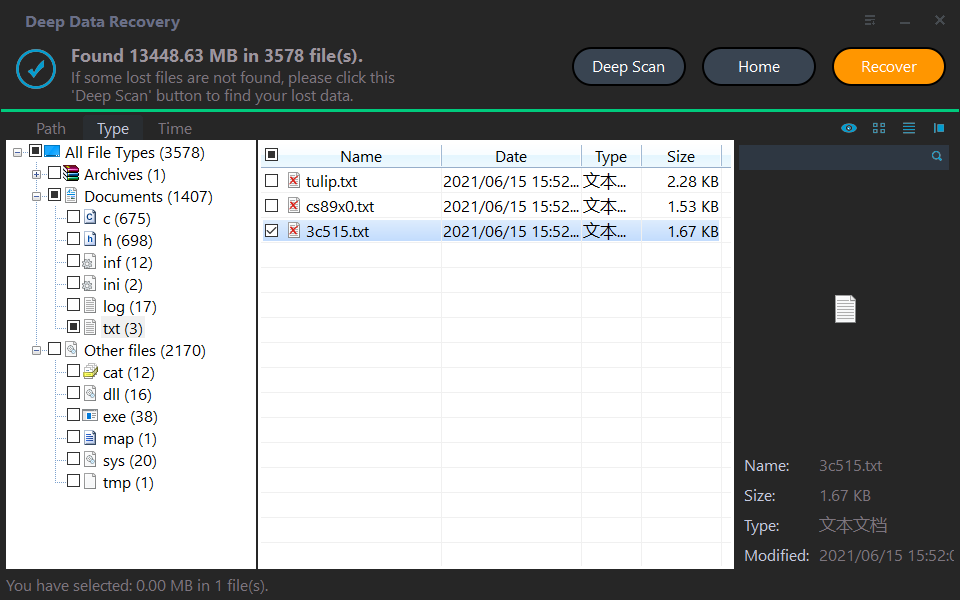
Step 4. Select the data you want to restore and click "Restore files" to set a destination folder for the recovered files.
Bonus tips: How to prevent hard disk data loss and protect data safety
To prevent partition loss, create a habit of backing up your disk partitions. You can use professional backup software like Qiling Disk Master to back up your partition's data, file backup, system backup, and disk backup in just a few simple steps.
Step 1. Download, install and launch Qiling Disk Master for Windows on your computer.
Step 2. Under the Backup tab, select the Disk Backup option.

Step 3. The Task Name can be set to help you distinguish backups from each other. Click Disks to choose the disk.

Step 4. To select a location for the disk image, click the folder-shaped button and choose from options such as backing up to a USB flash drive, CD/DVD, NAS device, or network drive, among others.

Step 5. Click Proceed to carry out disk backup and wait until the operation is complete. Click Finish to exit the interface.
Conclusion
If you've lost data from your hard disk, there are several free options to recover it. If you previously set up the Windows built-in utility Backup and Restore, you can use it to recover your data. Alternatively, if you have Windows 10 2004 or later installed, you can use the Windows File Recovery tool. If not, third-party tools like Qiling Disk Master and Qiling Data Recovery can also help you retrieve your lost data.
Data loss can be frustrating, but taking proactive measures can prevent such situations. Using a reliable backup tool like Qiling Disk Master is recommended to ensure your computer's data is safely stored, thus avoiding unexpected losses.
Related Articles
- How to Recover Deleted Tweets and Twitter Photos/Pictures/Images
If you've accidentally deleted your tweets or memories on Twitter, You can recover them using the methods outlined in this tutorial. - How Can I Recover EXE Files Automatically Deleted? Got It!
Use this guide to how Can I Recover EXE Files Automatically Deleted Got It and improve the chance of getting important data or partitions back safely. - How to Recover Deleted Files from Network Drive Shared Folder
Since there's no shared drive recycle bin, recovering deleted files from a network shared folder can be more challenging than from a local hard drive. - Top 9 Ways to Recover Folders Disappeared from Desktop Mac and Windows 10/8/7
If your folders have disappeared from your desktop on Mac or Windows, you can restore lost desktop files in 9 ways. One effective method is using Qiling data recovery software, which can retrieve lost or missing files with simple steps. - Undelete Partition Windows 10 - How to Recover Deleted Partition in Windows 10
If you accidentally deleted a partition in Windows 10, it's crucial to learn how to recover the deleted partition to avoid permanent loss. To do this, you can use undelete partition software to quickly restore the lost partition on your Windows 10 hard drive. - How to Recover Deleted Photos from Camera 360 on iPhone/Computer/Android Phone
This article explains how to recover deleted Camera 360 photos from iPhone, Android phone, and computer.
Products
Articles & Tutorials
- Data Recovery
- Data Backup
- File Recovery
- File Backup
- File synchronize
- System Backup and Restore
- Disk and Partition Clone
- Technical articles
- Disk Master Help
- Windows Deleted File and Disk Recovery Tutorials
- Windows File and Data Recovery Tutorials
- More Windows Tutorials for Install, Security, Files, and PC Tips
- Windows Boot, Repair, and Recovery Environment Tutorials
- Windows Backup Tutorials
- Windows Restore Tutorials
- Windows Clone and Migration Tutorials
- Windows Server Backup, Recovery, and Management Tutorials
- Windows Disk, Partition, and Storage Management Tutorials