How to Recover Permanently Deleted Excel File from Desktop?
- "How do I recover an Excel file that was not in the recycle bin?"
- How to recover permanently deleted Excel file from desktop?
- 1. Recover Excel file deleted from Recycle Bin via Previous Versions option
- 2. Restore Excel files from File History
- 3. Get deleted Excel file back from Windows Backup
- How to recover permanently deleted excel files if no backups?
- Wrap things up
"How do I recover an Excel file that was not in the recycle bin?"
Microsoft Excel workbooks are widely used globally due to their powerful data visualization and analysis capabilities, making them a crucial tool for many retailers, industries, and businesses.
Excel file data loss can be frustrating, with many users wondering how to recover unsaved Excel workbooks or permanently deleted Excel files from their desktop.
Having trouble recovering an excel File that was deleted by pressing shift and Delete. Please help me with the steps to recover the sheet.
- Question from Microsoft Community
If you are facing the same issue, try the methods below to recover deleted Excel files even after permanent deletion.
How to recover permanently deleted Excel file from desktop?
The Excel spreadsheet was likely deleted by either emptying the Recycle Bin or by pressing "Shift+ DEL" which bypasses the Recycle Bin.
If an Excel file was permanently deleted, it's likely that it was removed from the Recycle Bin. In this case, you'll need to recover the Excel file from the Recycle Bin.
If you have backups, you can use them to recover your files. If not, you can use a reliable data rescue tool to help you recover your files easily.
1. Recover Excel file deleted from Recycle Bin via Previous Versions option
The Previous Versions tool saves copies of files when File History or restore points are enabled, allowing users to revert to previous versions of their files.
To restore deleted Excel workbooks, you can restore the previous version of the file or folder, which will revert the folder to its earlier state and bring the Excel files back.
Step 1. To locate the previously saved Excel file, go to File Explorer, and navigate to the folder where the file was saved.
Step 2. To restore a previous version of a folder, right-click the folder, select Properties, then Previous Versions, choose an earlier version, and click Restore.
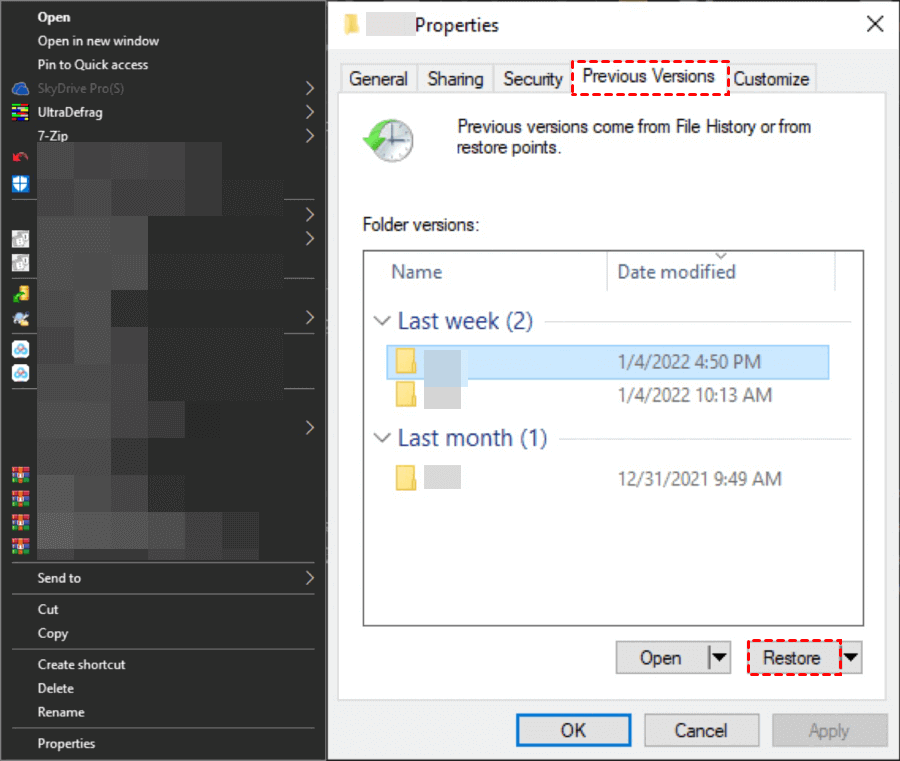
This tool can help you recover deleted Excel files by restoring them to their original location. It can also be used to find previous versions of Word documents, making it a useful tool for recovering lost work. When you use the tool, the deleted Excel file will be restored to its parent folder, effectively bringing it back to life.
2. Restore Excel files from File History
File History is also a good option when you need to recover permanently deleted files from computers. It records all modifications every hour by default, making it a useful feature for recovering deleted files.
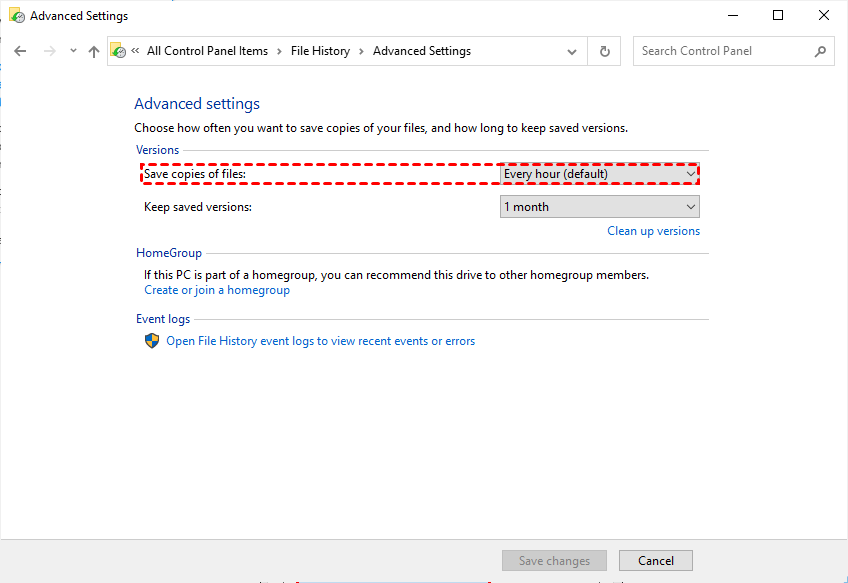
To restore lost or deleted items, you can use the "Restore" feature, which allows you to recover previously deleted files or folders. This feature is usually found in the "Recycle Bin" or "Trash" section of your computer or mobile device.
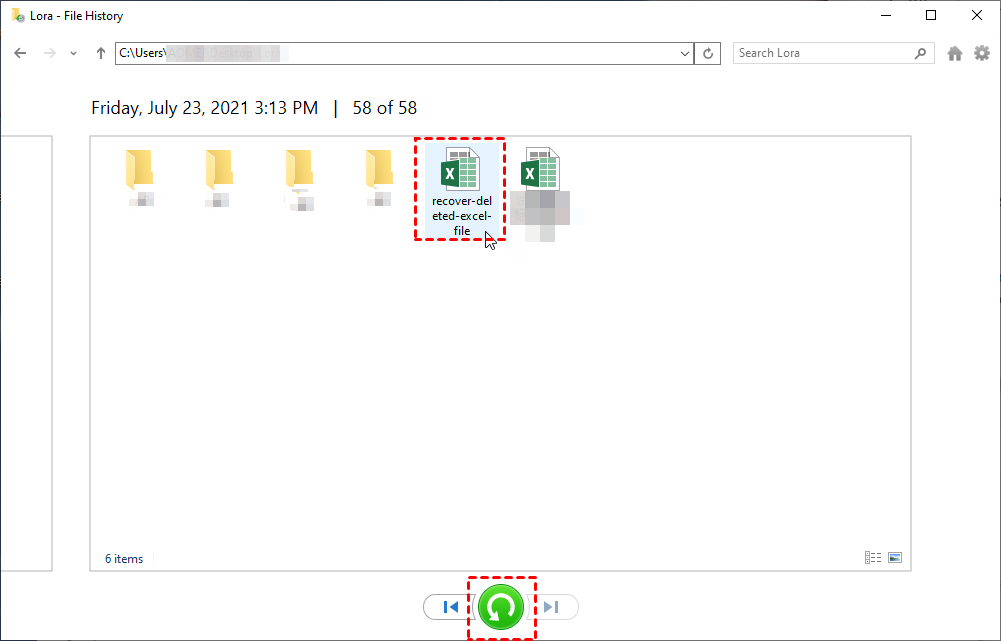
Step 1. Start Control Panel > System and Security > File History.

Step 2. Click Restore personal files.
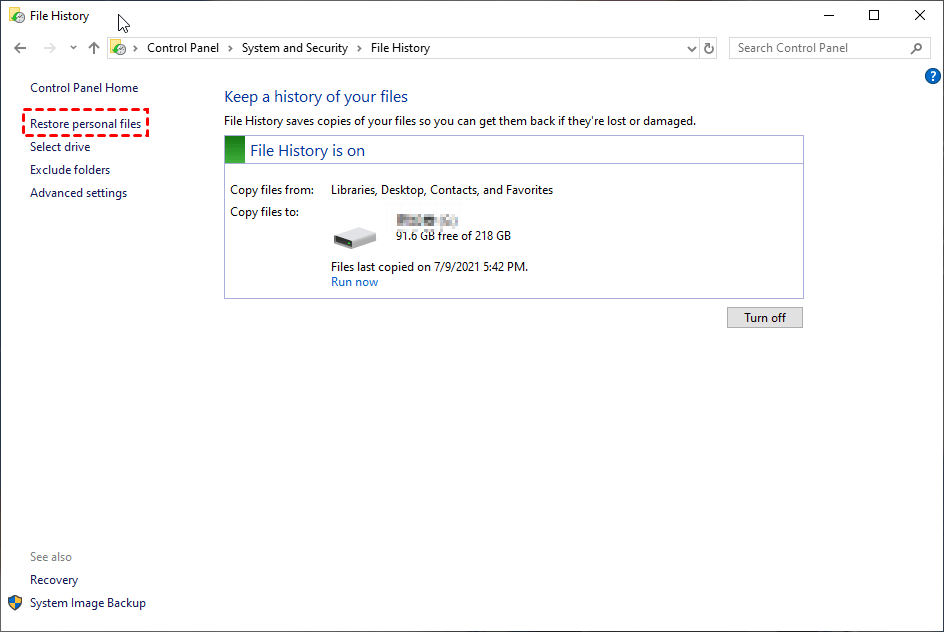
Step 3. To recover deleted Excel files, select the files you need from the list of deleted files, click the "Recover" button, and then click the left arrow icon to view earlier versions of the files.
3. Get deleted Excel file back from Windows Backup
If you've switched from a Windows 7 device to a Windows 10 machine, you might be familiar with the Backup and Restore feature. This feature allows users to store and restore files that were backed up on a selected location.
You can select any drive as the source, except an external hard drive, and choose what you want to back up.
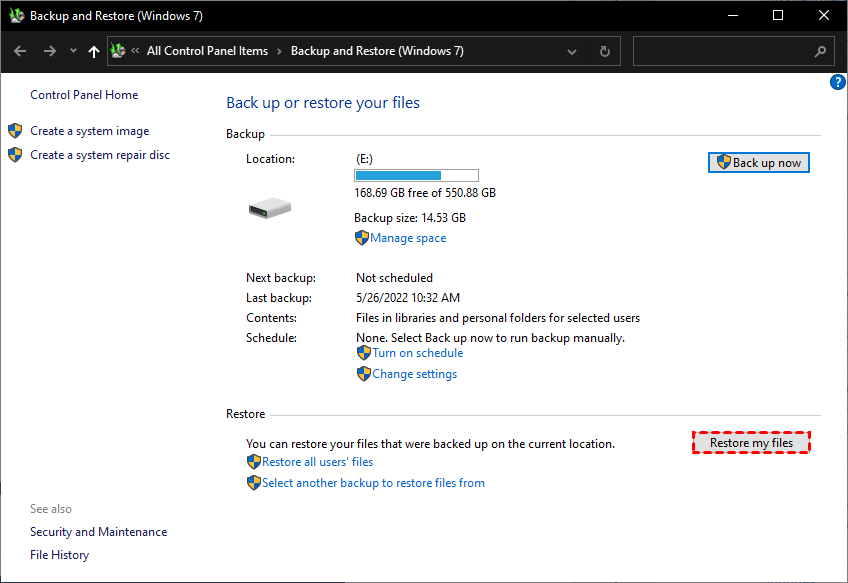
Step 1. To access the Backup and Restore (Windows 7) feature, start the Control Panel, then navigate to System and Security, and finally click on Backup and Restore (Windows 7).

Step 2. Click Restore my files.
Step 3. Click on "Browse for files/folders", then select the Excel files you need from the desktop folder and click "Next".

Step 4. Choose a preferred destination > click Restore.
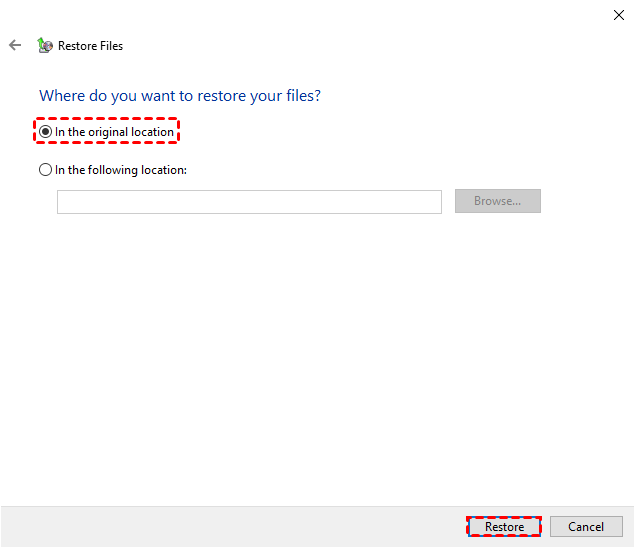
Thus, you could get back deleted Excel files from backup.
How to recover permanently deleted excel files if no backups?
While the means offered above require a backup or advanced actions to prevent data loss, accidents can still happen unexpectedly, leaving users without clues and making it challenging to guard against data loss.
With the help of reliable Windows data recovery software, you can easily scan and recover data from internal or external hard disks, including those that have been formatted or corrupted.
Deep Data Recovery is one of the eligible tools.
♦ This software is specifically designed for Windows users and can quickly detect and restore lost or deleted files from various storage devices, including HDD, SSD, USB, and SD cards.
♦ 200+ types of files are supported, including Excel, Word, Office files, and various media types like photos, videos and zip files.
♦ All deleted files will be intact in formats/filenames/paths/quality.
♦ Advanced scanning technology allows for the quick location of deleted and missing data, often in a matter of seconds to minutes.
♦ This tool is compatible with Windows 11/10/8/7 SP 1 & Server, and works with various file systems including NTFS, exFAT, FAT32, and ReFS.
If you accidentally deleted an Excel file from your desktop, follow these steps as soon as possible to improve the chance of recovery.
Step 1. Install and run the app, then hover the mouse over the C: drive and click the "Scan" button.

Step 2. File filtering and sorting options are available, including by Type, Size, Date modified, Path, and more.

Step 3. To recover Excel files deleted from the Recycle Bin, go to the Deleted files section, navigate to the Desktop, select the Excel files you need, and click Recover. This will quickly and easily restore the deleted Excel files.

This software can help you recover deleted or corrupted Excel spreadsheets, Word documents, and other Office files, making it a useful tool for anyone who works with Microsoft Office files.
Wrap things up
3 feasible methods that require a backup and an easier Windows data recovery app are introduced to help you solve the problem of how to recover permanently deleted Excel file from Desktop.
If you've experienced file loss or deletion, consider using File History, Previous Versions, or Windows backup to recover your lost files.
If you're looking for help with recovering your lost data, consider Deep Data Recovery as your trusted ally. Without a backup, they can be a lifesaver, helping you retrieve your important files and get back to normal.
To prevent further data loss, it's highly recommended to make backups from time to time, and using a reliable backup software like Qiling Disk Master can help protect your data steadily and firmly.
Related Articles
- WD My Cloud Data Recovery - Recover Deleted Files from WD My Cloud
Best WD My Cloud recovery software free download. It can recover data from WD My Cloud hard drive or WD My Cloud home. No matter whether the files were lost by deleted, formatted, and more. Try this program to WD My Cloud recover deleted files. - How to Repair a Corrupted Hard Disk Without Formatting It in Windows 10/8/7
This guide will show you how to fix a corrupted hard drive in Windows 10/8/7 without formatting it, and also introduce you to a program that can help recover data from your hard drive to a safe place, giving you five ways to do so. - How to Fix Database from MDF File in SQL Server 2008/2008 R2
A database failure in SQL Server 2008 or 2008 R2 indicates corruption and can be resolved by restoring the database from its MDF file. To repair the SQL database, you can either use the MS SQL itself or employ Qiling MS SQL Recovery, a dedicated SQL repair tool. - How to Recover Deleted YouTube Videos with or Without Link
You can recover deleted YouTube videos by using various methods, including the WayBackMachine, which can retrieve videos from archived web pages, or data recovery programs that scan your device for deleted files. - How to Recover Deleted Photos from Picasa
Picasa photo recovery: if you want to retrieve pictures from Picasa on Windows or Mac after you losing them coincidentally or deleted intentionally, try the simple 3 steps to recover deleted photos from picasa in this article. - Canon PowerShot Photo Recovery – Recover Deleted Photos from PowerShot
If you've accidentally deleted photos on your Canon PowerShot and want to recover them, follow these steps. To recover deleted photos on Windows, first, download and install a reliable photo recovery software such as Disk Drill or Deep Data Recovery Wizard.
Products
Articles & Tutorials
- Data Recovery
- Data Backup
- File Recovery
- File Backup
- File synchronize
- System Backup and Restore
- Disk and Partition Clone
- Technical articles
- Disk Master Help
- Windows Deleted File and Disk Recovery Tutorials
- Windows File and Data Recovery Tutorials
- More Windows Tutorials for Install, Security, Files, and PC Tips
- Windows Boot, Repair, and Recovery Environment Tutorials
- Windows Backup Tutorials
- Windows Restore Tutorials
- Windows Clone and Migration Tutorials
- Windows Server Backup, Recovery, and Management Tutorials
- Windows Disk, Partition, and Storage Management Tutorials