Partition Is Missing in Windows 10? Easily Recover It! (Video)
- Partition missing in Windows 10
- Is it possible to recover missing partitions in Windows 10?
- Why is your partition missing in Windows 10?
- The top two ways for Windows 10 missing partition recovery
- Method 1: Recover missing partitions with professional partition recovery software
- Method 2: Assign drive letter to missing partition in Windows 10
- (Solved) My files missing after Windows 10 partition recovery
- More FAQs about partition recovery
- Bottom line
✨How to Recover Missing Partition in Windows 10?
Partition missing in Windows 10
Is it possible to recover missing partitions in Windows 10?
The hard drive is often divided into separate parts called partitions, allowing users to store system and personal data separately. However, partitions can become inaccessible or fail to show up due to various issues, such as a missing drive letter, accidental deletion, corruption, or other unknown reasons.
In Windows 10, a missing partition can sometimes be recovered. The operating system simply removes the partition's information from the partition table when a partition is lost, but the actual data remains. In Disk Management, the missing partition is often marked with an asterisk, Unallocated, or RAW.
Why is your partition missing in Windows 10?
In Windows 10, partitions may go missing due to various reasons. These include accidental deletion, disk formatting, operating system crashes, disk corruption, file system errors, and hardware issues such as faulty disk controllers or malfunctioning hard drives. To avoid partition loss in the future, it's essential to regularly back up important data, use disk imaging software, and keep the operating system and drivers up to date. Additionally, being cautious when using disk management tools and avoiding sudden power outages or shutdowns can also help prevent missing partitions. By understanding these causes, you can take preventive measures to protect your data and prevent partition loss.
- Users' improper operation
- Partition table corruption
- Loss of the volume label, drive letter, or partition name
- Bad sectors or tracks
- Unexpectable Power failure
- Virus attacks and malware
- Repartition hard drive
- Incompatible file system
The top two ways for Windows 10 missing partition recovery
If your partition is missing in Windows 10, all the data in the partition will be deleted eventually. You can try to recover the missing partitions using reliable partition recovery software, such as Qiling Partition Recovery Wizard, which is the easiest method.
Before starting, please be sure you don't do the following items. They are risk of overwritting your data on the disk, making data recovery more difficult.
- Make any new operations on the hard disk.
- Create a new partition on the unallocated space.
- Rebuild the partition table.
- Reformat the hard disk.
Method 1: Recover missing partitions with professional partition recovery software
If your partition is missing, a professional recovery tool can help rescue it and your data. The Partition Recovery wizard in Qiling Disk Master Professional can recover deleted, lost, or missing partitions in Windows 10 or other operating systems.
This software offers two advanced scanning methods to thoroughly scan a disk and find all recoverable partitions in simple steps. It supports disks and partitions formatted with FAT, NTFS, Ext2, Ext3, and Ext4 file systems.
- Fast Search: The recommended method is to use the scan feature, which quickly scans your disk to find deleted or lost partitions. If this method doesn't work, you can still try the Full Search feature.
- Full Search: This method will scan every sector of the selected disk, which will make it more time-consuming.
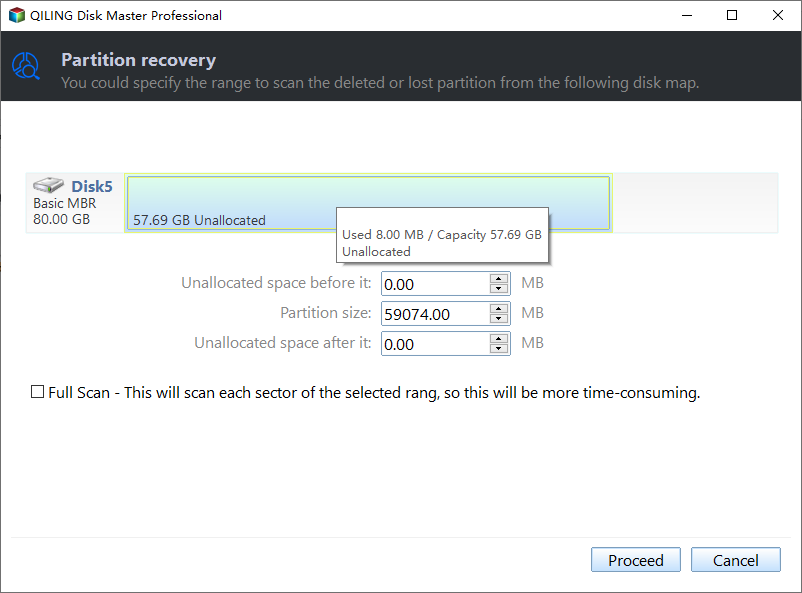
Step 1. Install and launch Qiling Disk Master Professional, select the needed disk and click "Partition Recovery" to proceed.

Step 2. Select Full Search to find your desired partition, then click Proceed.
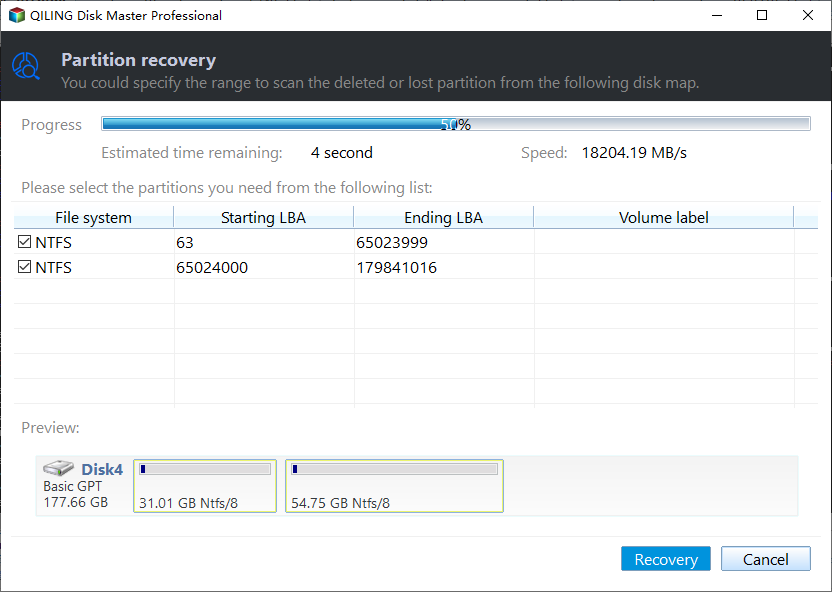
Step 3. This application will show all hard disk partitions, allowing you to select and recover the desired partition by clicking the "Recover" button.
If you're experiencing the "my partition drive is missing" issue in Windows File Explorer, you can try to recover the missing partition by using a data recovery software. If the data in the missing partition hasn't been covered or overwritten by new data, files and folders will be restored together with the partition. This way, you can check whether the issue is fixed in Windows File Explorer.
Method 2: Assign drive letter to missing partition in Windows 10
In some cases, a partition may not be missing but rather invisible due to lacking a drive letter, and will be marked with an asterisk or "Unallocated" in Disk Management. To resolve this, you can assign a new drive letter to the partition using Disk Management or the Command Prompt.
#1: Missing partition in Windows 10 - Fix in Disk Management
Step 1: To access Disk Management and locate the unallocated partition, press the Windows key + R to open the Run dialog box, type 'diskmgmt.msc', and press Enter. In the Disk Management window, find the partition marked as Unallocated or with an asterisk, and note its size.
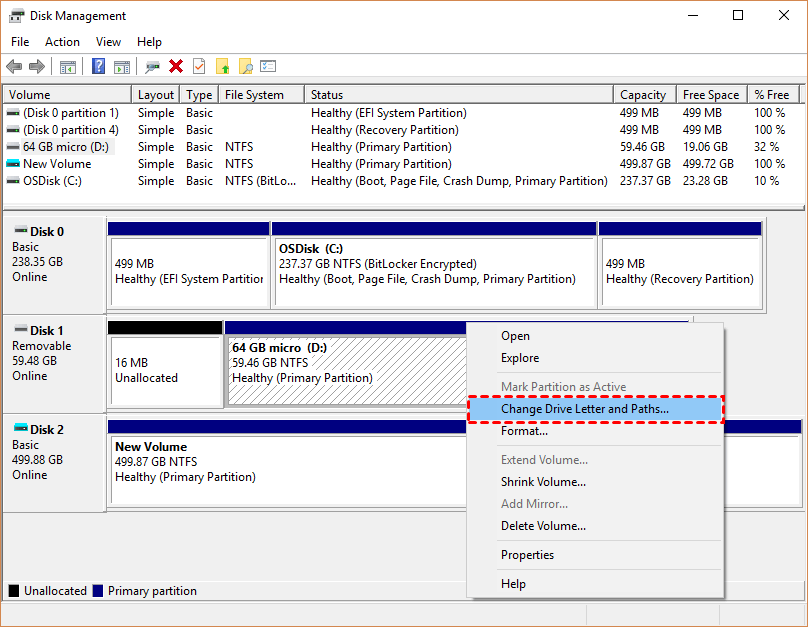
Step 2: Right-click on the lost partition and select "Change Drive Letter and Paths".
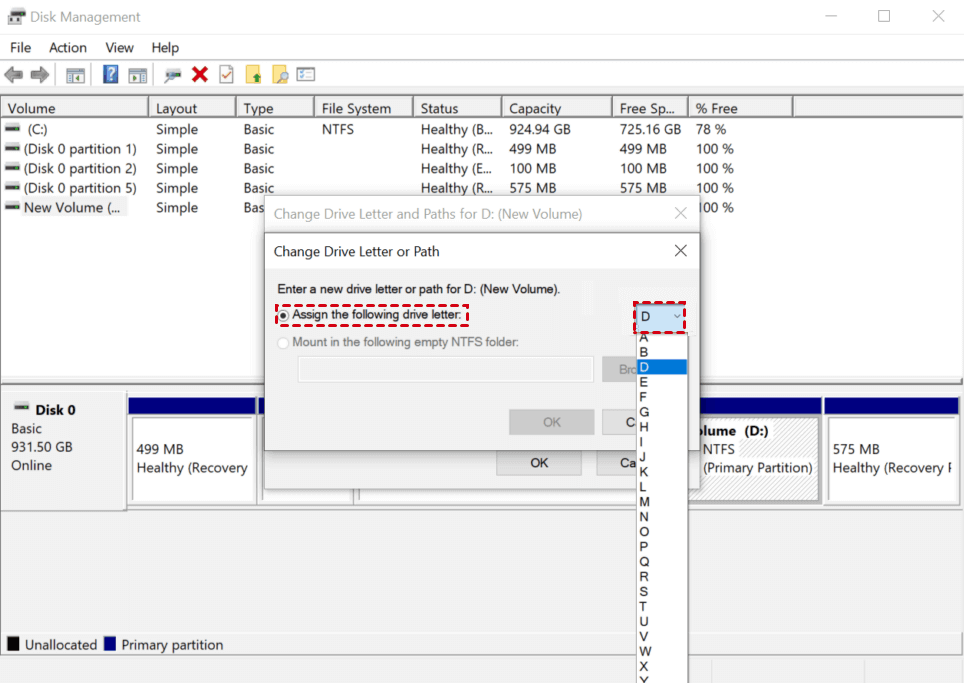
Step 3: To assign a drive letter to the USB drive, click on "Assign the following drive letter" and then click "OK" to proceed.
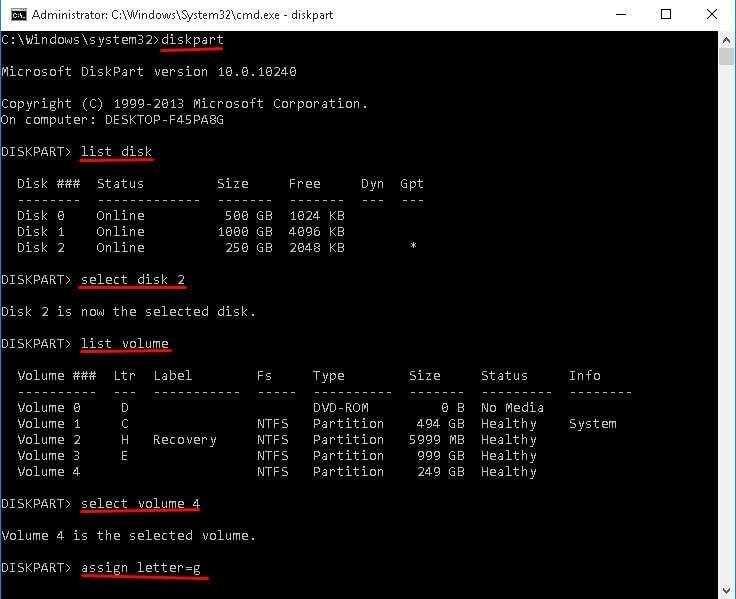
#2: Partition disappeared in Windows 10 - Fix it with CMD
Step 1: To find a missing partition, press the Windows key + R to open the Run window, type "diskmgmt.msc", and open Disk Management. Look for a volume marked as Unallocated or with an asterisk, which indicates a missing partition. Take note of the partition size.
Step 2: To run the Command Prompt as an administrator, press the Windows key + R to open the Run dialog box, and then type "CMD" in the text field. Clicking "OK" will open the Command Prompt with administrator privileges.
Step 3: Type "diskpart" in the CMD window and hit Enter.
Step 4: Type "list disk" and hit Enter. All disks in the computer will be on the list.
Step 5: To recover a missing partition, type `select disk #` (replace # with the number of the hard disk that contains the missing partition) and press Enter.
Step 6: The command "list volume" is used to display all volumes on a disk. When executed, it will show a list of available volumes, including their names, sizes, and other relevant information. This command is typically used in operating systems, particularly in the context of disk management and storage.
Step 7: To restore the missing partition, type "select volume #" and press Enter, replacing # with the volume number of the missing partition.
Step 8: To assign a drive letter to a new drive, type the command `assign letter=#` and press Enter, replacing `#` with an available drive letter from C to Z. For example, if you want to assign the letter "D" to a new drive, you would type `assign letter=D` and press Enter.
(Solved) My files missing after Windows 10 partition recovery
If your files aren't recovered completely, you can try a reliable data recovery software like Deep Data Recovery to scan the recovered partition for data recovery, which is fast and has a high success rate.
- The software provides two scanning options: Quick Scan and Deep Scan. These scans thoroughly examine the disk to identify recoverable files, including pictures, documents, videos, and audio.
- It supports over 200 file formats, including images, videos, audio files, documents, and more.
- It applies to all-Data loss scenarios can be inclusive, encompassing various situations such as lost or deleted partitions, formatted disks, recycle bin recovery, virus attacks, and even system crashes. These scenarios can occur unexpectedly, causing significant data loss and requiring immediate action to recover the lost data.
- The software is compatible with all major operating systems, including Windows 7, 8/8.1, 10, 11, and Windows Server.
Now, download data recovery software -Deep Data Recovery to have a try!
Step 1: After loading the partition in Windows 10, hover the mouse over it and click "Scan".

Step 2: The software will perform Quick Scan and Deep Scan methods to scan every sector of an external disk and display all recoverable files.

During the process, you can search the file name or filter your lost files by file type, date modified or size.
- Type: The program will have the ability to scan and display all file types on the local drive, including images, videos, documents, emails, web pages, and compressed files.
- Data Modified: The system allows users to select from various time frames for viewing data, including today, yesterday, the last 7 days, the last 30 days, and a custom option for more specific time periods.
- Size: This tool enables you to filter files based on their size, with options to select from a range of sizes: less than 128KB, 128KB to 1MB, 1MB to 512MB, and files larger than 512MB, or to set a custom size range.
Step 3: Select the lost files you want to recover, click the "Recover" button, and choose a new location to save the files, making sure to avoid overwriting any existing data.

This data recovery software can be used to recover deleted files in various Windows Server versions, including 2012, 2016, 2019, 2022, and their respective R2 versions.
More FAQs about partition recovery
Unfortunately, it's not possible to recover a deleted partition using the Command Prompt (CMD). However, you can assign a drive letter to the missing partition, which is essentially a way to "recover" it in the sense that you can access it again, but not actually retrieve any lost data.
If the partitions are corrupted due to a corrupted file system, you can use the CHKDSK command to repair them. To do this, open a command prompt and enter the command "chkdsk F: /f /r /x", replacing "F" with the drive letter of the partition you want to repair, and press Enter. This will run a full diagnostic and repair the partition.
To identify a missing partition in Windows 10, open Disk Management by right-clicking on the Start button, selecting "Disk Management", and look for unallocated space or a partition with no drive letter assigned.
To prevent partition loss, make a regular backup using Windows built-in tools like Windows Backup & Restore or File History, which may require an external hard drive. Alternatively, use a simple backup software like Qiling Disk Master to back up hard drives, partitions, and files. This will help ensure your data is safe and prevent loss in case of a partition issue.
You can recover a missing partition in Windows 10 by using built-in tools like Disk Management or DiskPart. These tools allow you to assign a drive letter or rebuild the partition table, potentially making the missing partition visible again.
Bottom line
Partition recovery isn't too difficult to perform if you choose the right method. Lacking a drive letter and accidental deletion are the most common reasons causing partition missing. Besides, if your partition is missing due to other unknown reasons, Qiling Partition Recovery Wizard would be your best choice to recover the missing partition.
Related Articles
- Sony Handycam Camcorder Video Recovery
You can download Sony video camera data recovery software for free to recover deleted or formatted videos and images from your Sony camera. This software can help you retrieve your lost data after a careless deletion or accidental formatting. - [Solved] SQL Server Error 3013/3266: Backup Database Is Terminating Abnormally
You're experiencing SQL Server error 3013, but there are ways to fix it. Methods include Qiling MS SQL Recovery, which is a reliable tool that can easily repair SQL server databases and resolve various SQL database repair issues. - The Add-In Template Is Not Valid in Word? 4 Fixes Here!
Fix the Word add-in template error by checking template paths, startup folders, and related Office settings. - How to Fix 'The semaphore timeout period has expired'
Fix 'The semaphore timeout period has expired' with clear Windows repair steps and precautions to protect your system or data. - How to Recover Deleted YouTube Videos
Here in the article, let's see how to recover deleted YouTube videos, how to recover deleted YouTube offline videos, and how to recover deleted YouTube videos with link. - Archive Recovery - Recover Deleted/Lost Zip and RAR Files
This guide explains Archive Recovery - Recover Deleted/Lost Zip and RAR Files with clear steps, key checks, and practical tips.
Products
Articles & Tutorials
- Data Recovery
- Data Backup
- File Recovery
- File Backup
- File synchronize
- System Backup and Restore
- Disk and Partition Clone
- Technical articles
- Disk Master Help
- Windows Deleted File and Disk Recovery Tutorials
- Windows File and Data Recovery Tutorials
- More Windows Tutorials for Install, Security, Files, and PC Tips
- Windows Boot, Repair, and Recovery Environment Tutorials
- Windows Backup Tutorials
- Windows Restore Tutorials
- Windows Clone and Migration Tutorials
- Windows Server Backup, Recovery, and Management Tutorials
- Windows Disk, Partition, and Storage Management Tutorials