Guide to Recover Deleted Files with System Restore in Windows 10, 11
What is System Restore?
System Restore is a Microsoft Windows feature that protects and repairs the computer software by reverting system files, installed programs, Windows Registry, and system settings to a normal working condition, rather than reinstalling the Windows OS, which can be difficult to recover from.
System Restore is a complete PC backup that creates snapshots of system files and the Windows Registry, allowing you to restore files to a previous state by reverting to a selected restore point.
Will a Restore Point recover deleted files?
Will a restore point recover deleted files? It's proven to be possible. Please note these tips if you're going to recover deleted files with System Restore.
▶Win10 and Win11 users need to activate System Restore manually.
▶In Windows 10/11, the restore point cannot be kept for more than 90 days.
▶The restoration process won't touch personal files like documents, music, pictures, and videos, but will remove apps, drives, and updates added after a specific Restore Point.
▶If you upgrade or reinstall the operating system, the restore point of the latest version will be automatically deleted by Windows.
▶System Restore will automatically clean up old restore points if there is not enough space available to create a new one, so please ensure you have enough space on your computer before running System Restore.
How to recover deleted files with System Restore in Windows 10, 11?
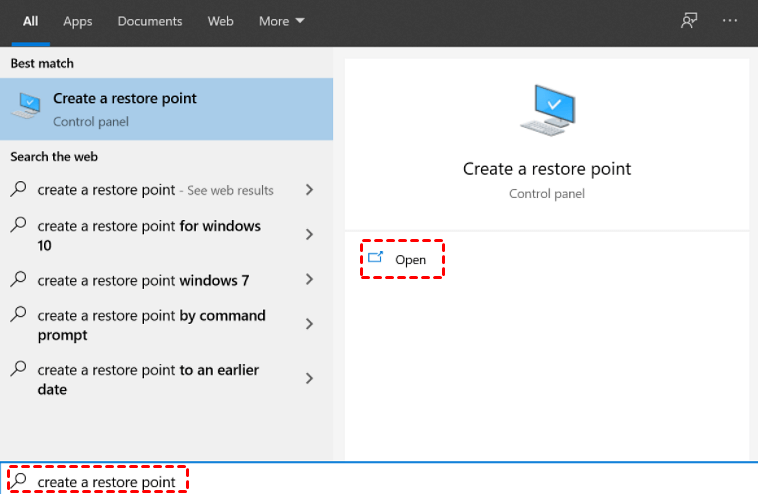
To recover deleted files with System Restore in Windows 10/11, follow these steps: Go to the Start menu and type 'Create a restore point' and open it. Click on 'System Protection' and then 'Configure' on the bottom left. Check the box next to 'Turn on system protection' and set the disk space to a suitable size.
Step 1. To create a restore point, open the control panel and search for "Create a restore point".
Step 2. Click "System Restore" > "Next".

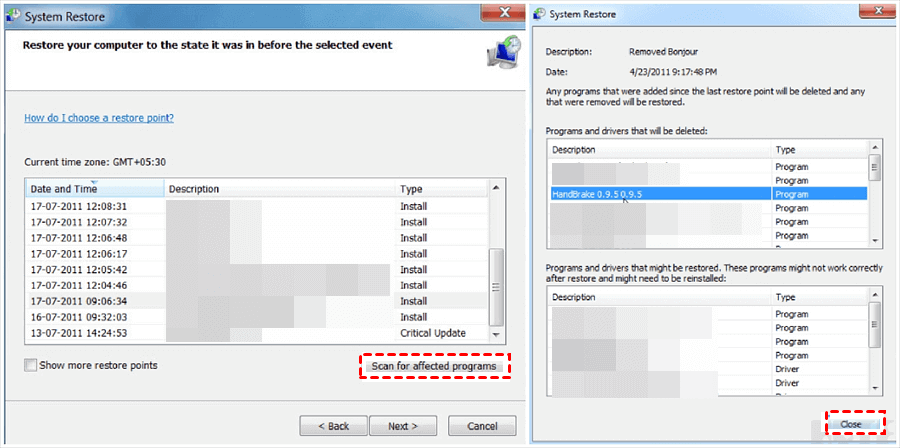
Step 3. After selecting a restore point, click on "Scan for affected programs" to see a list of items that will be removed, and then close the window.
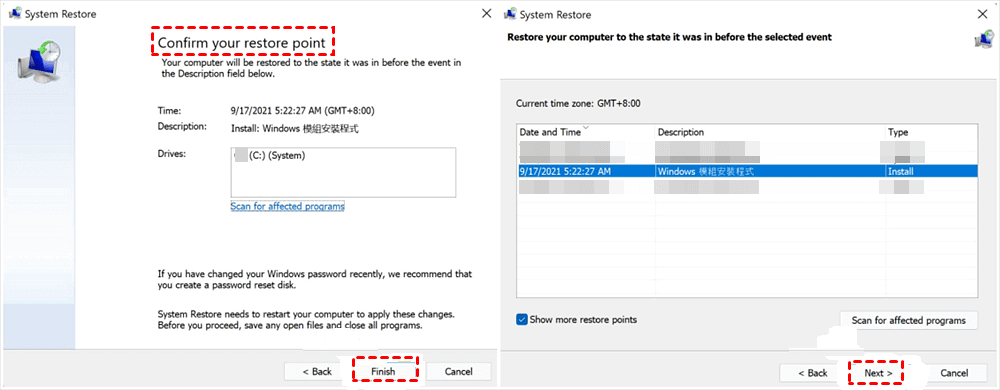
Step 4. After checking your selected restore point, click "Finish" > "Next".
Step 5. To begin the System Restore process, click "Yes" to confirm. This will initiate the restoration process, which cannot be interrupted once started. After clicking "Yes", you can close the last window.
Alternative: recover deleted files in Windows 10, 11 via data recovery software
To recover deleted files in Windows 10/11 without System Restore, you can use a third-party file recovery software, such as Deep Data Recovery Wizard, to scan your hard drive and recover deleted files. This method can help you recover deleted files without affecting your system or newly added files and customized settings.
Consider using reliable data recovery software like Deep Data Recovery, which can simplify the backup process and provide advanced recovery technology.
To achieve a higher partition data recovery rate, it's best to leave your PC and other storage devices unchanged after data loss, avoiding any modifications or changes. This helps prevent overwriting or deleting of the lost data, increasing the chances of successful recovery.
Please get an overview of this powerful and user-friendly software below.
❥Recover the deleted/lost files from HDD/SSD/USB and other storage devices.
❥Recover over 200 types of data, including Word, PPT, Excel, Photo, Audio, Video, Email, Webpages, and Compressed files.
❥Get the original format for the deleted/lost data.
❥The combined scanning method of Quick Scan and Deep Scan can find deleted files and other lost files on your computer.
❥In the event of data loss, it's essential to take immediate action to recover your files. This includes dealing with deletion, disk formatting, system crashes, and other data loss scenarios.
❥In Windows 11, 10, 8, 7, and Windows Server, support is provided for NTFS, FAT32, exFAT, and ReFS file systems.
Step 1. Install and run Deep Data Recovery on your PC.
Step 2. After loading the disk, select the partition/disk that includes the deleted files you want to restore. Hover the mouse over the drive and click "Scan" to scan.
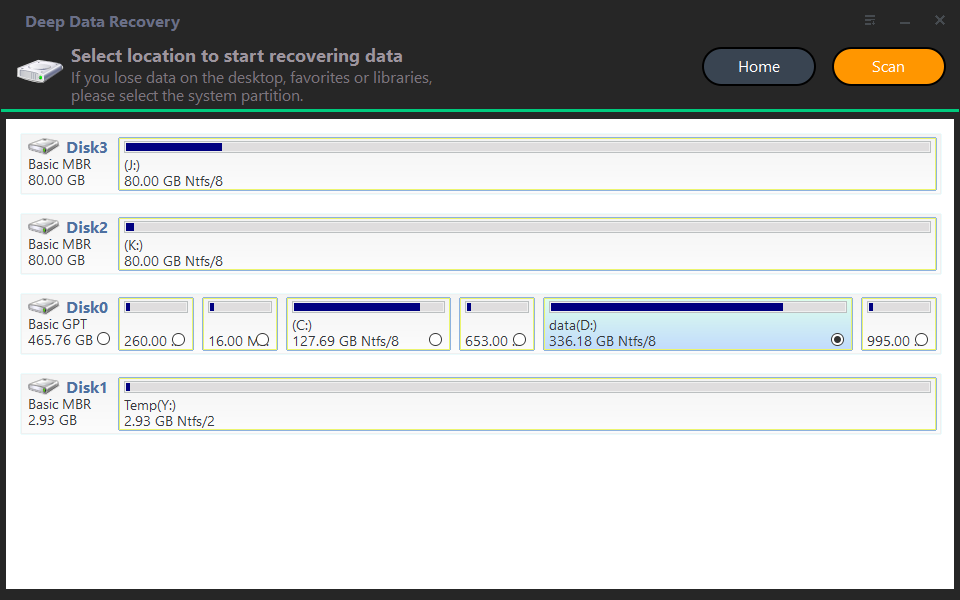
Step 3. After performing a Quick Scan and Deep Scan, you can automatically see all the deleted files and Raw files.
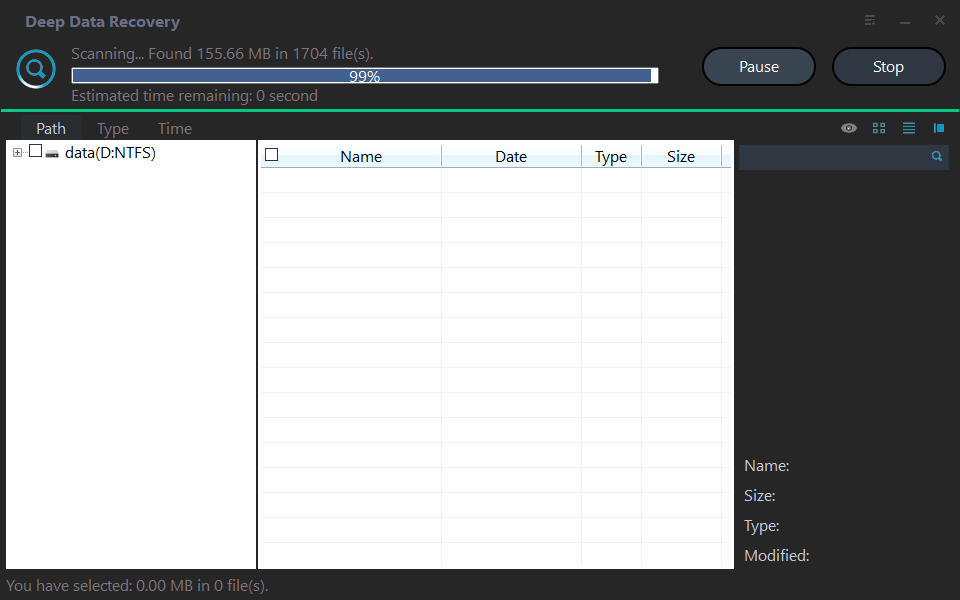
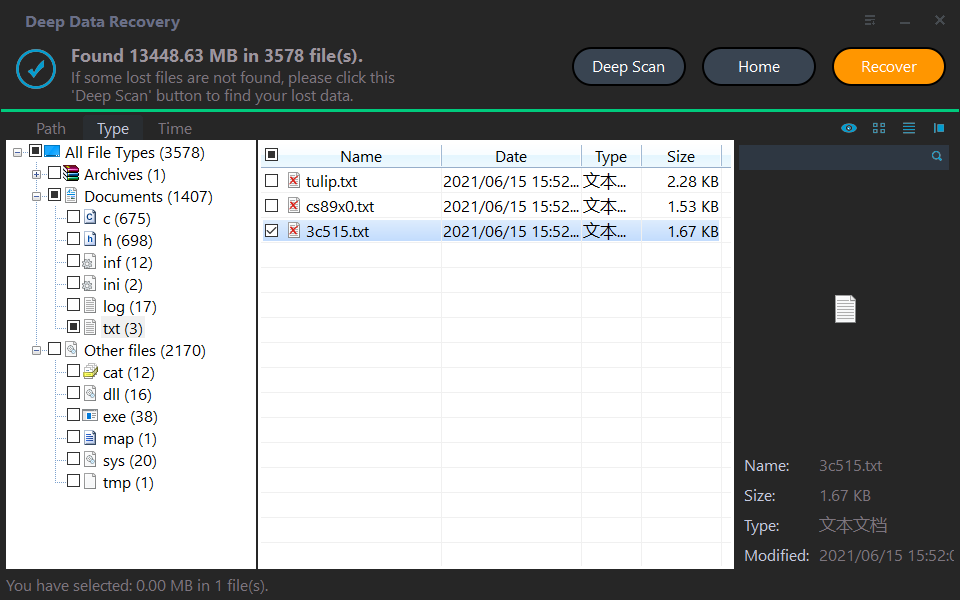
Step 4. Confirm the scanning results, select the deleted files to restore, click the "Recover" button, and save the recovered files to a new location.
Wrapping up
This tutorial demonstrates how to recover deleted files using System Restore. To attempt this method, ensure that System Restore has been enabled on your system beforehand.
Users who think System Restore is not necessary for recovering deleted files because it's better suited for restoring the whole PC, can instead use Deep Data Recovery software to recover deleted files in Windows 10/11.
If you have backups and have updated them regularly, you can restore needed files or folders from these backups directly. You can also use software like Qiling Disk Master to make different types of backups, such as file, disk, partition, or system backups, to suit your specific needs.
Related Articles
- Best PC/Computer Backup Software for 2021
Here is the best computer backup software for 2020. You can make full use of any of them to back up your PC. - Word Recovery Online - Top 5 Corrupted Word File Recovery Online
Learn how to recover a corrupted Word file with online Word recovery options. - How to Delete Files That Won't Delete
Learn three ways to delete files that cannot be deleted in Windows. - Best File Shredder Software for Windows 10 Free Download
File shredder is a must if you want to securely delete files on your Windows PC. Here are the top 10 best file shredder for Windows 10 you can make use of. - How to Recover Files from Formatted or Re-partitioned External Hard Drive
Learn how to Recover Files from Formatted or Re-partitioned External Hard Drive with clear steps, key checks, and practical tips. - SD Card Formatted Recovery | Recover SD Card after Formatting
If you need to format your SD card but are worried about losing your data, there is a software available that can help you recover files from a formatted SD card on both Mac and Windows PCs. This software can be downloaded for free.
Products
Articles & Tutorials
- Data Recovery
- Data Backup
- File Recovery
- File Backup
- File synchronize
- System Backup and Restore
- Disk and Partition Clone
- Technical articles
- Disk Master Help
- Windows Deleted File and Disk Recovery Tutorials
- Windows File and Data Recovery Tutorials
- More Windows Tutorials for Install, Security, Files, and PC Tips
- Windows Boot, Repair, and Recovery Environment Tutorials
- Windows Backup Tutorials
- Windows Restore Tutorials
- Windows Clone and Migration Tutorials
- Windows Server Backup, Recovery, and Management Tutorials
- Windows Disk, Partition, and Storage Management Tutorials