How to Recover Lost Files After Windows 11 Update (5 Best Ways)
Upgrading to Windows 11 Wiped Every File on My PC
"Everything is gone once I updated from Windows 11. Without thinking, I upgraded and did not make a backup because I upgraded on other devices and did not have this same problem. Everything was fine. What can I do to recover these, if it is even possible? Will rolling back the update bring back my files? Any advice is appreciated" - from Reddit
For rollback-related cases, see Windows 11 Go back to Windows 10 not working before changing system files.
If you have lost files after upgrading to Windows 11, do not worry -- you can usually recover them using one of the methods described below. The anticipated update to the Windows operating system brings many new features and improvements, but it can also cause problems with your files. Fortunately, recovering lost files is often a straightforward process.
How to Upgrade to Windows 11 with Simple Steps
During a Windows update, the operating system creates a temporary folder to store the files it needs to modify or replace. This temporary folder is usually located in the Windows.old folder, which is created in the root directory of the system drive (usually C:\).
Microsoft has released an update to Windows 11, and users can now upgrade their computers to the new operating system. The upgrade is available for eligible devices, and users can check if their computer meets the system requirements on Microsoft's website. To upgrade, users can go to the Settings app, click on "Update & Security," and then select "Windows Update" to download and install the latest version.
Step 1. Check the Compatibility
To determine if your computer is compatible with Windows 11, you can use the Windows 11 upgrade advisor tool on the Microsoft website. This tool will check your computer's specifications and let you know if it can handle the upgrade.
Step 2. Make a Backup in Windows 11
If your computer is compatible, back up your data first, then download Windows 11.
Step 3. Download and Install Windows 11
Once the download is complete, simply double-click on the "Setup.exe" file to launch the installer, which will guide you through the rest of the process, taking only a few minutes to complete. After the upgrade is finished, you will be able to enjoy the new features and improvements that Windows 11 has to offer.
How to Recover Lost Files after Windows 11 Update
During a Windows update, your computer downloads Microsoft's latest security patches and system improvements, protecting it from malware and improving performance. While files are usually safe, you might struggle finding old files after upgrading to Windows 10 or 11. To locate them, you can try the following methods.
Method 1. Recover Lost Files Using Search in Windows 11
If you are having trouble finding a file because its location has been changed, you can use the Search feature to locate and restore the lost file after a Windows 11 update.
Step 1. To find your files, select the search box on the taskbar, and type in your search query. This will allow you to quickly locate specific files on your computer.
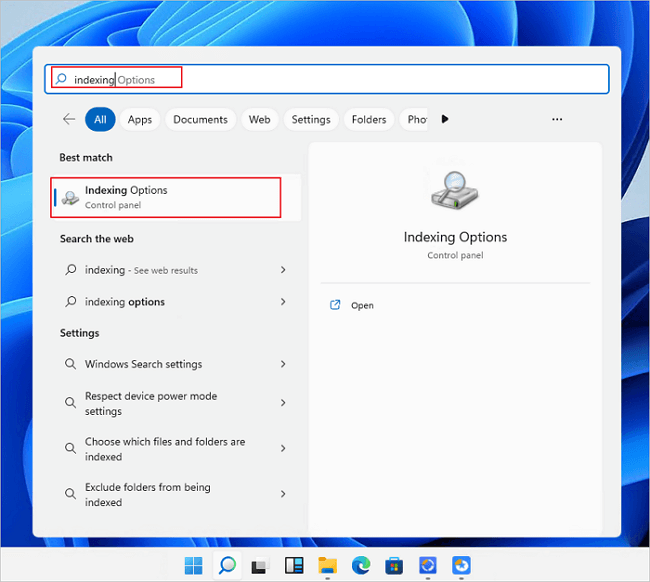
Step 2. Fix problems with Search if you do not see the files.
- In the search box on the taskbar, type indexing, and then select "Indexing Options" to view and manage the search index.
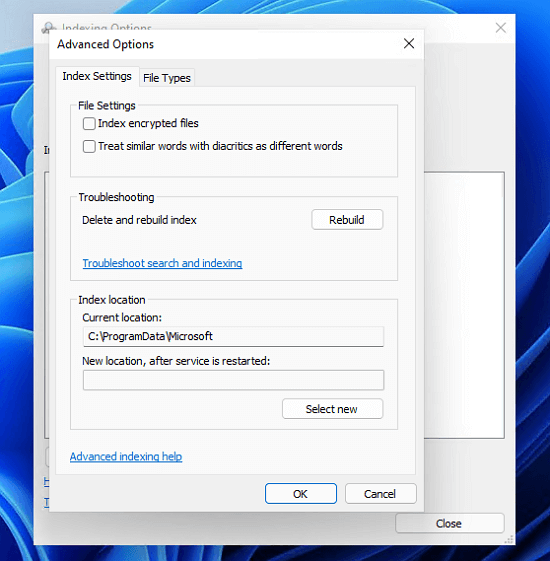
- Select "Advanced > Troubleshoot search and indexing".
Method 2. Enable Administrator Account to Recover Lost Files
To avoid losing old files when upgrading Windows 10 to Windows 11 with a new Microsoft account, enable a Windows 11 Administrator account to solve this error.
Step 1. To access Computer Management, type "computer management" in the Search box and select "Computer Management" from the results. This will open the Computer Management console, where you can manage various aspects of your computer, such as disk space, user accounts, and device management.
Step 2. Navigate to "Local Users and Groups > Users > Administrator".
Step 3. Clear the "Account is disabled" checkbox and click "Apply" to enable the account.
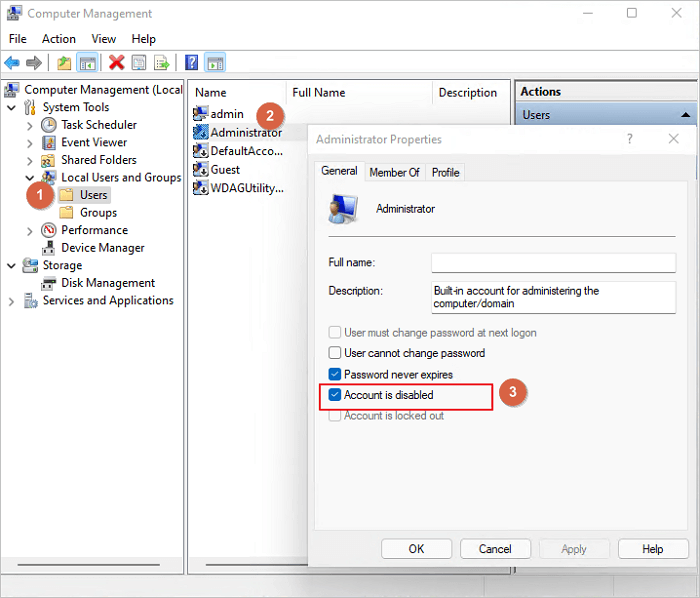
After the Windows 11 update, sign out of your account, then sign back in using the Administrator account. This should allow you to locate the lost files.
Method 3. Recover Lost Files After Windows 11 Update with Backup
The Windows 11 update can cause data loss sometimes, but you can recover deleted files easily with a Windows 11 file backup.
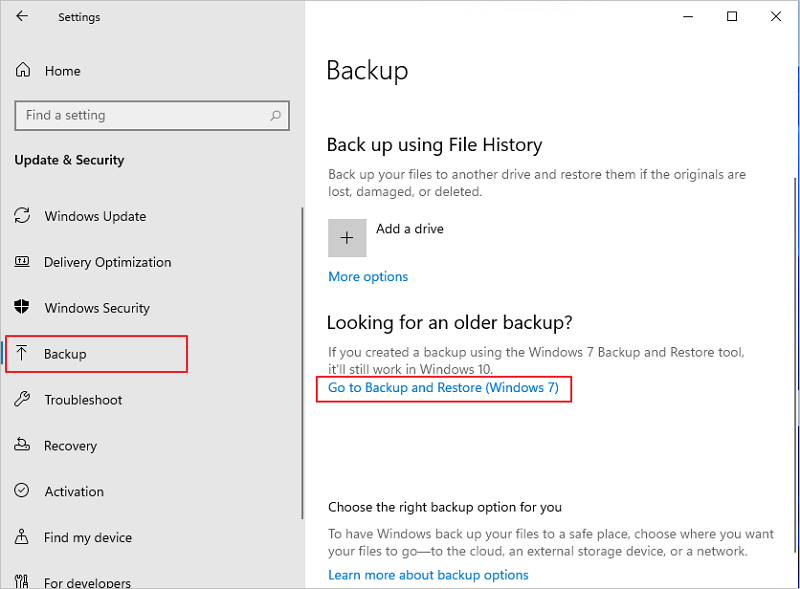
Step 1. Go to "Settings > Update and security > Backup".
Step 2. To recover documents, select "Go to Backup and Restore (Windows 7)" to recover documents.
Method 4. Recover Lost Files with File History After Windows 11 Update
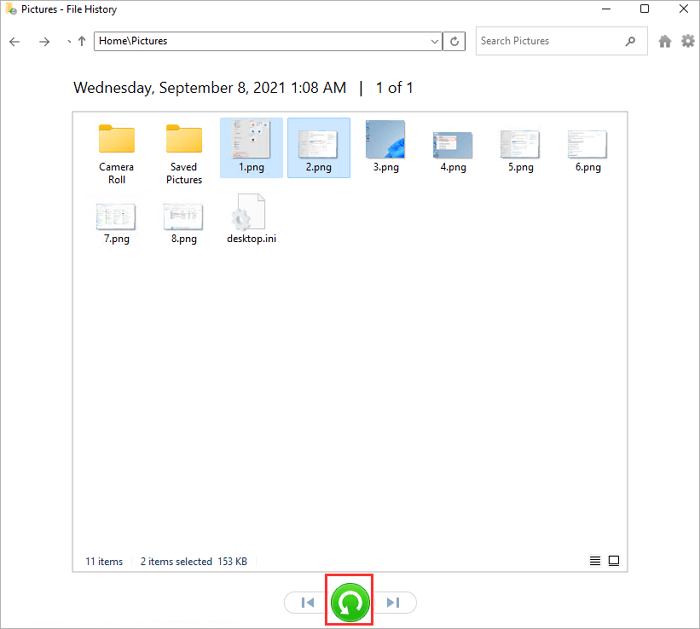
Windows 11 File History is a backup utility that allows users to restore permanently deleted files in Windows 11. It automatically backs up files every hour by default, and users can also create manual backups at any time. To recover lost files from Windows File History, follow the steps below:
Step 1. Click the search icon, type "Restore Files", and click "Open".
Step 2. Look for the folder that contains the old address of your deleted/lost files, which is usually found in the File History backup location. You can browse through different versions of your folders to find the files you need.
Step 3. Select the files you want to restore, then click the "Restore" button to bring them back to their original location.
Method 5. Recover Lost Files After Windows 11 Update Without Backup (Recommend)
You can recover lost files after updating to Windows 11/10/8/7, even without a backup. Deep Data Recovery, a top-rated data recovery software, can help you recover deleted files after an update, and is available for both Windows and Mac.
- Deep Data Recovery supports many file types, including documents, photos, videos, and more, making it a versatile recovery utility.
- The software can recover data from both internal and external storage devices.
- It offers a user-friendly interface to recover deleted files in Windows 11/10/8/7.
Run the Windows 11 data recovery software to restore lost files after the update.
Step 1. Launch Deep Data Recovery on your computer, choose the desired file types, and click "Fast Scan" to initiate the recovery process.

Note: You can choose different search modes based on where and why the data was lost.
Step 2. Choose the place where you lost data. Then, click "Scan".

Step 3. After scanning, use the file format filter to locate the necessary files. You can then click the "Preview" button or double-click a file to view its content.

Step 4. To recover lost data, select the file that needs to be recovered, check the box next to it, and then click the "Recover" button to restore the lost data to a secure location.
How to Avoid Data Loss After Windows 11 Update
Before updating to Windows 11, it is crucial to back up your data to prevent potential data loss, as system updates can sometimes be unpredictable. To avoid any issues, take the necessary precautions by backing up your files and data before proceeding with the update. This will ensure your important information is safe and secure.
To prepare for a Windows reinstall, create a full system backup using either the built-in Windows backup tool or a third-party backup solution. This ensures you have a complete copy of your system and data that can be restored if needed.
Disconnect any external drives or storage devices connected to your computer before starting the update process to prevent them from being accidentally erased.
To avoid losing any data during the update to Windows 11, make sure to back up all your important files and data before proceeding. Once the update is complete, check that all your data and files are still present and accessible. If any data is missing, restore it from your backup. This precautionary step will ensure that you do not lose any valuable information during the transition.
Conclusion
If you lost files after upgrading to Windows 11, do not worry, as you can still recover them. This article provides five methods to help you do that, and it is essential to back up important data before updating Windows to avoid data loss.
Recover Deleted Files After Windows 11 Update FAQs
If you have lost files on your computer, try searching for them using the search bar, checking the recycle bin, and looking in folders where you normally store files. You can also try using file recovery software to scan your computer for lost files. If you are still unable to find your files, it is possible that they were deleted permanently or corrupted, and you may need to consider seeking professional help or using data recovery services.
1. How to recover permanently deleted files in Windows 10 without software?
You can recover deleted files without using software by following these steps. First, stop using the device or storage device where the deleted files were stored, as continued use can overwrite the deleted files and make them unrecoverable.
- Recover Deleted Files in Windows 10 Using CMD
- Restore Deleted Files from the Previous Version
- Recover Permanently Deleted Files from an Older Backup
2. How to recover deleted files in Windows 11 without backup?
If you have not been backing up your files on a Windows 11 computer, you can still recover deleted files without a backup by using the built-in File Explorer feature, File History, or third-party software like Deep Data Recovery Wizard, Recuva, or Disk Drill. These tools can scan your computer for deleted files and help you recover them.
- Check the Recycle Bin folder
- Use the Undo option
- Use third-party data recovery software
3. Will my files disappear if I update to Windows 11?
You will not lose any personal files or apps if you select the "Keep personal files and apps" option during Windows Setup.
4. Why are my files getting deleted automatically by Windows 11?
If your files are getting deleted automatically in Windows, the causes could be due to various factors such as disk errors, corrupted system files, or issues with the Windows Update process, which can lead to files being deleted or moved to a temporary folder. This problem can also be caused by a faulty driver or a malfunctioning program that is running in the background.
- Corrupt system files
- Issues with the hard drive
- Pending system updates
- Third-party application
Related Articles
- Fix Corrupted Data and Recover Files from PSP Memory Stick
- How to Recover Files from Corrupted External Hard Drive
- How to Recover Data from Western Digital Hard Disk
- [Fixed] Laptop Screen Black but Still Running of HP, Lenovo, Asus, Dell
- BMP File Recovery: Recover Corrupted/Deleted/Lost BMP Files
Here in this article, let us see how to recover BMP files. - How to Recover CR2 Files from SD Card on Mac/Windows PC
This article tells you how to recover CR2 files from SD card on Mac or Windows PC, even to recover corrupted CR2 files. Follow the simple steps: scan, preview and restore deleted or lost CR2 files from memory card/formatted card.
Products
Articles & Tutorials
- Data Recovery
- Data Backup
- File Recovery
- File Backup
- File synchronize
- System Backup and Restore
- Disk and Partition Clone
- Technical articles
- Disk Master Help
- Windows Deleted File and Disk Recovery Tutorials
- Windows File and Data Recovery Tutorials
- More Windows Tutorials for Install, Security, Files, and PC Tips
- Windows Boot, Repair, and Recovery Environment Tutorials
- Windows Backup Tutorials
- Windows Restore Tutorials
- Windows Clone and Migration Tutorials
- Windows Server Backup, Recovery, and Management Tutorials
- Windows Disk, Partition, and Storage Management Tutorials