How to Shrink Volume on Dynamic Disk?
Qiling Dynamic Disk Manager fills a gap in Windows 2000/2003/XP by allowing volume shrinking, new volume creation, and dynamic volume extension, thereby optimizing performance and utilizing free space to create unallocated space.
For related partition tasks, see how to fix Shrink Volume greyed out or learn how to move unallocated space outside an extended partition.
Step by step tutorial on how to shrink volume
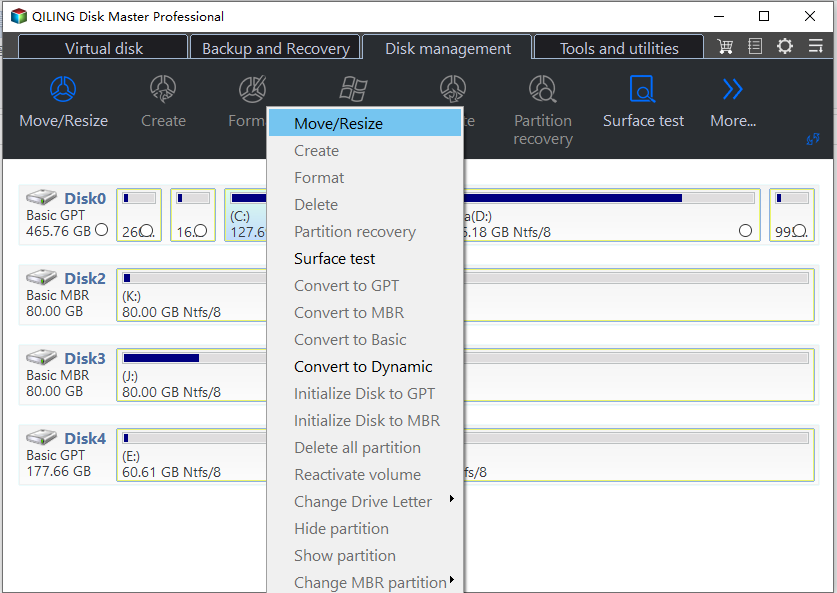
Step 1. Launch the installed Qiling Disk Master Server and navigate to the target disk by pressing "Dynamic Disk Manager" on the right. In the new window, right-click the drive you need to shrink and choose the "Move/resize" option.
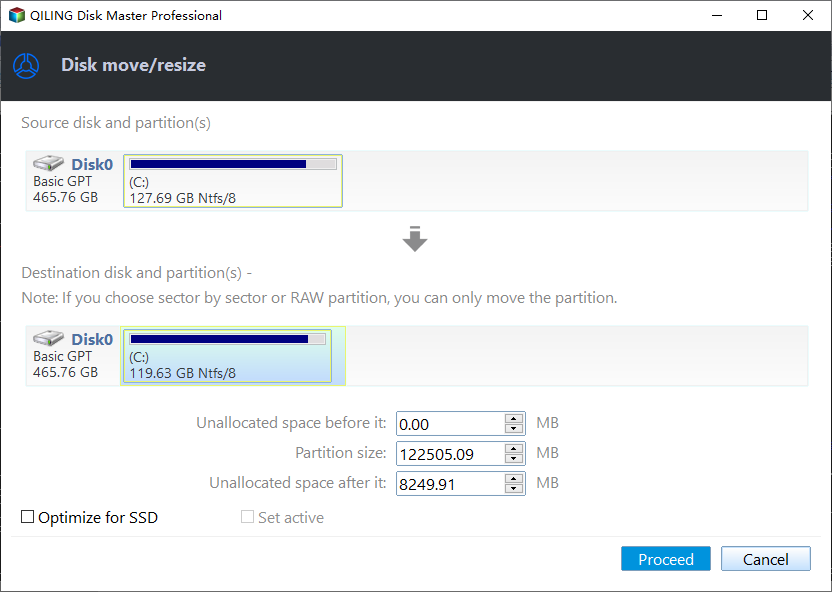
Step 2: To create unallocated space, you can drag the right slider to the left or the left slider to the right on your disk. This will free up space on your disk, making it available for use.
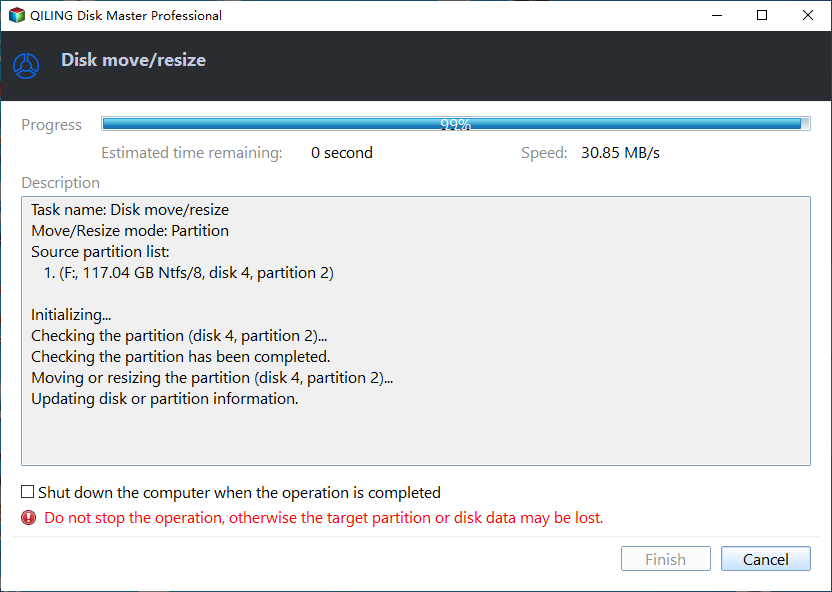
Step 3: Click "Proceed".
To test out the function, you can free download demo version according to your operating system.
Related Articles
- Safely Move Unallocated Space Outside Extended Partition in Windows 11/10/8/7
When you have to move unallocated space outside an extended partition with the purpose of extending or creating a primary partition, the Qiling Disk Master Standard provides the best solution. - How to Remove OEM Partition in Windows 10, 8, 7?
You can remove OEM partition on Dell or Lenovo with the help of diskpart or Qiling Disk Master if you don't need it any more. - How to Remove Write Protection on Micro SD Card Samsung Easily?
This tutorial demonstrates how to remove write protection on micro SD card Samsung easily and analyzes the reasons for Samsung micro SD card write protected. - What to Do When Shrink Volume Greyed Out in Windows 7/8/10?
This guide explains What to Do When Shrink Volume Greyed Out in Windows 7/8/10 with clear steps, key checks, and practical tips. - Use SD Card Repair Tool to Fix Corrupted SD Card
A reliable SD card repair tool is available for free download, allowing you to fix damaged SD memory cards when general repair methods fail to address SD card errors or corruption. - How to Fix Second Hard Drive Not Showing Up (Updated)
You are going to learn at least four ways if the second hard drive not showing up in Windows 10. Among them, the first solution can satisfy your needs best. Qiling Partition Master can make your second hard drive show up with simple steps.
Products
Articles & Tutorials
- Data Recovery
- Data Backup
- File Recovery
- File Backup
- File synchronize
- System Backup and Restore
- Disk and Partition Clone
- Technical articles
- Disk Master Help
- Windows Deleted File and Disk Recovery Tutorials
- Windows File and Data Recovery Tutorials
- More Windows Tutorials for Install, Security, Files, and PC Tips
- Windows Boot, Repair, and Recovery Environment Tutorials
- Windows Backup Tutorials
- Windows Restore Tutorials
- Windows Clone and Migration Tutorials
- Windows Server Backup, Recovery, and Management Tutorials
- Windows Disk, Partition, and Storage Management Tutorials