How to Delete Files on SSD Permanently
Quick Navigation:
- The Anatomy of an SSD Disk: Understanding its Structure and Securely Erasing Data
- How SSD Disks Work
- The Challenge of Secure Erasure
- Methods for Securely Erasing Data on an SSD
- Tools and Utilities for Secure Erasure
- Best Practices for Securely Erasing Data on an SSD
- Conclusion
The Anatomy of an SSD Disk: Understanding its Structure and Securely Erasing Data
In recent years, Solid-State Drives (SSDs) have become increasingly popular as a faster and more reliable alternative to traditional Hard Disk Drives (HDDs). As with any storage device, there comes a time when data on an SSD needs to be securely erased. In this article, we'll delve into the inner workings of an SSD disk and explore methods for deleting data in a secure manner.
For whole-drive disposal, see how to erase an SSD before selling.
How SSD Disks Work
Unlike HDDs, which use physical disks and heads to read and write data, SSDs store information in interconnected flash memory chips. An SSD consists of:
- Controller Chip: The brain of the operation, responsible for managing data transfer, wear leveling, and error correction.
- Flash Memory Chips: Store data in a grid-like structure, with each cell representing a single bit of information.
- Interface: Connects the SSD to the host system, typically via SATA or PCIe.
The Challenge of Secure Erasure
When you delete files on an SSD, the operating system simply updates its file allocation table (FAT) and marks the corresponding blocks as available for rewriting. However, this doesn't guarantee that the data is actually erased from the flash memory cells.
SSDs use a technique called wear leveling to distribute write operations evenly across the disk, ensuring that no single cell becomes worn out prematurely. This means that even if you overwrite data on an SSD, there's still a chance that some of the original information may remain in other parts of the disk.
Methods for Securely Erasing Data on an SSD
To securely erase data on an SSD, follow these methods:
- ATA Security Erase: A firmware-level command that instructs the SSD controller to perform a secure erase operation. This method is compatible with most modern SSDs and can be initiated using specialized tools or built-in utilities.
- Cryptographic Erasure: Encrypting data on an SSD before erasing it ensures that even if some data remains, it's unintelligible without the decryption key. Popular full-disk encryption solutions like TrueCrypt (now VeraCrypt) support SSDs.
- Physical Destruction: For ultra-sensitive information or in cases where secure erase methods are not feasible, physically destroying the SSD disk is a foolproof option.
Tools and Utilities for Secure Erasure
Several tools and utilities can assist with securely erasing data on an SSD:
- SSD manufacturers' proprietary software: Many SSD vendors offer specialized tools, such as Samsung's Magician or Crucial's Storage Executive.
- Third-party utilities: Programs like Parted Magic, DBAN (Darik's Boot and Nuke), or HDShredder can securely erase SSDs.
Best Practices for Securely Erasing Data on an SSD
To ensure secure erasure of data on an SSD:
- Use the correct tools and methods: Familiarize yourself with your SSD manufacturer's recommended procedures and utilize specialized software.
- Verify the erasure process: Confirm that the chosen method has completed successfully and that data is no longer accessible.
- Physically destroy the disk if necessary: For extreme cases, consider destroying the SSD to prevent any potential data recovery.
Qiling Disk Master, with its multiple disk erase options, enables you to flexibly clean up an existing OS disk or data partitions with ease.
The following steps show how to clean an SSD with Reliable Disk Clean Software - Qiling Disk Master:
Step 1. Run Qiling Disk Master. Click the "Wipe Disk" tab.
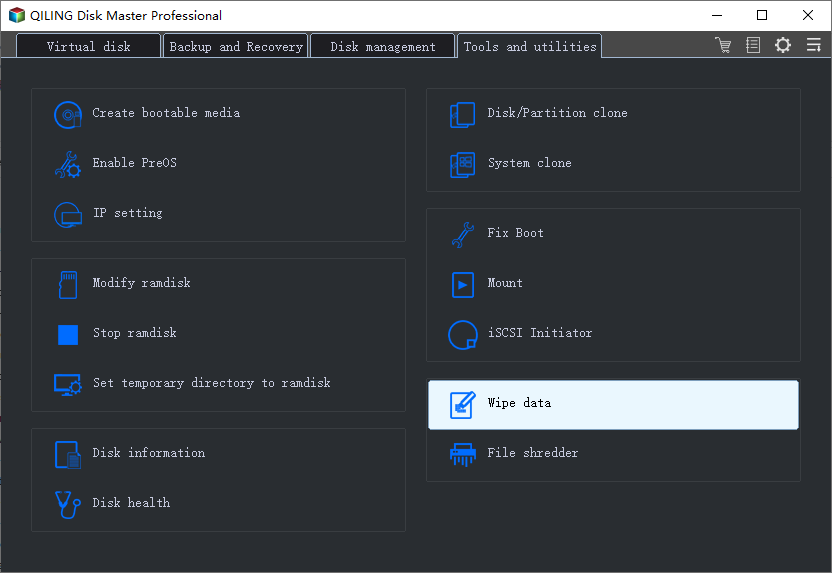
Step 2. Select the targeted HDD or SSD to wipe.
Notice: Please make sure you have chosen the correct HDD or SSD. Once the wiping starts, your data is irrecoverable.
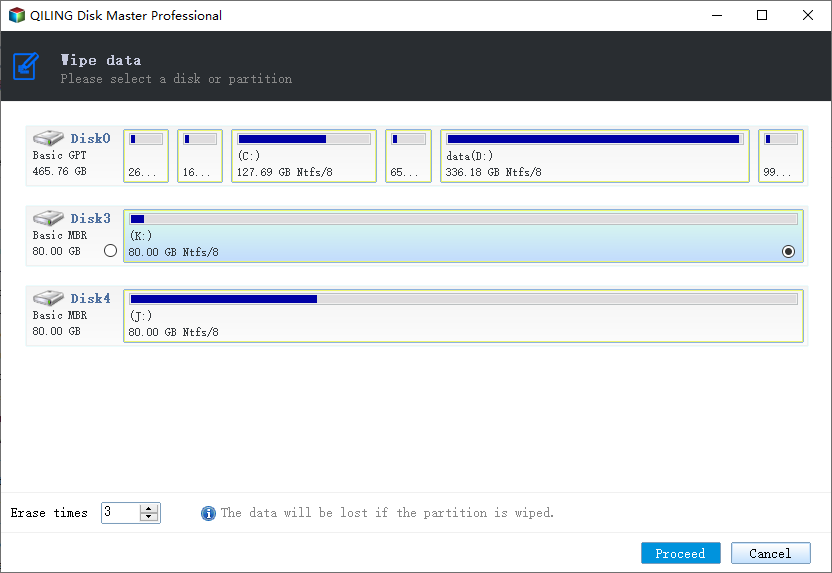
Step 3. Choose Wiping Method.
Choose a suitable wiping method. Recommend Qiling Secure Erase!
Step 4. Check the warning message and click "Proceed" to confirm.
Step 5. Wait for wiping finish and click "Done."
Conclusion
In conclusion, securely erasing data on an SSD requires a comprehensive understanding of its internal structure and operation. By following best practices and utilizing specialized tools, you can ensure that sensitive information is properly deleted from your SSD disk.
Related Articles
- 3 Ways for How to Wipe a USB Drive Clean in Windows 10
- How to Permanently Delete Files from Thumb Drive/Pen Drive
- How to Destroy Data on a Hard Drive Permanently
Products
Articles & Tutorials
- Data Recovery
- Data Backup
- File Recovery
- File Backup
- File synchronize
- System Backup and Restore
- Disk and Partition Clone
- Technical articles
- Disk Master Help
- Windows Deleted File and Disk Recovery Tutorials
- Windows File and Data Recovery Tutorials
- More Windows Tutorials for Install, Security, Files, and PC Tips
- Windows Boot, Repair, and Recovery Environment Tutorials
- Windows Backup Tutorials
- Windows Restore Tutorials
- Windows Clone and Migration Tutorials
- Windows Server Backup, Recovery, and Management Tutorials
- Windows Disk, Partition, and Storage Management Tutorials