Copy Disk Partition Wizard: Clone a Partition Safely
A copy disk partition wizard clones a selected partition to another disk or unallocated space. It is useful for replacing a data volume, preserving a fixed partition layout, or moving a recovery partition.
Understand the problem
Partition cloning copies more than visible files. It can preserve file system structure, hidden data, and partition layout better than manual copy.
- Confirm the exact disk, partition, drive letter, file system, and capacity before changing anything.
- Back up or recover important files before formatting, deleting, converting, resizing, or recreating partitions.
- For boot-related changes, check BIOS or UEFI mode, boot order, and system partition status before editing disk layout.
Use Windows built-in tools
Windows can copy normal files, but it does not provide a simple wizard for cloning a whole partition.
- Use File Explorer or Robocopy only when you need ordinary files and the source partition is healthy.
- Create a new destination partition with enough space.
- Copy files and compare folder size and file count.
- Use partition cloning instead when hidden files, recovery files, or exact layout matters.
Use Qiling tools for guided steps
 Qiling Disk Master
Clone a partition with a guided wizard and preview the destination layout before applying changes.
Function. Clone with a visible disk layout
Step 1. Connect the target disk or unallocated space to the computer. Open Qiling Disk Master, choose Clone, and select Disk/Partition clone.
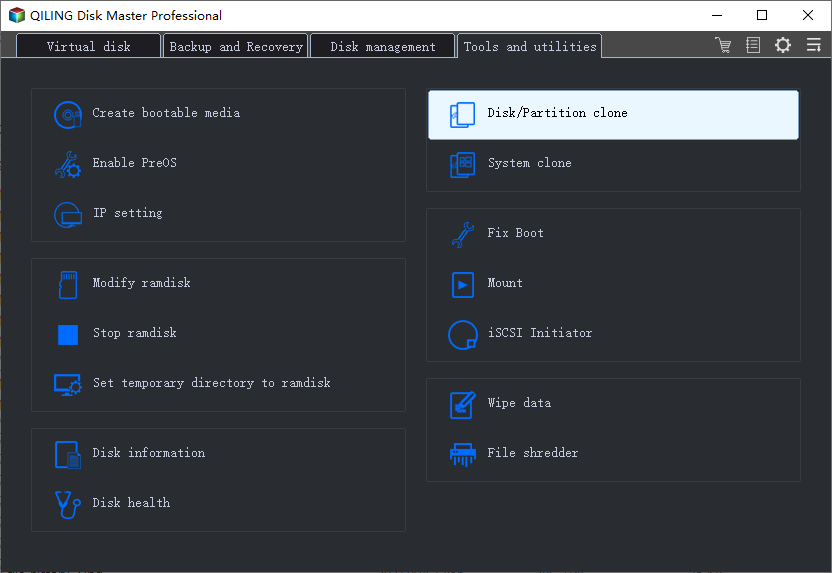
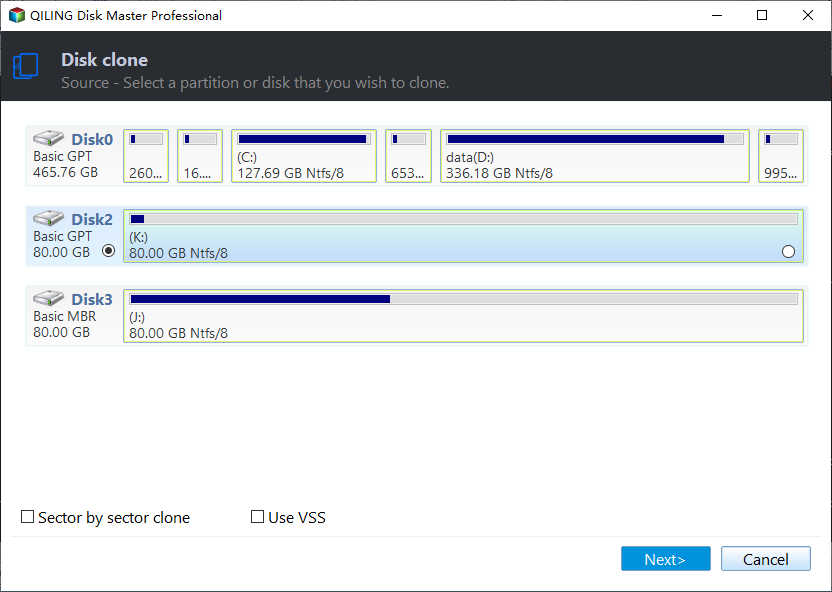
Step 2. Select the source partition as the source. Check the disk number, partition size, file system, and label so you do not clone the wrong volume.
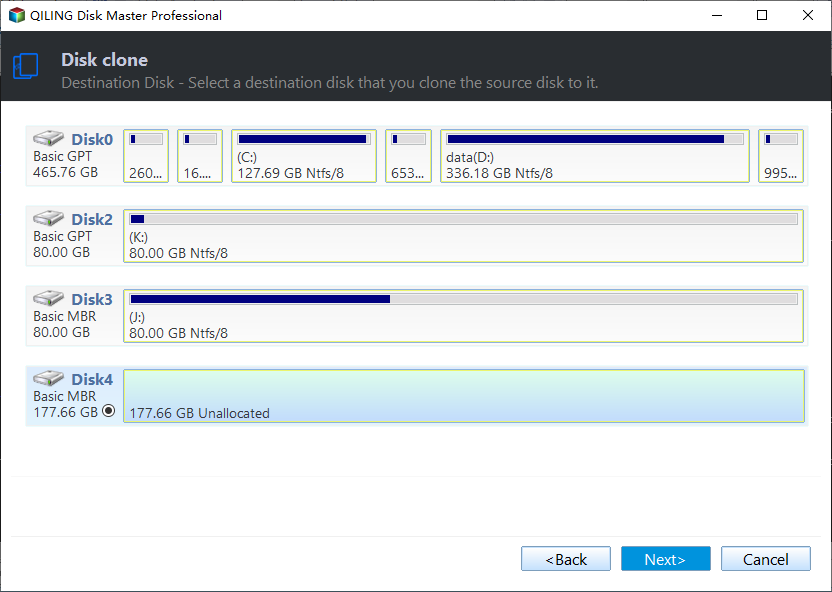
Step 3. Select the target disk or unallocated space as the destination. The destination may be overwritten, so confirm that important files on it have already been backed up.
Step 4. Preview the target layout. Keep required recovery, EFI, or system partitions when partition-level copying depends on boot or factory recovery.
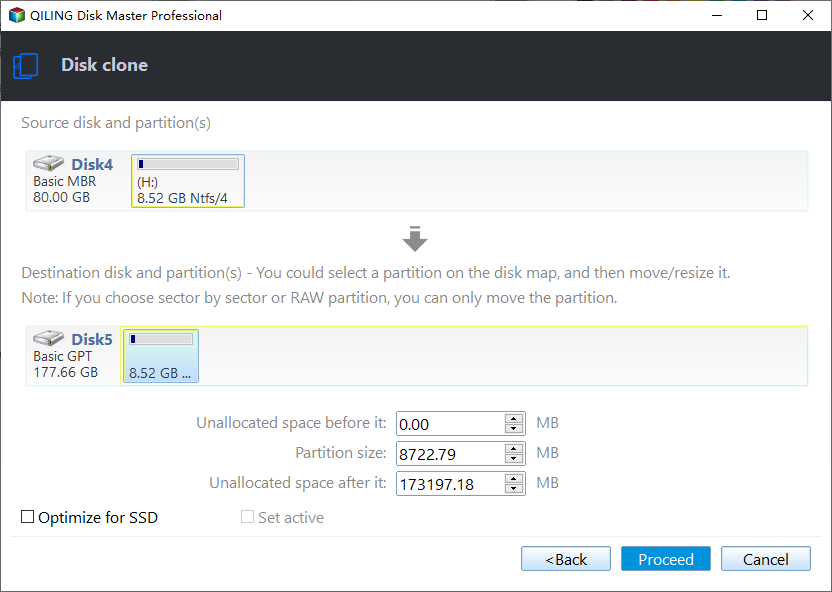
Step 5. Click Proceed to start cloning. Keep the computer powered on until the clone finishes.
Step 6. After completion, open the destination disk and verify the copied partitions or files. For a boot disk, set the cloned disk first in BIOS or UEFI and test startup.
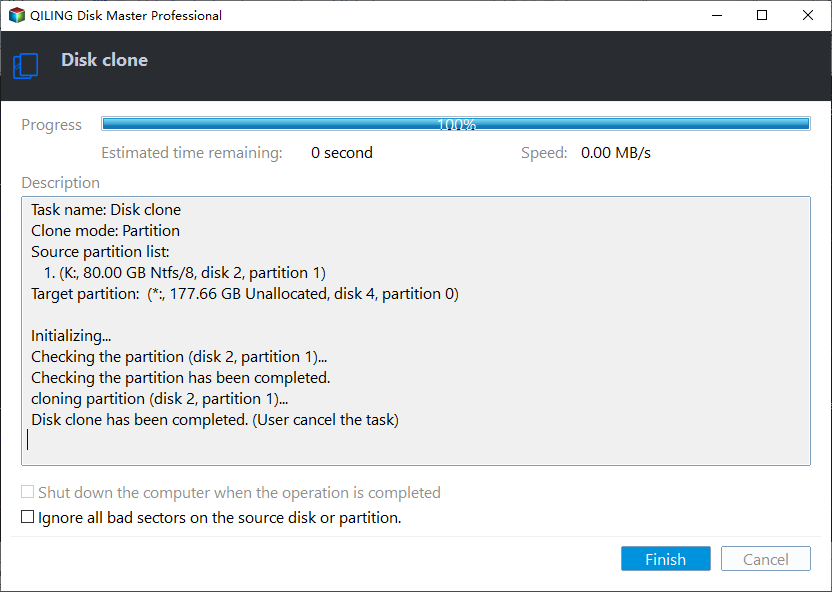
Check the result
Open the cloned partition, compare used space, and test important files or recovery tools before deleting the original partition.
Related Articles
-
Copy Partition to Another Drive
Copy a partition to a different disk with cloning or manual copy methods. -
Partition or Volume Clone
Learn how partition clone works in Qiling Disk Master.
Products
Articles & Tutorials
- Data Recovery
- Data Backup
- File Recovery
- File Backup
- File synchronize
- System Backup and Restore
- Disk and Partition Clone
- Technical articles
- Disk Master Help
- Windows Deleted File and Disk Recovery Tutorials
- Windows File and Data Recovery Tutorials
- More Windows Tutorials for Install, Security, Files, and PC Tips
- Windows Boot, Repair, and Recovery Environment Tutorials
- Windows Backup Tutorials
- Windows Restore Tutorials
- Windows Clone and Migration Tutorials
- Windows Server Backup, Recovery, and Management Tutorials
- Windows Disk, Partition, and Storage Management Tutorials