Diskpart: Fix RAW Partition in Windows 11, 10, 8, 7
Overview of the RAW partition
A RAW partition is an unformatted partition that Windows can't recognize, making its data inaccessible. This issue can occur on various storage devices, including hard drives, USB drives, SD cards, and more. If a Windows system partition becomes RAW, the OS won't boot, and the data on that partition will be inaccessible.
What causes a RAW partition?
A hard drive becomes a RAW partition when it is no longer recognized by the operating system due to various reasons. Some possible causes include: file system corruption, virus or malware infection, disk errors, power outages, or physical damage to the drive. Additionally, running disk cleanup or disk formatting tools can also lead to a RAW partition if not done properly. Furthermore, a RAW partition can also occur if the drive is not properly initialized or if the file system is not properly formatted.
•virus infection or malware;
•damaged file system structure or MBR partition table;
•the formatting process is interrupted and fails;
•bad sectors exist on the hard drive;
•unexpected power outage;
•accidental OS shutdowns.
How to use Diskpart to fix RAW partition (by formatting)
When a partition becomes RAW, users can try running CHKDSK to check bad sectors, but it will fail with an error message. Instead, using the Diskpart command line is another option to fix the RAW partition.
The Diskpart command can repair a RAW hard drive by formatting it to a compatible file system like FAT32 or NTFS. To convert a RAW drive to FAT32 using Diskpart commands, follow these steps: first, open the Command Prompt as an administrator and type "Diskpart" to enter the Diskpart utility; next, list the disks available using the "list disk" command and identify the RAW drive; then, select the RAW drive using the "select disk" command; after that, clean the drive using the "clean" command; finally, format the drive to FAT32 using the "format fs=fat32" command. This process will convert the RAW drive to a compatible file system, making it usable again.
Warning: Formatting the RAW partition will erase all data saved on it, so to avoid data loss, it's recommended to recover data from the RAW partition using Deep Data Recovery beforehand.
1. To open a command prompt window, press the "Win" key and the "R" key at the same time, which will open the Run dialogue window. In this window, type "cmd" and press the Enter key.
2. Then input the following command in sequence and press Enter after every command.
- diskpart
- list volume: To fix a RAW partition, first list all available partitions and drives using the command `list volume`. This will display a list of all volumes, including their size, file system, and status. Identify the RAW partition, which is typically denoted as 'RAW' in the output. In this case, volume 6 is shown as RAW and is the target partition to select.
- select volume 6: make sure you choose the correct partition/volume.
- format fs=fat32: To format a RAW partition to FAT32, you can use the command "format fs=fat32" in the Command Prompt. This will convert the RAW partition to a FAT32 file system. Note that formatting will erase all data on the partition, so make sure to back up any important files before proceeding.
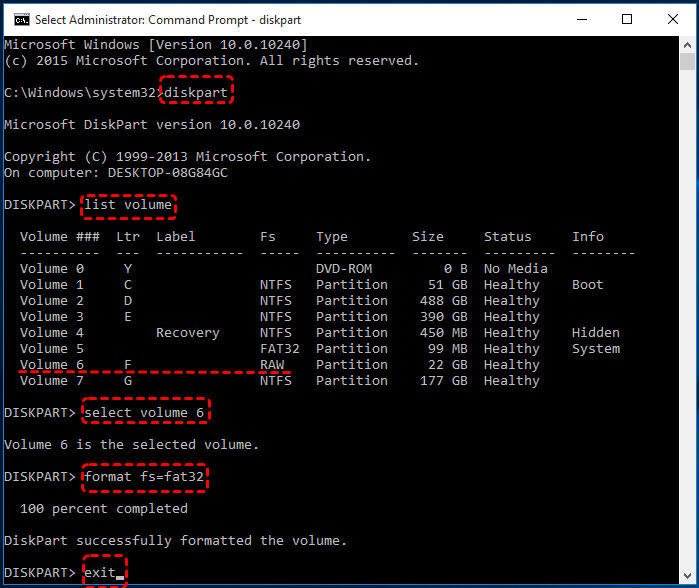
3. Type "exit" and press "Enter" to close the Command Prompt.
If your drive is in RAW format, you can try running the Diskpart commands to repair it. First, open the Command Prompt as an administrator, then type "diskpart" and press Enter.
- diskpart
- list disk
- select disk # To select the external hard drive to be formatted, press Enter on the disk you want to format, which is likely labeled as disk 1.
- clean: to remove all information on the external hard drive.
- create partition primary: to create a partition.
- format fs=ntfs: to format the partition as NTFS.
- assign letter=# (ex: letter=F): to assign a drive letter.
If these Diskpart commands process successfully, the RAW partition will be fixed and formatted to FAT32 or NTFS.
Free Alternative to Diskpart: fix RAW partition without formatting
If you're not familiar with using Diskpart to fix a RAW partition or want to repair a RAW drive without formatting, a free alternative to Diskpart is Qiling Disk Master Standard, which supports Windows 11/10/8.1/8/7/XP/Vista 64-bit and 32-bit.
This software enables you to repair damaged MBR and check for bad sectors, eliminating the need to format the RAW partition using the command prompt. It can also fix issues caused by damaged MBR and bad sectors, which can lead to RAW partitions. Additionally, if you encounter the "The volume size is too big" error when trying to format a large RAW drive to FAT32 using Diskpart, this software can help you format the drive successfully.
1. Rebuild MBR of the RAW drive
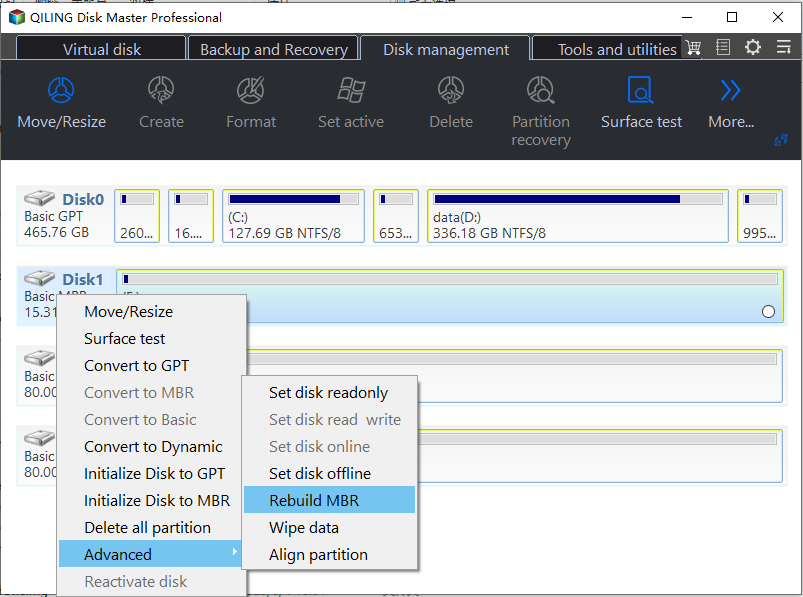
Step 1. Install and run Qiling Disk Master. Click the disk you want to fix and select "Rebuild MBR" from the right navigation pane.
Step 2. Select a proper MBR type for your current operating system.
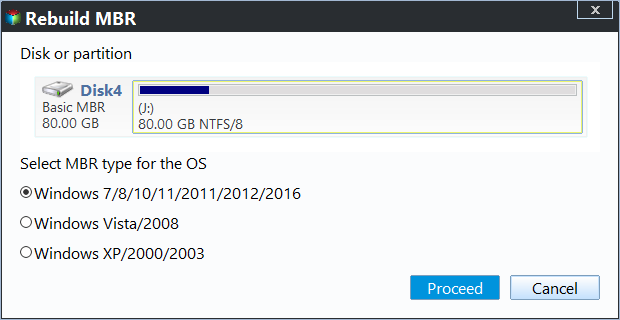
Step 3. Click "Proceed" to commit the pending operation.
2. Check bad sectors on the RAW partition
When you can't run CHKDSK to check for bad sectors, you can use Qiling Disk Master to perform the task instead.
Step 1. Open Qiling Disk Master, right-click the RAW partition and select "Advance" then "Check Partition".
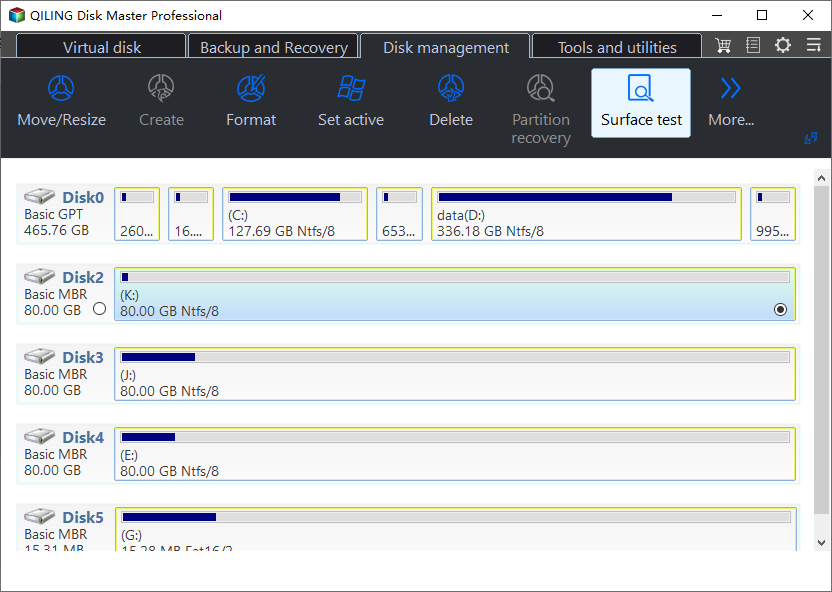
Step 2. In the pop-up window, select the check method you prefer and click "Start".
Step 3. Wait for the process to complete. The tool will report any bad sectors found on the partition.
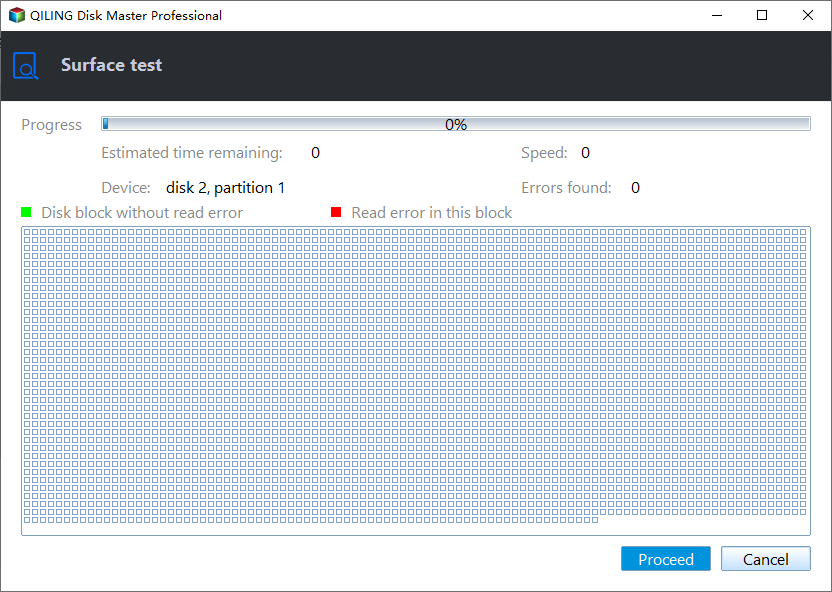
Bonus tip: how to fix raw internal hard drive without formatting
If your internal hard drive becomes RAW and Windows can't boot properly, create a bootable USB drive using Qiling Disk Master Standard on a working computer. Then, boot your PC with the RAW internal hard drive using the USB drive, and use the methods above to fix the RAW drive without formatting.

Final Words
Now that you know how to use Diskpart to fix a RAW partition by formatting, and Qiling Disk Master to repair a RAW drive without formatting, you're all set. If you want to enjoy more advanced features like recovering lost partitions, migrating your OS drive to an SSD, or creating a Windows 11 to go USB with your current system, you can simply upgrade to Qiling Disk Master Professional.
Related Articles
- Quick Fix: How to Fix RAW Hard Drive to NTFS in Windows 7/8/10?
You can learn how to fix RAW hard drive to NTFS in a success from this pose, if you encounter the situation that your external/portable/USB hard drive becomes RAW unexpected. - Fix Healthy Primary Partition RAW Problem with Top 3 Ways in Windows 7/8/10
If you find the healthy primary partition becomes RAW in Windows 11, 10, 8, 7, you can try the following methods to solve the Windows partition RAW problem successfully. - Fixes: BitLocker Password & Recovery Key Not Working
Learn effective solutions to resolve BitLocker password and recovery key issues, and regain access swiftly. This article will provide you with the help you need to fix all BitLocker errors and get back on track. - How to Boot Samsung Laptop From USB on Windows 10/11
To boot a Samsung laptop from a USB drive, start by creating a bootable USB drive using a tool like Rufus or Etcher. Next, insert the USB drive into your laptop, and enter the BIOS settings by pressing the key that corresponds to your laptop model (usually F2, F12, or Del). - A Starter Guide to the Windows Disk Management
This guide explains A Starter Guide to the Windows Disk Management with clear steps, key checks, and practical tips. - Easy and Step-by-Step Guide to Use SSD for OS Only
Using a Solid-State Drive (SSD) only for the Operating System (OS) is a popular setup that offers improved performance and reliability.
Products
Articles & Tutorials
- Data Recovery
- Data Backup
- File Recovery
- File Backup
- File synchronize
- System Backup and Restore
- Disk and Partition Clone
- Technical articles
- Disk Master Help
- Windows Deleted File and Disk Recovery Tutorials
- Windows File and Data Recovery Tutorials
- More Windows Tutorials for Install, Security, Files, and PC Tips
- Windows Boot, Repair, and Recovery Environment Tutorials
- Windows Backup Tutorials
- Windows Restore Tutorials
- Windows Clone and Migration Tutorials
- Windows Server Backup, Recovery, and Management Tutorials
- Windows Disk, Partition, and Storage Management Tutorials