DiskPart: Format Disk Partition in Windows 11, 10, 8, 7
Formatting a disk is necessary before using it
Formatting a disk is necessary before using it, as it allows the operating system to recognize and manage the disk's structure. This process creates a file system on the partition, making it usable for storing data and installing an operating system. Therefore, when creating a new partition, formatting it with a file system is a crucial step.
How to format disk partition with DiskPart?
Diskpart is an amazing tool that can manage disks by typing the relevant commands, allowing you to format a local drive or an external hard drive for file storage in your Windows OS environment. You can follow the steps below to format a hard disk using CMD.
1. To format a hard drive using the command line, first open the Command Prompt as an administrator. Type "cmd" in the Windows search box, right-click "Command Prompt", and select "Run as administrator". Be sure to back up any important files on the drive before proceeding, as formatting will erase all data on the drive.
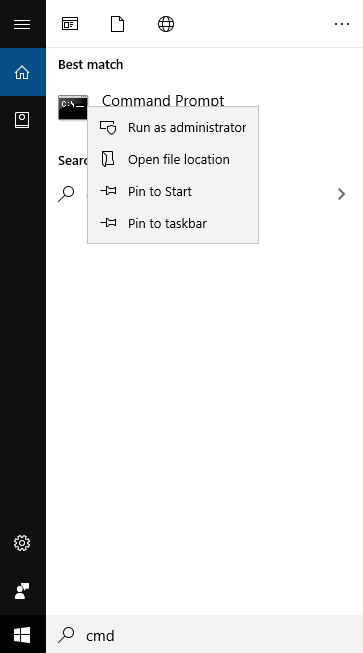
2. Type diskpart to open the diskpart command prompt.
3. To list all volumes, type "list volume" and press Enter. This will display a list of all available volumes on your system.
4. To select a volume to format, type `select volume n` and press Enter, where `n` is the number of the volume you want to format. This will select the desired volume for formatting.
5. Type "format fs=fat32 quick label=test" and press Enter in the DiskPart command prompt to quickly format the drive with a FAT32 file system and label it "test".

To summarize, once the formatting process is complete, you can exit the command prompt by typing "exit" and pressing Enter. This will allow you to access and utilize the newly formatted drive in My Computer.
Other ways to format disk partition
DiskPart is the recommended tool for formatting disk partitions in Windows, supported by Vista/7/8/8.1/10/11, but not XP. For XP users, a command-line alternative is needed. Additionally, using DiskPart to format system partitions can result in error code 0x80070057, requiring alternative solutions.
Fortunately, there are many alternative ways to format a disk partition instead of using DiskPart.
▌Format disk partition with GUI
For those who prefer not to use the command prompt to format a disk partition, using a graphical user interface (GUI) is a more appealing option. The Qiling Disk Master Professional offers a user-friendly interface that allows for easy partition formatting with just a few clicks, making it a convenient alternative to using DiskPart.
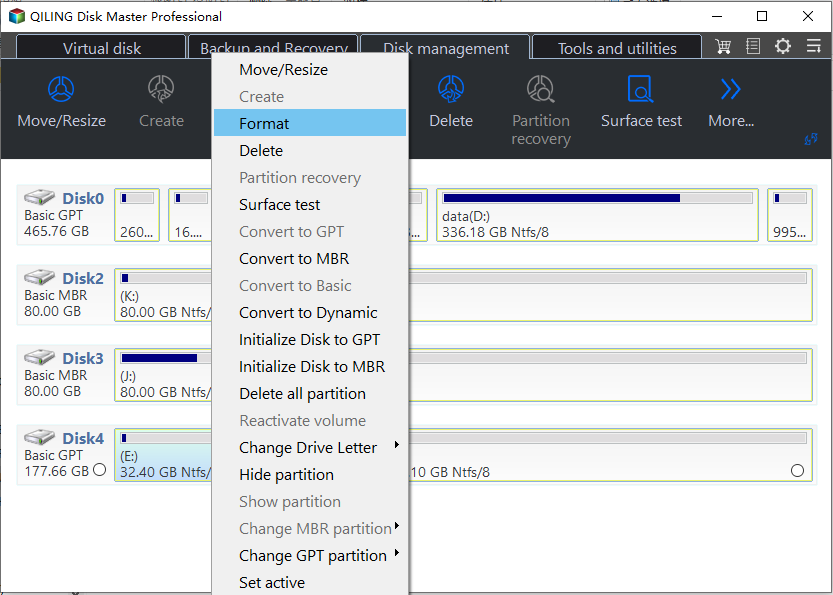
Step1. Install and launch the software, and you can see the main interface of your disk(s). Select the partition you want to format, right-click on it, select "Format Partition" in the pop-up menu.
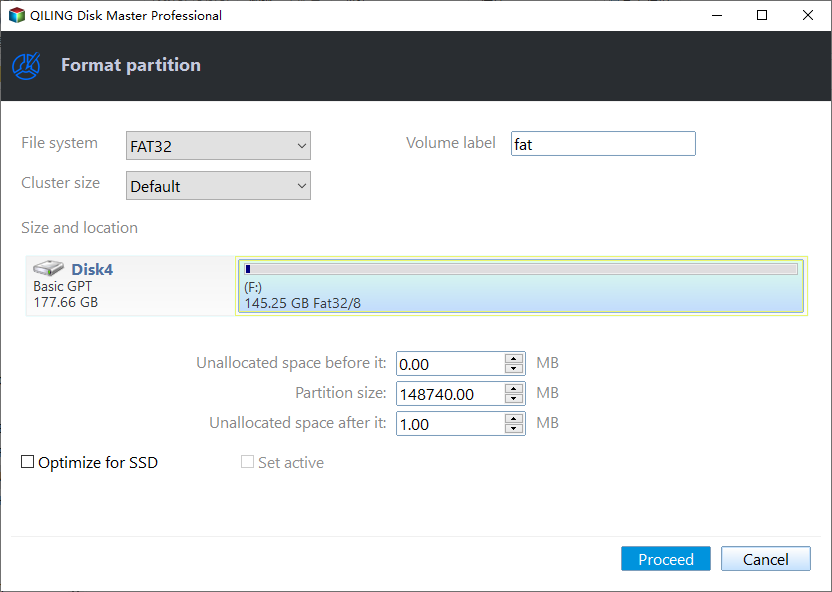
Step2. Here you can give a partition label and choose the file system you want to format the partition to.
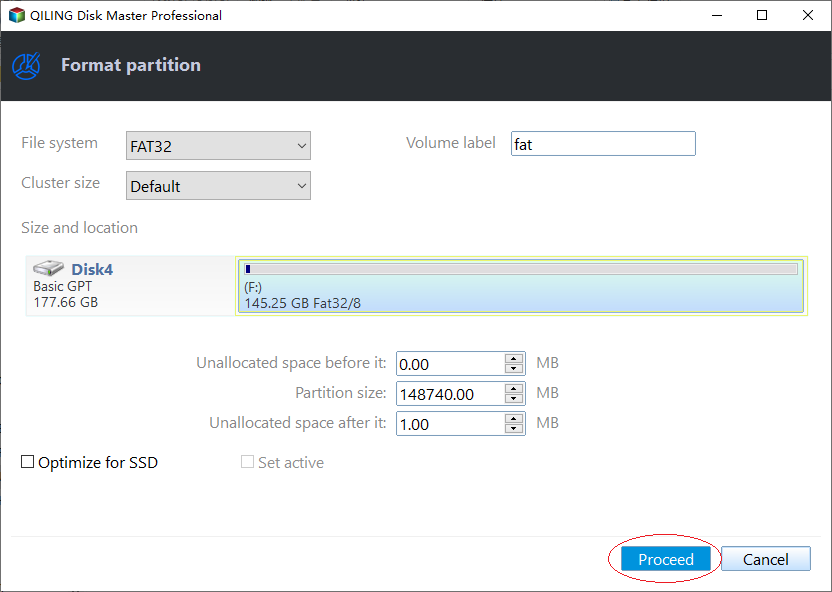
Step3. Finally, click Proceed button to execute all operations.
You can either format every partition on your hard drive or initialize the disk directly, but be aware that this will delete all data. If you have important files, back them up first. Alternatively, you can create a WinPE bootable USB to format your system partition using Qiling Disk Master, which is a safer and more efficient option.
Conclusion
For home and office usage, DiskPart is a good option for formatting disk partitions, but Qiling Disk Master is also a great alternative with simpler syntax and a user-friendly GUI mode. It can even format 32GB+ drives to FAT32, which is not possible with DiskPart.
For small and medium-sized businesses, Qiling Disk Master Server is the best choice for optimizing server performance. It supports various Windows Server versions, including 2003, 2008, 2012, 2016, 2019, 2022, SBS 2003, 2008, and 2011, as well as Windows XP, Vista, 7, 8, 8.1, 10, and 11, making it a reliable partition software for your servers.
Related Articles
- 3 Safe Ways to Format SSD With No Harm to It
This guide explains 3 Safe Ways to Format SSD With No Harm to It with clear steps, key checks, and practical tips. - MMC Format Tool: SD Card Formatter Free Download [2024 Full Guide]
If you're looking for tools to format your USB or SD cards, this post provides an introduction to MMC Format Tool, which allows you to format multimedia cards, SD cards, and USB drives. - How to Create a (New) Partition in Windows 8? [QuickStart]
Learn how to Create a (New) Partition in Windows 8 with clear steps, key checks, and practical tips. - How To Check Storage on PC [Step-by-Step Guide]
Storage is an important value for monitoring the status of the computer. This article aims to teach users how to check storage on PC. - What Is A Typical Symptom That Might Indicate the MBR Record Is Damaged? Fix MBR in Windows 10/11
Repair a damaged MBR in Windows 10 or 11 and check boot records before changing partition settings. - Why Do Games Take Up So Much Space | Free Up PC Space
This guide explains Why Do Games Take Up So Much Space | Free Up PC Space with clear steps, key checks, and practical tips.
Products
Articles & Tutorials
- Data Recovery
- Data Backup
- File Recovery
- File Backup
- File synchronize
- System Backup and Restore
- Disk and Partition Clone
- Technical articles
- Disk Master Help
- Windows Deleted File and Disk Recovery Tutorials
- Windows File and Data Recovery Tutorials
- More Windows Tutorials for Install, Security, Files, and PC Tips
- Windows Boot, Repair, and Recovery Environment Tutorials
- Windows Backup Tutorials
- Windows Restore Tutorials
- Windows Clone and Migration Tutorials
- Windows Server Backup, Recovery, and Management Tutorials
- Windows Disk, Partition, and Storage Management Tutorials