Hide a Partition in Windows Safely
Hiding a partition can protect recovery files, reduce clutter, or prevent accidental edits. It should not be used as the only security method for sensitive data.
Understand the problem
A hidden partition still exists on the disk. Removing a drive letter hides it from File Explorer, but Disk Management and partition tools can still see it.
- Confirm the exact disk, partition, file system, Windows version, boot mode, or sync setting before making changes.
- Back up or recover important files before wiping, formatting, converting, cloning, reinstalling, or repairing Windows.
- For boot and update tasks, prepare recovery media and check BIOS or UEFI settings before deeper repair.
Use Windows built-in tools
Use drive letter removal for simple hiding.
- Open Disk Management.
- Right-click the partition and choose Change Drive Letter and Paths.
- Remove the drive letter to hide it from File Explorer.
- Do not remove letters from the Windows system partition.
- Add a drive letter again when you need access.
Use Qiling tools for guided steps
 Qiling Disk Master
Hide or manage partitions with a clear disk map before changing drive visibility.
Function. Back up important files first
Step 1. Connect an external drive or choose a safe network location with enough free space for files on the partition you plan to hide.
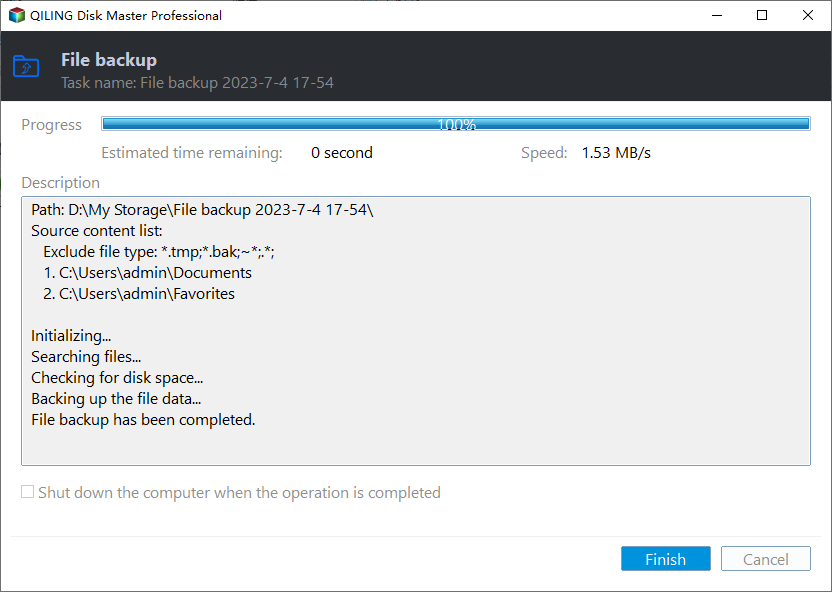
Step 2. Open Qiling Disk Master and choose File Backup. This protects files before cleanup, partition changes, repair, or system updates.

Step 3. In the tree control, select the files and folders that must be protected. Back up important files before changing drive letters or partition visibility

Step 4. Choose a destination that is not affected by the operation, such as another disk, external drive, NAS, or shared folder.

Step 5. Review the source and destination, then click Proceed. Wait for the backup to finish before continuing.
Function. Resize or move the partition with preview
Step 1. Open Qiling Disk Master and identify the selected partition by drive letter, capacity, file system, and position.
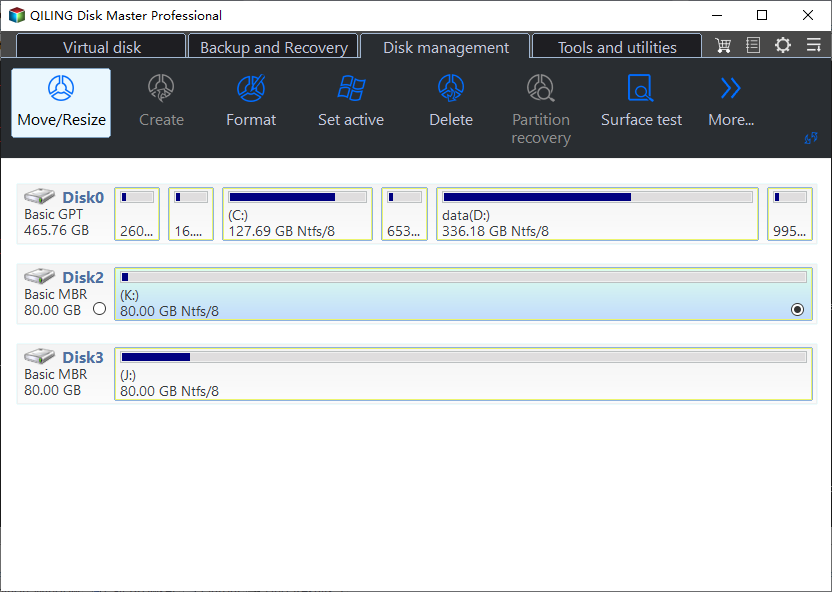
Step 2. Select the partition and click Resize/Move. Check where unallocated space is located before changing the size.
Step 3. Drag the border or enter the size to review the partition without changing its data. Leave enough space for Windows, updates, and applications.
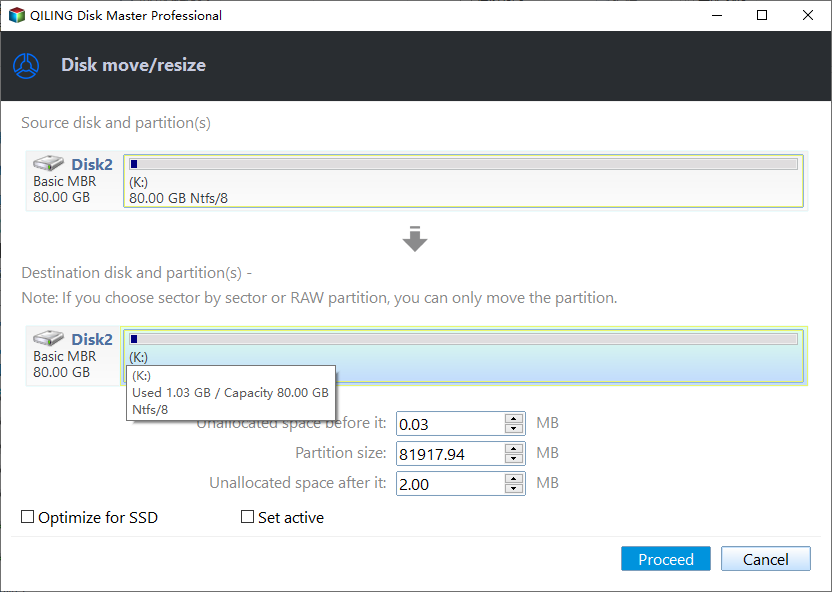
Step 4. Review the pending operations and click Proceed only after confirming the correct disk and partition.
Check the result
After hiding the partition, open File Explorer and confirm it no longer appears. Recheck Disk Management to ensure the partition still exists.
Related Articles
- Hide a drive in Windows 7
Compare removing a drive letter with merely hiding it in Explorer. - Set Active Partition
Understand partition status before changing boot or visibility settings. -
Hide System Reserved Partition
Hide system-related partitions without deleting boot files.
Products
Articles & Tutorials
- Data Recovery
- Data Backup
- File Recovery
- File Backup
- File synchronize
- System Backup and Restore
- Disk and Partition Clone
- Technical articles
- Disk Master Help
- Windows Deleted File and Disk Recovery Tutorials
- Windows File and Data Recovery Tutorials
- More Windows Tutorials for Install, Security, Files, and PC Tips
- Windows Boot, Repair, and Recovery Environment Tutorials
- Windows Backup Tutorials
- Windows Restore Tutorials
- Windows Clone and Migration Tutorials
- Windows Server Backup, Recovery, and Management Tutorials
- Windows Disk, Partition, and Storage Management Tutorials