NTFS File System Repair: Check Errors and Recover Files Before Formatting
An NTFS problem may appear as a corrupted-directory message, an inaccessible volume, or a prompt to format the disk. These symptoms do not all call for the same repair. First establish whether Windows can still read the file system and whether the hardware is stable.
NTFS repair can change file-system structures. If the files are valuable and no backup exists, protecting or recovering them takes priority over making the drive mount again.
Identify the volume without accepting a format prompt
- Cancel any unexpected format request. Open Disk Management and record the affected disk's capacity, volume letter, and file-system status.
- If the volume is encrypted, unlock it using the proper credentials before interpreting access failures as corruption.
- Check the external cable and power if relevant. Stop repeated reads if the disk clicks, disconnects, or becomes increasingly unresponsive.
- If files still open, copy essential folders to another physical disk and verify the copies before attempting a repair.
A missing drive letter on an otherwise healthy data volume is not necessarily NTFS damage. An entirely unallocated disk suggests a partition-level problem. Boot-code repair does not reconstruct an NTFS directory or recover a deleted file.
Check a stable volume that is still recognized as NTFS
Open This PC, right-click the confirmed volume, and choose Properties > Tools > Check. Follow the scan result. If Windows requests an offline repair, close applications and plan the interruption.
Alternatively, on Windows 10/11 open Command Prompt as administrator and use chkdsk E: /scan for a recognized NTFS volume, substituting its correct letter. After protecting data, chkdsk E: /f can perform required logical repairs when the volume can be locked. A system-volume check may need a scheduled restart.
Do not keep retrying CHKDSK if it says the drive is RAW. Do not assume adding more switches makes a physically failing disk safe.
Recover files when ordinary access is unavailable
Deep Data Recovery can be used to look for recoverable files on a detected, stable source. Install it on a healthy drive and prepare a different destination for recovered files. Recovery is not guaranteed, especially after overwriting, SSD TRIM, or physical damage.
Step 1. Open Deep Data Recovery and choose Fast Scan as the search mode.
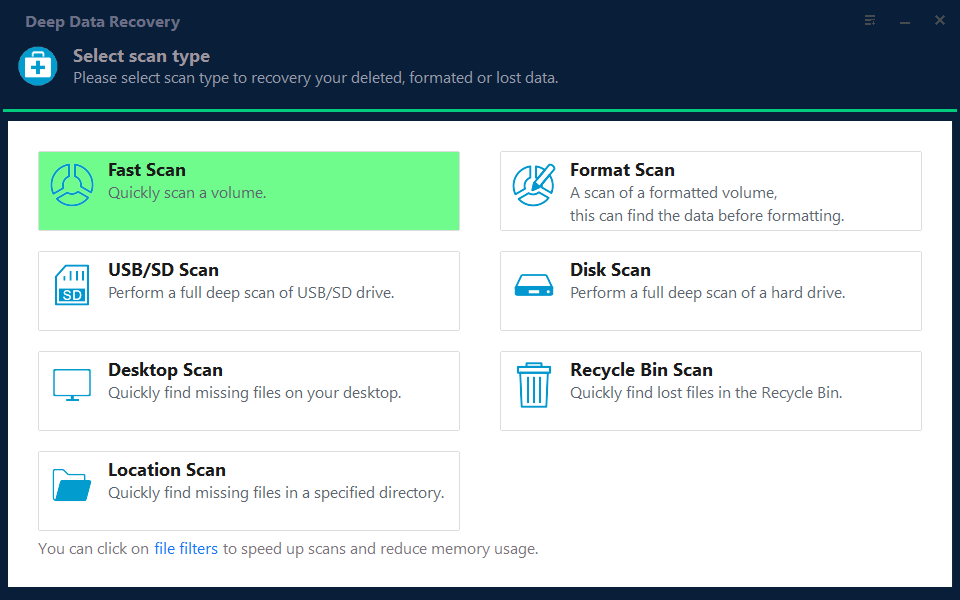
Step 2. Select the affected volume, or the matching disk if the partition is no longer listed. Confirm capacity and location rather than selecting the healthy recovery destination.

Step 3. Start the scan and wait for the results. If important files are not found, assess the software's other supported search options; do not treat an empty initial result as proof that formatting is safe.
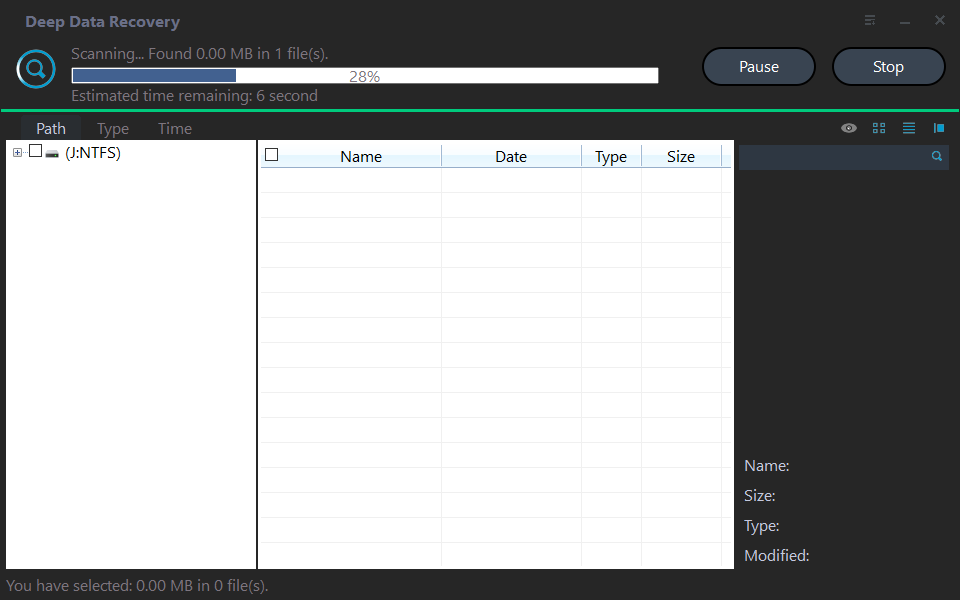
Step 4. Browse folders and preview supported files. Select the required items, then click Recover and choose a destination on another healthy disk.

Step 5. Open recovered documents, photographs, and archives from the destination. Check important folders before approving any format of the source.
Reformat only after recovery and hardware checks
For a data volume whose contents are now safely recovered, reformatting can create a fresh NTFS file system. It removes the old contents and is not an in-place recovery operation.
- In Disk Management, identify the original affected data volume by disk number and capacity.
- Right-click that volume, choose Format, select NTFS, and review the label and allocation settings.
- Confirm the data-loss warning only after checking the recovery copy. Do not format a system, EFI, or recovery partition through this data-volume workflow.
- Copy a small sample back, safely reconnect an external drive if applicable, and verify the sample before restoring the remaining files.
If errors recur, replace or diagnose the device instead of repeatedly formatting it. Keep the separate recovery copy until the replacement or repaired storage has been proven reliable.
Related Articles
- Recover Files Before Reusing a RAW Drive
Separate file recovery from creating a fresh NTFS file system. - Bad Sectors and CHKDSK
Understand the limits of logical repair on damaged storage.
Products
Articles & Tutorials
- Data Recovery
- Data Backup
- File Recovery
- File Backup
- File synchronize
- System Backup and Restore
- Disk and Partition Clone
- Technical articles
- Disk Master Help
- Windows Deleted File and Disk Recovery Tutorials
- Windows File and Data Recovery Tutorials
- More Windows Tutorials for Install, Security, Files, and PC Tips
- Windows Boot, Repair, and Recovery Environment Tutorials
- Windows Backup Tutorials
- Windows Restore Tutorials
- Windows Clone and Migration Tutorials
- Windows Server Backup, Recovery, and Management Tutorials
- Windows Disk, Partition, and Storage Management Tutorials